

Fleet service plans
Define a service interval once and let Yipii create a real schedule for every vehicle it covers — and know when to reach for a plan over a schedule.
"Every van gets an oil change every 10,000 km" is one rule, but forty vans need forty countdowns — because each one reaches 10,000 km on its own day.
A fleet service plan holds the rule once and materialises a real service schedule for every asset it covers. Each vehicle then counts down against its own odometer, and you manage the rule in one place.
Find them under Fleet Management → Service Library → Fleet Service Plans.
The fastest way in
You do not have to build a plan from scratch. Recommended plans at the top of the screen holds six ready-made templates — Oil & Filter Change, Tyre Rotation, Brake Inspection, Annual Roadworthiness (VRT), Air Conditioning Service and Major Service — each with a sensible default interval.
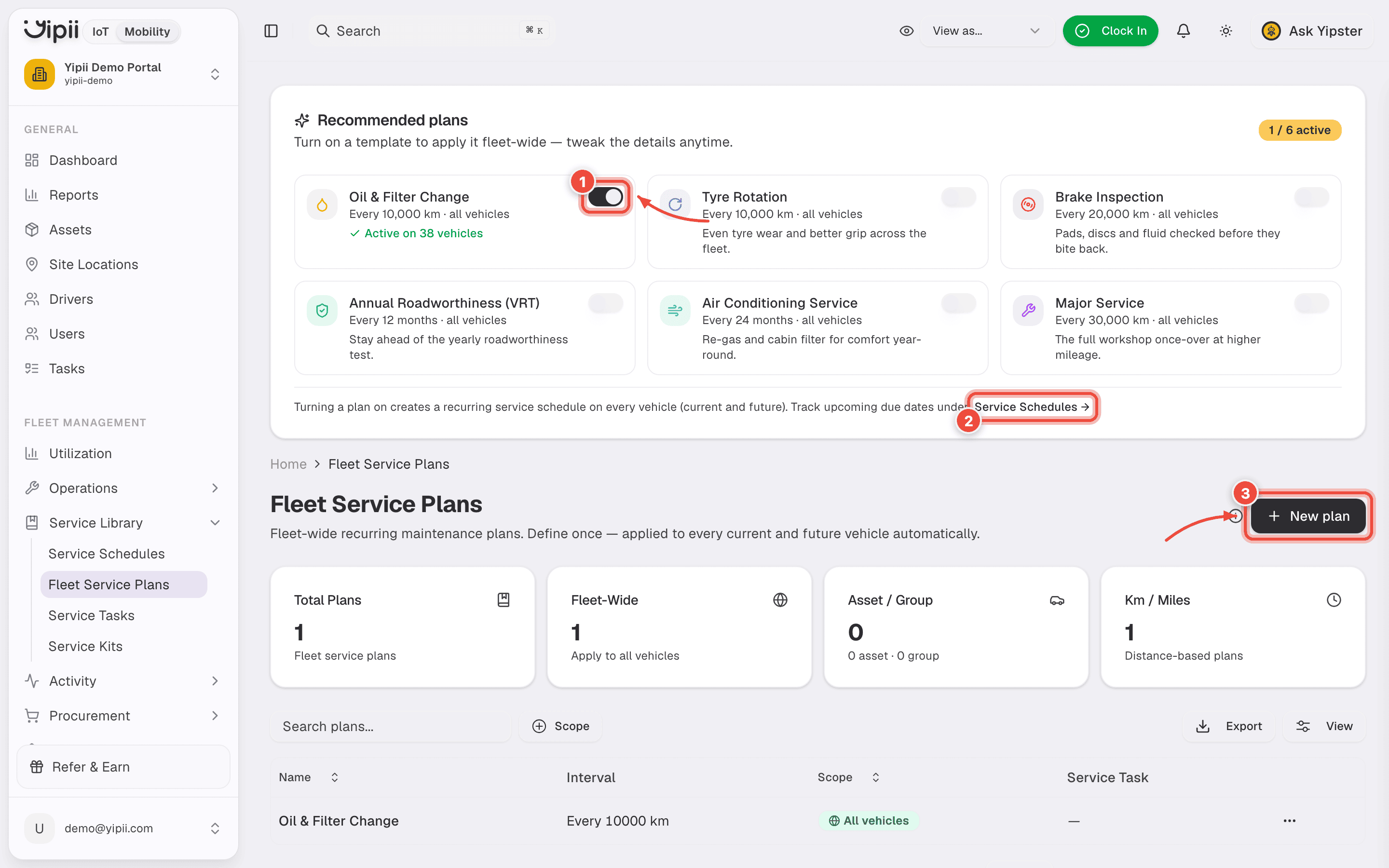
- The toggle turns a template on fleet-wide. Oil & Filter Change here reads Active on 38 vehicles — one switch, every vehicle covered, including ones you buy next year.
- Service Schedules is where the result shows up. Turning a plan on does not just record a rule; it creates a recurring schedule on every vehicle, and that is the screen where due dates appear.
- New plan builds one from scratch, for intervals the templates do not cover.
Turn on the two or three templates that match how you already service vehicles before writing anything custom. The defaults are closer to most fleets than a blank form is.
Plan or schedule?
This is the distinction that trips people up, and getting it wrong is the most common service-schedule support question.
| Service schedule | Fleet service plan | |
|---|---|---|
| Applies to | Exactly one asset | Many assets, by rule |
| Created by | You, per vehicle | The plan, automatically |
| Edit the interval | On that vehicle only | Once, on the plan |
| Counts down against | That vehicle's odometer | Each covered vehicle's own odometer |
A service schedule requires an asset — there is no "leave it blank for the whole fleet" option, and saving without one is rejected. Fleet-wide is what plans are for.
What a plan covers
Choose one of three targets:
- A single asset — a rule you expect to extend later.
- A group — the usual choice. Covers everything in that asset group.
- The whole account — every asset in the tenant.
Set the interval (value and unit — distance in km/miles, or day/week/month/year)
and optionally link a service task, so completing a matching work order resets the
schedule it created.
What happens when you save
The plan writes a real service schedule per covered asset. Those schedules behave exactly like ones you create by hand: they appear in the schedules list, show kilometres remaining, raise an issue when overdue, and reset when the work is done.
Each child schedule anchors to its own vehicle's current odometer at the moment it is created, plus the interval — not to the last service. On a used vehicle that has not been serviced recently, this dates the first cycle. Check the odometers before creating a plan over an existing fleet.
The plan dashboard
Each plan has its own dashboard grouping every covered vehicle into four states:
| State | Meaning |
|---|---|
| Overdue | Past due by distance or date. Open by default — this is the list to act on |
| Due soon | Inside the warning band (1,000 km, or 7 days) |
| On track | Nothing needed |
| Paused | Schedule inactive, so the hourly sweep skips it |
This is the fastest way to answer "which vans are behind on their oil change" without filtering the whole schedules list.
Disabling versus deleting
These do different things to the schedules the plan created, which matters because one of them destroys history.
Disable keeps the plan and its record:
- Child schedules that have never been serviced are deleted — nothing of value is lost.
- Child schedules that have been serviced are paused, so their service history survives.
Re-enabling is safe to repeat: a uniqueness constraint on plan and asset means a second attempt cannot create duplicate schedules.
Delete removes the plan:
- Never-serviced children are deleted.
- Serviced children are detached — they survive as ordinary per-asset schedules with no plan attached, and keep their history.
Prefer disable. Delete only when the rule itself was a mistake.
If it doesn't work
| Symptom | Cause | Fix |
|---|---|---|
| Saving fails with a validation error | Every target except whole account needs a target selected | Pick the asset or group, or switch the target to the whole account |
| A new vehicle isn't covered | Plans materialise against the target when saved | Add the vehicle to the covered group, or re-save the plan |
| Schedules exist but never go due | The covered assets have no moving odometer | Connect a tracker that reports distance, or add odometer readings |
| First service lands far too late | Children anchor to each vehicle's current odometer at creation | Correct the odometers, then adjust the affected schedules |
| Disabling a plan lost some schedules | Never-serviced children are deleted by design; serviced ones are paused | Re-enable the plan to recreate them |
| A vehicle shows as paused and won't fire | Its schedule is inactive — the sweep skips inactive schedules | Re-enable it, or the plan that owns it |
Related
- Service schedules — how a single countdown works, and when it fires.
- Servicing by distance — the whole workflow end to end.
- Work orders — completing one resets the schedule that raised it.
- Service tasks — the shared job definitions plans link to.