

Inspections
Run digital vehicle inspections from a reusable template with photo evidence — and let a failed item raise the issue and the work order by itself.
An inspection is a checklist run against one asset by one person on one date. You build the checklist once as a template, then run it as often as you need.
Find them under Fleet Management → Operations → Inspections.
Reading the list
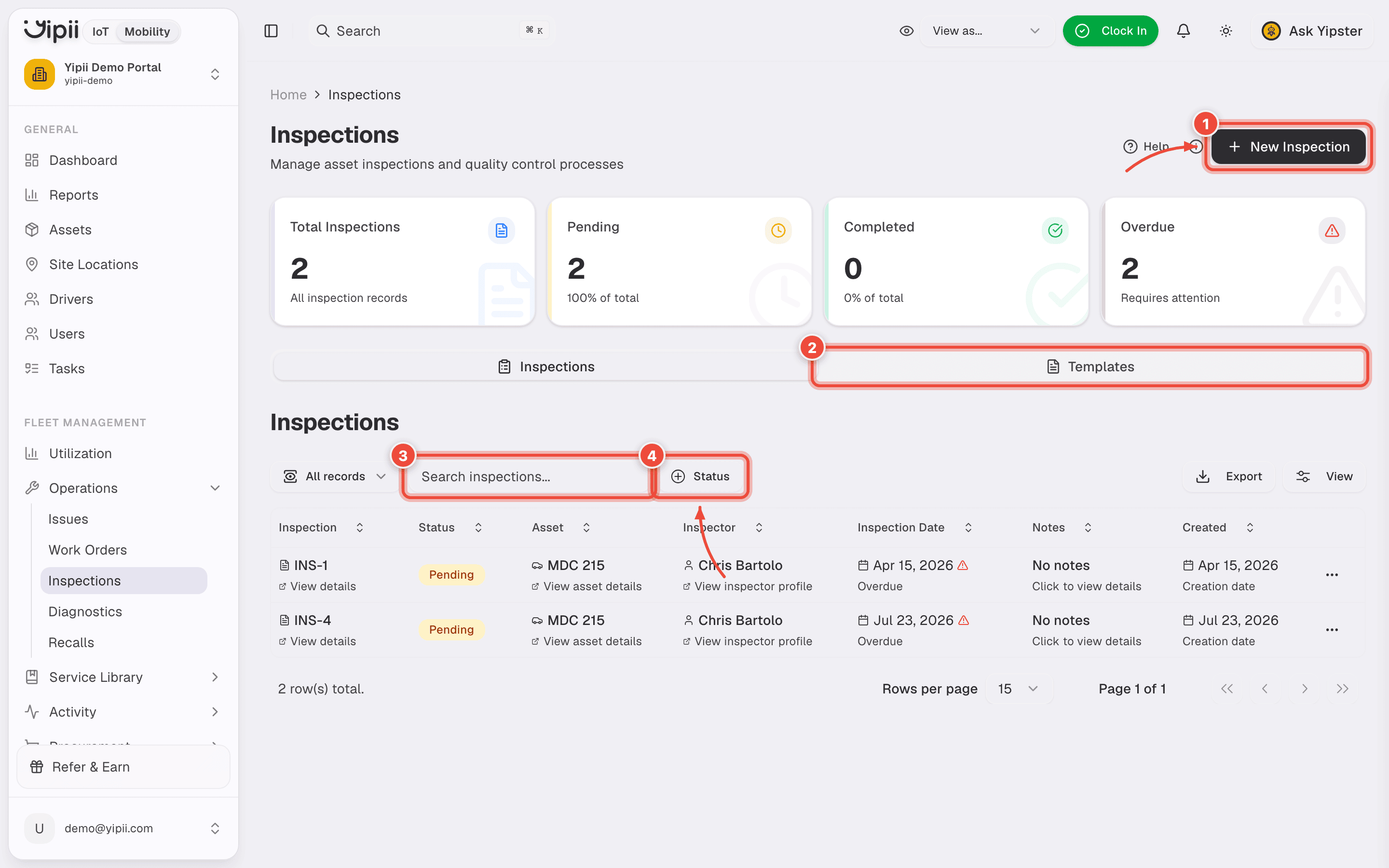
- New Inspection runs a checklist now. It needs a template to exist first.
- Templates is where the checklist is authored. This is the step people miss — the Inspections tab only lists runs that have already happened, so a first visit looks empty even when everything is set up correctly.
- Search inspections matches on the record, the asset and the inspector.
- Status filters the list — it is the toolbar filter, not the sortable Status column.
The cards above count Total Inspections, Pending, Completed and Overdue. Overdue means the inspection date has passed with the inspection still open, and it is the one worth watching.
List View
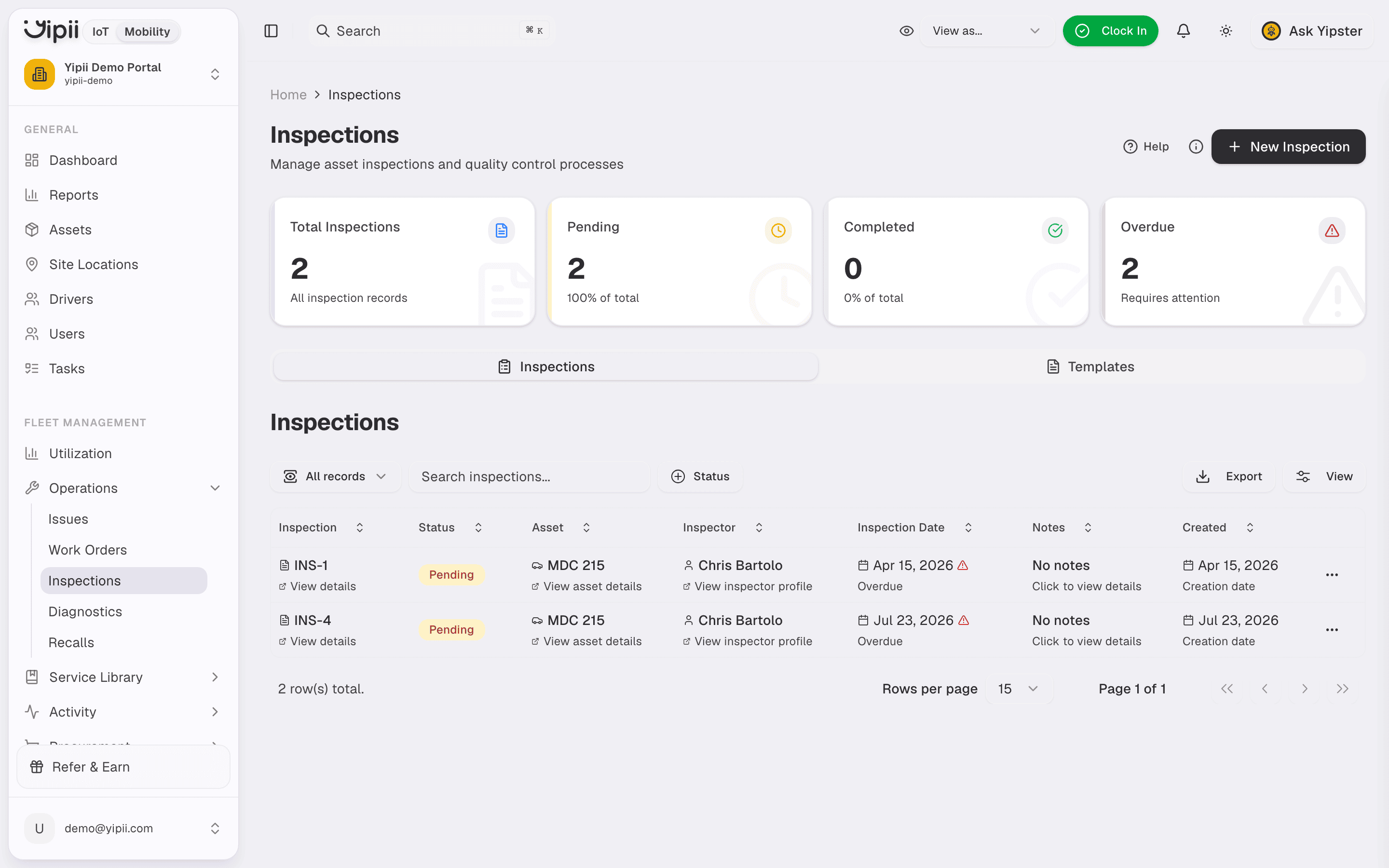
The Inspections page is the central hub for all inspection activity.
Columns:
- Inspection ID
- Asset
- Inspector
- Inspection Date
- Status
- Template
- Created Date
Filters and search:
- Filter by Status: Pending, In Progress, Completed, Failed, Cancelled
- Search by asset, inspector, or template name
Statistics dashboard (top of page):
- Total inspections
- Completed
- Failed
- Pending
Primary actions:
- Start Inspection or + Add Inspection — begin a new inspection
- Templates — navigate to the template management section
Creating an Inspection
Click Start Inspection or + Add Inspection to open the tabbed creation form.
Tab 1 — Details
- Asset (searchable select, required) — the vehicle being inspected.
- Inspector (searchable select, required) — the user performing the inspection.
- Template (searchable select, optional) — the predefined checklist to follow. Leaving this blank creates an ad-hoc inspection.
Click Save to create the inspection. It appears in the list and is ready to conduct.
Inspection Template Builder
Templates are the heart of a consistent inspection program. Build them once, reuse them forever.
Navigate to Inspections → Templates to manage templates.
Creating a Template
The builder has three parts, and that is the whole form.
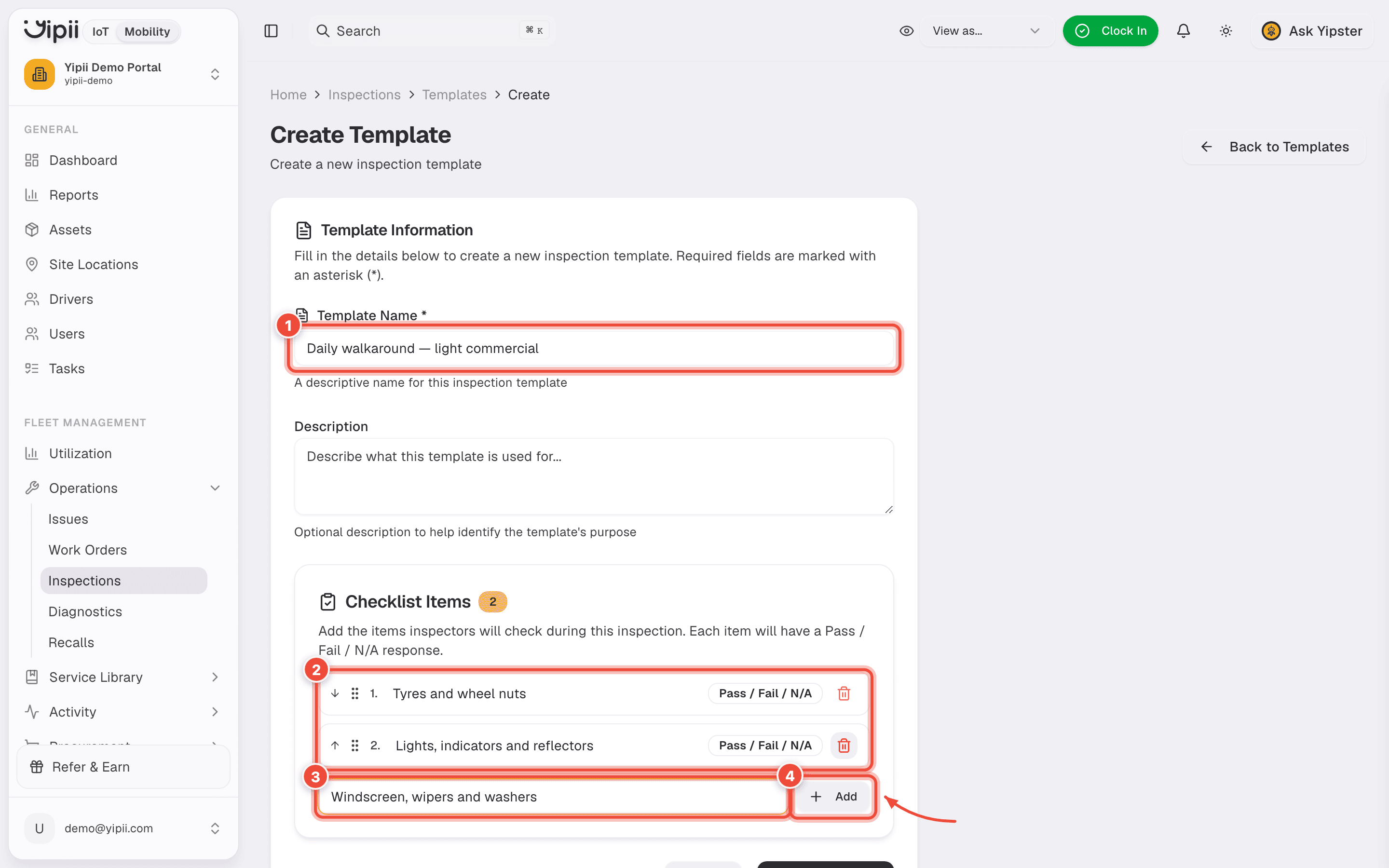
Template Name (1) is the only required field. Use something an inspector will recognise on a phone at 06:00 — "Daily walkaround — light commercial", "DOT annual".
Description is optional and shows in the library, so a good one saves your inspectors guessing which template to run.
For the checklist, type an item into the field (3) and press Enter or click Add (4). It appends to the list above (2), numbered, each carrying a Pass / Fail / N/A response.
Reorder with the ↑ / ↓ buttons on each row and delete with the trash icon; numbering updates itself either way. Create Template at the foot of the page saves the template and its checklist in one go.
Adding an item is local until you save. Navigating away from a part-built checklist loses it — there is no draft.
Tip: Start with a small, focused template (10–20 items). Long checklists cause inspector fatigue and reduce data quality.
Phrase items so Pass always means good. "Tyres: condition and pressure" works; "Are the tyres worn?" reads ambiguously when marked Pass.
Managing existing templates
The row menu in the templates library carries Edit template, Duplicate template and Delete template. Duplicate is how you make variations — "Pre-trip — truck" from "Pre-trip — van" — without retyping the checklist. Editing loads the current items so you can change them in place.
DVIR Mode
Templates can be flagged as DVIR (Driver Vehicle Inspection Report) for US-DOT compliance. A DVIR template shows an amber DVIR badge in the templates list, with its pre-trip / post-trip designation beside it.
The DVIR flag is not on the template builder — the form has only name, description and checklist items. To have a template marked as DVIR, ask Yipii support.
Marking a template as DVIR is the first step toward stricter sign-off rules:
- Defects must be recorded
- A mechanic must certify any corrections
- The vehicle's safe-to-operate state must be explicitly affirmed
The full sign-off workflow (driver signature, mechanic certification, defect tracking) is delivered in a follow-on phase. For now, the flag persists and surfaces in the UI so you can plan and pilot DVIR templates ahead of the full enforcement layer.
Conducting an Inspection
Desktop flow:
- Click an asset or inspection in the list to open the detail view.
- The template's checklist items display as a list.
- For each item, select Pass, Fail, or N/A.
- Add per-item notes if needed.
- Attach photos per item — strongly recommended for any failure.
- Add the inspector signature at the bottom of the form.
- Click Submit. Status changes to Completed or Failed depending on item results.
Pass / Fail / N/A
- Pass — item meets requirements, no action needed.
- Fail — item requires attention. Consider creating a work order immediately.
- N/A — item not applicable to this asset or inspection context.
Failed Inspections
When an item fails, the platform helps you document and resolve the issue quickly.
- Automatic work order creation — automations can spin up a work order the moment a failed item is submitted.
- Severity tracking — classify failures as Critical, Major, or Minor.
- Photo documentation required for failures (enforceable via template rules).
- Notes section to describe the issue in detail.
- Linked work order appears in the inspection detail, closing the loop between inspector and technician.
Warning: A failed inspection with no attached photo is hard to defend during an audit. Treat photos as mandatory for any failure, even minor ones.
Scheduled Inspections
Set up recurring inspections to stay ahead of regulatory deadlines.
- Recurring schedules — daily, weekly, or monthly cadences.
- Auto-assign to rotating inspectors so the workload spreads evenly.
- Reminder notifications before each due date.
- Overdue indicators on the dashboard surface missed inspections immediately.
Common recurring patterns:
- Daily pre-trip inspections for drivers
- Weekly walkarounds for high-use assets
- Monthly equipment safety checks
- Quarterly DOT or regulatory inspections
Inspection History
Every inspection is preserved as a permanent record.
- Full audit trail per asset — open any asset to see its inspection history.
- Chronological listing of previous inspections.
- Filters: by template, inspector, pass/fail status, or date range.
- Export as PDF for compliance records, insurance audits, or legal requests.
Compliance Features
Inspections are designed to hold up under regulatory scrutiny.
- DOT inspection templates covering standard regulatory checkpoints.
- Regulatory timestamp tracking on every item and submission.
- Inspector certifications tracking — record which inspectors are qualified for which inspection types.
- Digital signatures with timestamp on every completed inspection.
- Tamper-evident records — completed inspections are locked and cannot be edited silently.
Permissions
| Role | Permissions |
|---|---|
| Admin | Full CRUD on inspections and templates, manage schedules, view reports |
| Fleet Manager | Full CRUD on inspections and templates, manage schedules |
| Inspector | Create and conduct inspections, view all inspections |
| Mechanic | View inspections; create work orders from failed inspections |
| Driver | Conduct pre-trip inspections assigned to them |
| Reports Only | View inspections and export reports (read-only) |
Best Practices
- Start with pre-built templates and customize as you learn what matters for your fleet.
- Require photos for any failed item — no exceptions.
- Use scheduled inspections for anything tied to regulatory compliance.
- Review failed items weekly in team meetings to identify repeat issues and training gaps.
- Export completed inspections monthly or quarterly for your audit archive.
- Keep templates focused — split long checklists into multiple smaller templates rather than one monolithic form.
- Update templates as regulations or internal standards change; archive outdated versions rather than editing historical data.
FAQ
Can I use the same template for multiple assets? Yes. Templates are asset-agnostic by default. Assign any template to any asset when creating an inspection. You can also restrict templates to specific asset types if you want tighter guardrails.
What happens when an inspection fails? The inspection status is set to Failed. Depending on your automations, a work order may be created automatically for each failed item, complete with the inspector's photos and notes. A linked work order appears in the inspection detail.
Can drivers conduct their own pre-trip inspections? Yes. Drivers have permission to conduct pre-trip inspections assigned to them. They can complete the checklist, capture photos, and sign on their mobile device.
How do I export inspection records? Open any completed inspection and use the Export as PDF action. For bulk exports, use the filter and export tools in the Inspections list view.
Can I make inspection items required? Items built into a template are expected to be answered (Pass / Fail / N/A). Photo requirements and signature requirements are enforced at submission — an inspector cannot submit until all mandatory evidence is attached.
Related Features
- Assets — link inspections to specific assets
- Work Orders — auto-create maintenance tasks from failed inspections
- Automations — trigger work orders, notifications, and alerts from inspection events
- Reports — analyze inspection trends, pass rates, and overdue items
Need Help?
Contact your organization administrator or the Yipii support team for assistance configuring templates, schedules, or permissions.