

Service schedules
How Yipii decides a service is due — by distance, by date, or whichever comes first — where the odometer baseline comes from, and what fires when.
A service schedule is a countdown attached to one asset. When the countdown reaches zero, Yipii raises an issue and tells your admins.
This page explains how the countdown works and why it sometimes doesn't fire when you expect. For the click-by-click setup, see Set up a service schedule.
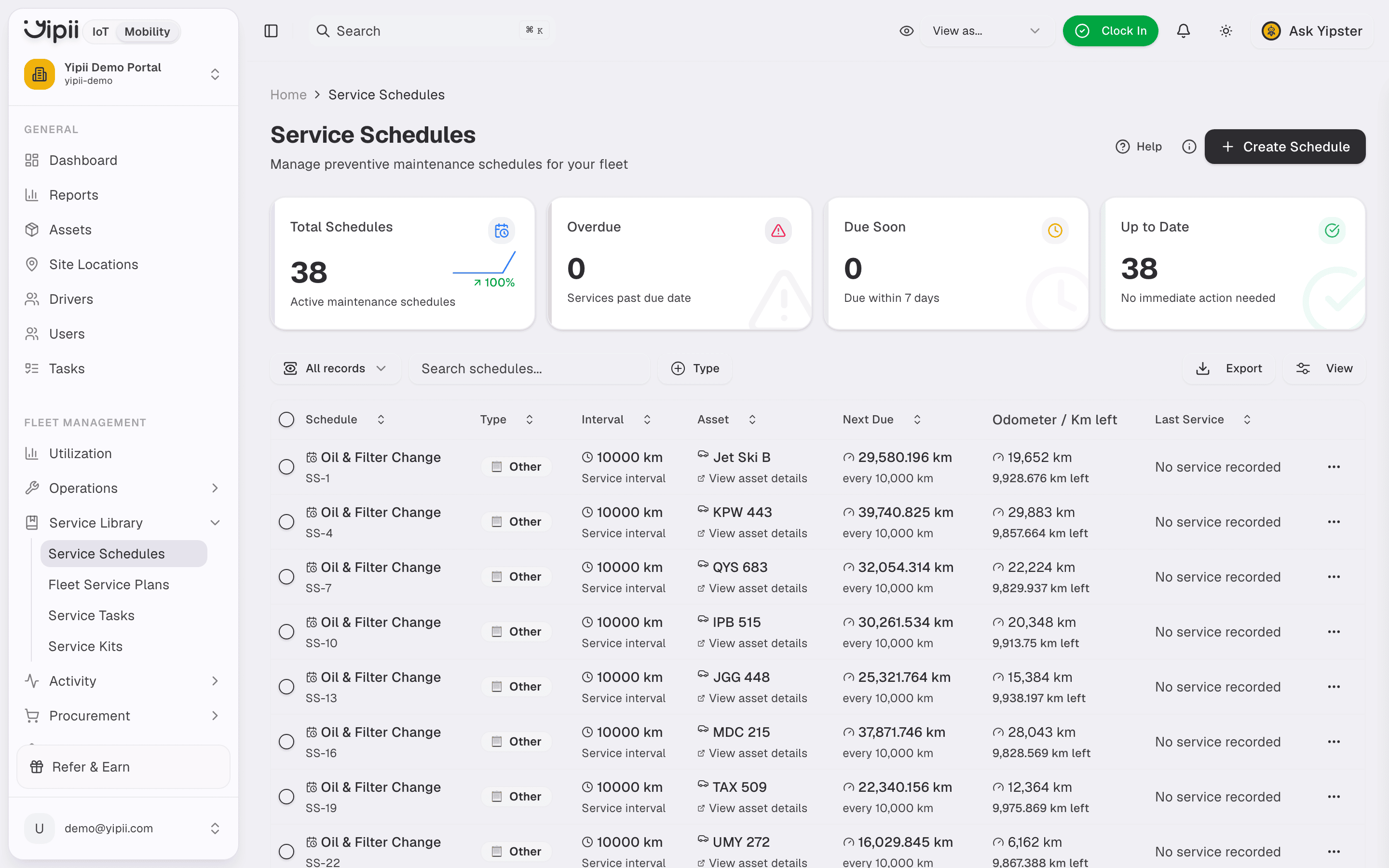
Find them under Fleet Management → Service Library → Service Schedules.
Reading the list
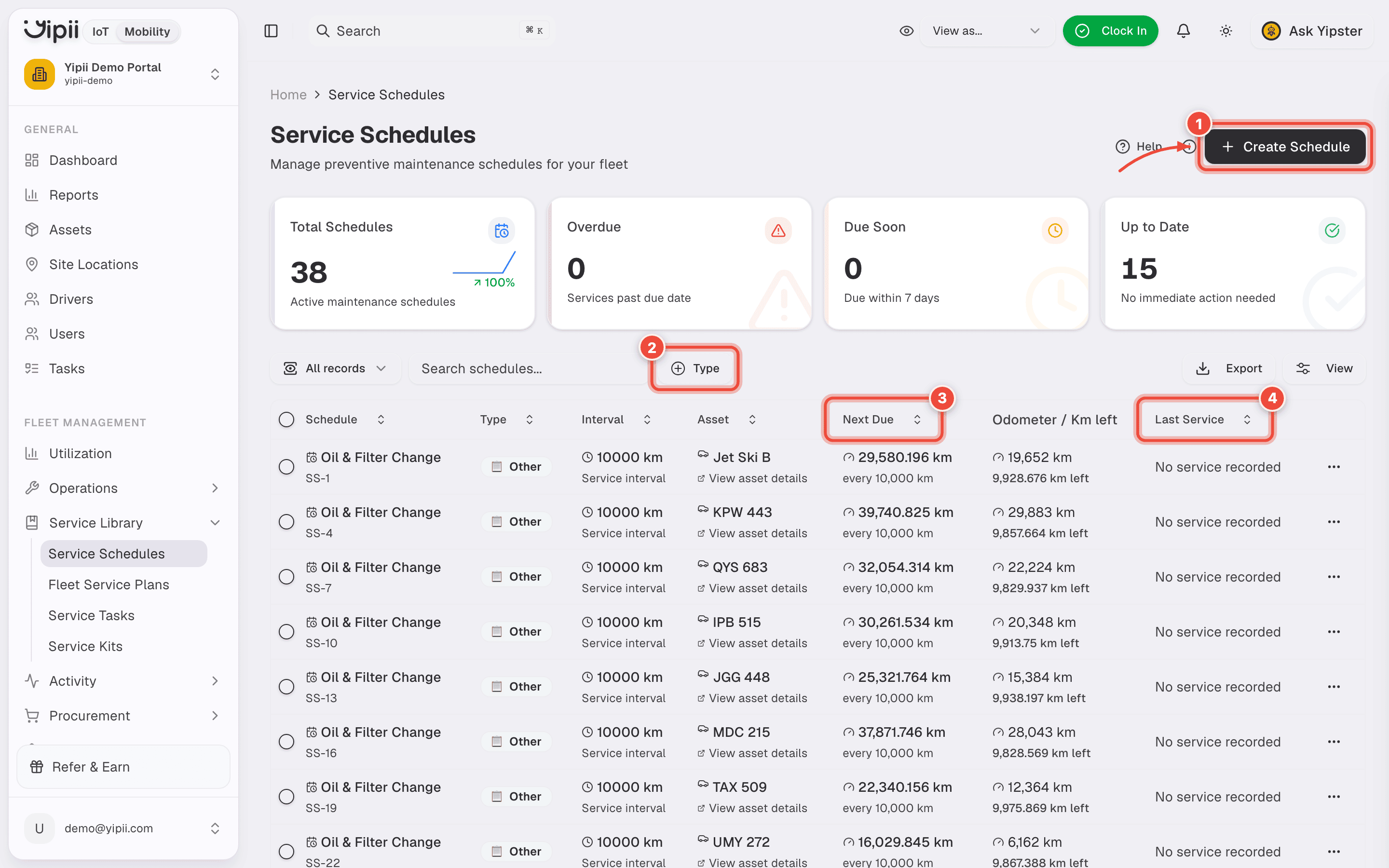
- Create Schedule — one schedule, one asset. To cover the whole fleet in one go, use a fleet service plan instead.
- Type filters by what the schedule counts down on.
- Next Due is the answer the whole feature exists to produce — a date, an odometer reading, or both. Sort on it and the top of the list is your work queue.
- Last Service reads No service recorded until a service is logged against the asset. That is not a fault, but it does mean the distance countdown is running from the baseline rather than from real work.
The four cards above the table count Total Schedules, Overdue (past due date), Due Soon (within 7 days) and Up to Date. Due Soon is a fixed 7-day window, not something you configure per schedule.
The two countdowns
A schedule counts down on distance, on time, or on both.
| Basis | Interval units | Counts down against |
|---|---|---|
| Distance | km, kilometers, miles | The asset's current odometer |
| Time | day, week, month, year (singular or plural) | The calendar, in Europe/Malta time |
There is no engine-hours basis. Schedules for generators and plant that wear by run-time have to be approximated with distance or time.
Whichever comes first
You don't need two schedules to get "every 10,000 km or every 12 months". Set the primary interval to the distance, then add a secondary time interval on the same schedule. Yipii fires on whichever countdown hits zero first, and the schedule is treated as one job with one history.
The secondary interval only works in that direction — distance primary with a time backstop. A time-primary schedule has no secondary distance interval.
When a schedule fires
A background job sweeps every active schedule once an hour. For each one:
- Due soon — the schedule is inside its warning band. Yipii emits a
service.due_soonautomation event. Nothing else happens; no issue, no email. - Overdue — the countdown has passed zero. Yipii creates an issue against the asset
with source
service_schedule, and notifies the tenant's admins.
The warning bands are fixed and cannot be changed per schedule:
| Basis | Due-soon band |
|---|---|
| Time | 7 days before the due date |
| Distance | 1,000 km before the due odometer |
Overdue raises one open issue per schedule, not one per hourly run. Close or resolve that issue and the schedule can raise a fresh one the next time it goes overdue.
One schedule, one asset
Every service schedule belongs to exactly one asset. There is no "leave the asset blank to apply fleet-wide" option — saving without an asset returns a validation error.
For a rule that applies across the fleet, use a Fleet Service Plan instead. A plan holds the interval once and materialises a real per-asset schedule for every asset it covers, so each vehicle still counts down against its own odometer. Disabling the plan removes the schedules that were never serviced and pauses the ones that were.
Where the odometer baseline comes from
This is the single most common source of confusion, so it is worth being precise.
When you create a distance-based schedule, Yipii sets the due odometer to:
It does not ask what the odometer read at the last service. If you add a "every 10,000 km" oil change to a van that already shows 84,000 km and was last serviced at 80,000 km, the schedule becomes due at 94,000 km — 6,000 km later than it should. Correct the asset's odometer first, or edit the schedule's due figure after saving.
The list shows kilometres remaining per schedule, which is the fastest way to spot a baseline that anchored wrong.
Completing a service
Two routes close the loop:
- Log the service directly on the schedule when the job needs no paperwork.
- Complete a linked work order — if the work order references the same service task, the schedule resets on completion.
Either way the last-service values roll forward and the countdown restarts from the interval. Every reset is kept in the schedule's history for warranty and audit.
If it doesn't work
| Symptom | Cause | Fix |
|---|---|---|
| Saving a new schedule fails with a validation error | No asset selected — an asset is required | Pick an asset, or create a Fleet Service Plan if you meant it fleet-wide |
| A distance schedule never goes due | The asset's odometer isn't moving, so the countdown can't advance | Add odometer entries manually, or connect a tracker that reports distance |
| A distance schedule is due thousands of km late | The baseline was taken from a stale odometer at creation | Fix the asset's current odometer, then edit the schedule's next-due figure |
| Nothing fires at all on one schedule | The schedule is inactive — the hourly sweep skips it entirely | Re-enable the schedule, or the fleet plan that owns it |
| A new issue appears every hour for the same schedule | Not expected — the sweep only opens an issue when none is already open | Check whether the previous issue was deleted rather than resolved |
| "Due soon" warns too late on an annual job | The 7-day band is fixed and not configurable | Set the interval 7 days shorter, or track long-lead jobs with a reminder instead |
Related
- Set up a service schedule — the click-by-click walkthrough, with video.
- Work orders — how completing one resets the schedule.
- Issues — where overdue schedules land, and who gets told.
- Service tasks — the shared job definitions that link schedules to work orders.