

Perform an inspection
Run a vehicle through an inspection checklist item by item, record what failed, and complete the record so the follow-up work raises itself.
This is the daily bread of fleet safety: an inspector picks a vehicle, works through the checklist marking each item, and completes the inspection so it's on the record. This walkthrough uses a template so the checklist arrives pre-loaded — see Create an Inspection Template if you haven't built one yet.
Every screenshot shows the same inspection in desktop and mobile views — flip the tab on any step.
Watch it first
Watch the whole flow in under a minute, then follow the steps below.
What you'll do
1. Open Inspections
Sidebar → Operations → Inspections. The list shows every inspection with its status — pending, in progress, completed.
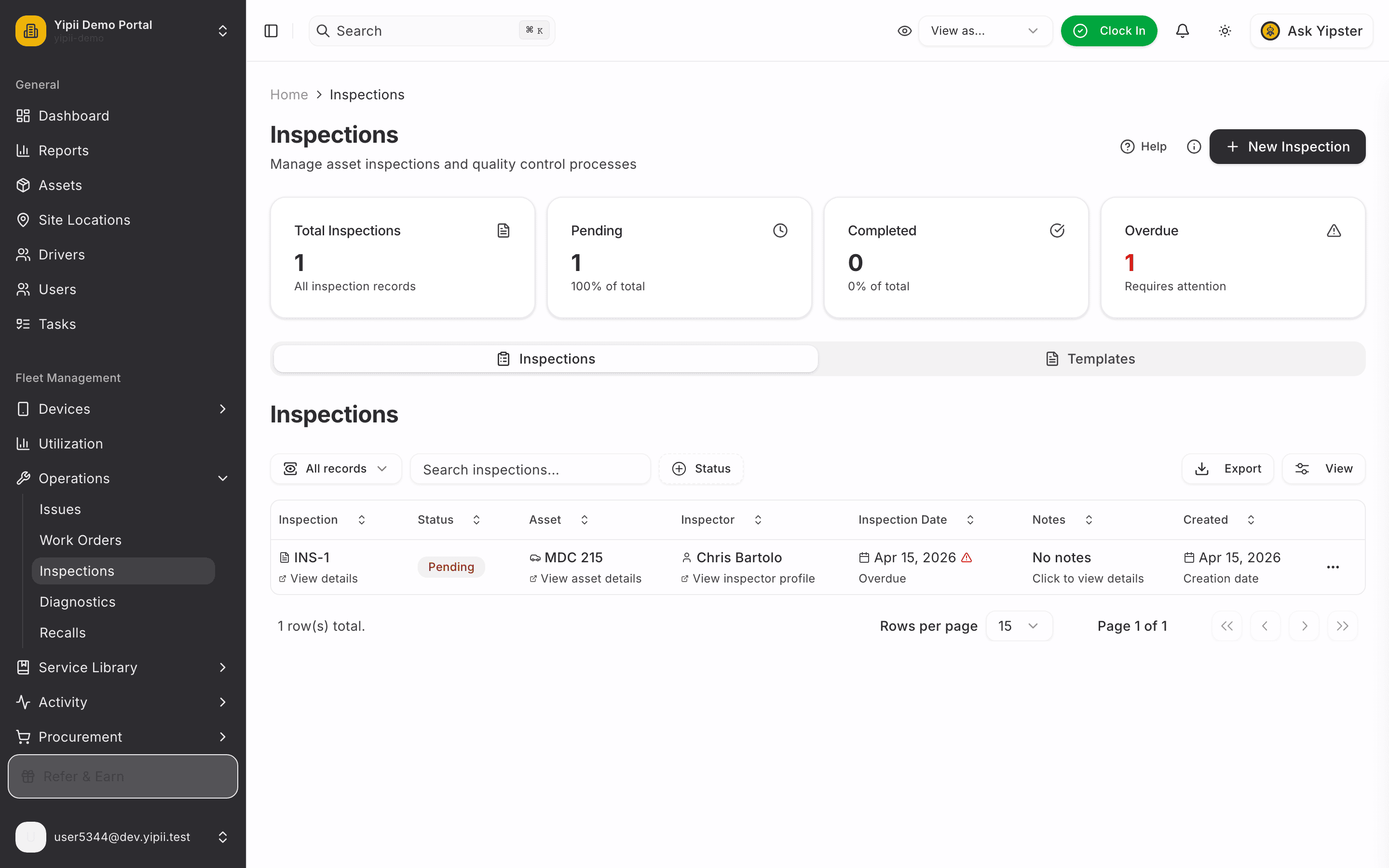
2. Start a new inspection
Click New Inspection. The form needs three choices: the asset, the inspector, and (optionally) the template that supplies the checklist.
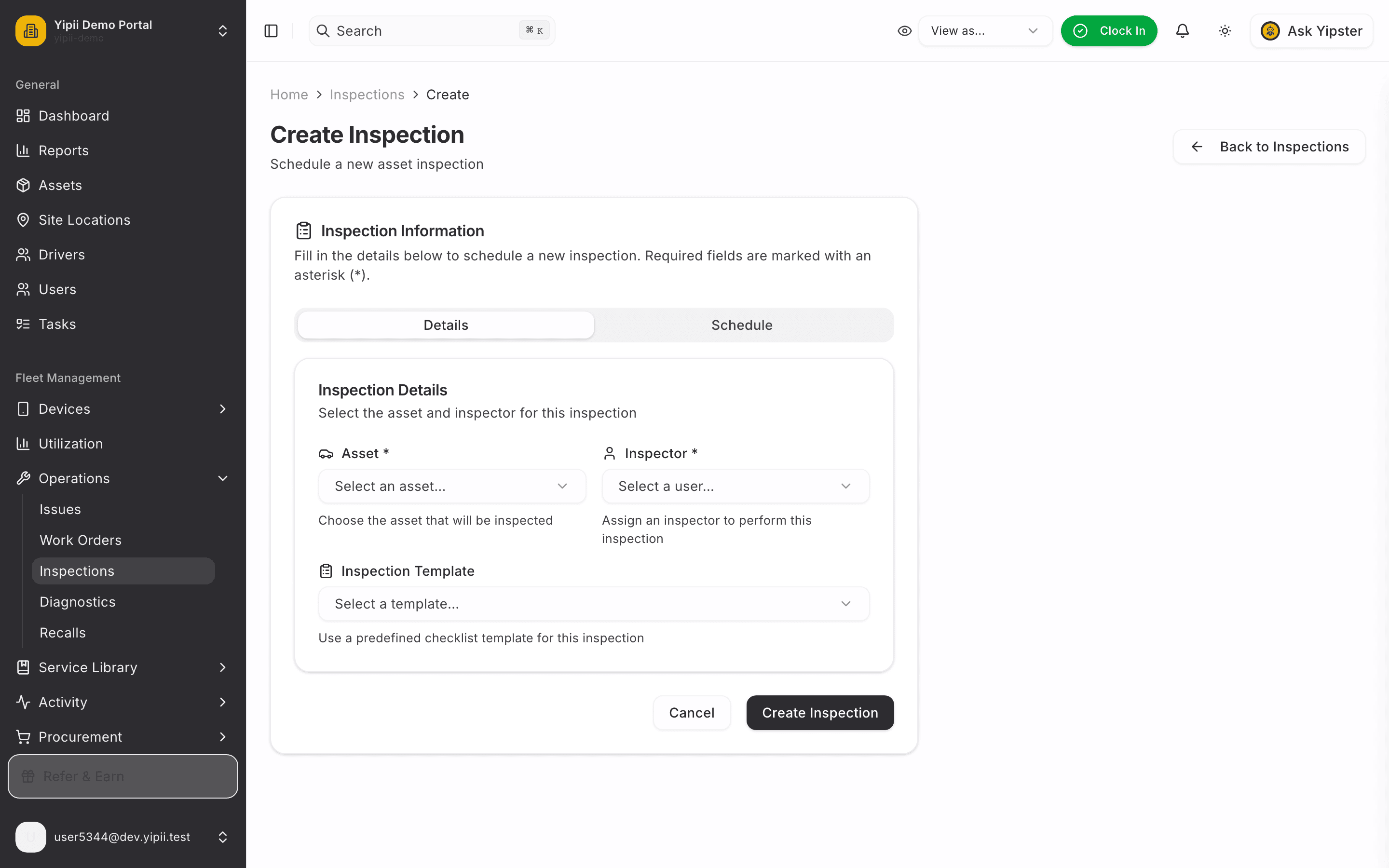
3. Pick the vehicle, inspector and template
Search each dropdown by name. Picking a template is what pre-loads the checklist — skip it and you can still add ad-hoc items during the inspection.
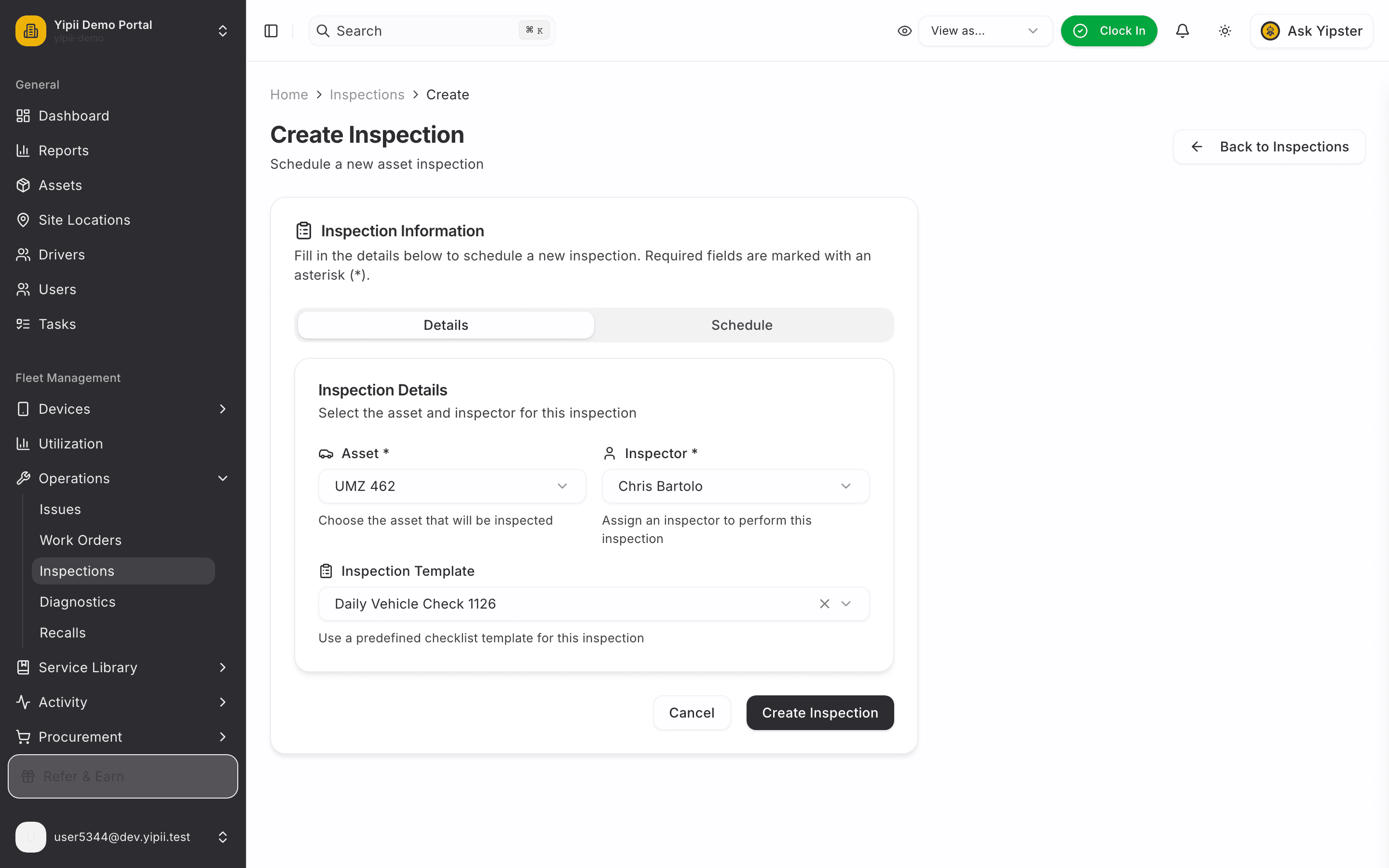
4. Create it and open the record
Click Create Inspection. The inspection's detail page shows the status, the vehicle, and tabs for Overview, Checklist Results, Photos and Activity.
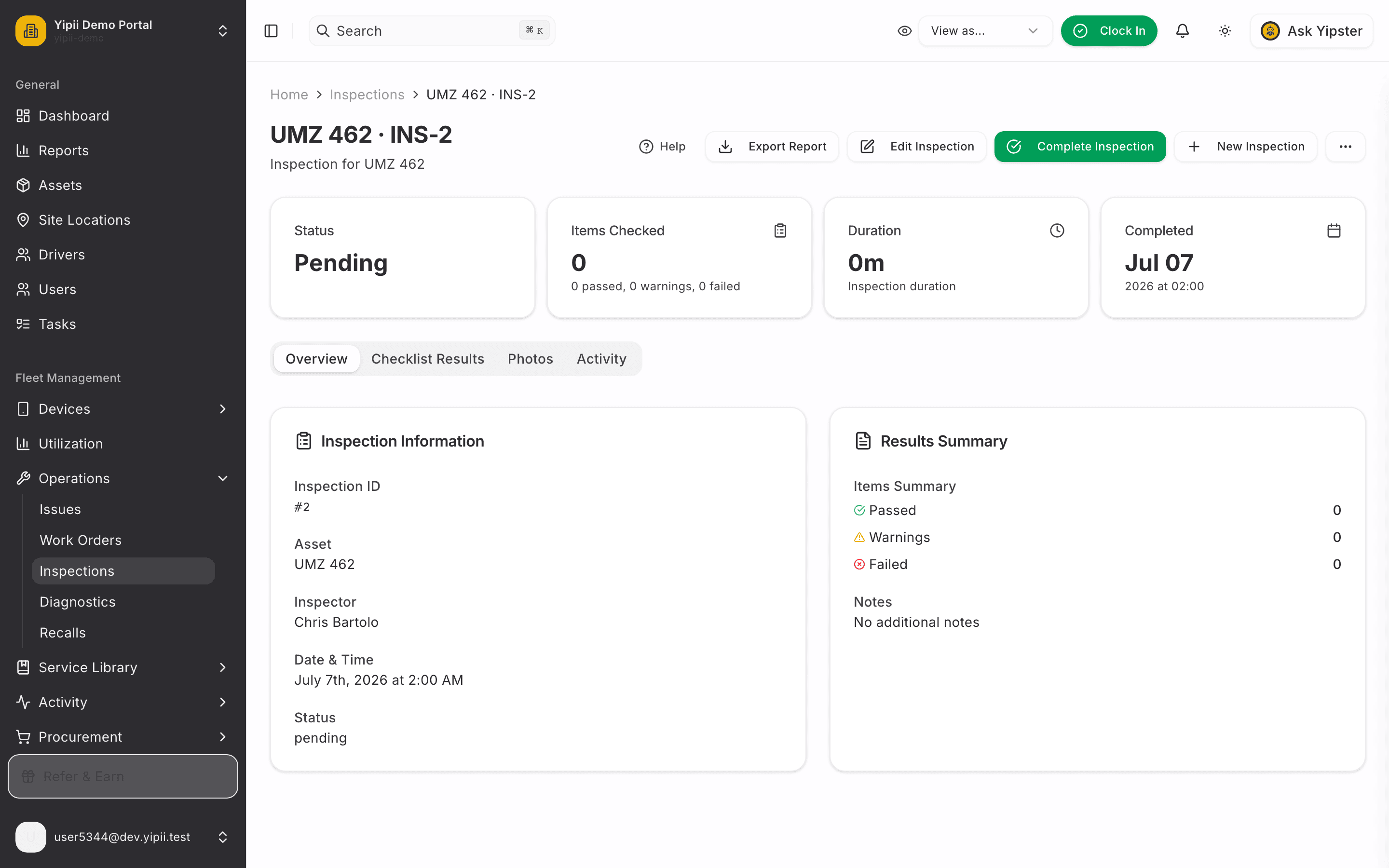
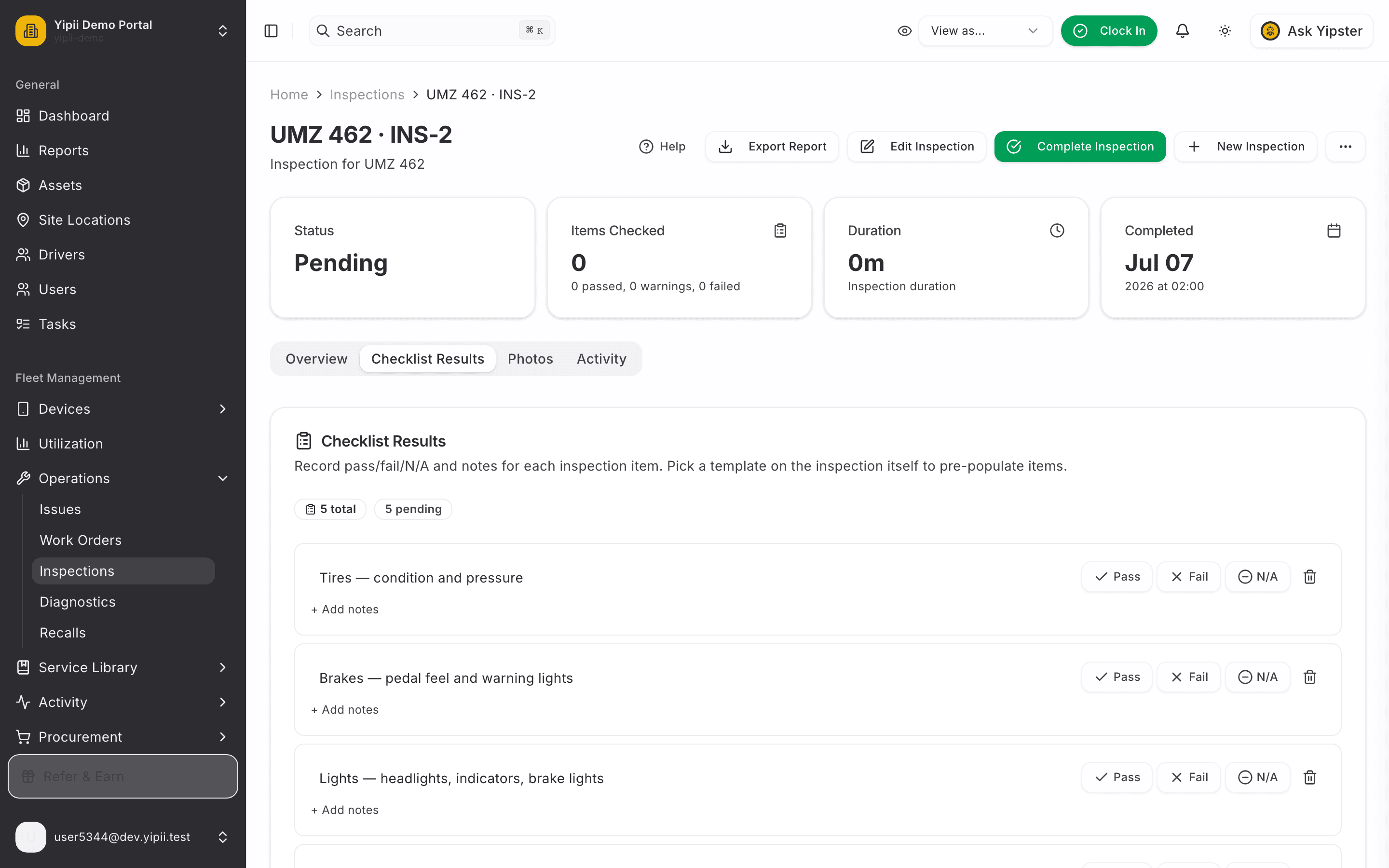
5. Open Checklist Results
Switch to the Checklist Results tab — the template's items are already there, each with Pass / Fail / N/A buttons and room for notes.
6. Work through the items
Mark each item as you check it. Rows turn green on Pass and red on Fail; add notes wherever a comment will help whoever reads the inspection later.
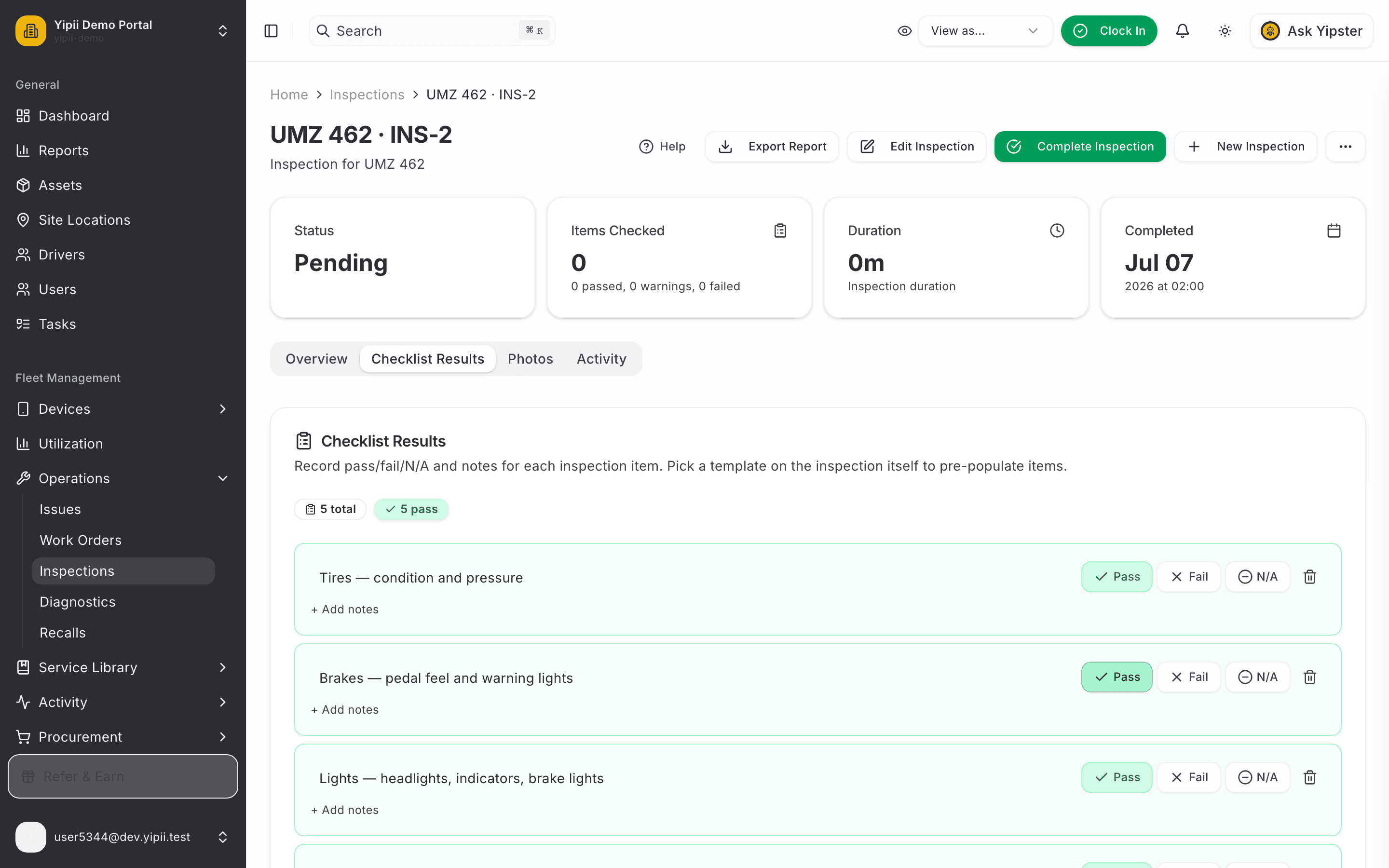
If an item fails, an issue is logged against the vehicle automatically — see Failed Inspection → Issue → Work Order.
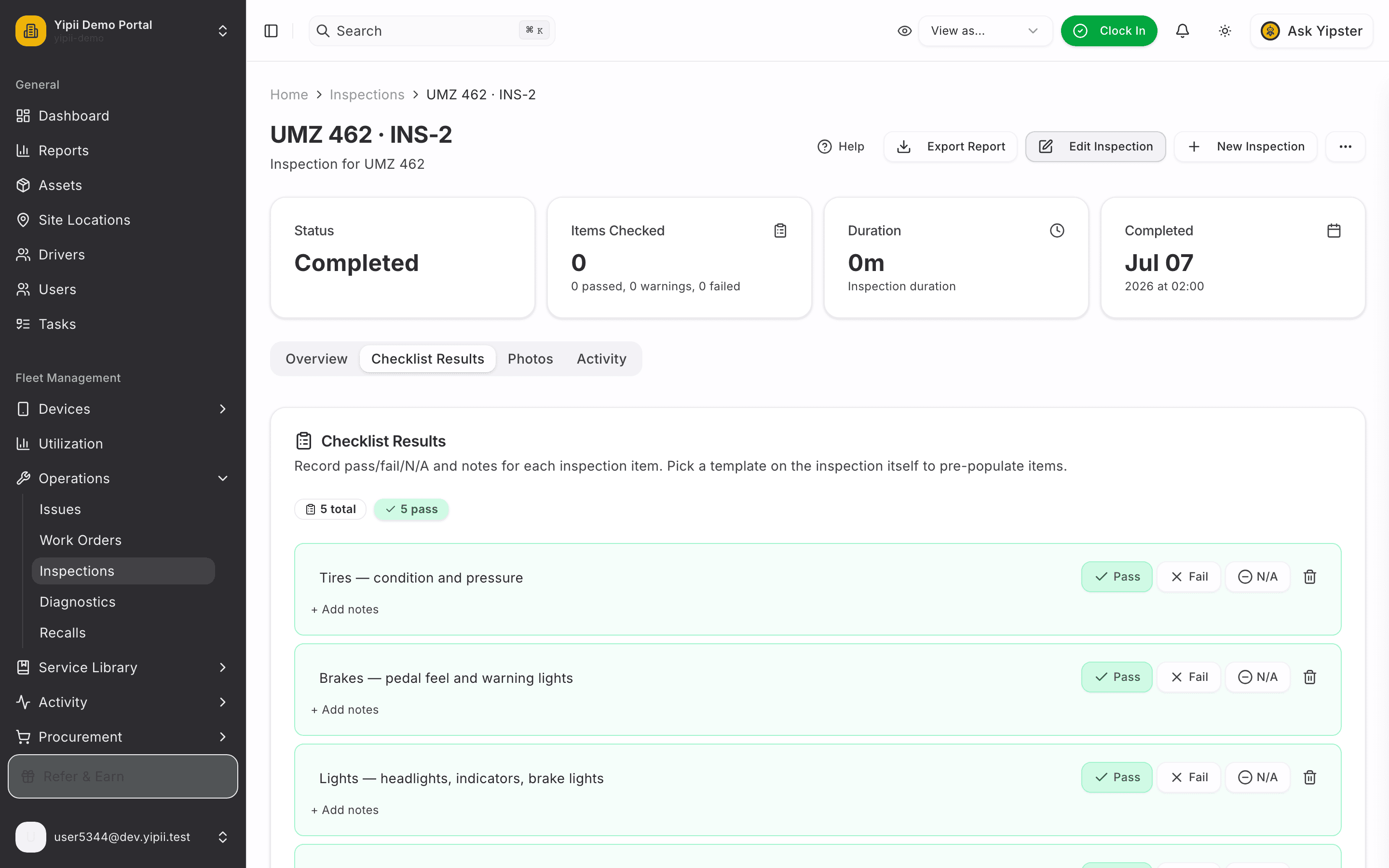
7. Complete the inspection
Click Complete Inspection in the header. The status flips to completed and the button disappears — the inspection is now a permanent record.
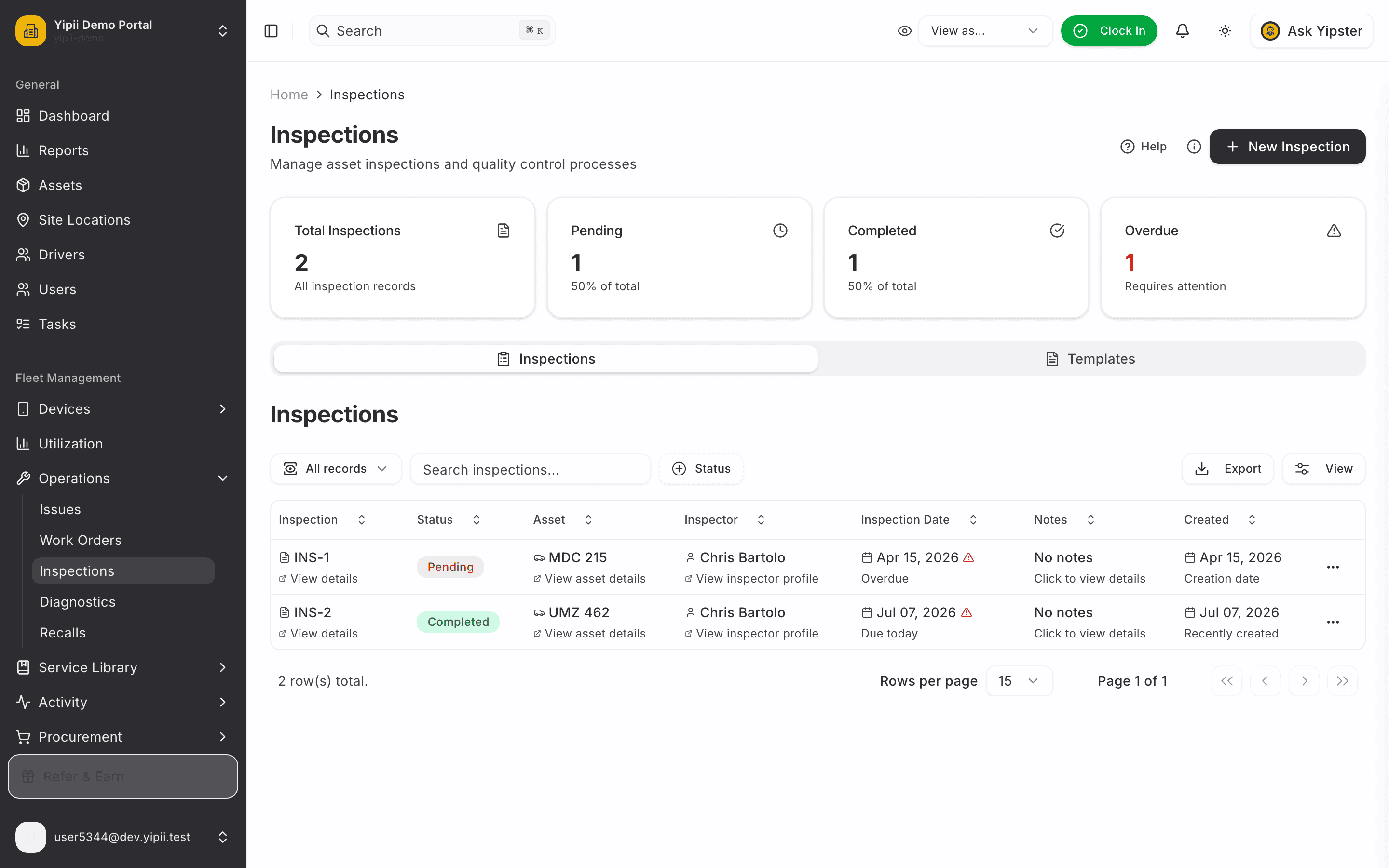
8. It's on the record
Back on the Inspections list, the completed inspection shows against the vehicle — part of its compliance history from now on.
What you ended up with
- A completed inspection with every checklist item answered — auditable proof the vehicle was checked.
- A compliance trail on the vehicle: who inspected it, when, and what they found.