

Set Up a Service Schedule
Put preventive maintenance on autopilot — recurring schedules with derived due dates, at-a-glance fleet states, and automatic alarms when something slips
Preventive maintenance only works if nobody has to remember it. A service schedule gives each recurring job — oil changes, tire rotations, fluid flushes — its own clock: you set the interval once, and Yipii tracks when each vehicle is next due, flags what's coming up, and raises the alarm on its own when something slips past.
Every screenshot has desktop and mobile views — flip the tab on any step.
Watch it first
The setup in under a minute, then follow the steps below.
What you'll do
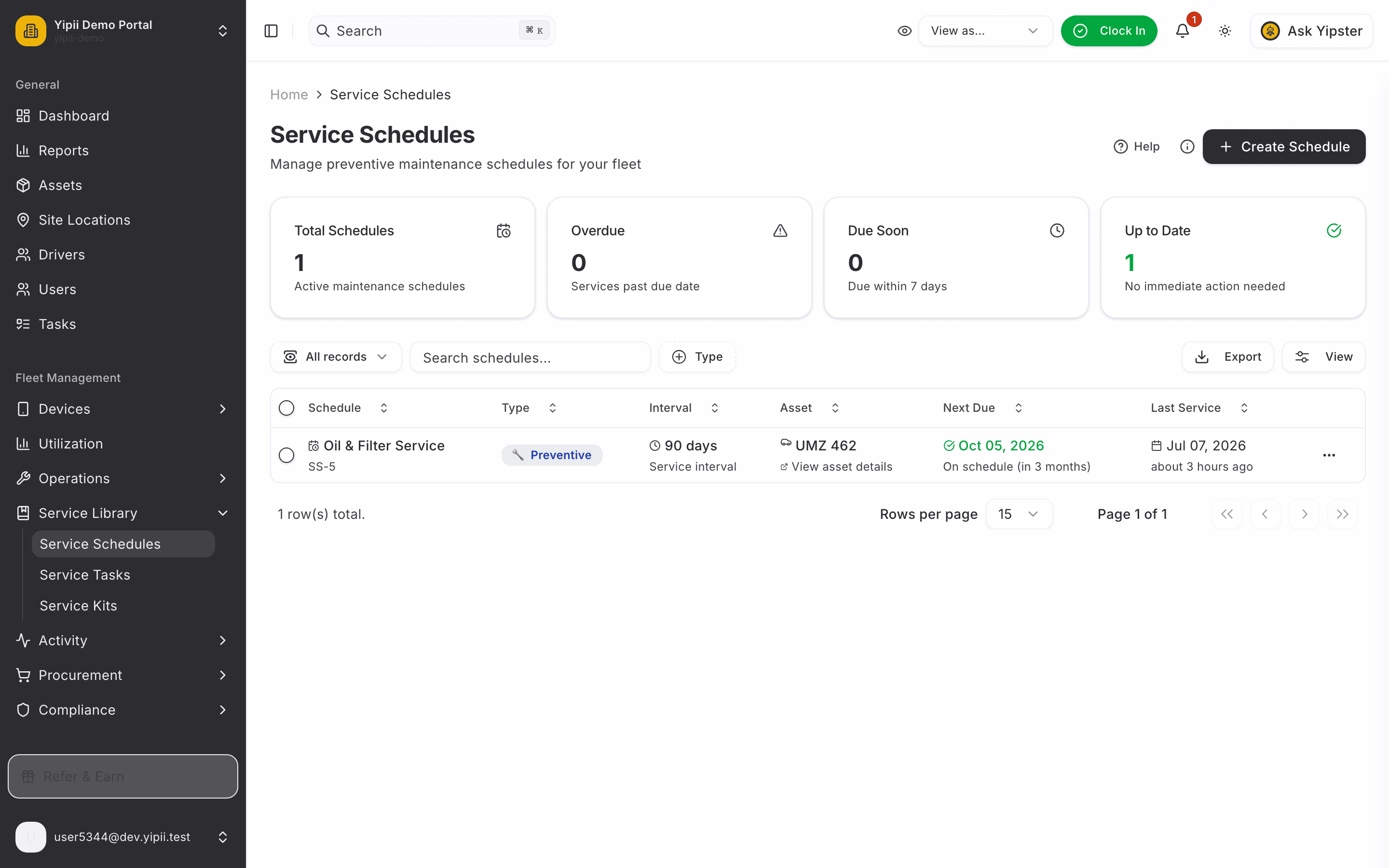
1. Open Service Schedules
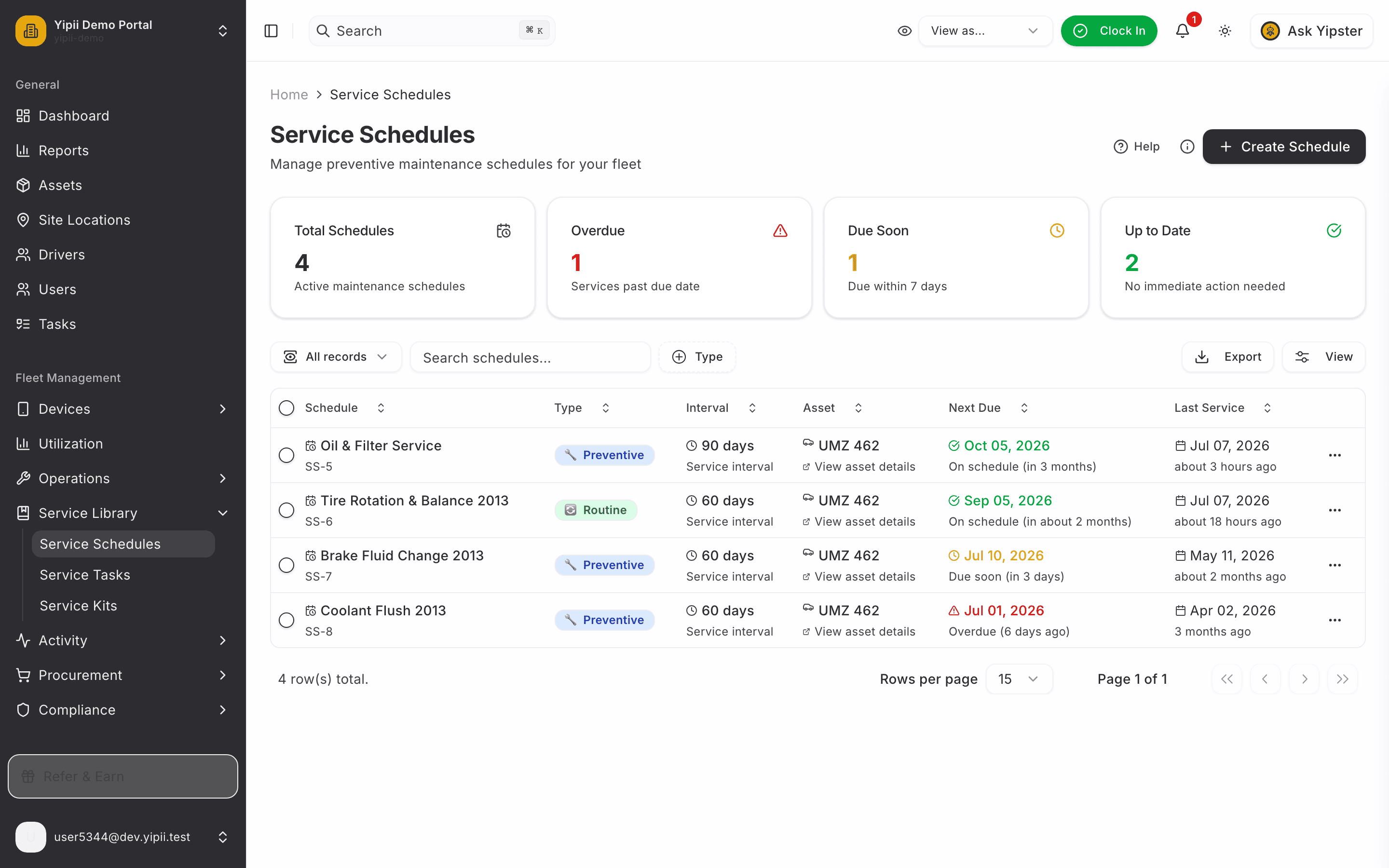
Service Library → Service Schedules. The stats row is the health summary: how many schedules are overdue, due soon, and up to date across the fleet.
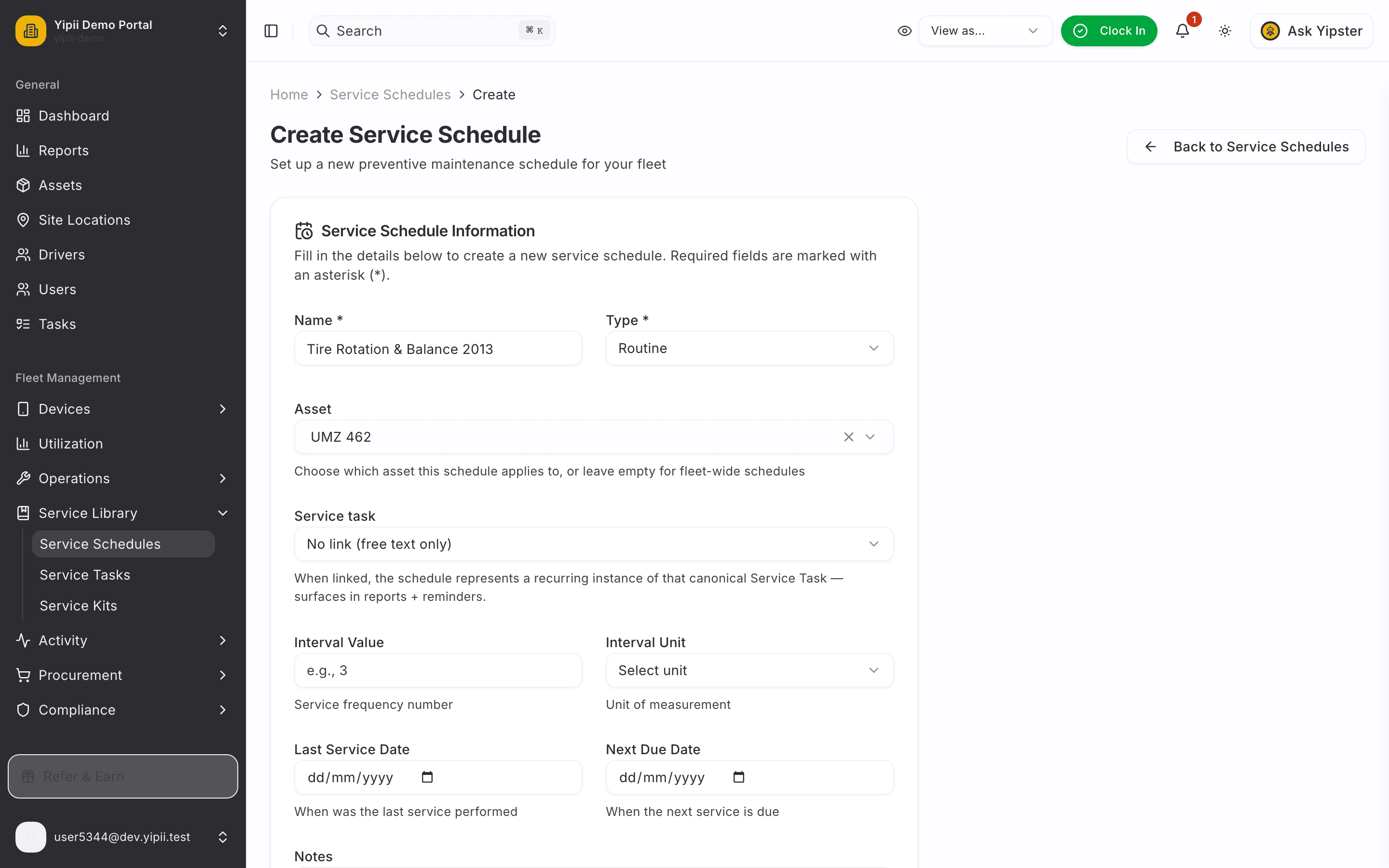
2. Describe the service
Click Create Schedule. Name the job, pick the type, and choose the vehicle — or leave the asset empty for a fleet-wide schedule. Linking a Service task is optional but pays off later: work orders completed against the same task reset this schedule automatically.
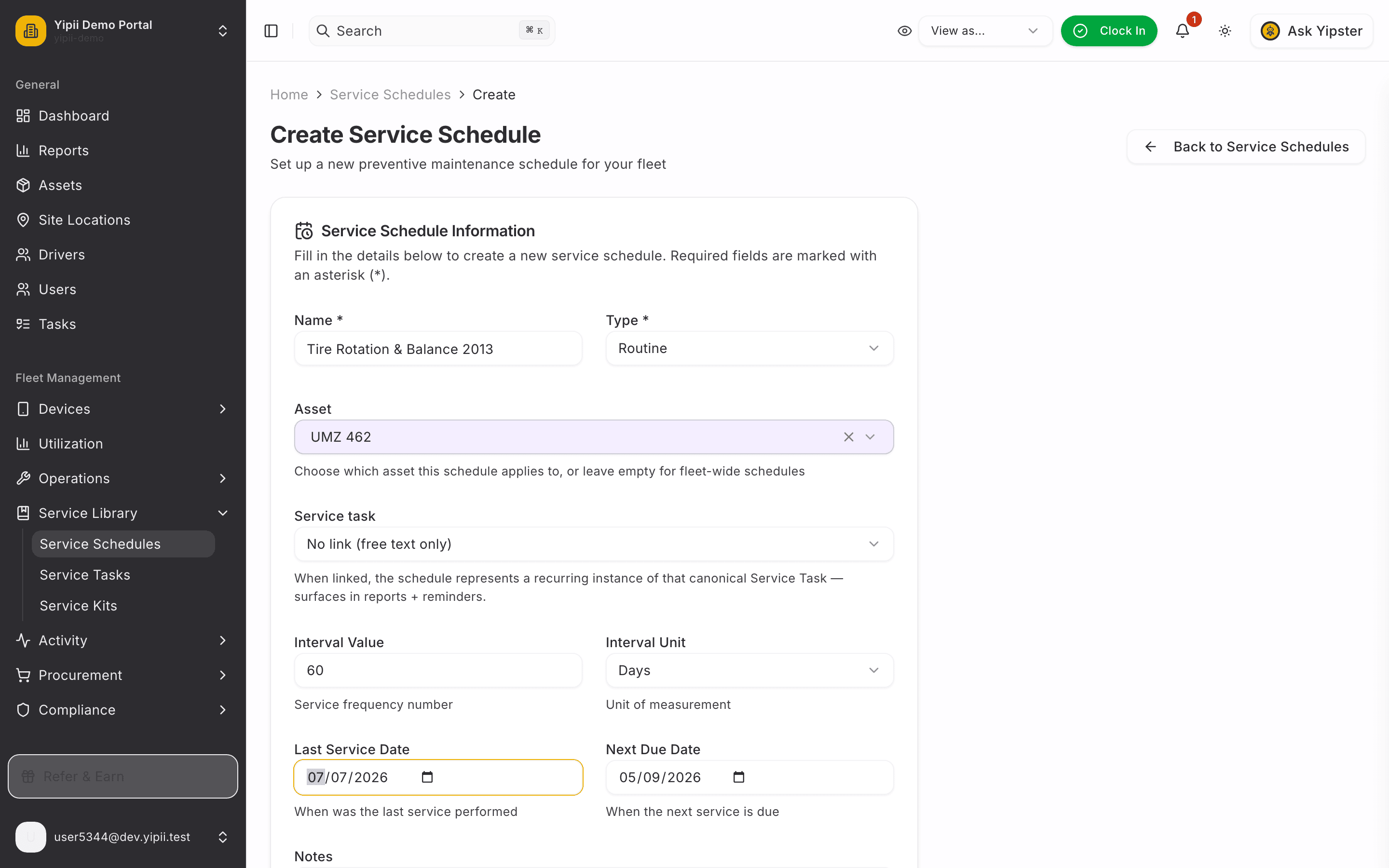
3. Set the interval — the due date does the maths
Every 60 days, and the last service was today. Notice the Next Due Date: it filled itself in from the last service plus the interval — no calendar arithmetic. Type your own date to override it. Intervals can also be mileage or engine-hour based for usage-driven servicing.
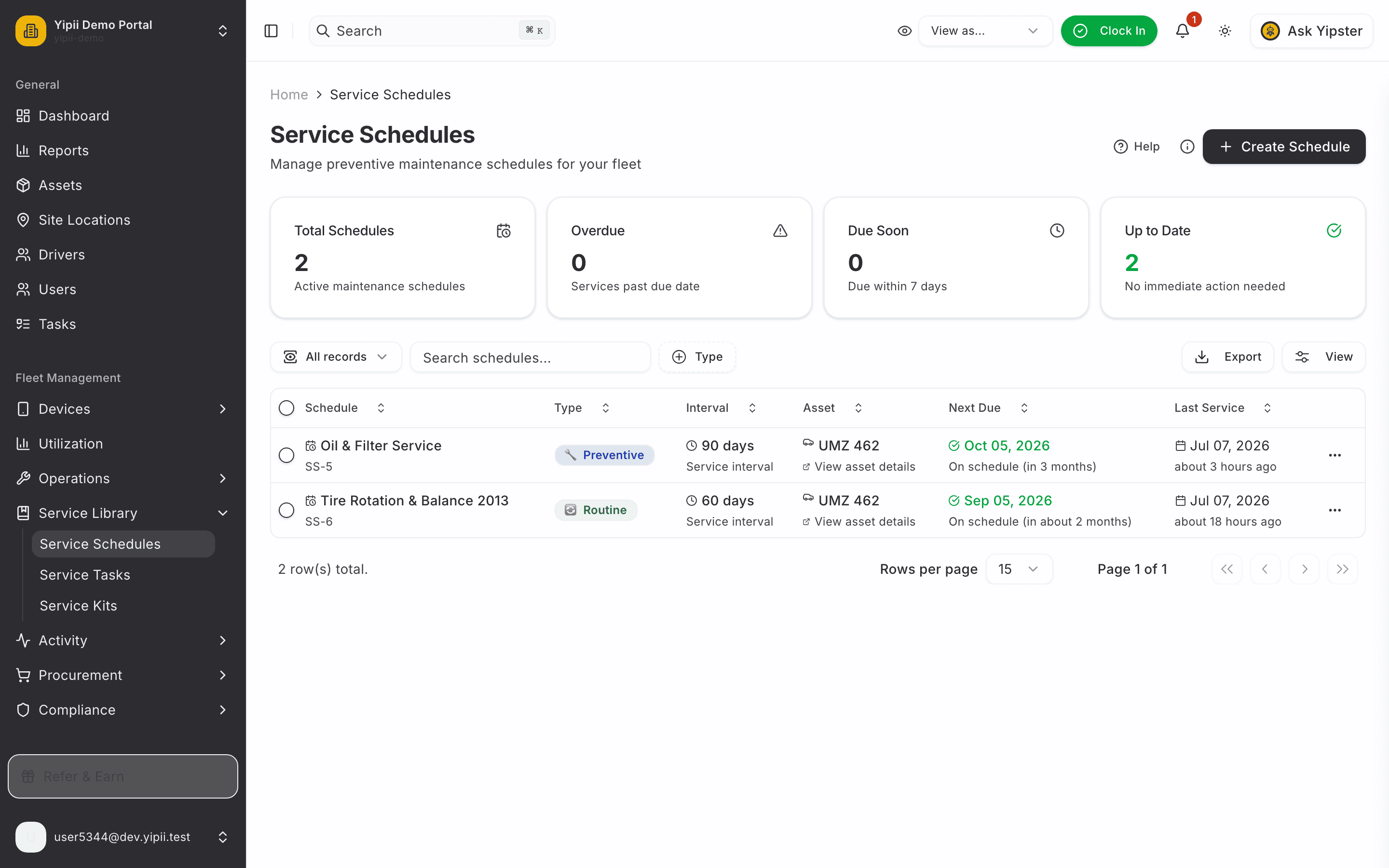
4. Save — the clock is running
The schedule lands on the board On schedule, with the next due date and the last service side by side.
5. The fleet at a glance
As schedules approach their dates they move through three states — On schedule, Due soon (within 7 days, amber) and Overdue (red) — and the stats row totals each. One look tells you where the maintenance risk is.
6. Overdue? The system acts on its own
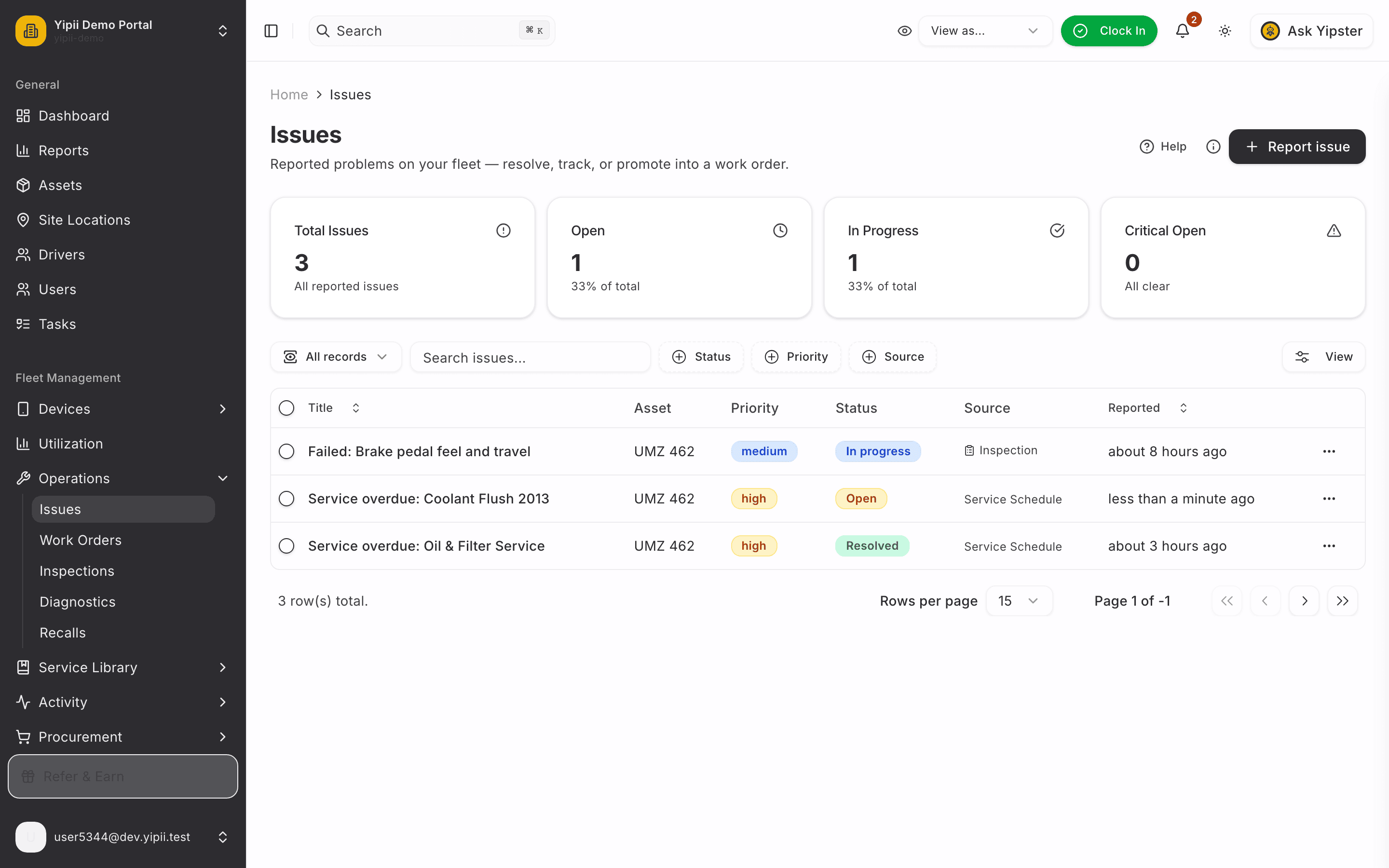
When a schedule slips past its due date, the nightly check logs an Issue against the vehicle and notifies the admins in-app — the coolant flush below raised itself, with the schedule, the vehicle, and a high priority already attached.
From here it's the standard closure loop: promote the issue to a work order and complete it — the schedule resets and the clock restarts. Walk through it in Complete a Work Order.
What you ended up with
- A recurring service schedule on the vehicle — 60-day interval, next due date computed for you.
- A live maintenance health summary: on-schedule, due-soon, and overdue counts across the fleet.
- A hands-free alarm chain: overdue schedules raise their own issues and ping the admins — nothing depends on someone remembering.
Set the interval once; the system does the remembering.