

Create a Work Order with Parts & Labor
Raise a costed work order, assign it to a technician, and record the parts and labor — inventory and cost roll-ups update themselves
A work order is where a repair actually gets managed: what's wrong, who's fixing it, and what it really cost. This walkthrough raises a corrective work order for worn brake pads, assigns it to a technician — who gets an in-app notification the moment you save — then records the parts consumed and the labor performed. Along the way Yipii keeps the books for you: parts usage decrements inventory stock and writes a stock movement, and the actual cost rolls up from parts + labor automatically.
Every screenshot has desktop and mobile views — flip the tab on any step.
Watch it first
The whole flow in about a minute, then follow the steps below.
What you'll do
1. Start from your parts inventory
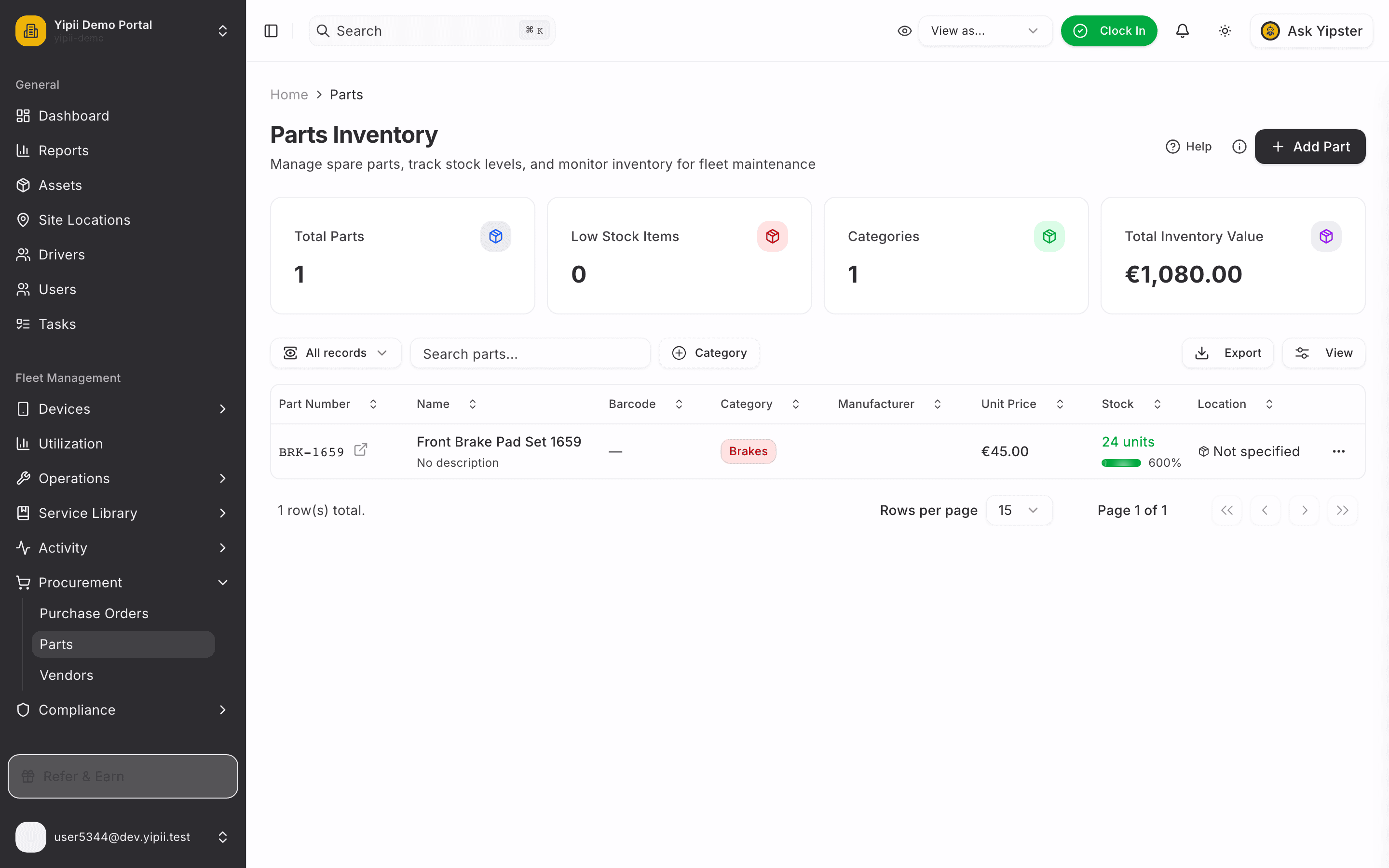
Sidebar → Procurement → Parts. The brake pad set is in stock — 24 units at €45.00 each. Keep that number in mind: by the end of this flow it will have gone down by exactly what the repair consumed.
2. Open the Work Orders board
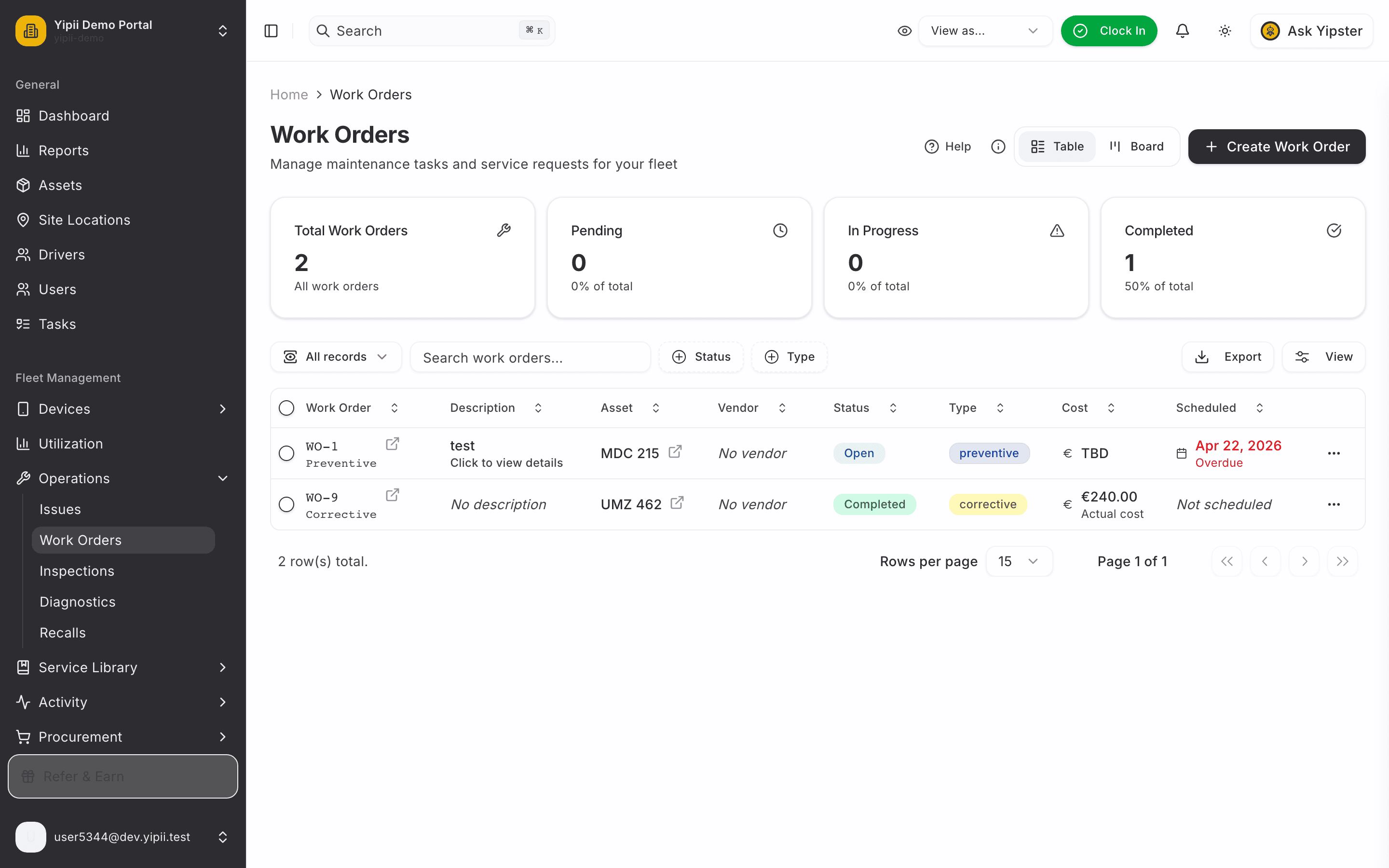
Sidebar → Operations → Work Orders, then Create Work Order.
3. Describe the work
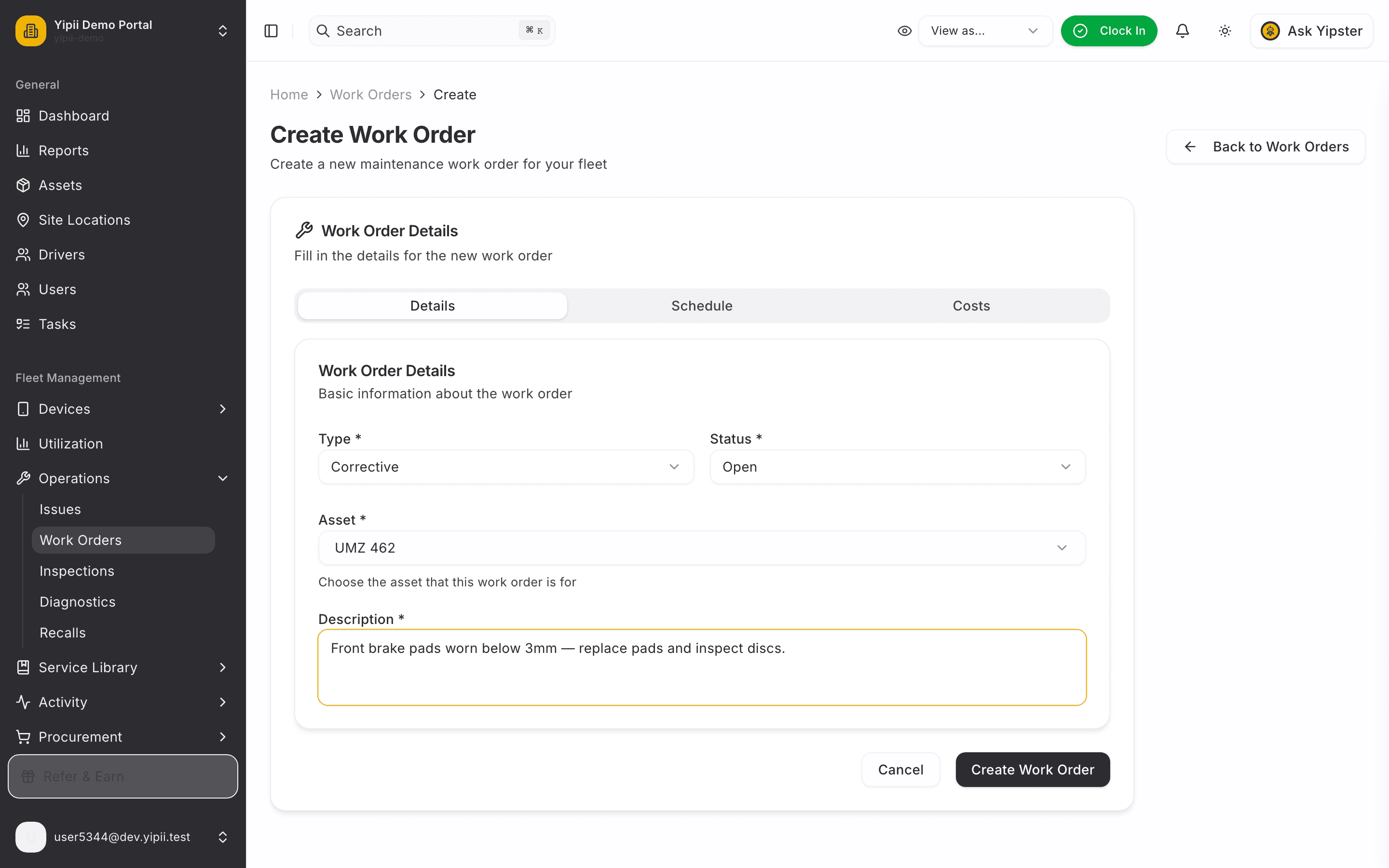
On the Details tab, pick the type — Corrective, since we're fixing something that's worn out — choose the vehicle, and describe the job. Be specific in the description: it becomes the work order's title on the board and in the technician's notification.
4. Assign the technician
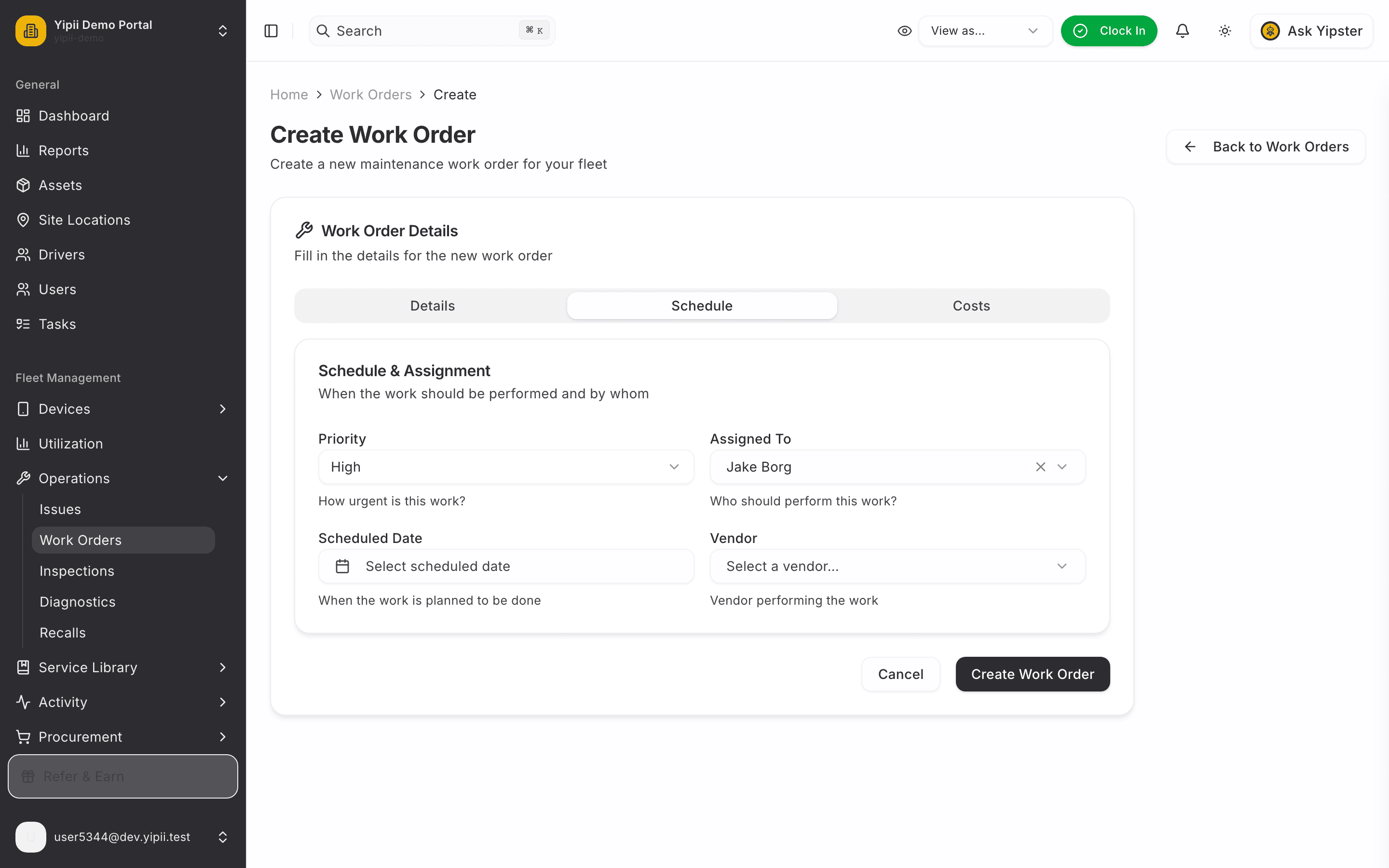
Switch to the Schedule tab. Set the priority — worn brakes are High — and pick who's doing the work under Assigned To.
The assigned technician gets an in-app notification the moment the work order is created — no need to chase them separately.
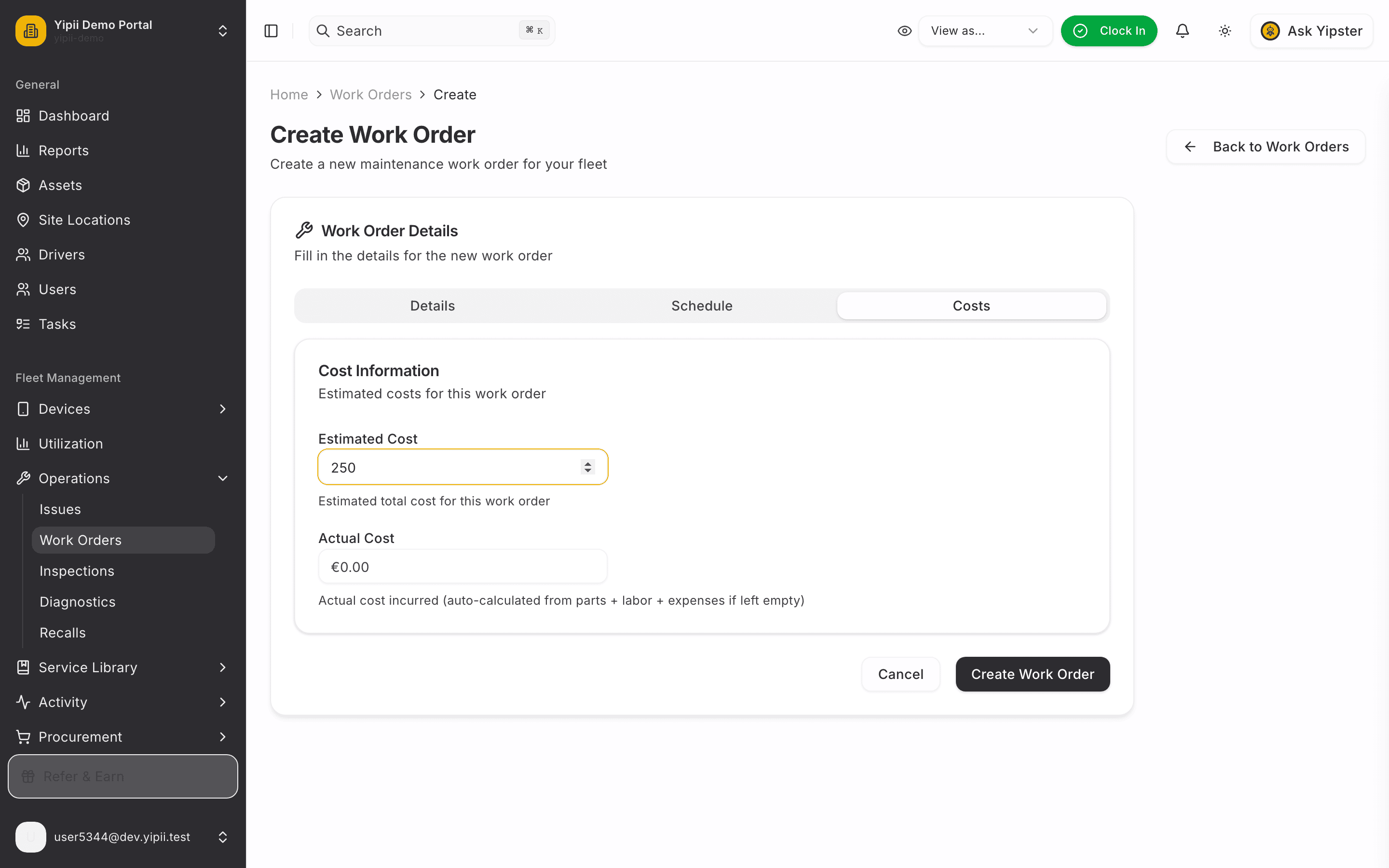
5. Estimate the cost
On the Costs tab, enter your budget estimate. Leave the actual cost empty — Yipii calculates it from the parts, labor and expenses you record as the work happens.
6. Create it
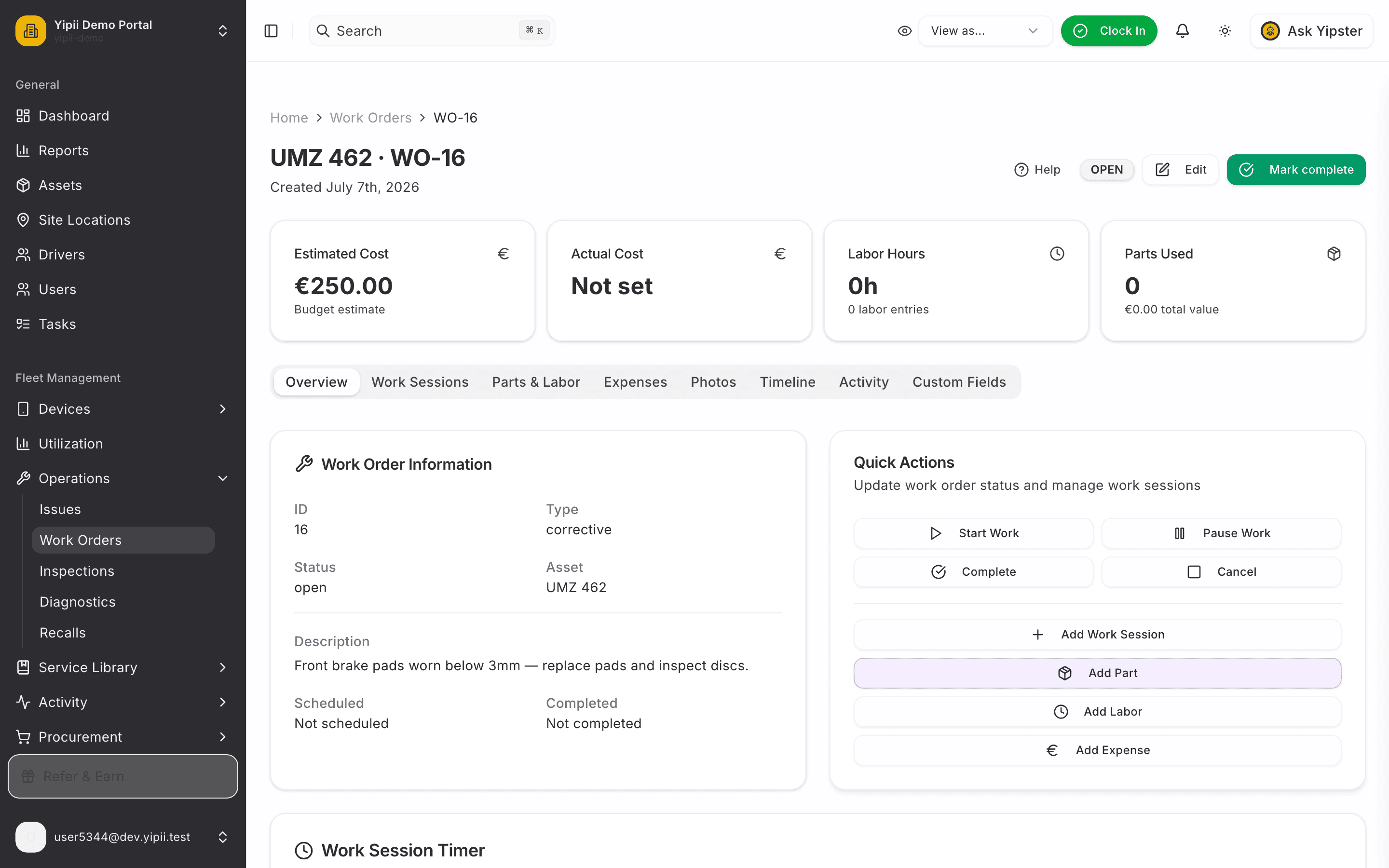
Click Create Work Order. You land on the work order's detail page: status Open, the €250 estimate on the stats row, and quick actions for everything that comes next.
7. Open Parts & Labor
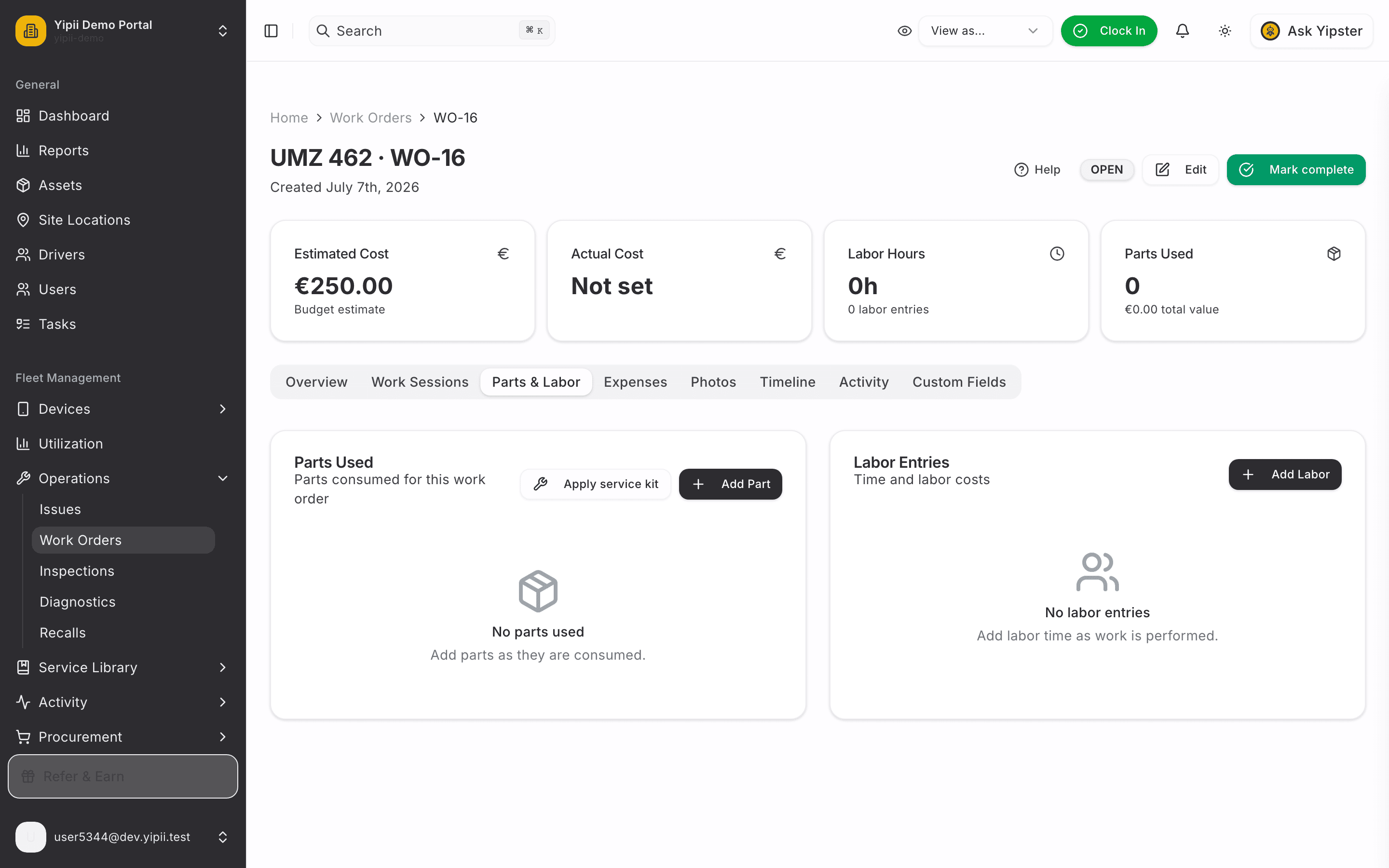
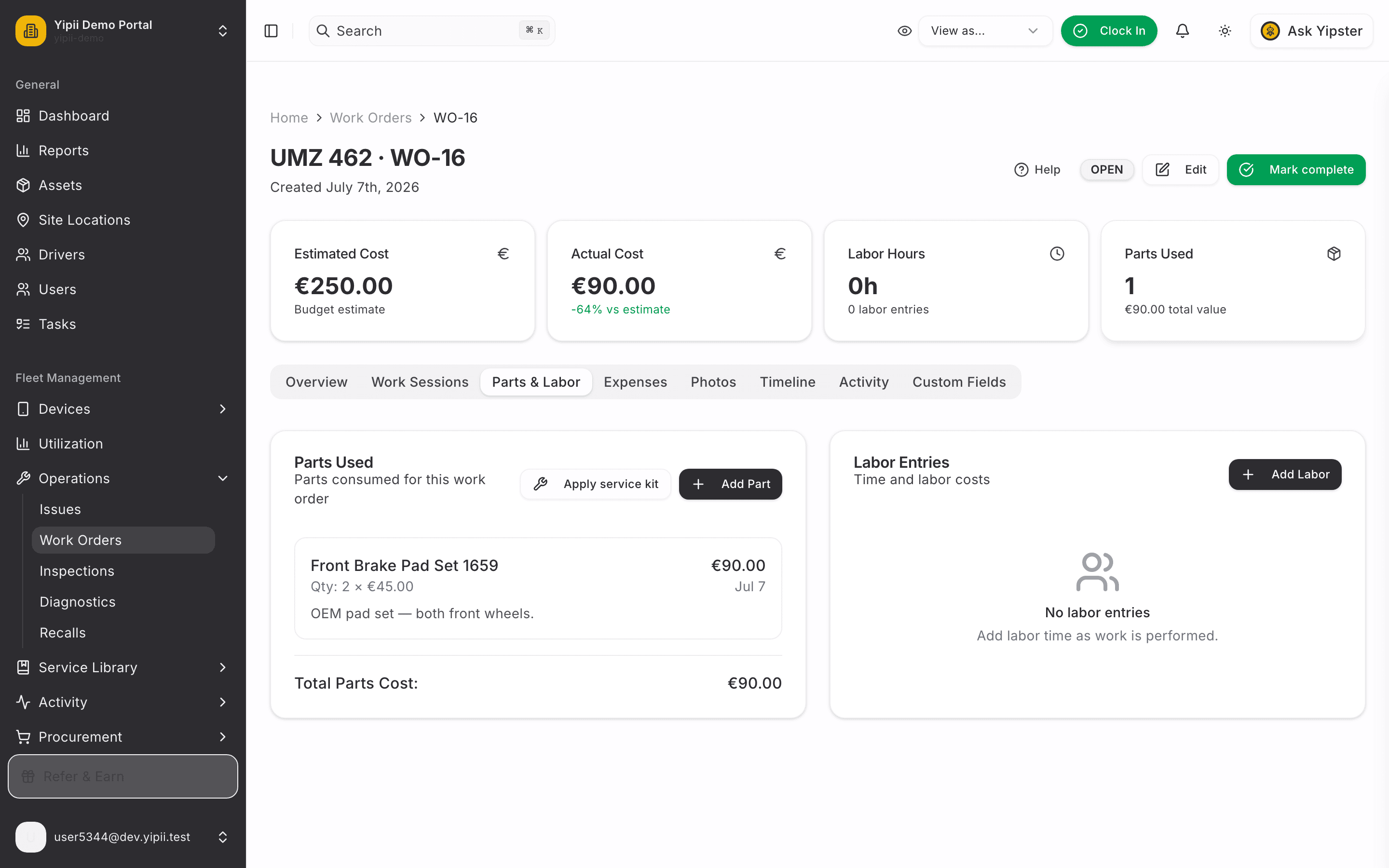
The Parts & Labor tab starts empty — two cards waiting for what the repair actually uses.
8. Record the part used
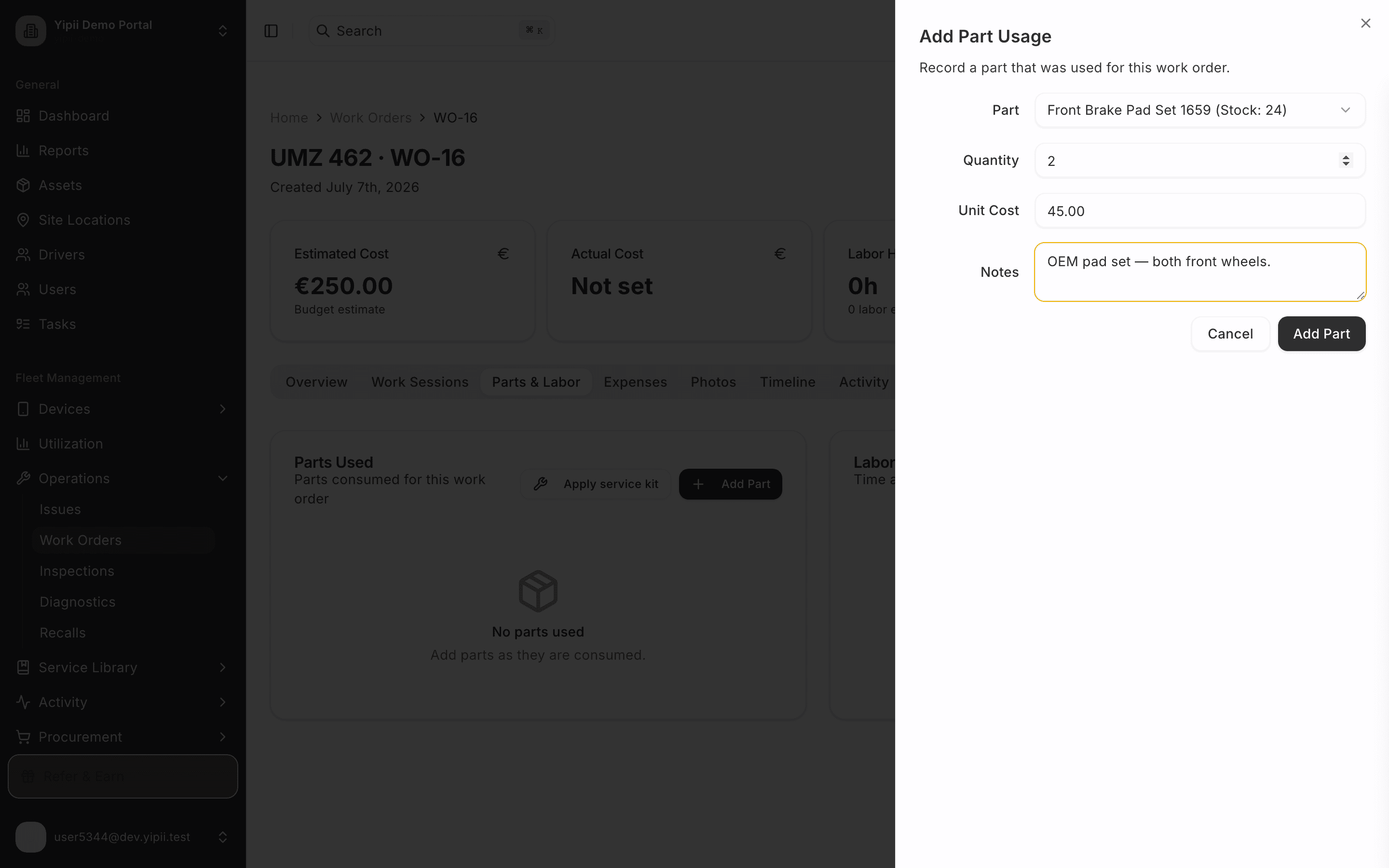
Click Add Part. Pick the brake pad set from your inventory — the dropdown shows the live stock level — enter the quantity and unit cost, and add a note if it's useful for the record.
9. The part is on the work order
The Parts Used card shows the consumption — 2 × €45.00 — and the running parts total. Behind the scenes, inventory stock has already been decremented and a stock movement logged against this work order.
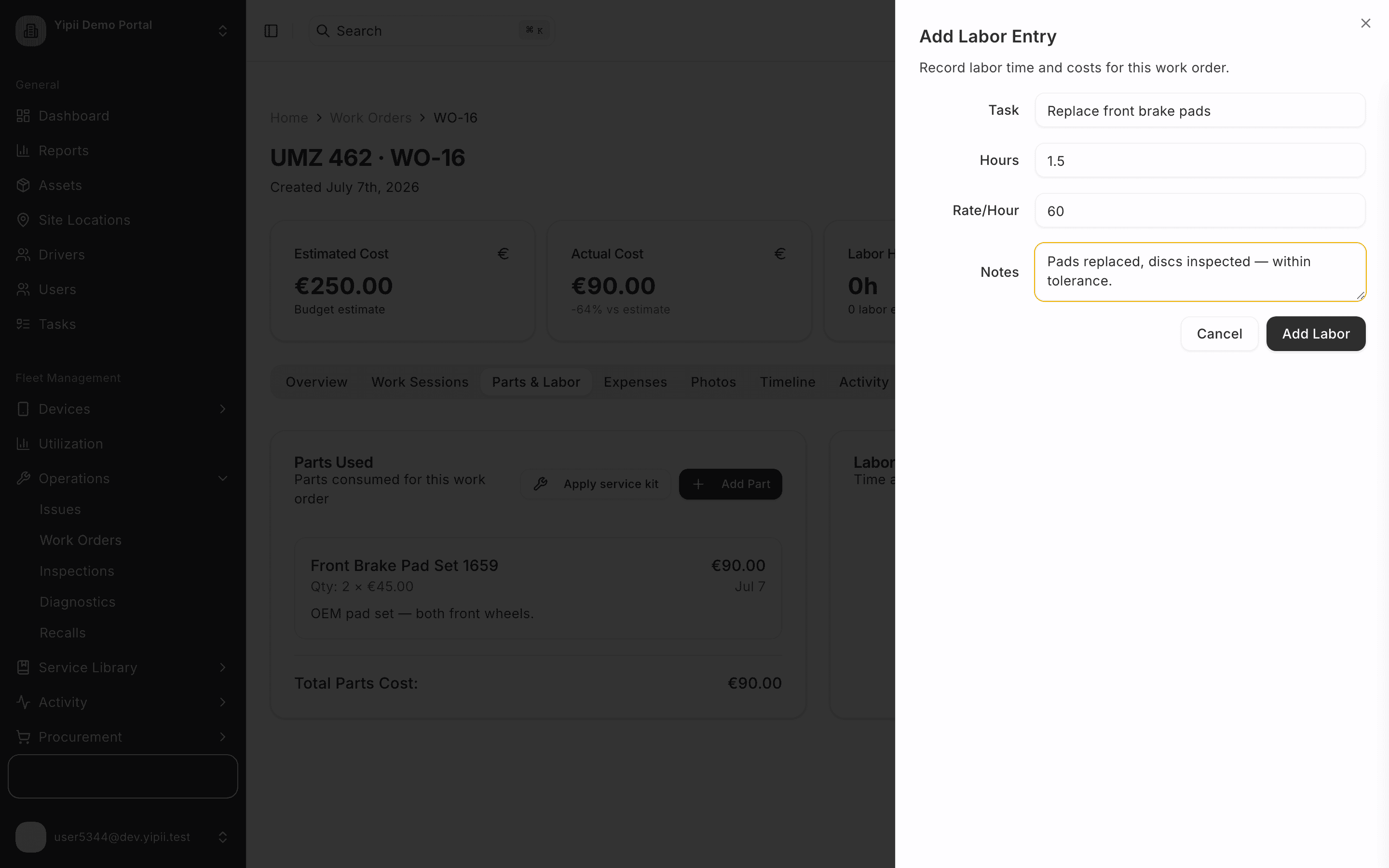
10. Record the labor
Click Add Labor. Describe the task, enter the hours and the hourly rate — the line total is calculated for you.
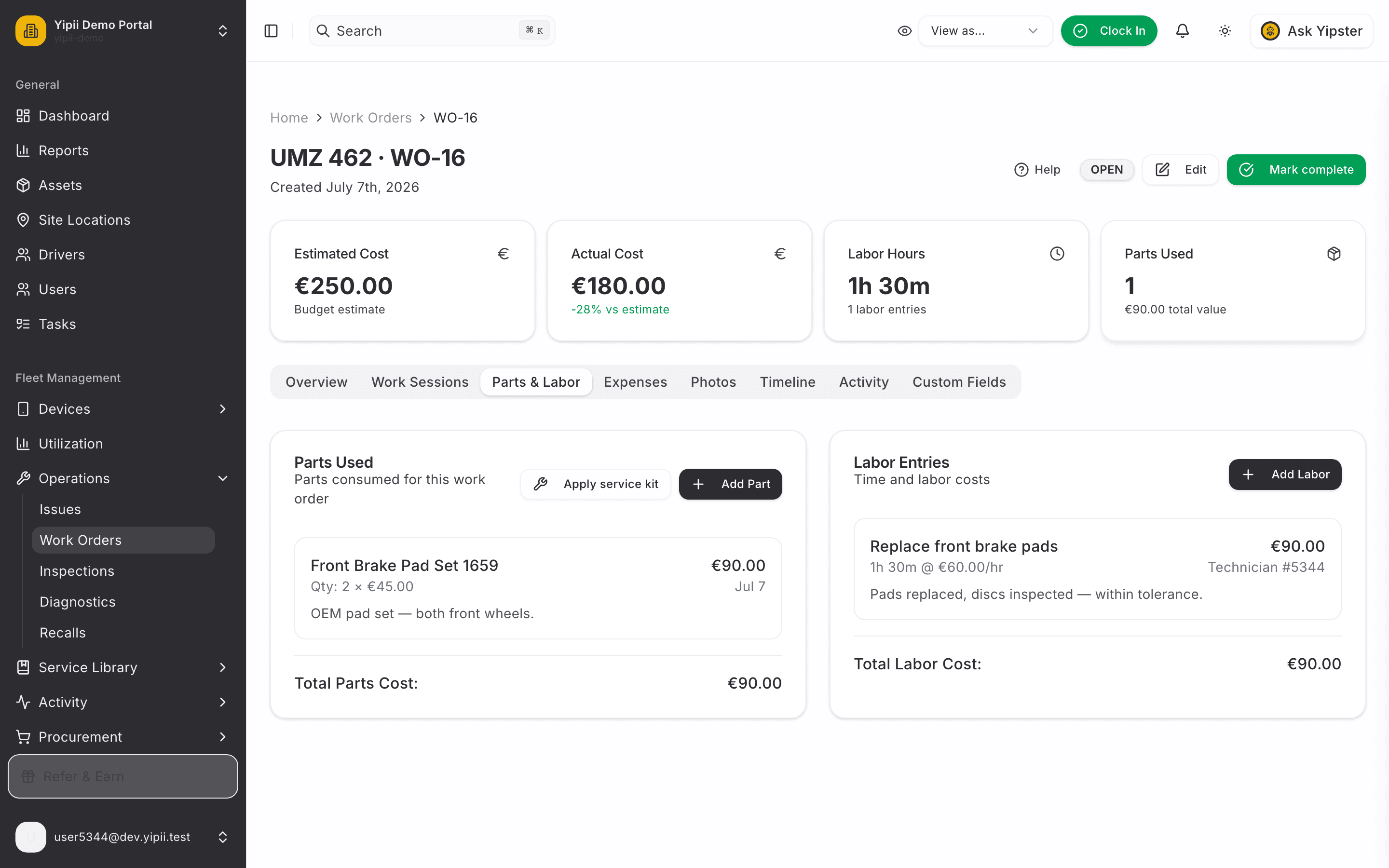
11. Costs roll up automatically
Both cards are now filled in, and the stats row across the top tells the real story: Actual Cost €180 — parts plus labor — against the €250 estimate, 28% under budget. No spreadsheet involved.
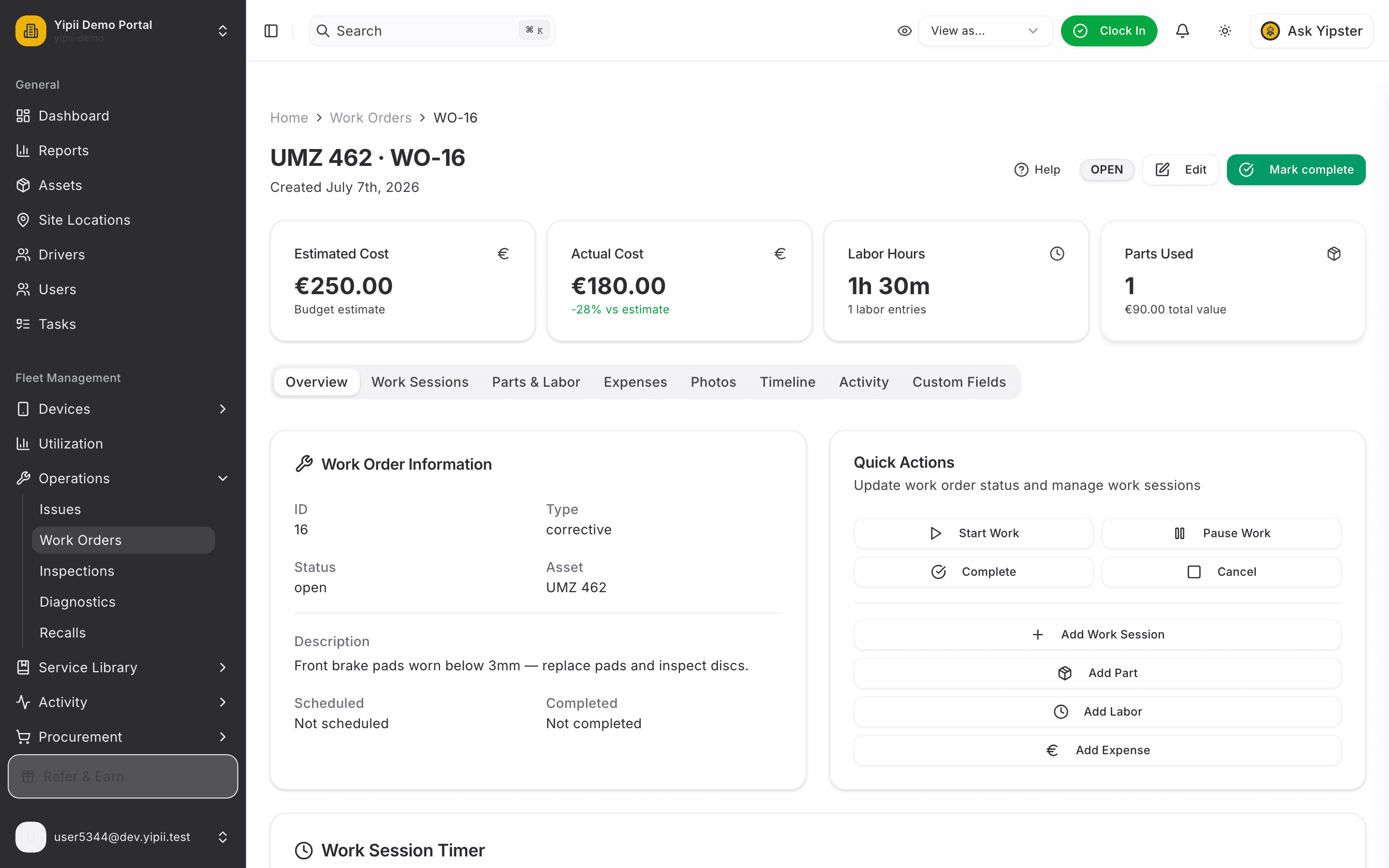
12. The overview reflects it all
Back on Overview — the work order now carries its full cost picture alongside the description, priority and assignment. Ready for the technician to start work, and ready to Mark complete when they're done.
13. Inventory already knows
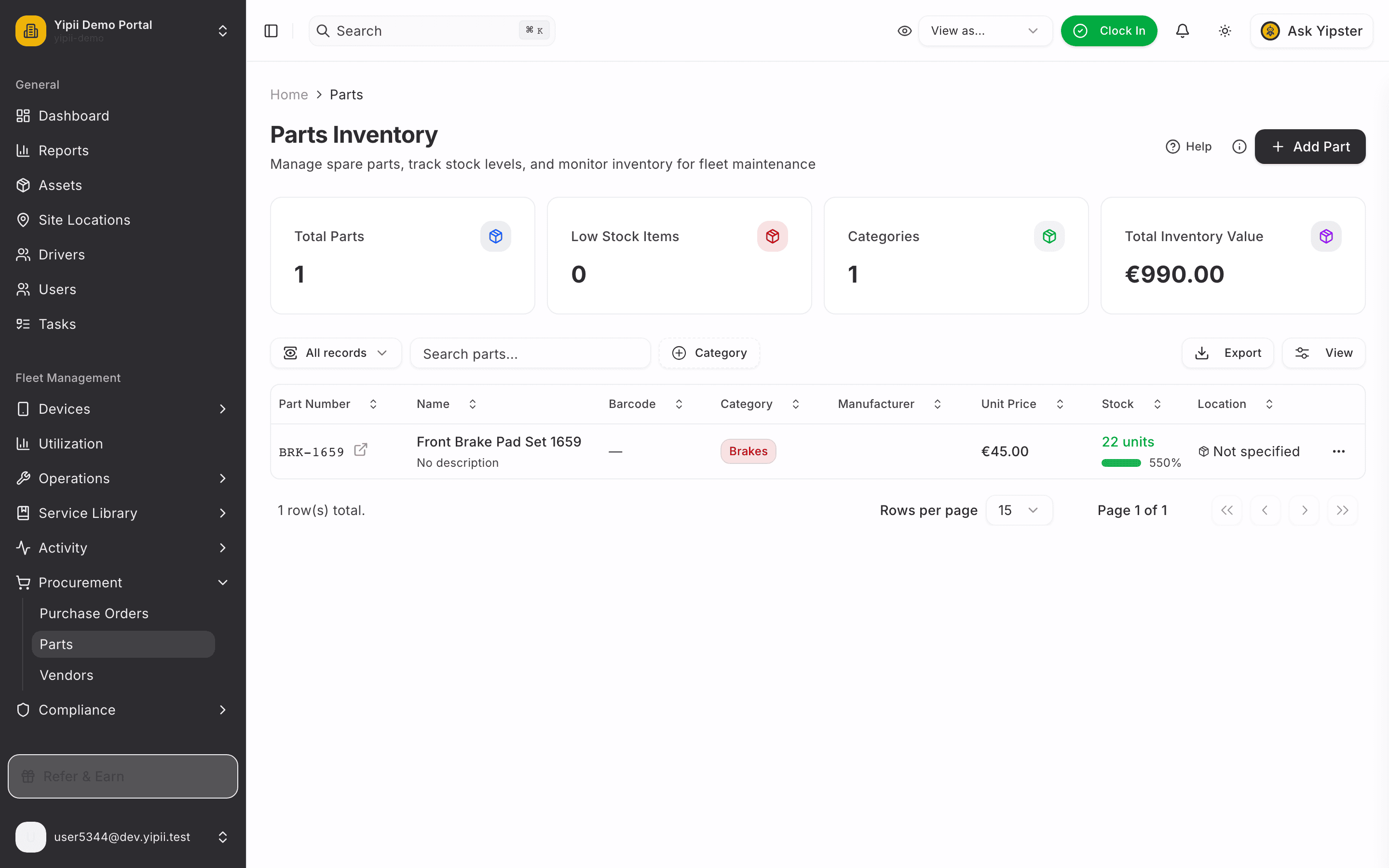
Back at Procurement → Parts: the brake pad set now shows 22 units — down by exactly the 2 the work order consumed. Stock levels, movements and the audit trail stay accurate without anyone updating them by hand.
What you ended up with
- An open corrective work order for the vehicle — high priority, assigned, with a €250 budget estimate.
- A notified technician — the assignment pinged them in-app the moment you saved.
- A costed repair: 2 brake pad sets (€90) + 1.5h labor (€90) = €180 actual, rolled up automatically against the estimate.
- Accurate inventory: stock decremented 24 → 22, with a stock movement and audit-log entry tying the consumption to this work order.
When the repair is done, Mark complete closes the loop — see Failed Inspection → Issue → Work Order for the completion side of the story.