

Alerts & Automations
Where alerts, geofences and workflows live: the Alerts & Automations menu, your alerts, their state, and what each page is for.
An alert watches your vehicles for one thing — speeding, a place reached, a tracker losing power — and tells the people you choose when it happens. A workflow does the same for things that happen in the office or the workshop, such as a service falling overdue.
Open Alerts from the menu on the left. On a phone, tap the menu button at the bottom of the screen, then Alerts. It opens on Alerts › Your alerts.
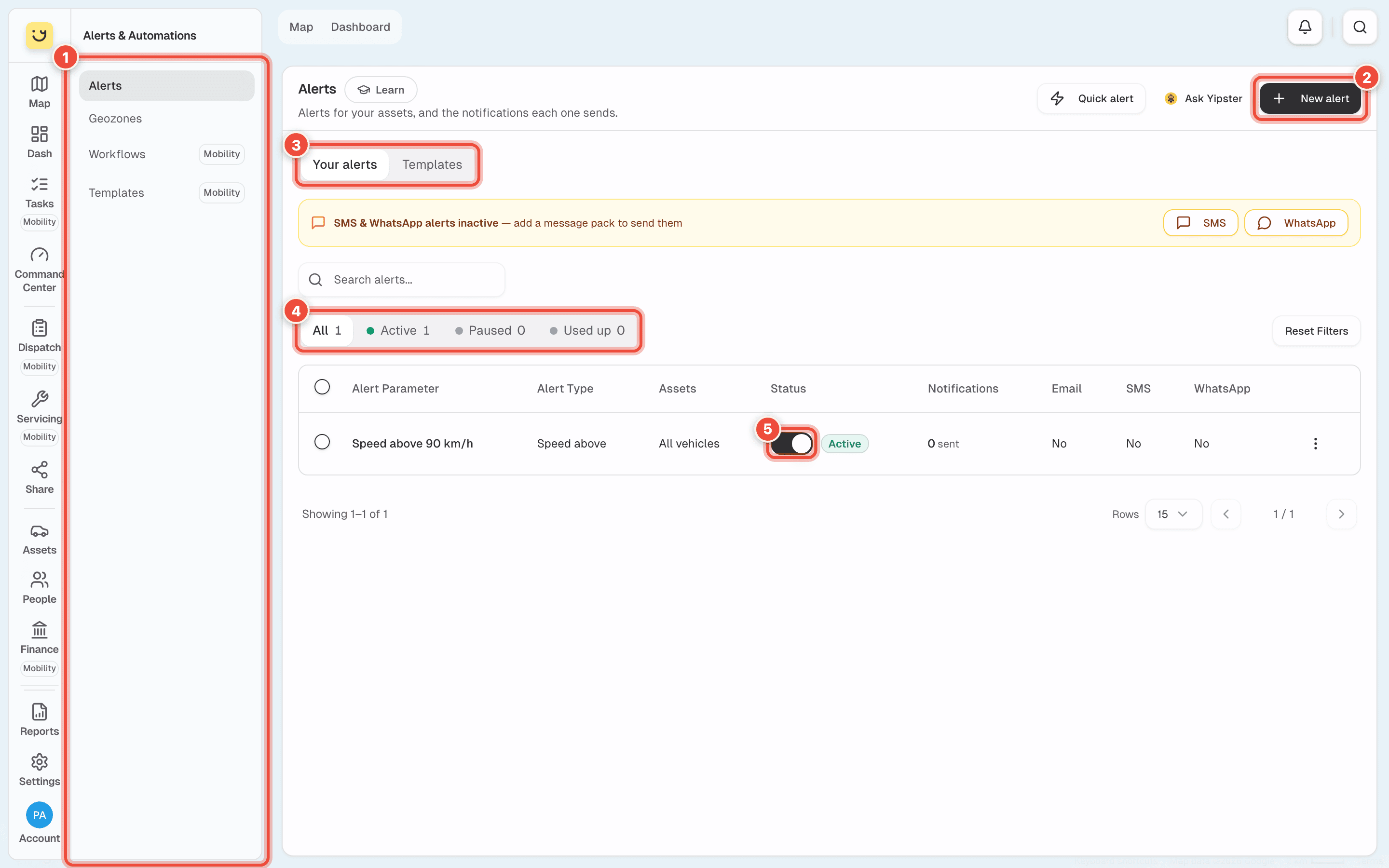
- The Alerts & Automations menu — Alerts, Geozones, Workflows and Templates, listed under What is in the menu. On a phone it is the row of buttons along the top; swipe it sideways for the rest.
- New alert — starts a new alert. See Set up an alert. Beside it, Quick alert sets up an "arrives at" or "leaves" alert in two taps — see Quick alerts and alerts for one vehicle. On a phone these buttons sit in a row under the title; New alert is the last one.
- Your alerts and Templates — your own alerts, or every kind of alert you can add, with the ones you already have marked. See Start from a template.
- All, Active, Paused and Used up — show only alerts in that state. Paused is switched off. Used up fired as many times as you allowed and has stopped. The search box above finds an alert by name.
- The switch in the Status column turns an alert on or off without deleting it — Speed above 90 km/h, in the picture. On a phone each alert is a card: tap it to open the alert, or use its ⋮ menu for View details, Activate or Deactivate.
Until you add one, the list says No alerts yet.
SMS and WhatsApp alerts need a message pack. If one of them has no pack, a yellow strip names it — SMS alerts inactive, or SMS & WhatsApp alerts inactive when both are missing — with a button to add the pack. Email and push notifications are included and need nothing.
The Notifications column counts what each alert has sent. Click it to see every time the alert fired — see See what an alert sent.
What is in the menu
Only account admins and fleet managers see Alerts and Geozones. Items marked Yipii Mobility open only on an account with Yipii Mobility; on any other account they show what they add and how to start a trial.
| Item | What it is for | Who sees it |
|---|---|---|
| Alerts | Your alerts, and templates to add more. | Admins and fleet managers |
| Geozones | The places your alerts, share links and clock-in sites use. See Draw a geofence. | Admins and fleet managers |
| Workflows | When something happens in the workshop or the office, tell people or open a task. See Workflows. Yipii Mobility. | Admins and fleet managers edit; office staff see them and switch them on or off |
| Templates | Ready-made workflows to start from. Yipii Mobility. | Same as Workflows |
Where to go next
- Set up an alert — what to watch for, and on which vehicles.
- Choose who gets told, and how — email, push, SMS, WhatsApp, and people outside your team.
- Choose when an alert can fire — days, hours, delays and one-off alerts.
- See what an alert sent — every time it fired, and pausing it.
Was this page helpful?