

Invite someone to your account
Invite a colleague by email and choose their role, make an invite link for a group, or set someone up yourself with Add user.
Give a colleague their own sign-in. The usual way is an email invite: they pick their own password, and you choose what they can do.
Before you start — you need to be an account admin or a fleet manager. To add a driver who will not sign in at all, use New driver instead — see Add a driver and give them a vehicle.
Steps
Go to People → Team & seats and click Invite someone, top right.
Type their Email Address (1) — claire.grech@dawracoaches.com.mt.
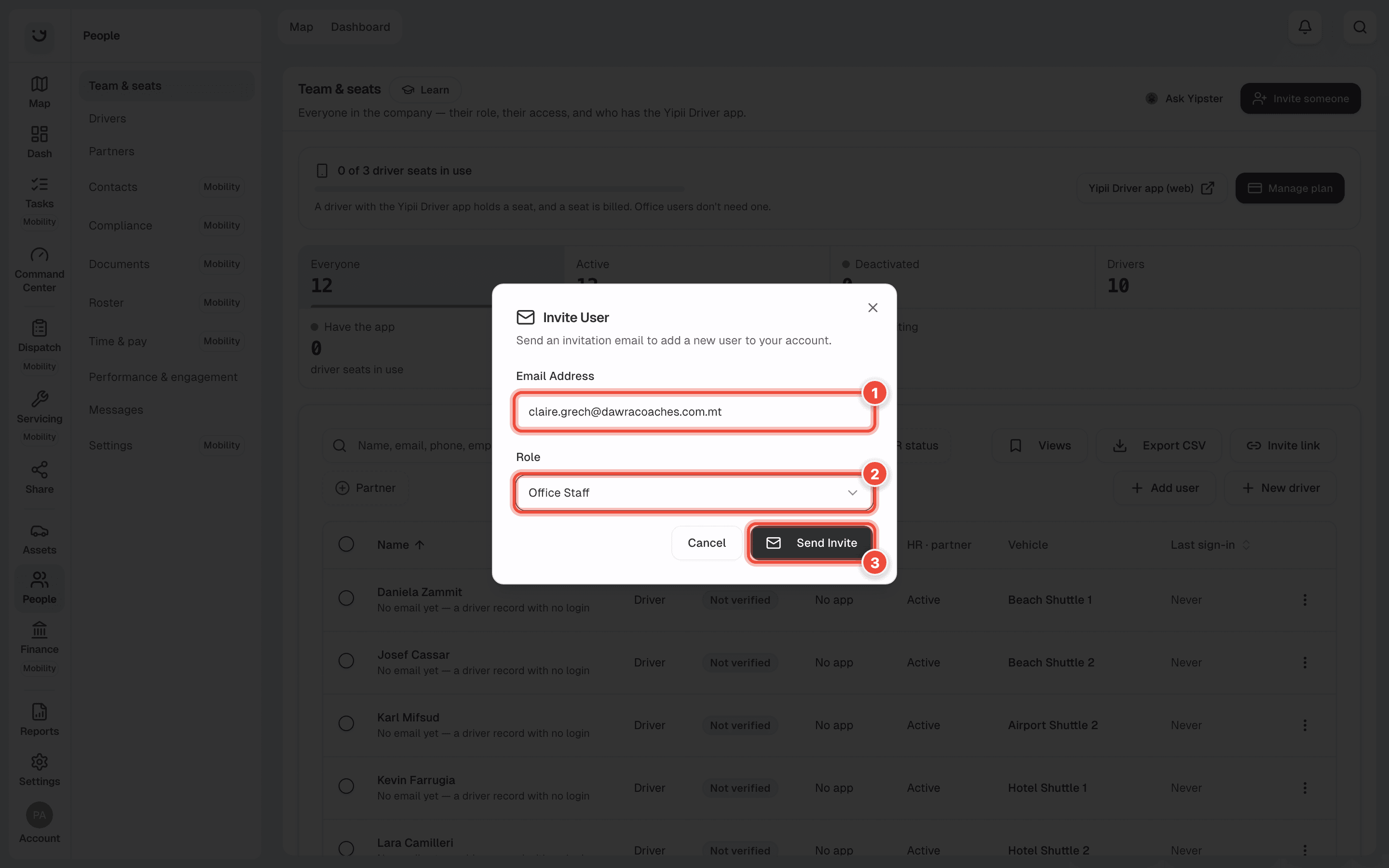
Choose a Role (2). Each one says what it allows in the list:
| Role | What they can do |
|---|---|
| Admin | Everything — people, vehicles, alerts, reports, billing and every setting. |
| Fleet Manager | Vehicles, alerts, reports, zones and groups. |
| Office Staff | See vehicles, run reports and plan the roster. Can log fuel, odometer readings, expenses and reminders, and read drivers' documents. |
| Reports Only | See vehicles and run reports only. |
| Mechanic | See vehicles and manage vehicle issues. |
| Inspector | See vehicles and report vehicle issues. |
| Driver | See the vehicles they are given. |
Click Send Invite (3).
Invite several people with one link
Click Invite link beside the search. Choose the Role everyone who joins gets, and how long
the link works under Link works for — 1 day, 7 days or 30 days. An Admin link
works for one day only, because anyone who has it can join as an Admin. To let in only your own
staff, type your company's domain in Email Domain (optional) — dawracoaches.com.mt.
Click Generate Link, then copy it and send it however you like.
Set someone up yourself
Add user creates the person straight away with their name, email, phone and role. They get an email to sign in. A driver added this way gets the app only if a driver seat is free.
What happens next
The person gets an email with a link to set their password. Until they accept, the invite is listed under the table on Team & seats, in Invites waiting, and the Invites waiting tile counts it. Once they sign in they appear in the list with the role you chose.
An invite link is listed there too, until it expires. To stop a link or an invite working before then, revoke it from that list.
If it doesn't work
| Symptom | Cause | Fix |
|---|---|---|
| Invite someone is not there | Your role cannot add people | Ask an admin on your account |
| They never got the email | It went to spam, or the address has a typo | Check the address under Invites waiting. Revoke it and invite again with the right one |
| They joined from a link with the wrong role | Everyone who joins from a link gets the link's role | Change their role on their page — see Change someone's role |
| The link says it no longer works | It expired, or it was revoked | Make a new one with Invite link |
| A driver added with Add user has no app | Every driver seat was in use | Free a seat or add seats with Manage plan, then Give the app from the ⋮ menu |
Related
Was this page helpful?