

Find a report you ran before
History: every report run on the account, by anyone, and by a schedule — filter it, see its details, and get it as PDF or Excel.
History lists every report run on your account — by you, by a colleague, or by a schedule. Look here before running the same report again.
Open it from Reports › History. On a phone it is in the row of buttons along the top.
How to read it
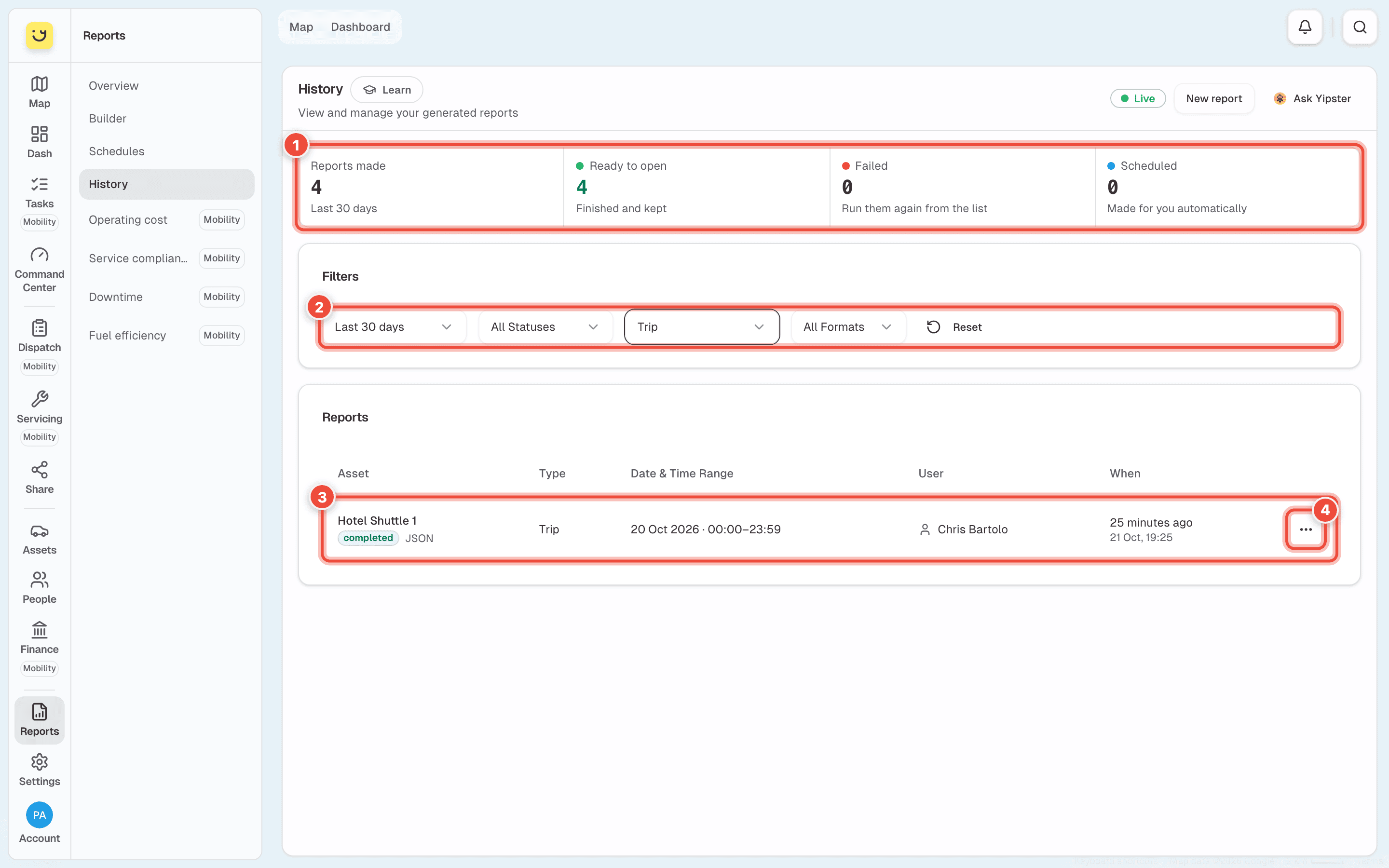
- The counts — Reports made in the period, how many are Ready to open, how many Failed, and how many were Scheduled: made by a schedule rather than by a person.
- The filters — the period (Last 7 days to Last 90 days; it starts on Last 30 days), the status, the report type and the format. In the picture the type is set to Trip.
- A report — the vehicle, whether it finished (completed), its format, the report type, the dates it covers, who ran it and when.
- The ⋯ menu at the end of its row — what you can do with it. See below.
Click a finished on-screen report to open it, just as it was made — nothing is run again. A report made as a PDF or Excel file opens with Download instead.
Live at the top right means the list updates by itself: a report that finishes while you look at it changes to completed without reloading.
Open it or get a copy
Open a report's ⋯ menu (4).
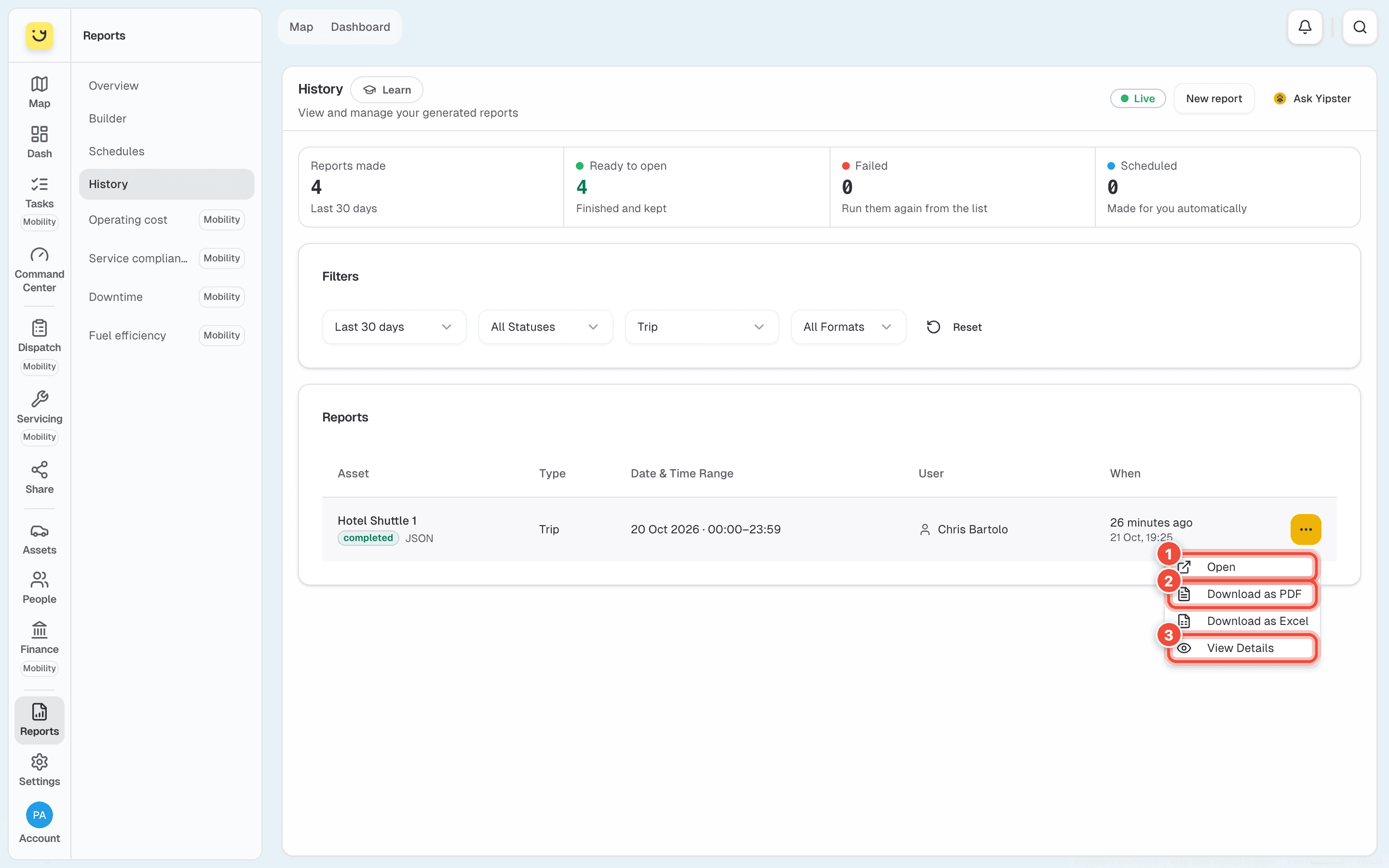
- Open (1) shows the finished report on screen, the same as clicking its row.
- Download as PDF (2) and Download as Excel build a file from the same report and download it. It takes a moment; the menu shows a spinner while it works.
- View Details (3) shows the report's status, vehicle, dates, who ran it, when it was made and finished, and its file size. A failed report shows its error here.
- A report already made as a PDF or Excel file has Download instead of Open.
New report at the top opens the Report Builder. See Run a report.
If it doesn't work
| Symptom | Cause | Fix |
|---|---|---|
| A report you ran is not listed | It is older than the period chosen, or a filter is hiding it | Set the period to Last 90 days and every filter back to All |
| A report says failed | It could not be built — often because the dates were too long or the tracker sent nothing | Open View Details for the error, then run it again |
| You want the same report for newer dates | A report in History is kept as it was made | Click New report and run it again |
| You see colleagues' reports | History is the whole account's, not only yours | Use the filters to narrow it |
Related
- Read and download a report — a report open on screen.
- Email a report on a schedule — reports that run by themselves.
Was this page helpful?