

Set required documents and check compliance
Choose the documents every driver and every vehicle must have, then see on People → Compliance who has them, whose have expired and whose are missing.
Tell Yipii which papers every driver must carry — a driving licence, a medical certificate — and it shows, person by person, what is missing or has run out.
Before you start — you need Yipii Mobility on your account. Setting the requirements needs an admin or a fleet manager; office staff can read the register.
Steps
Choose what every driver must have
Go to People → Settings.
Under Every driver must have, tick each document a driver needs (1) — Driving Licence and
Medical Certificate. Under Every vehicle must have, tick what each vehicle needs.
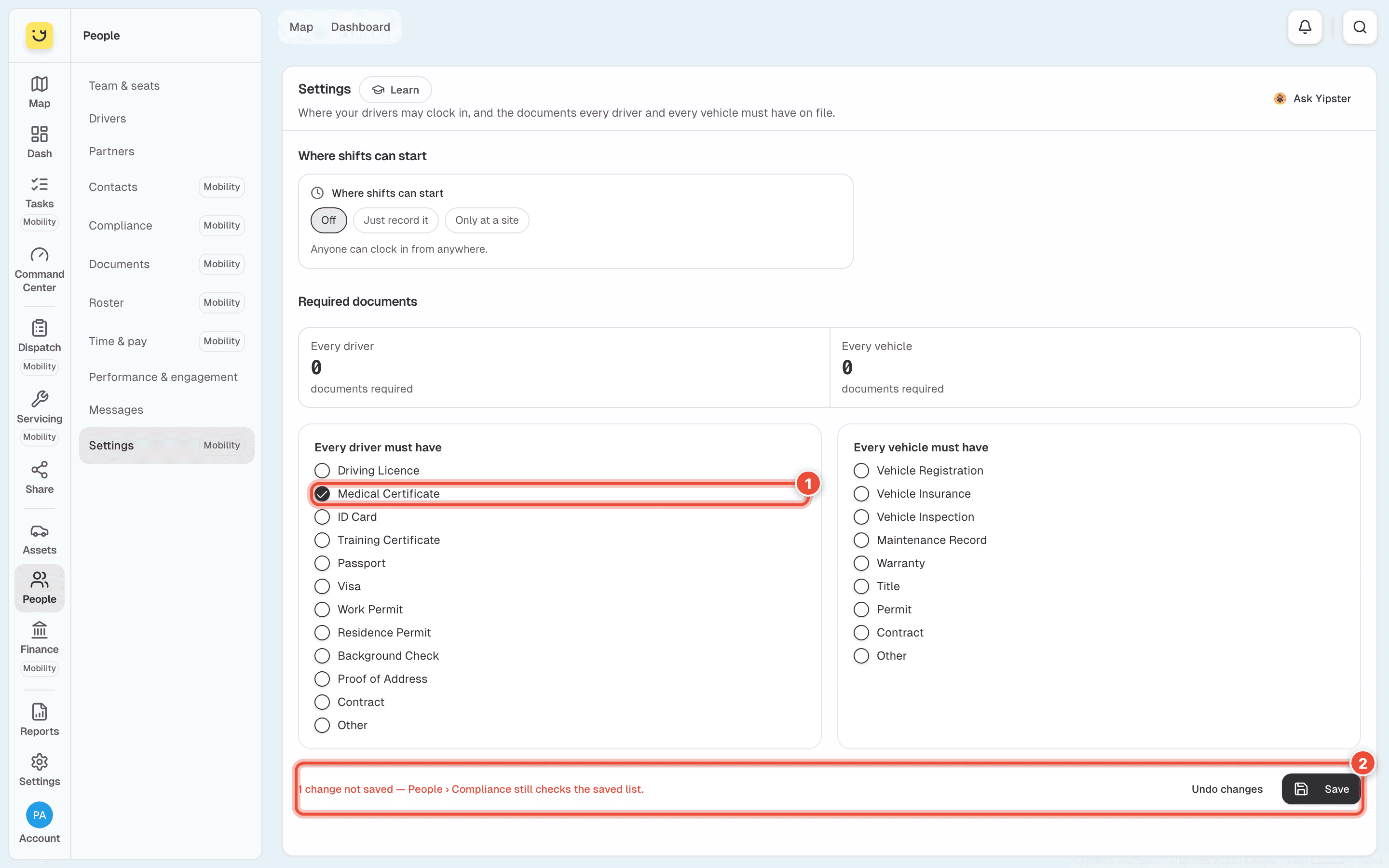
Click Save in the bar at the bottom (2). Until you do, it says how many changes are not saved and Compliance still checks the saved list. Undo changes puts the ticks back.
Yipii says Saved. People › Compliance checks against these now. If you try to leave with changes not saved, Yipii warns you first.
Check who is missing something
Go to People → Compliance. It opens on Register (1).
Click a tile (2) — Missing — to show only those people. Expired and Expiring in 30 days work the same way.
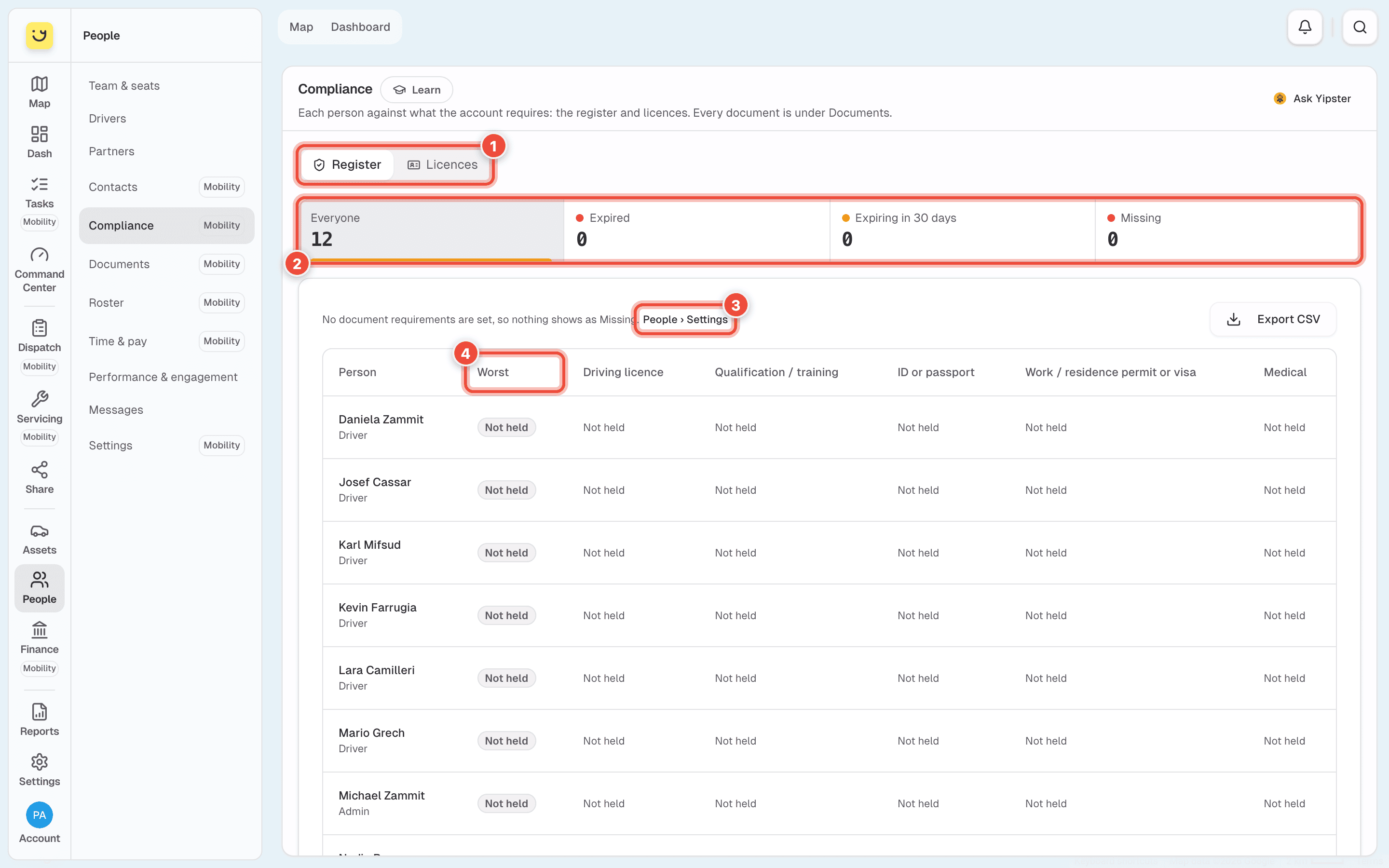
Read Worst (4): the most urgent state across the person's documents. The columns after it are one per document type. Click a person to open their page and upload what is missing — see Upload a driver's documents and licence.
People › Settings (3) takes you back to the requirements. Export CSV downloads the register. Licences (1) lists every licence with its class, expiry and whether a scan is on file.
What happens next
Each driver is checked against every document you ticked. A driver with none on file shows Missing; one whose document has run out shows Expired. People who are not drivers are shown with what they hold, never as Missing.
On the Dashboard, an expired licence has Open in People, which brings you to this register with that person marked.
If it doesn't work
| Symptom | Cause | Fix |
|---|---|---|
| No document requirements are set, so nothing shows as Missing. | Nothing is ticked under People → Settings | Tick the documents and click Save |
| A tick disappeared after leaving the page | It was not saved | Tick it again and click Save in the bar at the bottom |
| An office worker shows Not held but not Missing | Requirements apply to drivers only | Nothing to fix. Make them a driver if they drive |
| A driver shows Missing but their licence scan is uploaded | The scan's Type is not the one required | Open the document, click Edit, and set the right Type |
| Settings is not in the People menu | Only admins and fleet managers set requirements | Ask one of them |
Related
- Upload a driver's documents and licence
- People — who sees which page.
Was this page helpful?