

Review hours and run a pay period
See who is on the clock, approve or fix the hours drivers clocked, add a forgotten shift, then lock a pay period and download the payroll CSV.
Drivers clock in and out in the Yipii Driver app. Time & pay is where you check those hours, approve them, and gather them into a pay period for payroll.
Before you start — you need Yipii Mobility on your account, and to be an admin or a fleet manager. Set each person's pay first, under Pay profiles, so the hours have a rate and a standard week to measure against.
Steps
Go to People → Time & pay. It opens on Timesheets (1).
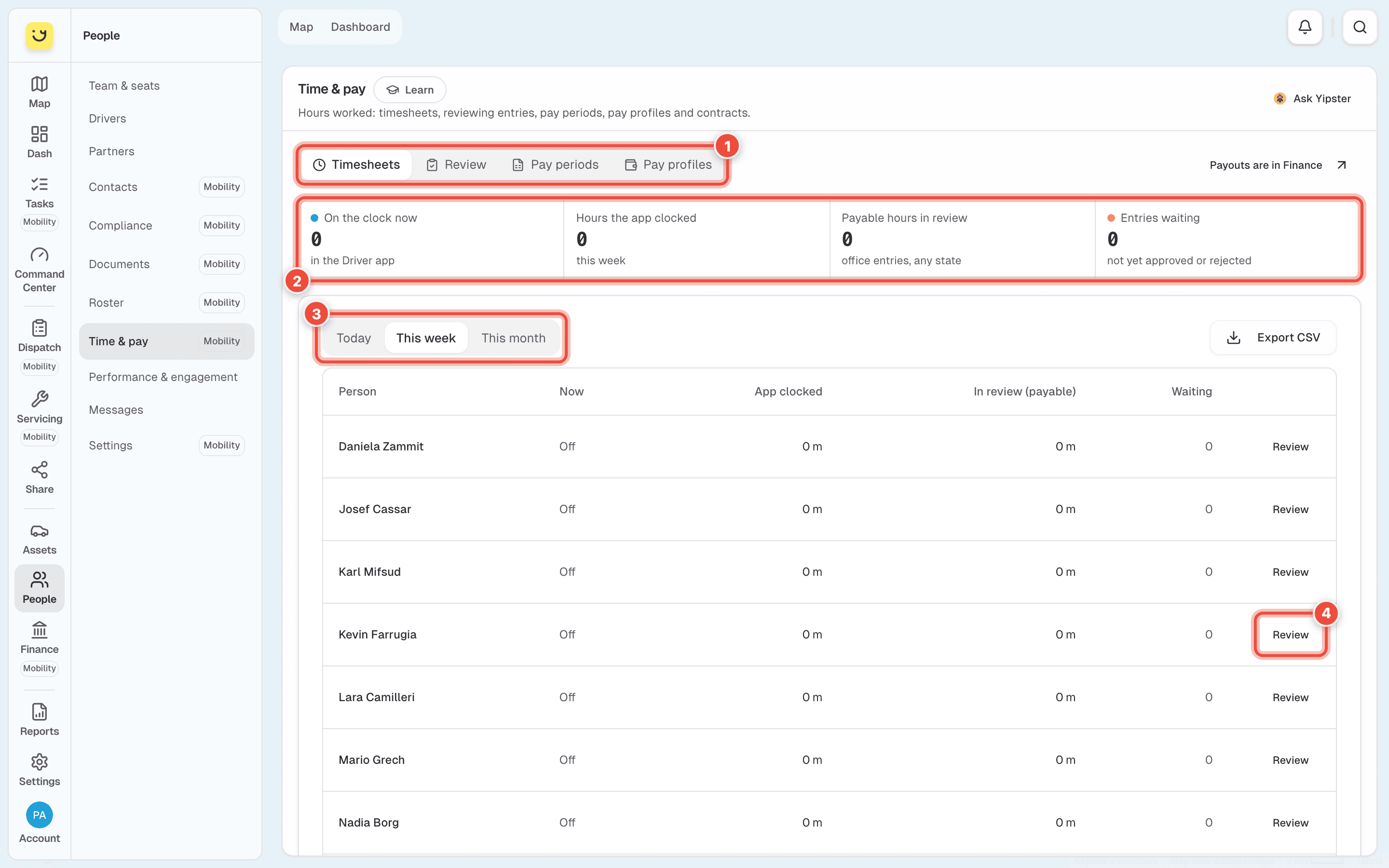
Choose the days (3) — Today, This week or This month. The tiles (2) show who is On the clock now, the Hours the app clocked, the Payable hours in review and the Entries waiting for you.
Click Review (4) on a person's row. It opens Review with their entries for those days.
Check each entry's Clock in, Clock out, Break and Payable time, then click Approve. If an entry is wrong, click Reject… and say why. To do several at once, tick their rows and use Approve or Reject… in the bar that appears.
Add a shift somebody forgot to clock
On Review, click Add an entry. Choose Who worked, set Clock in, Clock out and any Unpaid break, then click Add the entry. It waits for approval like any other.
Run a pay period
Open Pay periods and click New pay period. Set Starts on and Ends on, then click Create the period. It opens empty.
When every entry in those dates is approved, click Lock on the period. Its approved entries are stamped with the period and can no longer be edited. Entries still waiting stay out.
Click Download the payroll CSV and send it to whoever runs payroll.
Once paid, click Mark paid. A paid period cannot be reopened. Before that, Reopen unlocks its entries so they can be changed again.
Set how someone is paid
Open Pay profiles and click Add a profile. Choose the Person and their Contract, then the Hourly rate or Annual salary, their Standard week, the Overtime multiplier and a Default break. Click Save. The roster measures their hours against the standard week.
What happens next
Approved hours count under Payable hours in review until their period is locked. In a locked period they appear in the period's summary as Regular, Overtime and Double hours per person. Paying people out is in Finance: Payouts are in Finance, top right, takes you there.
If it doesn't work
| Symptom | Cause | Fix |
|---|---|---|
| An entry cannot be changed and says Locked by a closed pay period | Its pay period is locked | Reopen the period, fix the entry, then Lock it again |
| Nobody clocked any time on these days. | No one used the clock in the dates chosen | Choose This month, or add the entry by hand |
| A row is marked with a warning beside the hours | The app's clock and the review differ by 15 minutes or more — an edit, a manual entry, or a missed clock | Open Review and check the entry |
| The roster cannot say if someone is over or under | They have no standard week | Give them a pay profile with a Standard week |
| Time & pay is not in the People menu | Only admins and fleet managers see it | Ask one of them |
Related
Was this page helpful?