

Import from a spreadsheet
Bring places, vehicles, routes, passengers, customers or trips into Yipii from a CSV, Excel file or Google Sheet — the columns are matched for you, and the same file again updates rather than doubles.
Settings › Import brings in what already lives in a spreadsheet or another system. This page imports a list of depots and pickup points as places.
Before you start — have the file ready: a CSV or Excel (.xlsx) file of up to 5,000 rows,
or a Google Sheet shared as Anyone with the link — Viewer. An export from another fleet
system works as it is. For places, an address is enough; Yipii finds it on the map.
Steps
Go to Settings › Import and choose what the file holds — Places (1).
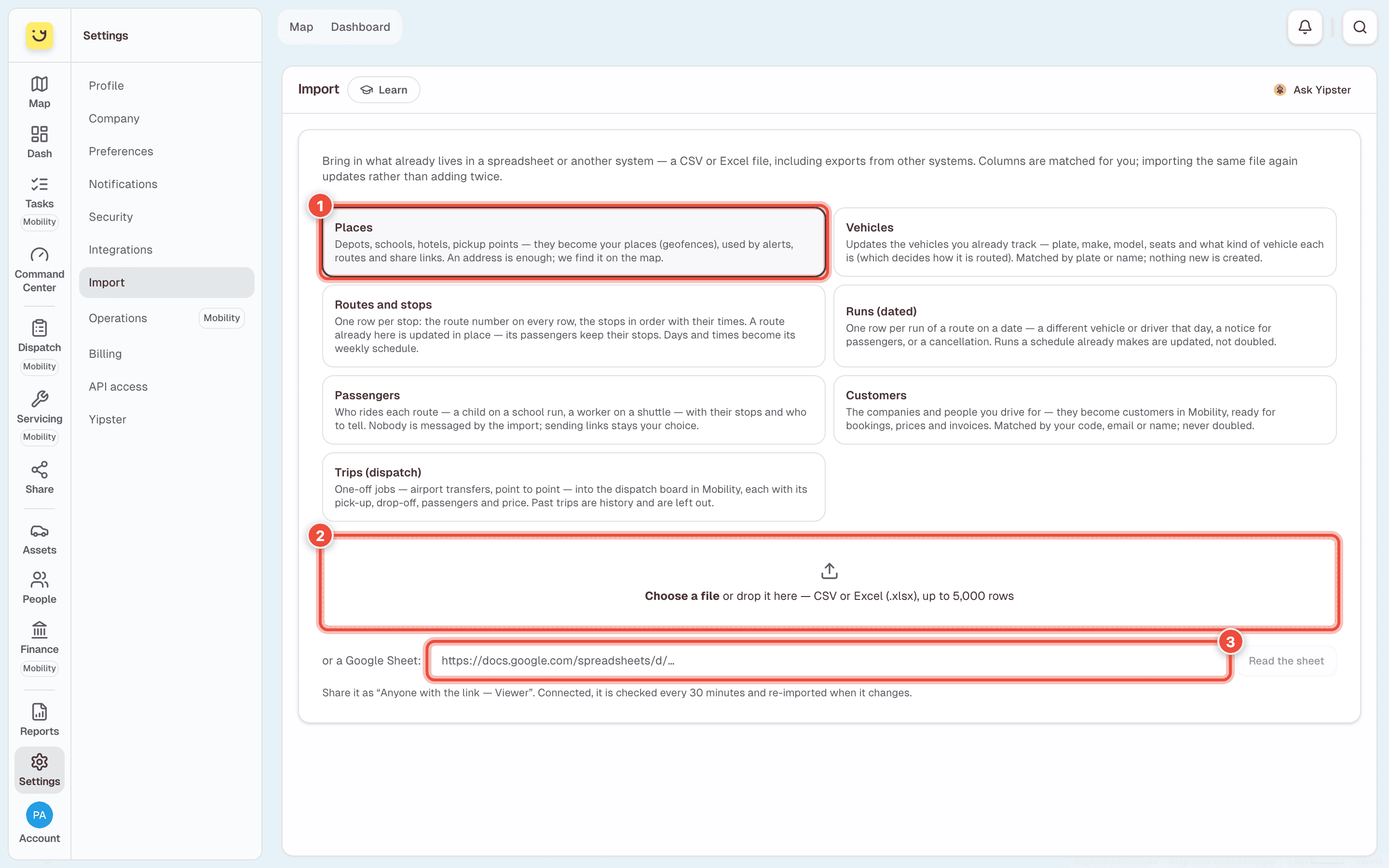
| Choose | It becomes |
|---|---|
| Places | Places (geofences) for alerts, routes and share links |
| Vehicles | Updates to the vehicles you already track — plate, make, model, seats, kind of vehicle. Matched by plate or name; nothing new is created |
| Routes and stops | Routes, one row per stop, with their weekly times |
| Runs (dated) | One run of a route on one date — another vehicle or driver, a notice, a cancellation |
| Passengers | Who rides each route, with their stops and who to tell. Nobody is messaged |
| Customers | Customers in Yipii Mobility, ready for bookings, prices and invoices |
| Trips (dispatch) | One-off jobs on the dispatch board in Yipii Mobility. Past trips are left out |
Click Choose a file (2), or drop the file on the box. For a Google Sheet, paste its link in or a Google Sheet (3) and click Read the sheet.
Check the columns. Yipii shows the first rows as they will be saved. If it missed a column, choose it from the list beside each field, or Leave out a column you don't want.
Answer any question about a value it doesn't know — what 4 Seater means, say. It remembers the answer for next time.
For a Google Sheet, tick Keep in sync — re-import when the sheet changes if the sheet will keep changing, and give it a name.
Click Import N rows.
What happens next
The import runs in the background. When it ends, Yipii says how many rows were added, updated, left out and could not be saved. It is listed under Earlier imports.
Importing the same file again updates what the first import made instead of adding it twice. A sheet you keep in sync is listed under Connected sheets: Yipii checks it every 30 minutes and imports it again when it has changed. Disconnect stops it.
If it doesn't work
| Symptom | Cause | Fix |
|---|---|---|
| That file couldn't be read. | It isn't a CSV or .xlsx file, or is damaged | Save it again as CSV or Excel and choose it again |
| That sheet couldn't be read. | The sheet isn't shared publicly | In Google Sheets, share it as Anyone with the link — Viewer |
| Import is greyed out and asks which column holds something | A column Yipii needs wasn't found | Choose that column from the list |
| Some rows were left out | They had a value you didn't answer | Answer the question, then import the file again |
| A vehicle in the file wasn't added | Vehicles only updates vehicles you already have | Add the vehicle first, then import again |
Related
- Draw a geozone — the places you imported, on the map.
- Settings — the other Settings pages.
Was this page helpful?