

Assets
The record every vehicle, vessel and piece of equipment hangs off — create one, group it, set its type and icon, and find it again after a rename.
An asset is the thing you are tracking: a van, a jet ski, a generator, a driver's phone. It is the name that appears on the map, in reports, in alerts and on a tracking link.
The tracker is the hardware. The asset is the record. Every other screen in Yipii is showing you assets, not trackers.
The Assets screen
Open Assets from the main menu.
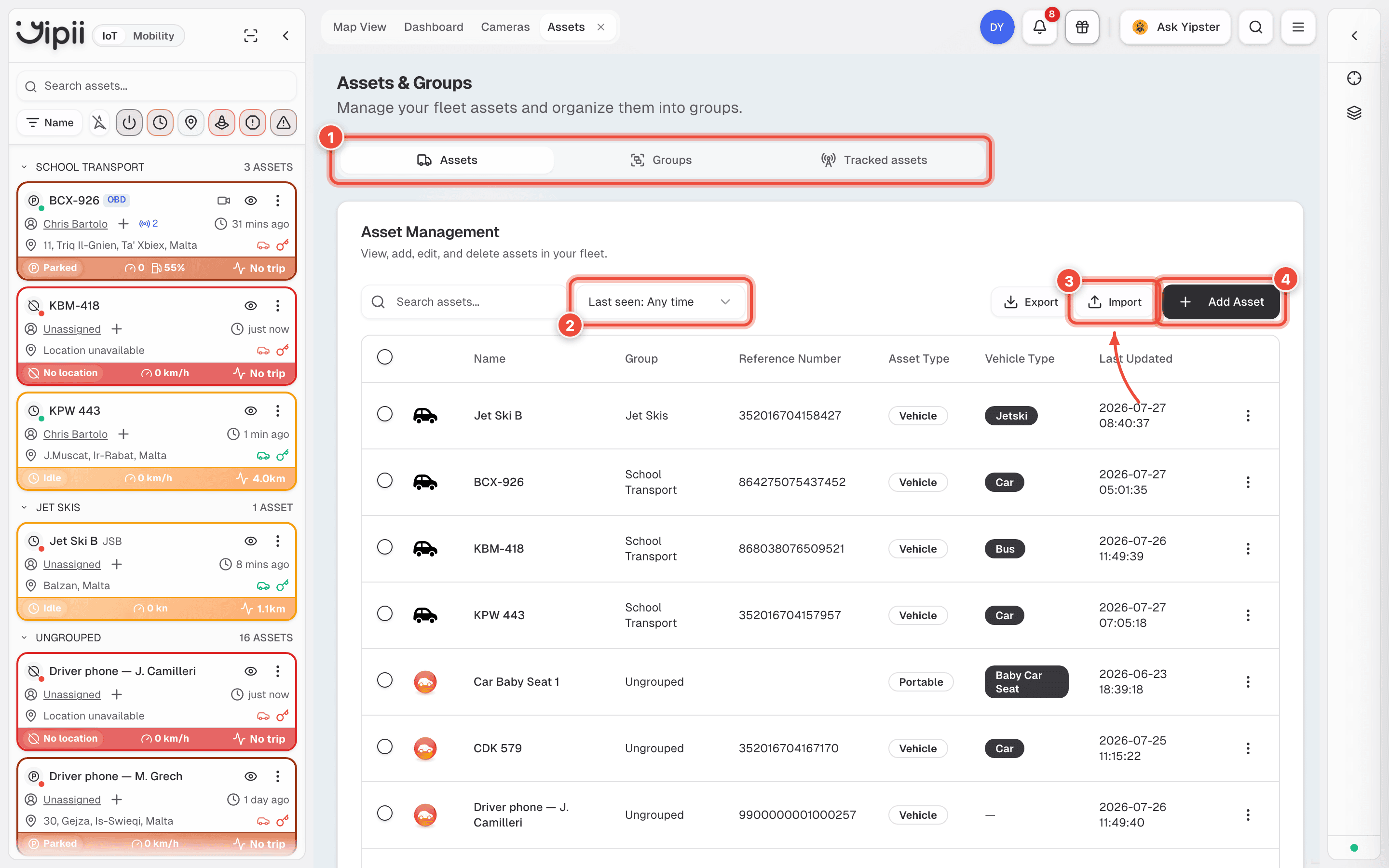
- Sub-tabs — Assets is everything with a tracker. Groups is how you organise them. Tracked assets is equipment located by a beacon instead of by GPS.
- Last seen — narrows the list by how recently something reported. Inverting it is the fastest way to find what has gone quiet.
- Import and Export — CSV, for bulk changes.
- Add Asset — creates a record. Use it for something that has no tracker yet; if the hardware is in your hand, register the tracker instead and let it create the asset.
The table carries Name, Group, Reference Number, Asset Type, Vehicle Type and Last Updated. Last Updated is the honest column: a date that has stopped moving is a tracker that has stopped reporting.
Create an asset
Click Add Asset.
Name (1) — required, 2 to 50 characters. Use whatever the crew shouts across the yard: the plate, the fleet number. This is what appears on the map.
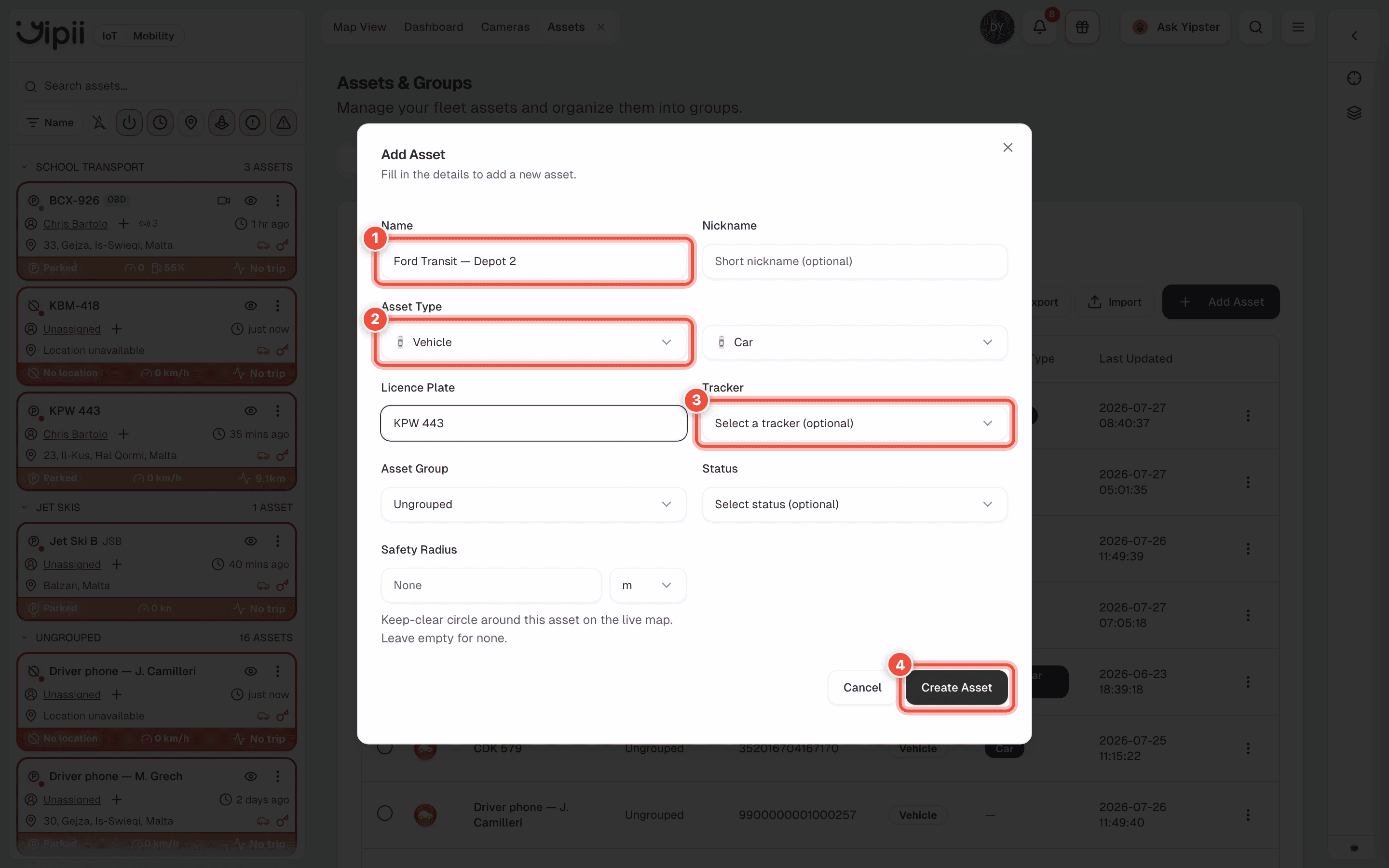
Asset Type (2) — two dropdowns, not one. The left is the broad type (Vehicle, Marine, Equipment, Person, Other); the right narrows it (Car, Van, Truck, Bus, Trailer…). Together they set the map icon. Get it right now; a jet ski drawn as a van stays confusing for the life of the record.
Tracker (3) — optional, and it only lists trackers on your account that are not already attached to something. If the hardware is in your hand and unregistered, leave this alone and register the tracker instead — that flow creates the asset for you.
Asset Group — optional, and the highest-value field on the form. See Groups.
Optionally add a Nickname, Licence Plate, Status and Safety Radius, then Create Asset. On a phone that button is below the fold — scroll the dialog to reach it.
What happens next
The asset appears in the sidebar and in the table. With no tracker it has no position, so it will not be on the map — attach one from the same form, or scan one in.
The fields that aren't obvious
| Field | What it actually does |
|---|---|
| Name | The display name everywhere. Editable at any time; renaming does not break history |
| Original Name | Read-only, shown when editing. The name the record was created with — the way back when somebody renames a van and nobody can find it |
| Nickname | A second, shorter label, and it is searchable. A van known as both MDC 215 and the big Transit becomes findable either way |
| Licence Plate | Reference only. It does not have to match the name and nothing is matched against it |
| Status | Your own operational status — in service, off road, whatever you have defined. Nothing to do with the live movement status |
| Safety Radius | 10 m to 50 km, in metres or feet. The distance Yipii treats as "at" a location for this asset |
Types and map icons
The asset type decides the icon, and the icon rotates to the vehicle's heading. Bigger vehicle types draw as bigger markers, so a bus is distinguishable from a car at a glance without reading any labels.
There is no separate icon picker. Change the type and the marker changes with it, immediately.
The table separates two columns that sound alike:
- Asset Type — Vehicle or Portable. A portable has no tracker of its own and is located by beacon.
- Vehicle Type — the specific thing: Car, Van, Bus, Jetski, Baby Car Seat. This is what picks the icon.
Groups
A group is a folder for assets, and it is worth setting up on day one.
Groups matter beyond tidiness because alerts can target a group instead of a list of vehicles. Point a speeding alert at Delivery vans and every van added to that group next year is covered automatically. Point it at eleven hand-picked vehicles and it quietly stops covering the fleet the day you buy a twelfth.
The sidebar collapses by group with a count on each, and an Ungrouped bucket at the bottom. If Ungrouped is your largest group, the sidebar is not doing anything for you.
Tracked assets
Equipment with no tracker — a generator, a toolbox, a trailer — can be located by attaching a beacon to it. Whichever vehicle's tracker can see the beacon reports where it is.
These live under Tracked assets, showing the gateway that last saw each one and where that was. The precision is "with this vehicle", not a GPS coordinate — which is usually the actual question: which van has the generator?
The asset panel
Click an asset, in the sidebar or on the map, and the right-hand panel opens on it.
| Tab | What it holds |
|---|---|
| Details | Live status, position, address, Street View, vehicle details, and the share control |
| Diagnostics | Everything about the tracker — health verdict, identifiers, device settings, reset, command history |
| Beacons | What this tracker can currently see. Only present when BLE is on |
| Yipster | Questions about this specific vehicle |
| Manage | Account sharing and photos |
Photos earn their keep on anything that goes to a customer site. An installation photo settles an argument about how a tracker was fitted eighteen months later, and an asset photo makes the sidebar scannable instead of a column of registration plates.
Import and export
Export gives you the current list as CSV; Import takes it back.
For a bulk edit, export first and edit that file rather than building a CSV from scratch — the export already has the columns in the shape the importer expects. Imports pass through a review step before anything is written, so a wrong column surfaces there rather than in your fleet.
If it doesn't work
| Symptom | Cause | Fix |
|---|---|---|
| Add Asset isn't there | Your role is read-only for assets | Ask an account admin to change your role under Users |
| The asset exists but isn't on the map | No tracker, or no GPS fix yet | Attach a tracker. If one is attached, check its health |
| Saving fails on the name | Under 2 or over 50 characters | Names are 2–50 characters |
| Safety radius is rejected | Outside the permitted range | 10 m to 50 km. Check the unit — 30 ft is under 10 m |
| You renamed an asset and can't find it | You're searching the old name | Search the nickname, or open the edit dialog and read Original Name |
| An alert stopped covering new vehicles | It lists assets individually | Point it at a group |
| A tracked asset shows the wrong place | It reports the position of the vehicle that can see its beacon | That is how it works — precision is "with this vehicle" |
| Last Updated is days old | The tracker stopped reporting | Check the tracker, then set a Tracker health alert so you're told next time |
| The tracker you want isn't in the Tracker list | It is already attached to another asset, or Yipii has never seen it | Move it through Add Device, which handles the unlink for you |
Related
- Trackers — the hardware an asset hangs off.
- Beacons — for equipment with no tracker of its own.
- Statuses — the live movement status, not the one you set here.
- Alerts — and why they should point at groups.
Was this page helpful?