

Choose who gets told, and how
Email, push, SMS and WhatsApp for an alert; priority emails instead of the hourly digest; and people outside your team, a webhook or Zapier.
Each alert has its own list of people and its own ways of reaching them. Whoever gets a text at night about a van moving need not be the person who reads the daily temperature emails.
Before you start — you need to be an account admin or a fleet manager. You are either setting up a new alert (see Set up an alert) or changing one: open its ⋮ menu and choose Edit Alert.
Steps
Open the Notify tab of the alert window.
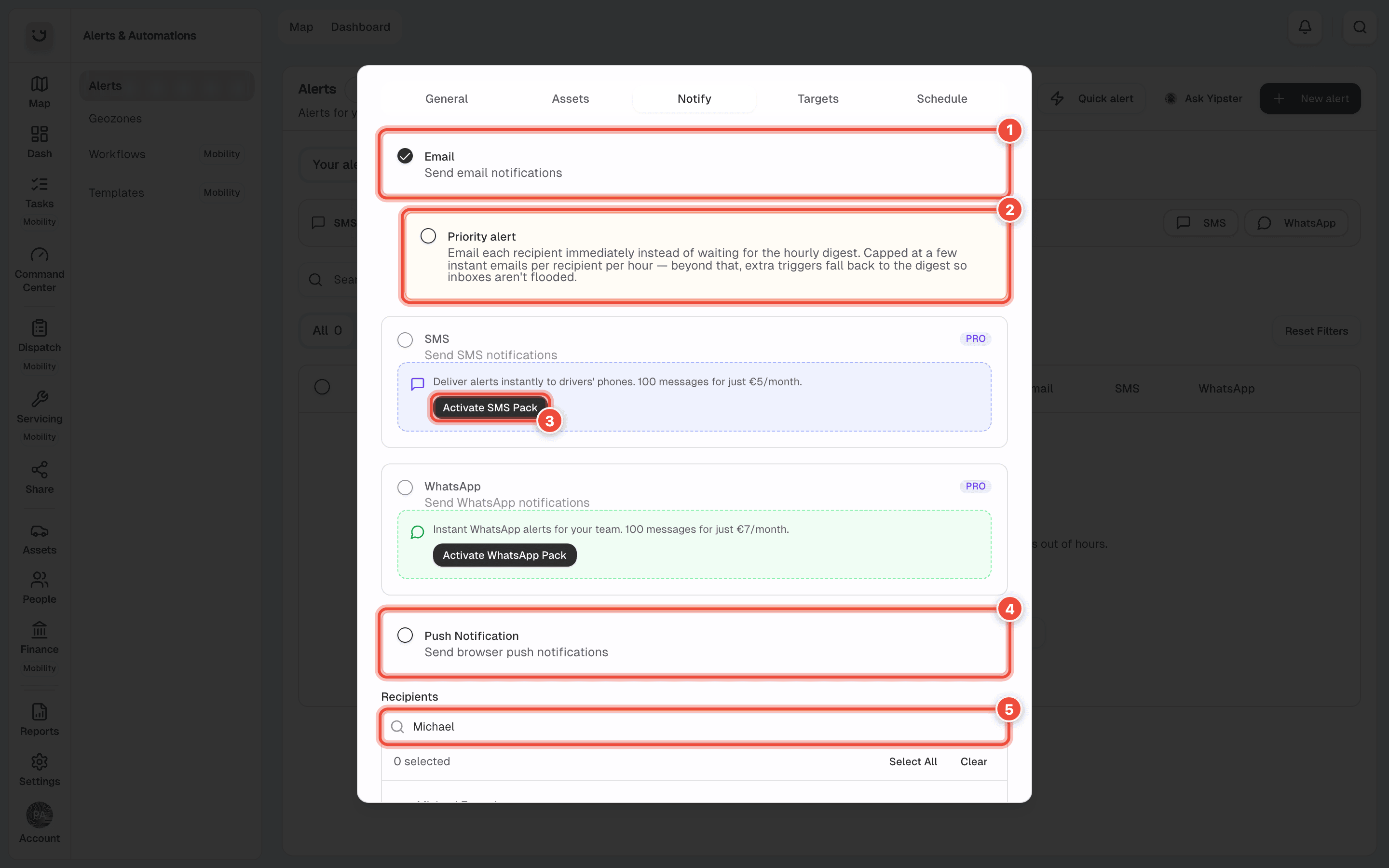
Tick how the message goes out. You can tick several.
- Email (1) — included. Emails are collected into one hourly digest, so a busy alert sends one email an hour, not forty.
- Priority alert (2) appears once Email is ticked. It emails each person straight away instead of waiting for the digest. To protect inboxes, after a few instant emails in an hour the rest go into the digest.
- SMS and WhatsApp need a message pack. Without one the box is greyed and offers to start one — Activate SMS Pack (3) is 100 messages for €5 a month. With a pack, the box shows how many messages are left.
- Push Notification (4) — included. A banner on every phone and browser where the person allowed notifications. See Push notifications.
Under Recipients, search for a person (5) — Michael — and tick them. Select All ticks
everyone on the list. The list holds the people on your account whose email is confirmed; the
line under it says how many are hidden because they have not confirmed theirs yet.
To tell someone who has no login — a client, a supplier — open the Targets tab. Under
External recipients, click Add recipient, choose how (2) and type where (3) —
operations@dawracoaches.com.mt.
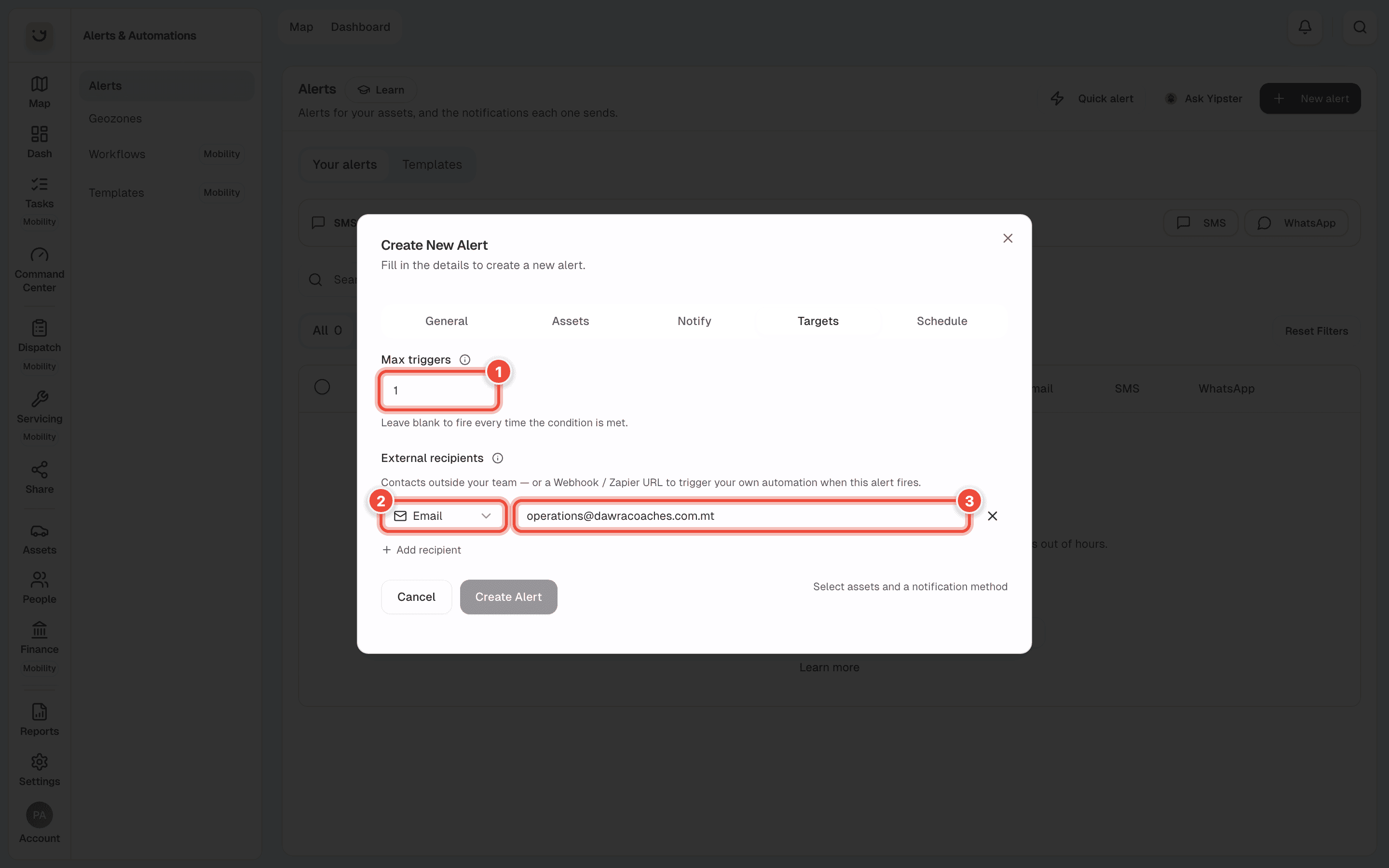
The channel can be Email, SMS, WhatsApp, Webhook or Zapier, and an alert can have up to 5 of them. SMS and WhatsApp use your message pack. Max triggers (1) is explained on Choose when an alert can fire.
Click Create Alert, or Update Alert if you are changing one.
Send an alert to your own system
Choose Webhook to have Yipii send each alert, as data, to a web address of yours, or Zapier to start a Zap from a Zapier catch hook. Every message is signed so your system can check it came from Yipii. When you save, Yipii shows the signing secret once: copy it then, because it cannot be shown again.
What happens next
From the next time the alert fires, the people you chose hear about it in each way you ticked. The alert's history lists every message and whether it was sent — see See what an alert sent.
Anyone who gets an alert email can stop that alert's emails from the link at the foot of it.
If it doesn't work
| Symptom | Cause | Fix |
|---|---|---|
| Someone is missing from Recipients | They have not confirmed their email address | Ask them to use the link in their welcome email. See Invite someone to your account |
| Emails arrive late, all together | Email is collected into an hourly digest | Tick Priority alert on alerts that cannot wait |
| SMS or WhatsApp can't be ticked | The account has no message pack for it | Click Activate SMS Pack, or SMS or WhatsApp in the yellow strip on Alerts |
| SMS and WhatsApp stopped | The pack's messages for the month are used up — the strip says Delivery paused | Click Upgrade in the strip for a bigger pack |
| No push banner on the phone | Notifications are not allowed on that phone or browser | See Push notifications |
| Someone stopped getting the emails | They used the unsubscribe link at the foot of one | Ask them, or reach them by another channel |
| You lost a webhook's secret | It is shown only once | Remove the webhook, click Update Alert, then add it again — a new one gets a new secret when you save |
Related
Was this page helpful?