

Billing
What your account pays for — IoT tracking, Yipii Mobility and the Driver Add-On, each on its own — its invoices, paying by card, and how to change a plan or try Mobility.
Settings › Billing shows what the account pays for and its invoices. Three products are billed separately — IoT tracking, Yipii Mobility and the Driver Add-On — and each has its own card. All of them are on the same Yipii invoices.
Before you start — only account admins and office staff see Billing.
Prices on this page are examples from one account. Your Billing page and your invoices are the figures that count.
Your products
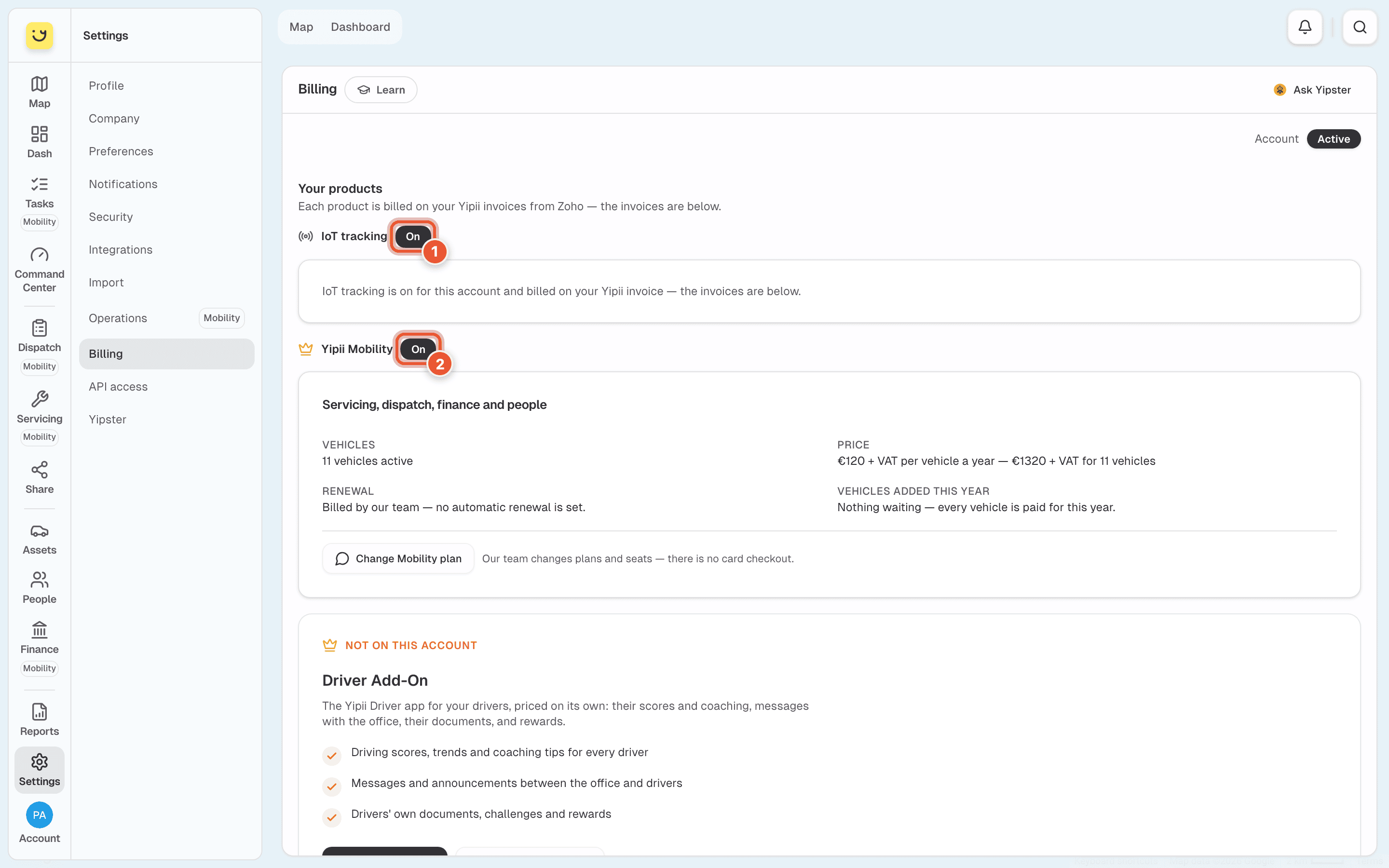
- IoT tracking and its status — On, or On — invoice overdue when an IoT invoice is unpaid, with the amount and a reminder to pay it. Each product shows its own overdue state.
- Yipii Mobility and its status, the same way. Its card is below; see the next picture.
Under IoT tracking, an account billed by our team sees one line saying tracking is on and billed on the Yipii invoice, as here. An account billed per asset also sees Billable assets — how many assets you are charged for, out of the total on the account (a vehicle with no tracker, or one in the bin, is not billed) — and Active add-ons: what is switched on beside tracking, such as the Driver Add-On, Public Sharing (tracking links beyond the free ones), WhatsApp or SMS packs.
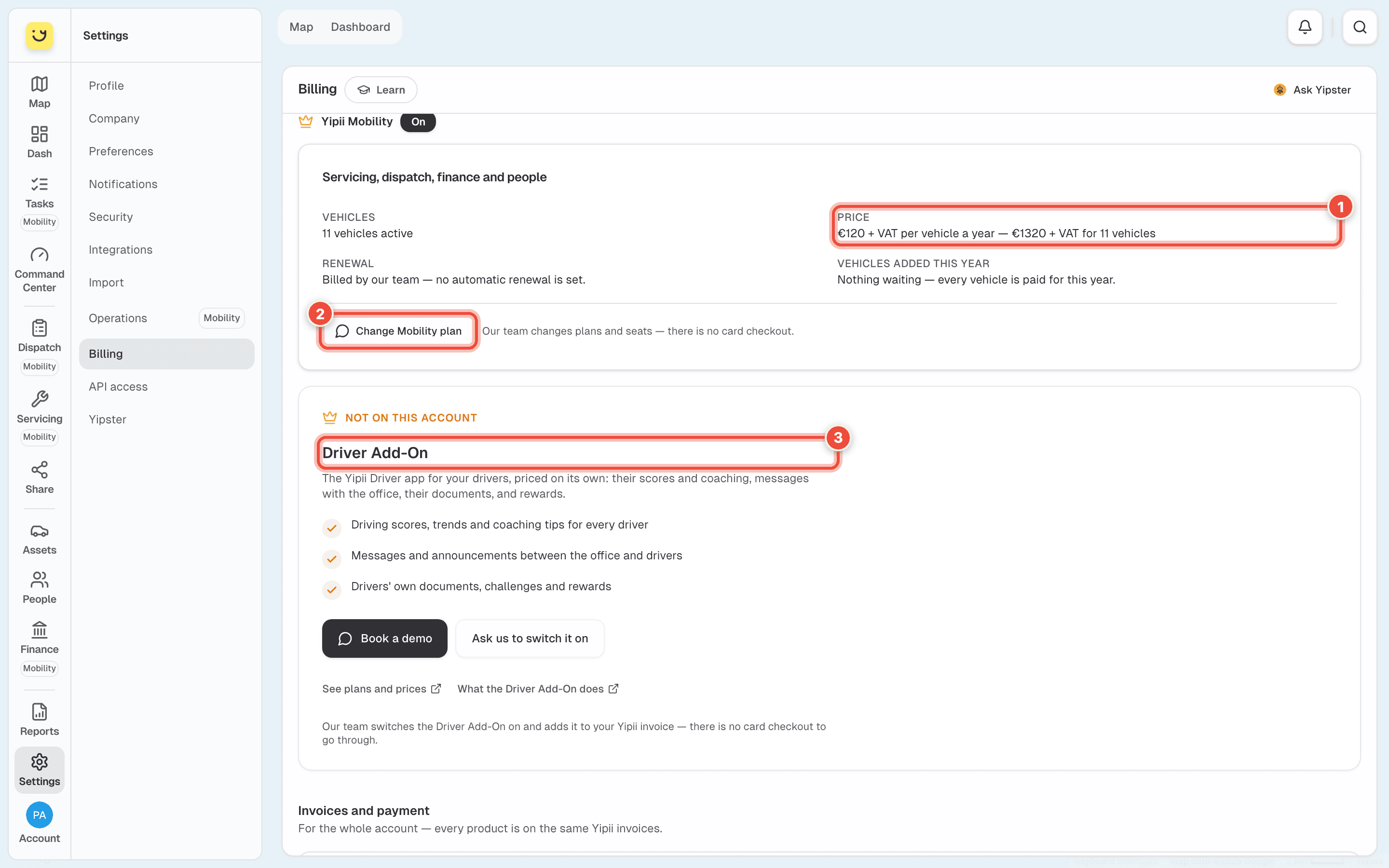
- Yipii Mobility is billed per vehicle per year. Its card says how many vehicles are active, the price, the renewal, and any vehicle added this year that is still to be paid for.
- Change Mobility plan opens a message to our team, already filled in. Plans and seats are changed by our team; there is no card checkout.
- Driver Add-On — the Yipii Driver app, on its own line of your invoices. Here it is Not on this account; see below. When you have it, Driver seats says how many are in use and how many are included, and Change driver seats asks our team.
When the account doesn't have a product
A product the account doesn't have shows Not on this account, what it adds, and how to get it: Book a demo, Ask us to switch it on (or Get trackers fitted for IoT tracking), and links to the plans and prices.
For Yipii Mobility, an account admin or fleet manager can start a 14-day free trial from that card. During the trial the card shows the days left and Subscribe: Yipii raises your invoice, emails it, and you pay it by card. Anyone else on the account sees who can start the trial for them.
Invoices and payment
Further down, under Invoices and payment:
- Pay now — shown when an invoice is waiting. It opens the invoice, where you pay it securely by card.
- Billing History — each invoice with its number, date, amount and status (Paid, Overdue, Partially Paid and so on). View opens it; Pay Now pays that one. Until your first invoice is issued it says No invoices available.
- Add-ons — every add-on, such as the Yipster plans, Driver app seats and message packs, marked Active or Available, with its monthly price. Ask us to add it asks our team to switch one on.
Tracking links and the bill
Three active tracking links are free. Past that, the Public Sharing add-on bills every asset you share, not each link beyond the third. Expired and switched-off links don't count.
If it doesn't work
| Symptom | Cause | Fix |
|---|---|---|
| There's no Billing in the Settings menu | Only account admins and office staff see it | Ask an account admin |
| On — invoice overdue | An invoice for that product is unpaid | Click Pay now and pay it by card |
| Couldn't check which products this account has | Billing could not be loaded just now | Click Try again; your invoices still show below |
| Billable assets is lower than your fleet | Assets with no tracker, and assets in the bin, aren't billed | Compare it with the total beside it |
| There's no button to change the plan yourself | Plans and seats are changed by our team | Use Change Mobility plan or Change driver seats |
| You can't start the Mobility trial | Only an account admin or fleet manager can start it | Ask the person the card names |
Related
- Share a tracking link — the free links, and what tips you past them.
- Settings — the other Settings pages.
Was this page helpful?