

Plan the roster
Put drivers on shifts and leave week by week, see where the work is short of drivers, copy a week forward, approve leave drivers ask for, and share a driver's schedule.
The roster is who works when. Each row is a driver and each column a day; the Cover row underneath shows whether enough drivers are on for the work you have booked.
Before you start — you need Yipii Mobility on your account, and to be an admin, fleet manager or office staff. Drivers appear once they have an HR record: anyone added with New driver has one. The roster is easiest on a computer — on a phone, use Day.
Steps
Go to People → Roster. It opens on this week, in Week (1). The arrows beside the dates move a week at a time, and Today comes back to this week.
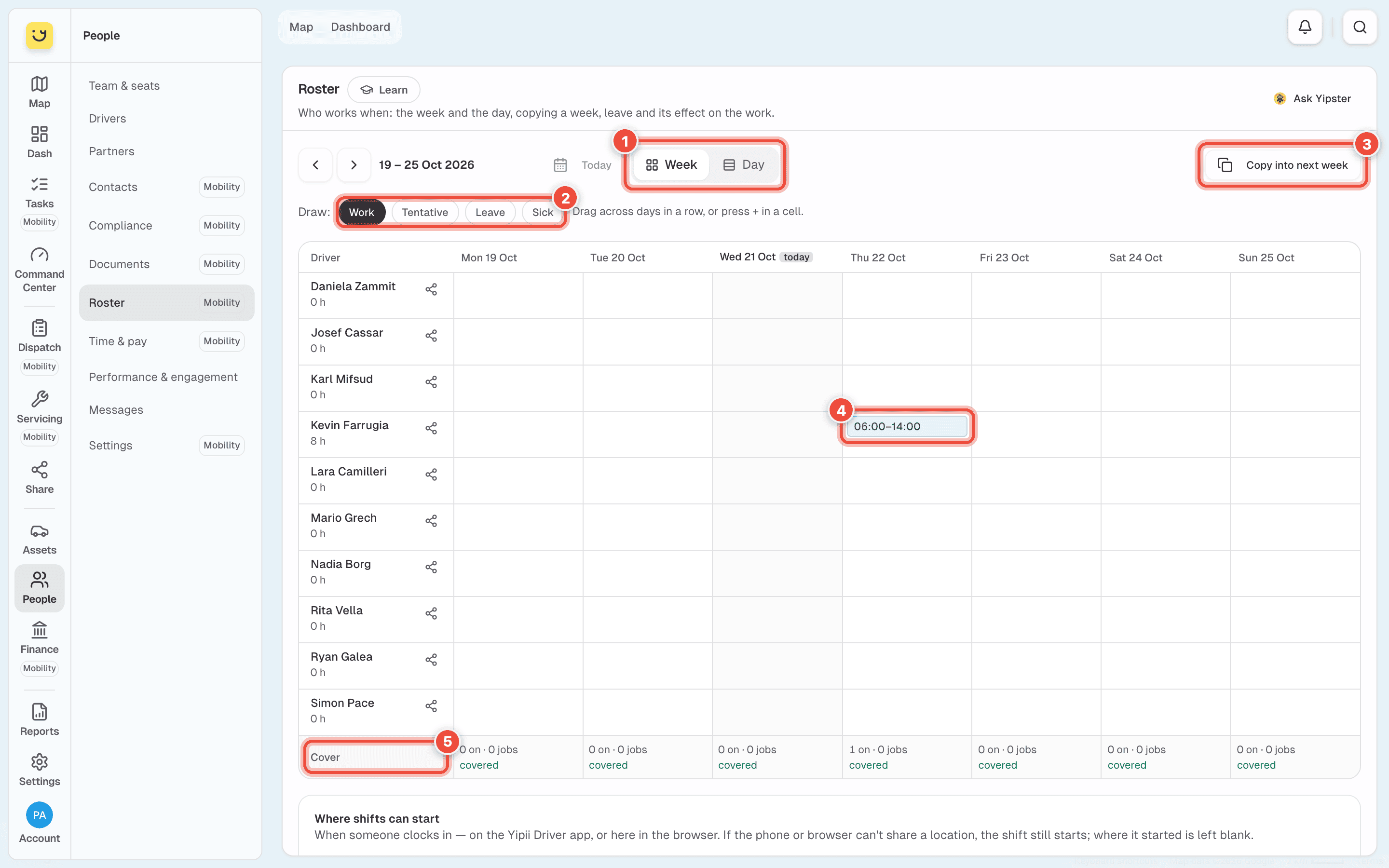
Under Draw (2), choose what you are adding: Work, Tentative (pencilled in, not agreed), Leave or Sick.
Drag across the days in a driver's row — Monday to Wednesday for three days' leave. To add one day, hover the cell and press +. Yipii adds it straight away.
Click the new shift (4) to set its times. Choose From and To — 06:00 to 14:00 — and
click Save.
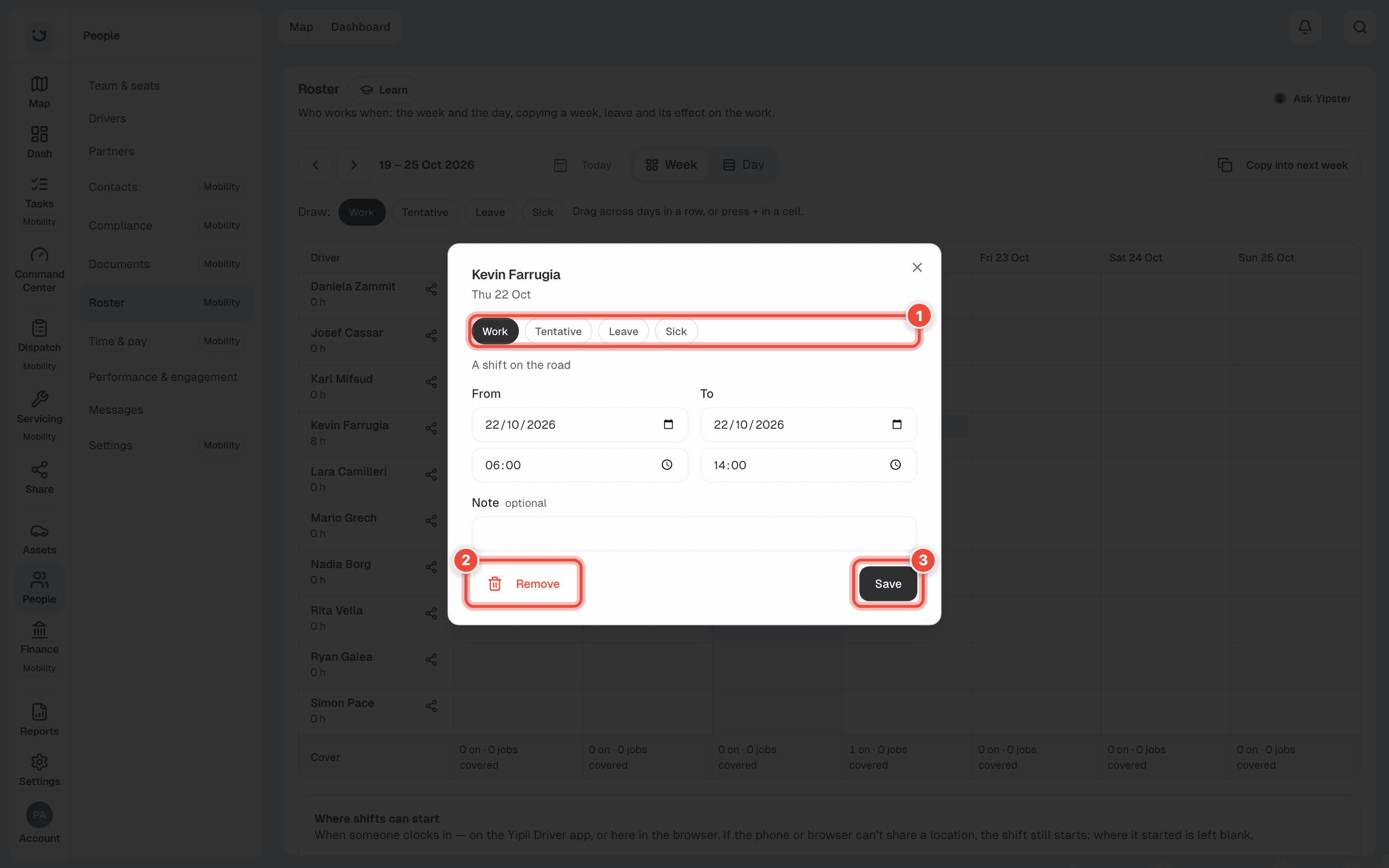
The type (1) can be changed here too. Remove (2) deletes the shift; Save (3) keeps your changes. Leave and sickness usually run whole days, from 00:00 to 00:00 the day after the last.
See where you are short
The Cover row (5) counts, for each day, how many drivers are on and how many jobs are booked.
14–15 · short 1 means one more driver is needed between 14:00 and 15:00. A day with enough
drivers reads covered.
Copy a week forward
Click Copy into next week (3), then Copy the week. Only approved work is copied, a day apart for a day. Leave and sickness are never copied, and anybody already rostered in the next week is left alone.
Approve leave a driver asks for
Leave and shifts drivers ask for in the Yipii Driver app show as waiting for you beside Copy into next week, and are listed under the grid. Click one, then Approve or Decline. Anything in Say why is shown to the driver. Approving leave takes the jobs it overlaps off them — they go back on the board to give to someone else.
Share a driver's schedule
Click the share icon beside a driver's name. Yipii makes a link to their jobs and shifts, day by day, that they open without signing in — no fares or payouts on it. Copy the Today or Tomorrow link and send it. Stop this link working turns it off.
What happens next
The driver's hours for the week show under their name — 8 h. Their shifts reach the Yipii
Driver app, and when they clock in their time arrives in
Time & pay.
If it doesn't work
| Symptom | Cause | Fix |
|---|---|---|
| Nobody to roster yet. | No driver has an HR record | Add drivers with New driver on Team & seats, or open a driver and save their HR record |
| A driver is missing from the grid | They are deactivated, or have no HR record | Reactivate them, or save their HR record on their page |
| Dragging does nothing | The drag started outside a driver's row | Start on a day cell in the driver's row, or use + |
| The hours under a name are amber | They are over their contracted week | Check their Standard week in Time & pay → Pay profiles |
| Copy into next week added nothing | Next week already had everybody rostered, or this week has only leave | Nothing to fix. Yipii says what it copied |
Related
Was this page helpful?