

Set up your company
The company's name, logo and address, its currency, timezone and units, what you pay for fuel, and the depots and offices the map shows.
Settings › Company holds what is true for the whole account: who you are, how numbers are shown, what fuel costs you, and where your vehicles live. A change here changes it for everyone on the account. This page sets the units and timezone, then adds a yard to the home locations.
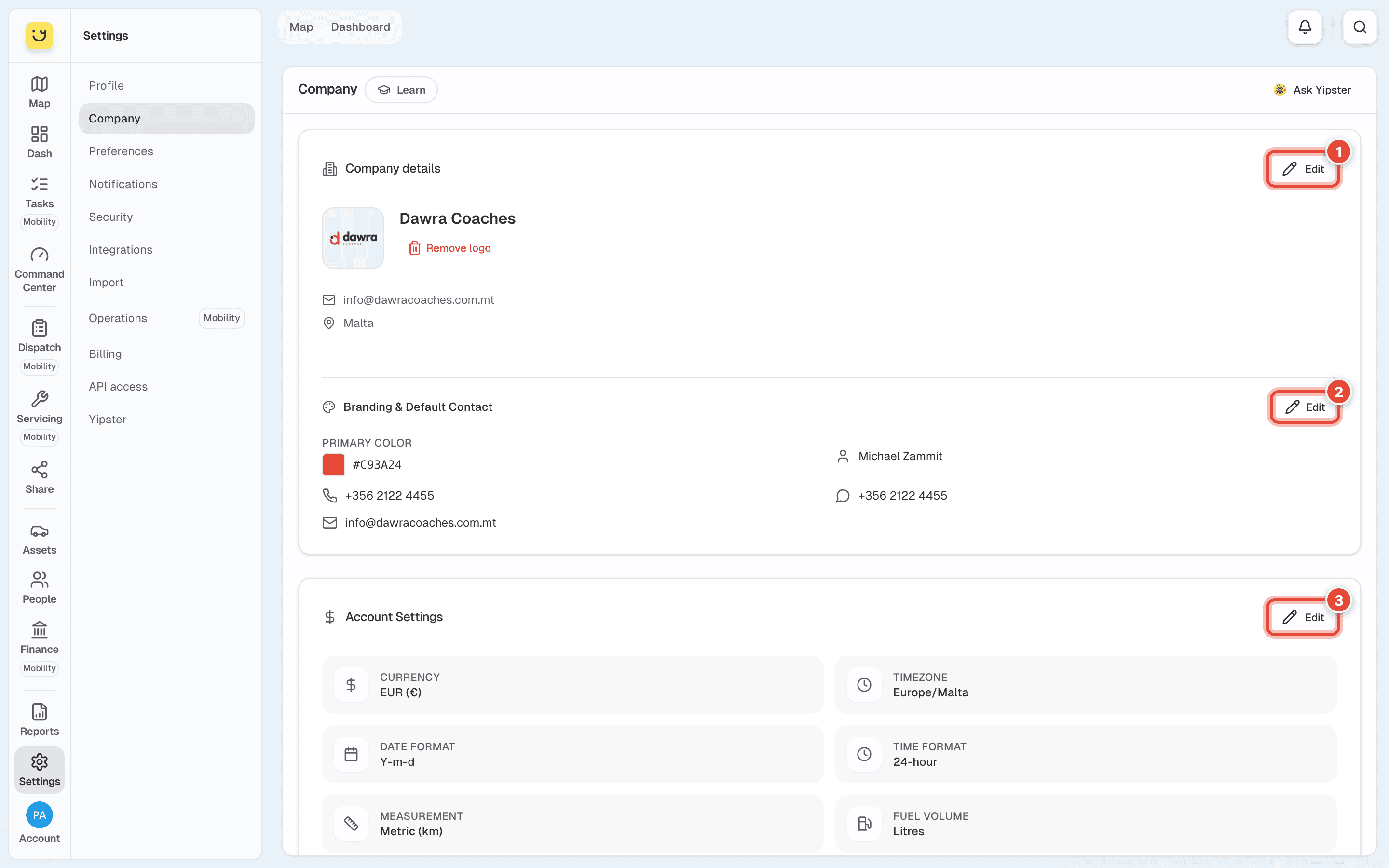
The page is in five parts. Each of the first three has its own Edit button:
- Company details — the company name, logo, email, phone and address, the website, the industry and the VAT number. An EU VAT number is checked with the EU's register when you save, and marked Verified.
- Branding & Default Contact — the colour and contact details your customers see on a tracking link. See Put your brand on tracking links.
- Account Settings — currency, timezone, date and time format, units.
Below them are Fuel prices and Fleet Home Locations, which save on their own.
Steps
Go to Settings › Company and click Edit on Account Settings (3).
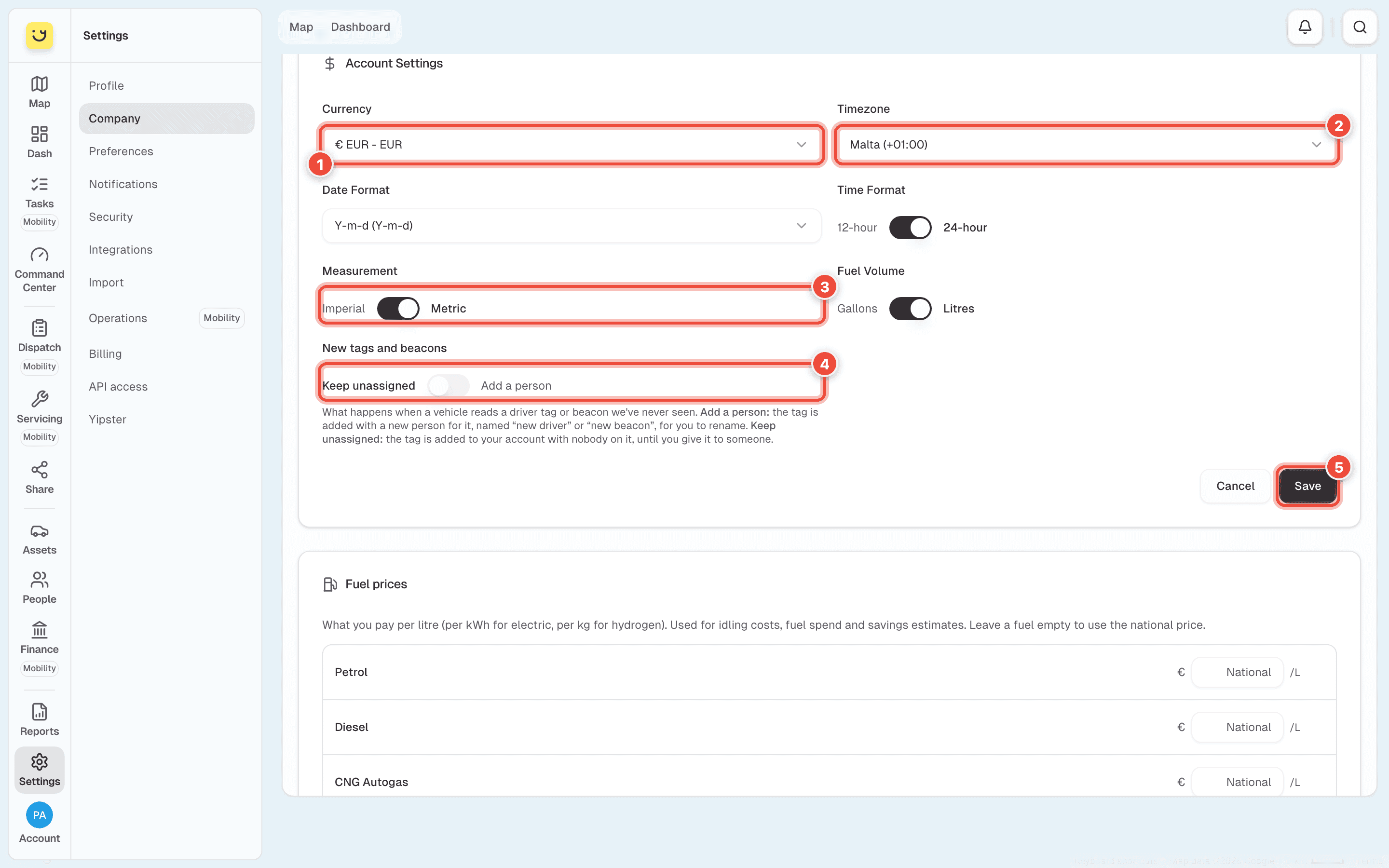
Check the Currency (1). Yipii works in euro, € EUR.
Set the Timezone (2) to where the fleet works — Malta (+01:00).
Check the Date Format and Time Format (12-hour or 24-hour).
Set Measurement (3) to Metric for kilometres, or Imperial for miles, and Fuel Volume to Litres or Gallons.
Choose what happens under New tags and beacons (4) when a vehicle reads a driver tag or beacon Yipii has never seen. Keep unassigned adds the tag to your account with nobody on it, until you give it to someone. Add a person adds it with a new person for it, named new driver or new beacon, for you to rename.
Click Save (5).
Scroll down to Fleet Home Locations and click Add Location.
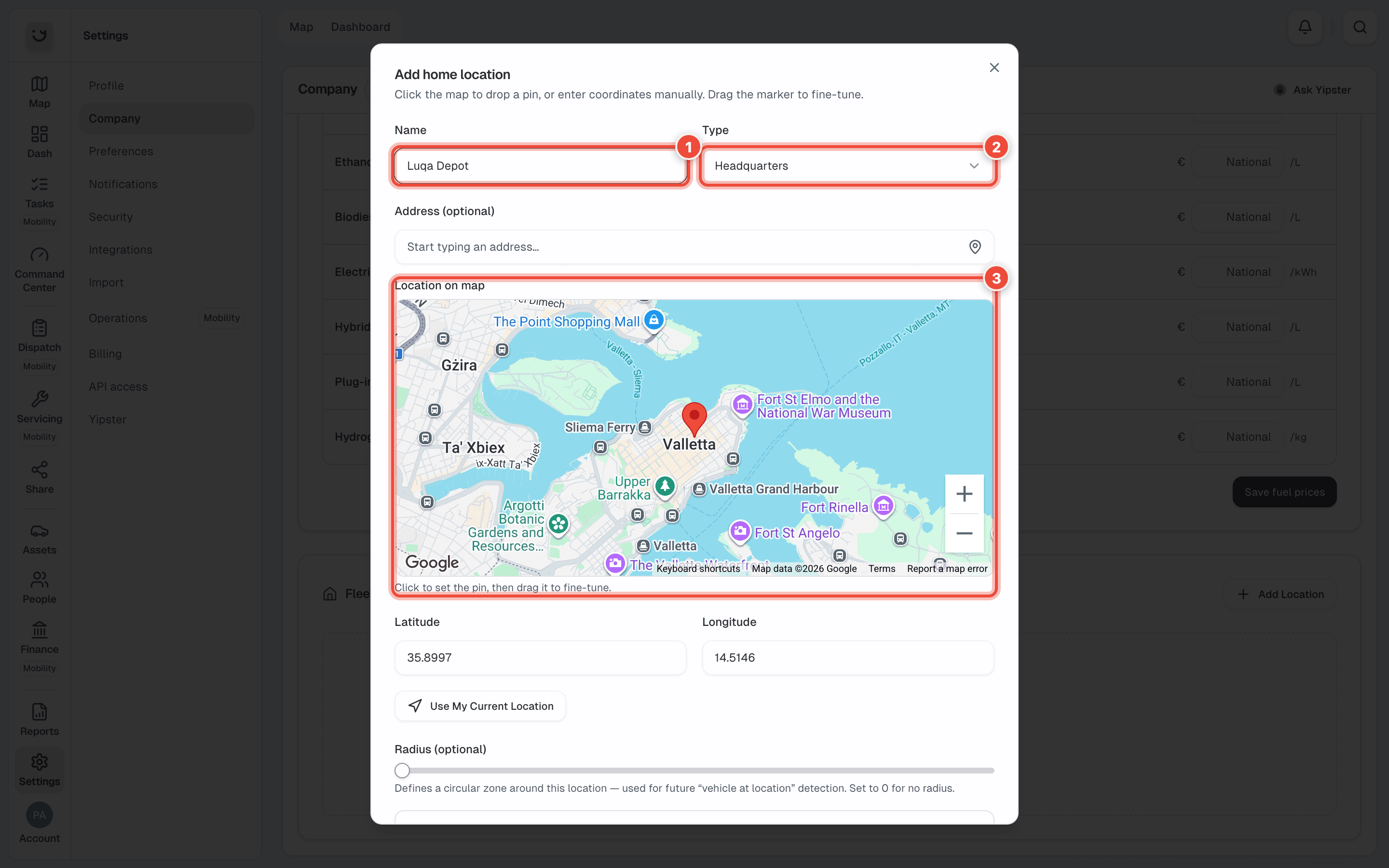
Give it a Name (1) — Luqa Depot — and choose its Type (2): Headquarters,
Office, Parking, Depot or Other.
Click the Location on map (3) to drop the pin, then drag it to the gate. You can type an Address instead, or the Latitude and Longitude, or use Use My Current Location when you are standing there.
Optional: set a Radius for the yard. Tick Set as primary if this is the main base — the map opens centred on the primary location.
Click Add location at the foot of the window.
Fuel prices
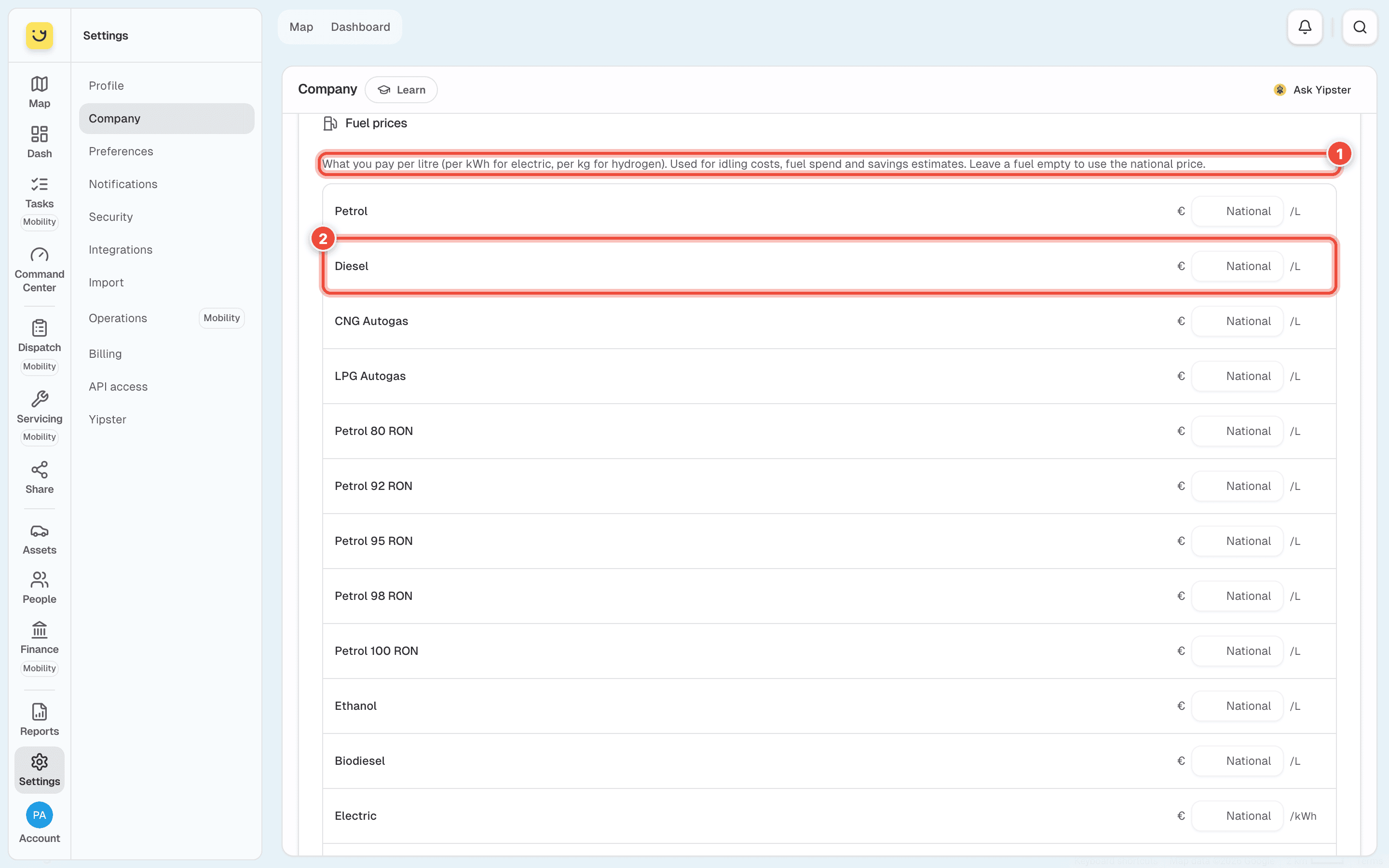
Fuel prices (1) is what you pay, per litre — per kWh for Electric and per kg for
Hydrogen. Yipii uses it to cost idling, fuel spend and savings. A fuel left on National
uses the national price. Type what you pay — for Diesel (2), say 1.21 — and click
Save fuel prices at the bottom of the list.
What happens next
Times, dates, distances and fuel figures across Yipii follow the new settings for everyone on the account. The yard shows in the Fleet Home Locations list, and on the map when Home Locations is switched on under Preferences.
Reports you run use the timezone of the computer you run them on; a scheduled report has its own Timezone. See Email a report on a schedule.
If it doesn't work
| Symptom | Cause | Fix |
|---|---|---|
| Distances show in miles | Measurement is set to Imperial, for the whole account | Edit Account Settings and switch it to Metric |
| Date Format shows Select format while editing | The form does not show the format already saved | Choose the format again before you click Save |
| VAT ID saved but not verified | The EU register did not confirm the number | Check it against your VAT certificate, including the country letters |
| Idling costs look too high or low | A fuel is still on the national price | Type what you pay under Fuel prices and save |
| The yard isn't on the map | Home Locations is off on this device | Switch it on under Settings › Preferences |
| You can't change the company's details | Your role can't change account-wide settings | Ask an account admin |
Related
- Put your brand on tracking links — the second part of this page.
- Choose how Yipii looks for you — show the home locations on the map.
- Settings — the other Settings pages.
Was this page helpful?