

Set up an alert
Choose what to watch for, set the threshold, and pick the vehicles: a speeding alert from New alert, step by step.
An alert has three parts: what to watch for, which vehicles, and who hears about it. This page sets up the first two with a speeding alert at 90 km/h. The third is on Choose who gets told, and how.
Before you start — you need to be an account admin or a fleet manager. An alert about a place needs that place saved first: see Draw a geofence.
Steps
Go to Alerts and click New alert, top right. The window has five tabs (1): General, Assets, Notify, Targets and Schedule. You need the first three; the other two are optional.
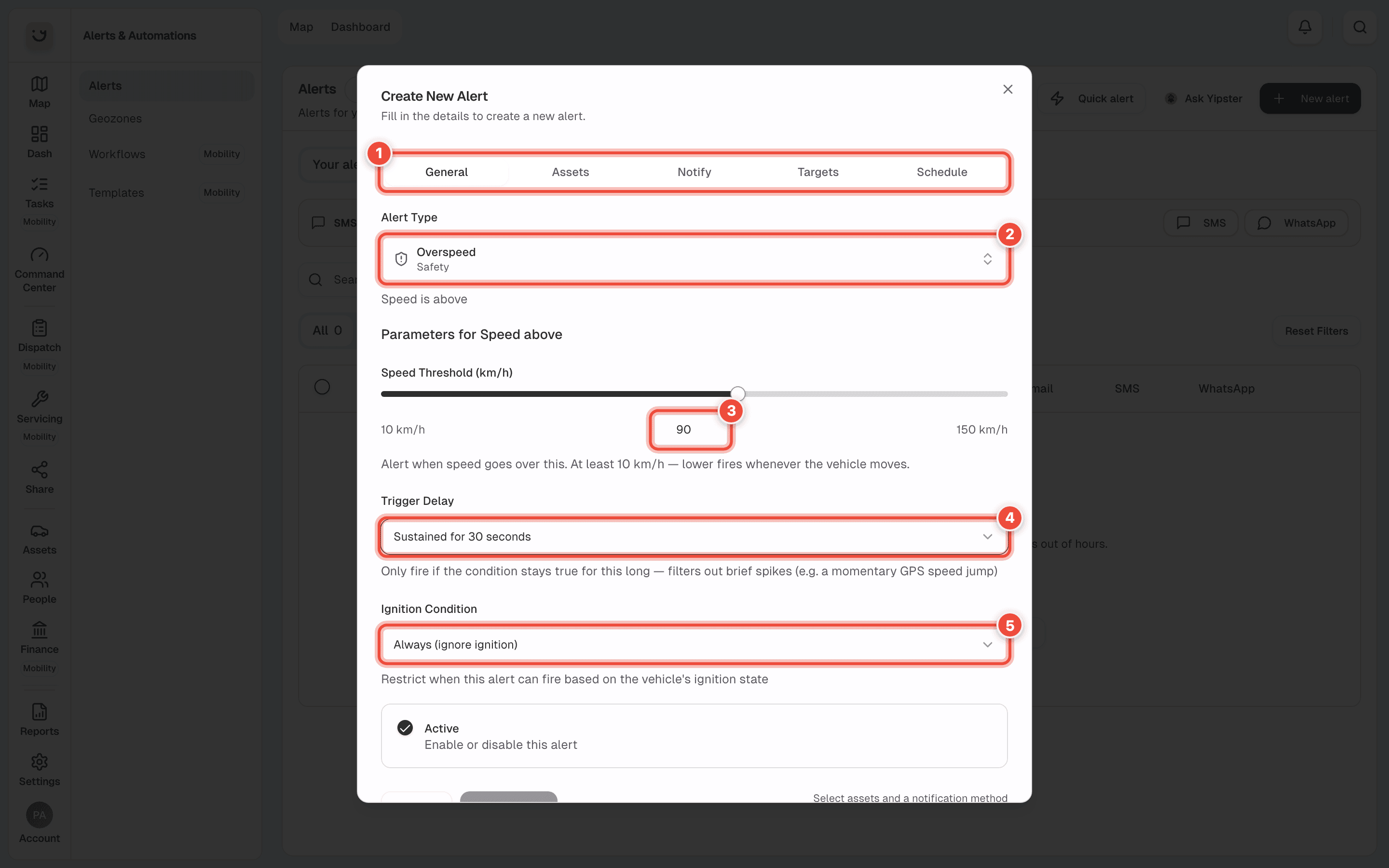
Click Alert Type (2) and type what you want — Overspeed. Type rather than scroll: the list
is long, and it opens on a few Recommended ones. The kinds are grouped: Safety, Driving
Behavior, Security, Geozones & Movement, Vehicle, Fuel and Device Health.
Set the threshold (3). For a speeding alert it is the speed in km/h. It starts at 90; change it
to the speed you mean. Yipii will not save one under 10 km/h, because a lower speed would fire
every time the vehicle moves.
Other kinds ask for a temperature, minutes of idling, a battery level or a geofence instead. Some, such as Ignition On, ask for nothing.
Choose a Trigger Delay (4) — Sustained for 30 seconds. The alert then fires only if the
speed stays over 90 for that long, so one jumpy GPS reading does not send a message.
Fire immediately is the default.
Leave Ignition Condition (5) on Always (ignore ignition), or choose Only while ignition is ON or Only while ignition is OFF. "Off" suits alerts such as movement at night.
Open the Assets tab and choose what the alert covers under Alert applies to (1):
| Choice | Covers |
|---|---|
| Specific asset(s) | The vehicles you tick. Search by name or plate (2) — Hotel — and tick each one. |
| Asset group | Every vehicle in one group, including ones added to it later. |
| All vehicles (current and future) | The whole fleet, and every vehicle you add from now on. |
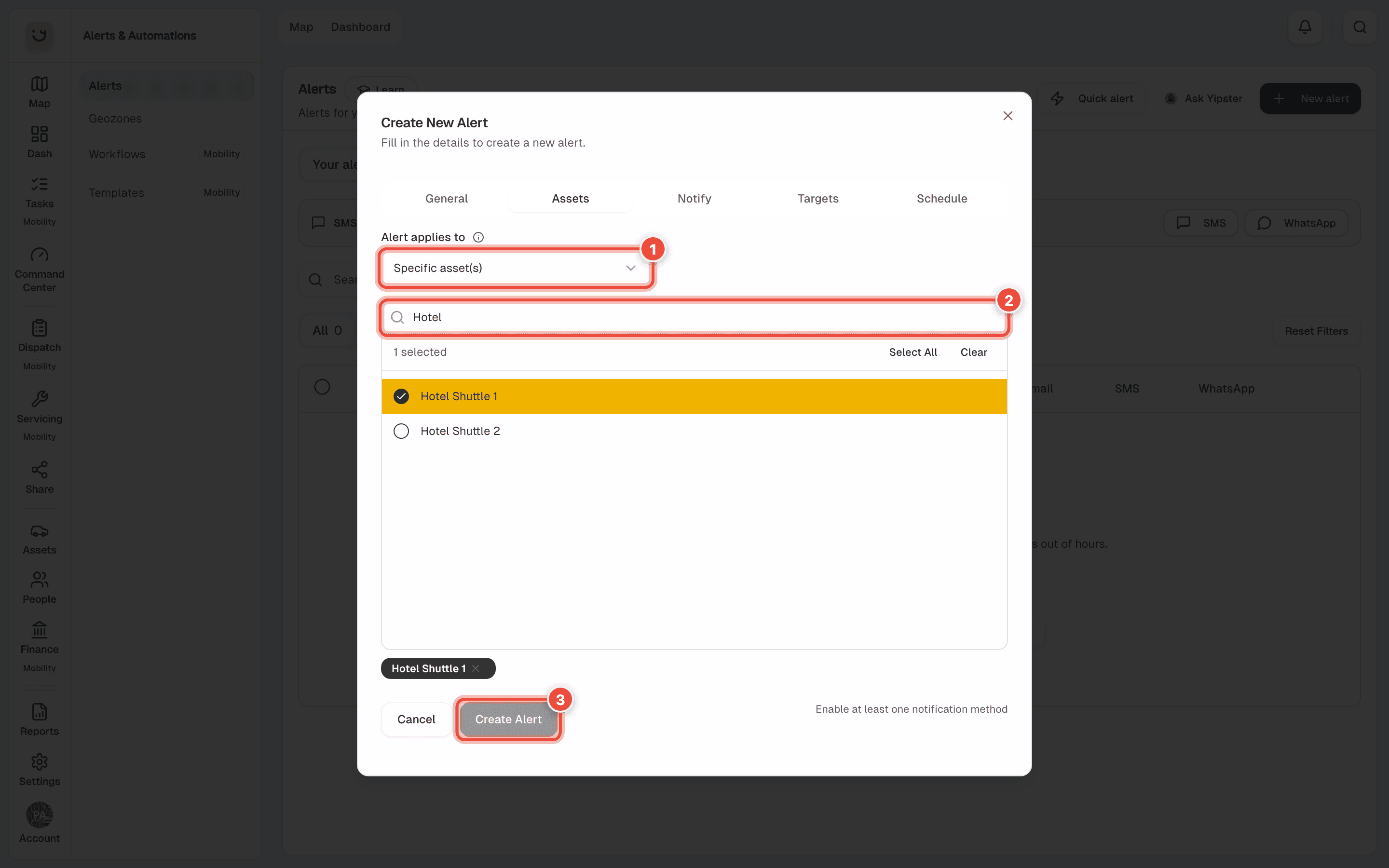
Create Alert (3) stays grey until the alert has at least one vehicle and one way to tell people. The line beside it says which is missing. Go on to the Notify tab — see Choose who gets told, and how.
A new alert watches every day, all day. To narrow it to certain days or hours, open the Schedule tab — see Choose when an alert can fire.
Click Create Alert.
What happens next
The alert appears in Your alerts, switched on, and counts under Active. It watches the live readings from each vehicle's tracker. When it fires, Yipii sends the message to the people you chose and adds a line to the alert's history.
An alert has no name of its own: the list names it by what it watches, for example Speed above 90 km/h.
If it doesn't work
| Symptom | Cause | Fix |
|---|---|---|
| New alert is not there | Your role cannot manage alerts | Ask an account admin, or ask them to make you a fleet manager |
| Create Alert stays grey | No vehicle, or no way to tell people, is chosen | Read the line beside the button. Tick a vehicle on Assets and a channel on Notify |
| An older alert never fires at weekends or in the evening | It was made before 17 October 2026 and kept the old Monday to Friday, 09:00 to 17:00 | Open the alert, go to Schedule and click All, then set 00:00 to 23:59 |
| The alert never fires at all | The vehicle's tracker is not reporting — alerts only see live readings | Check the vehicle on the map. If it says No position yet or has been quiet for days, look at its tracker |
| Yipii won't save a speeding alert | The speed is under 10 km/h | Set the speed you mean — 10 km/h or more |
| A new van isn't covered | The alert lists vehicles by name | Edit it and choose Asset group or All vehicles (current and future) |
| The kind of alert you want is not in the list | It is further down | Type part of the name in the search box at the top of the list |
Related
Was this page helpful?