

Workflows
When something happens in the workshop or the office — a service overdue, an inspection failed, a document expiring — tell the right people and open a task.
A workflow is an alert for the office. It starts when something happens — a service falls overdue, an inspection fails, a work order is opened — then tells people and does the follow-up, such as putting a task on someone's list.
Alerts watch the vehicles; workflows watch the paperwork and the workshop. A van arriving somewhere, idling or losing fuel is an alert: see Set up an alert.
Before you start — Workflows and Templates need Yipii Mobility. Account admins and fleet managers can make and change workflows. Office staff can see them and switch them on or off.
The Workflows page
Go to Alerts › Workflows.
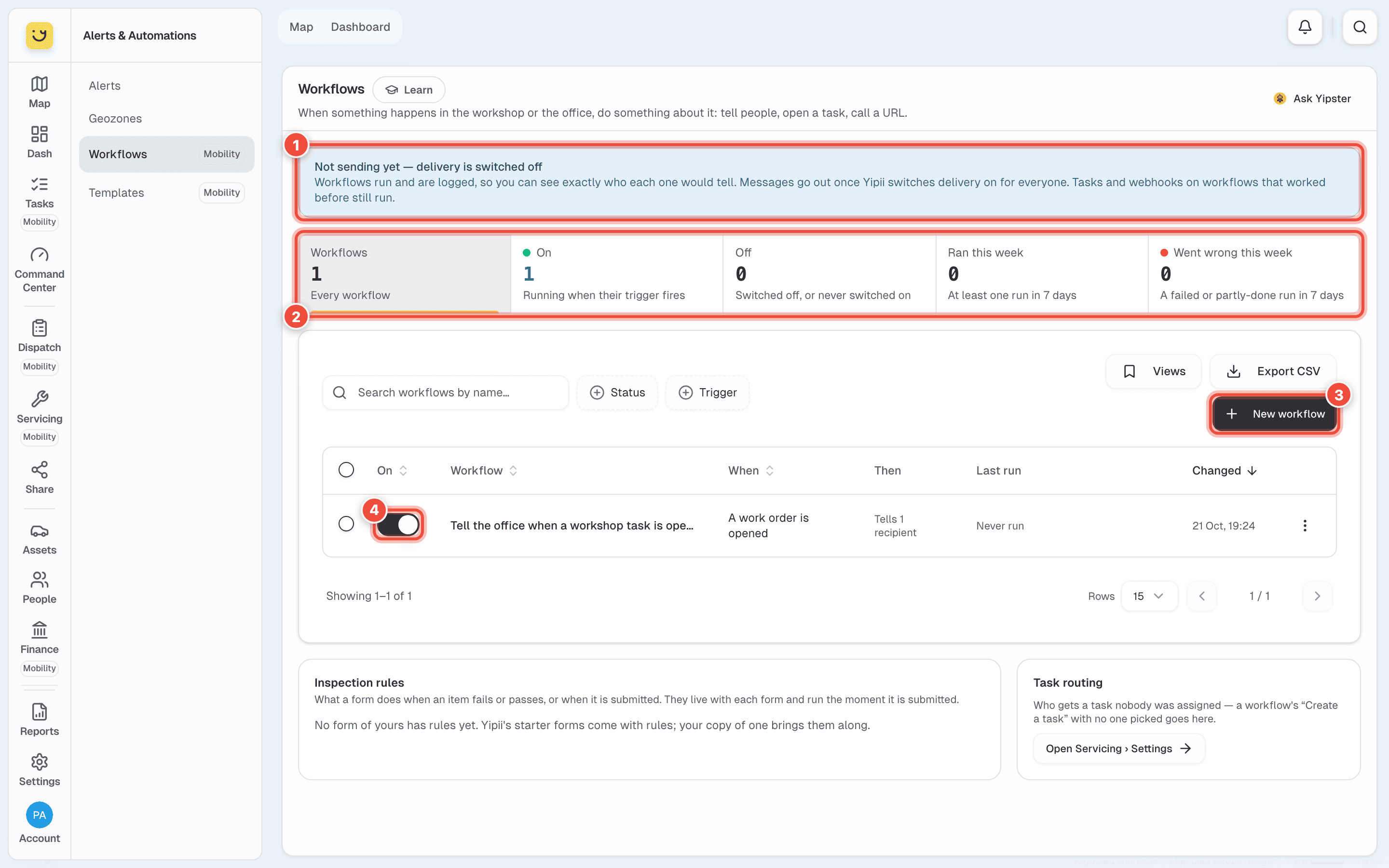
- Not sending yet — delivery is switched off. While this note shows, workflows run and are logged, so you can see exactly who each one would tell, but their messages are not sent yet. Tasks are still created. The note goes when Yipii switches messages on for everyone.
- The tiles — Workflows, On, Off, Ran this week and Went wrong this week. Click one to show only those.
- New workflow — see Make a workflow.
- The switch turns a workflow on or off — Tell the office when a workshop task is opened, in the picture. Last run says how its latest run went, or Never run.
Until you have a workflow, a Getting started with Workflows card sits at the top of the page, with an example; Got it puts it away.
Below the list, Inspection rules shows what each inspection form does when an item fails, with Open form to change it. Task routing says who gets a task nobody was assigned.
Make a workflow
Click New workflow.
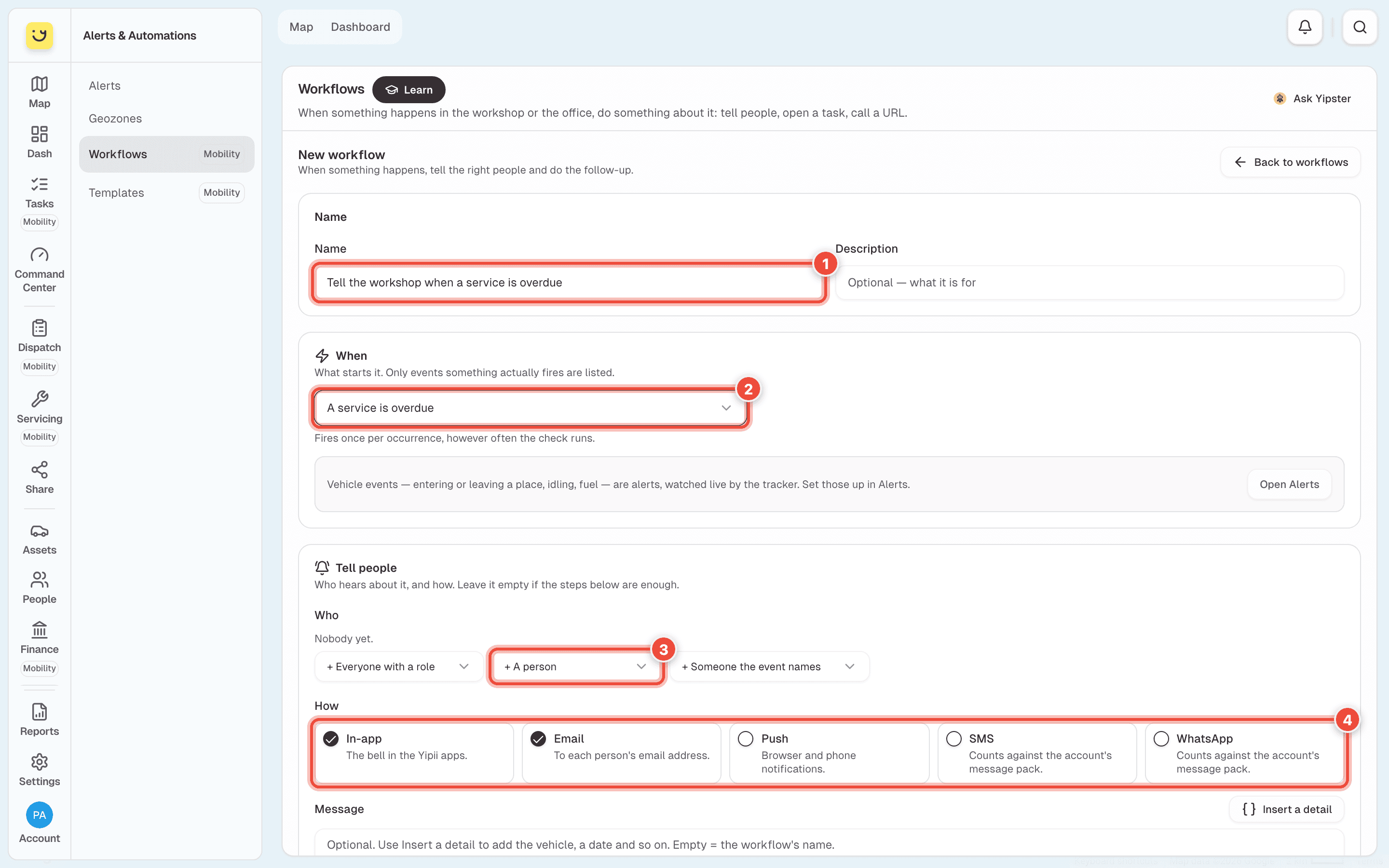
Type a Name (1) that says what it does — Tell the workshop when a service is overdue.
Under When, choose what starts it (2) — A service is overdue. Only events that something
in Yipii actually sends are listed: services, inspections, documents and licences expiring,
reminders, work orders and tasks.
Under Tell people, choose Who: + Everyone with a role, + A person (3), or + Someone the event names, such as the technician on the work order. Leave it empty if the steps are enough.
Under How (4), tick In-app (the bell), Email, Push, SMS or WhatsApp. SMS and WhatsApp use the account's message pack. Message is optional: Insert a detail adds the vehicle, a date and so on.
Under Then do, click Add a step: Create a task, Call a webhook or Send to Zapier. A task has a title, a priority, a kind, days until due, and who it is assigned to.
Click Save (switched off). A new workflow is saved off, so nothing happens yet.
Open the workflow and click Test. It is a dry run: it says, in words, who it would tell and what it would do, and sends nothing. When it reads right, turn it on with its switch.
Start from a template
Alerts › Templates has ready-made workflows — a service overdue or due soon, an inspection failed, a document or licence expiring, a work order opened or finished, a task overdue. Each card says When, Then and who it Tells.
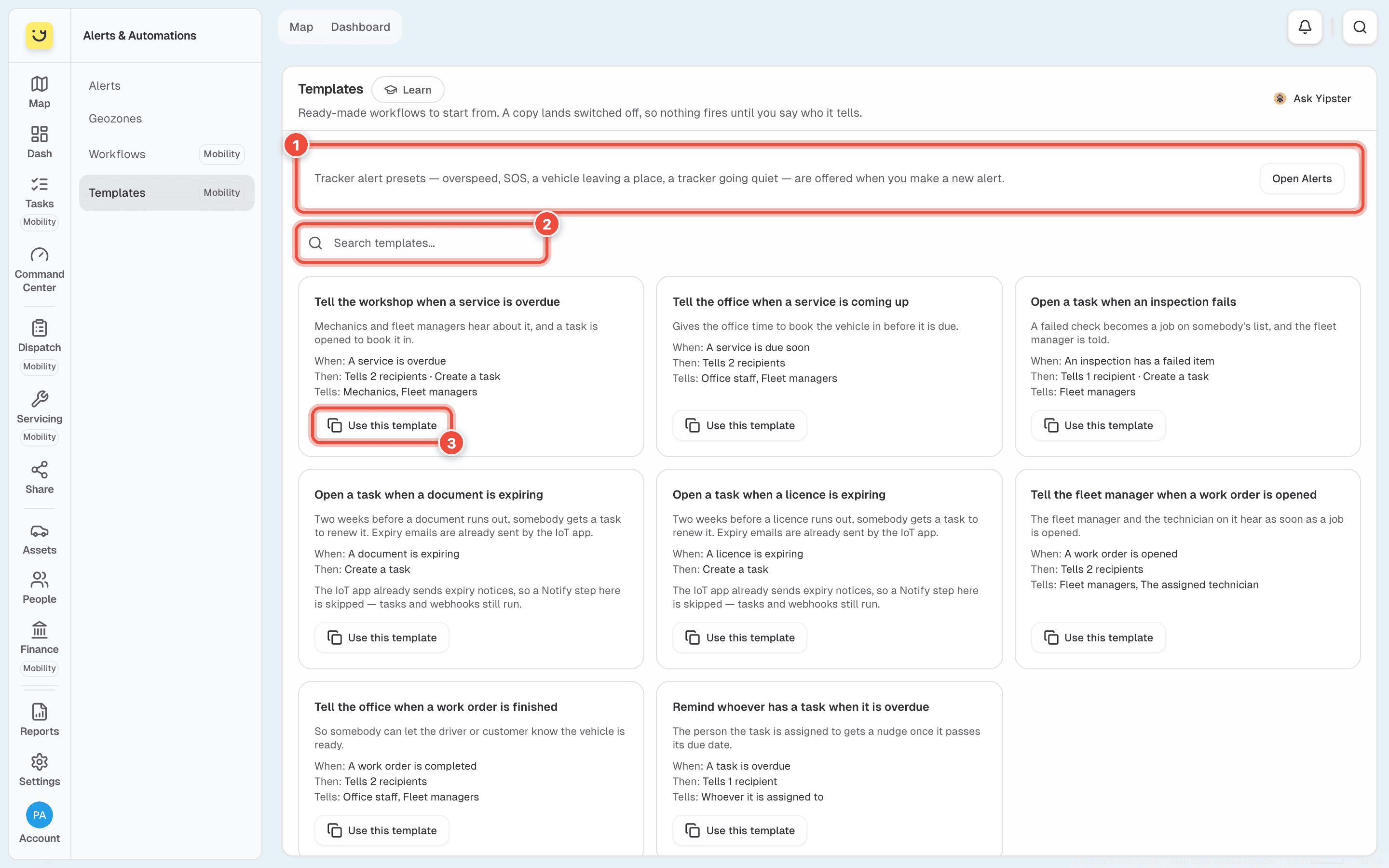
The note at the top (1) is a reminder that vehicle alerts — overspeed, SOS, leaving a place — are made under Alerts, and Open Alerts goes there. Search (2) by name, then click Use this template (3). It adds your own copy, switched off, to Workflows. Open it, check who it tells, and switch it on.
What happens next
Each time the event happens, the workflow runs. Its page lists every run under Runs, with Done, Partly done or Failed, and Not sending yet for messages held back while delivery is off.
If it doesn't work
| Symptom | Cause | Fix |
|---|---|---|
| Workflows shows what Yipii Mobility adds, not your workflows | The account doesn't have Yipii Mobility | Start a trial from that page, or ask us |
| You can switch a workflow on but not change it | Your role is office staff | Ask an admin or a fleet manager |
| A run says Not sending yet | Workflow messages are not switched on yet | Tasks and webhooks still run; messages follow when delivery is switched on |
| An expiry workflow never tells anyone | Document and licence expiry emails are already sent by Yipii, so a workflow's Tell people is skipped for those | Use Create a task for expiries instead |
| A run says Failed | A step went wrong — often a webhook address that refused it | Open the run and click Details |
| A template's Use this template is greyed | Nothing in Yipii fires its trigger — it says Never fires | Choose another, or make your own |
Related
- Set up an alert — for the vehicles themselves.
- Choose who gets told, and how
Was this page helpful?