

Set your standard work week
Assets › Settings: the hours a week each vehicle is expected to work. Every utilisation figure is measured against it; left empty, Yipii uses 50 hours.
Utilisation measures how many hours each vehicle works against a standard work week. Set it to the hours your vehicles are meant to work — 45 for five days of nine hours. Until someone sets it, every figure uses 50 hours.
Before you start — this needs Yipii Mobility, and you need to be an account admin or a fleet manager.
Steps
Go to Assets → Settings. From Assets → Utilisation, the link Standard work week: 50 hours (default) → at the top of the page opens the same place.
Under Standard work week, type the hours in Hours per week (1) — 45. Use whole hours
from 1 to 168, where 168 means always on.
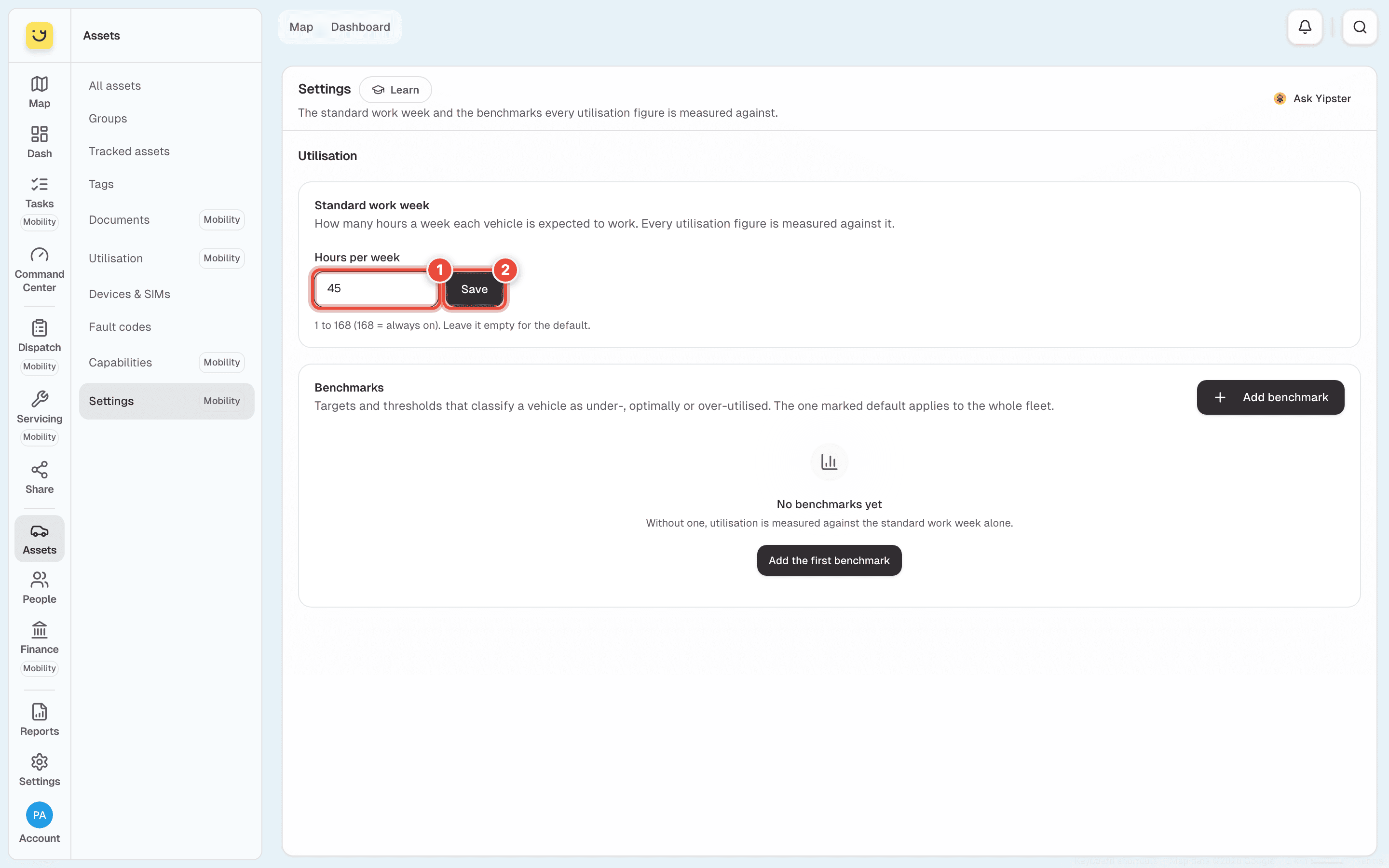
Click Save (2).
To go back to the default, empty the box and click Save.
What happens next
Yipii says Saved. Utilisation is measured against it now. The line on Assets → Utilisation reads Standard work week: 45 hours →, and every utilisation percentage is worked out against 45 hours.
Below the work week, Benchmarks set when a vehicle counts as under- or over-utilised. They are optional. Without one, utilisation is measured against the work week alone.
If it doesn't work
| Symptom | Cause | Fix |
|---|---|---|
| Enter whole hours, between 1 and 168. | The box has a decimal or a word in it | Type a whole number, such as 45 |
| Enter a number between 1 and 168. | The number is 0, or more than the 168 hours in a week | Type a number in range |
| Save stays greyed out | The number is the one already saved, or it has a problem | Change it, or fix the message under the box |
| The insight cards on Utilisation still use the old week | They are worked out overnight | Check again tomorrow |
| Settings is not in the Assets menu | The account has no Yipii Mobility, or your role is not admin or fleet manager | Ask an account admin |
Related
- Utilisation in Yipii Mobility — reading the figures this measures.
- Assets — the rest of the Assets menu.
Was this page helpful?