

Assets
The All assets list and the Assets menu: find a vehicle by name or plate, see what has gone quiet, change it in the row, and open its Command Center.
Assets is the list of everything you track — vans, a bus, jet skis, equipment — and the place you change what each one is called, which group it is in and who drives it.
Open Assets from the menu on the left. On a phone, tap the menu button at the bottom of the screen, then Assets. It opens on All assets.
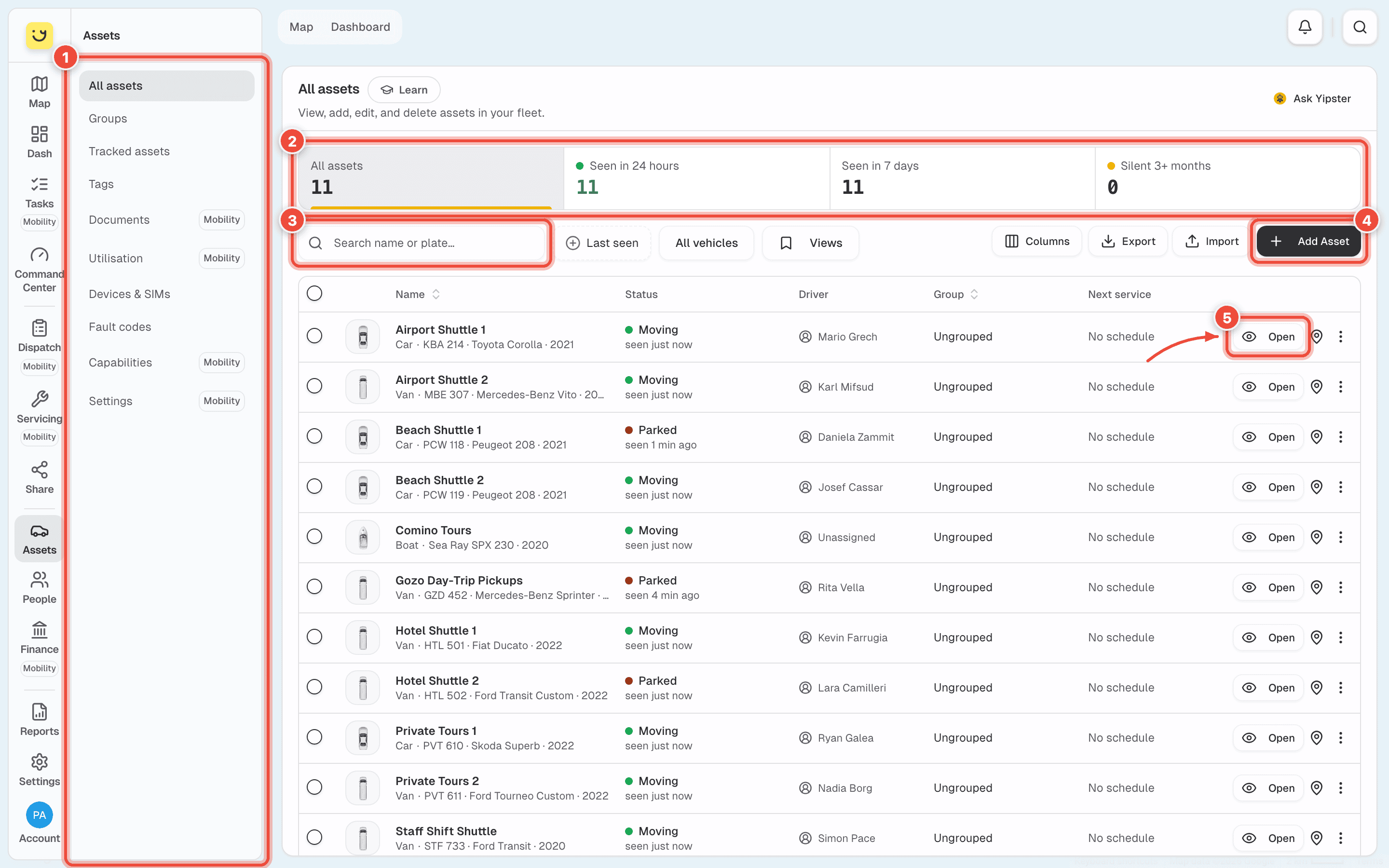
- The Assets menu — every page in this section, listed under What is in the Assets menu. On a phone it is the row of buttons along the top; swipe it sideways for the rest.
- The tiles — how many assets have sent anything in the last 24 hours, the last 7 days, or nothing for over 3 months. Click a tile to show only those; click it again to show them all. A vehicle with no tracker has never sent anything, so it counts under Silent 3+ months.
- Search and filters — the box finds a vehicle by name or plate, so
Hotel Shuttle 1andHTL 501both find the same van, and the search stays in the page address for a bookmark. Last seen filters as the tiles do, plus Last 30 days. All vehicles narrows the list to the vehicles you pick, and Views saves that pick to come back to. - Add Asset — a new vehicle or piece of equipment. Beside it, Columns chooses what the
list shows (on a computer, remembered for you on every device) and Export downloads the
list as a
.csv. Import reads one back and shows every change for you to approve before anything is saved. - Open — the vehicle's Command Center: its map, trips, health and Manage vehicle. Clicking anywhere else on the row opens it too. The pin beside Open (on a phone, Map) shows a tracked vehicle on the map, and the ⋯ menu has Edit details, Share live location and Delete.
On a computer, the row is also where you change a vehicle's name, type, fleet status, driver and group — hover it and click the value. See Rename a vehicle, or change its group, type or fleet status.
What is in the Assets menu
Some items show only for admins and fleet managers, and some only on an account with Yipii Mobility.
| Item | What it is for |
|---|---|
| All assets | The list above. |
| Groups | Named sets of vehicles. See Group your vehicles. |
| Tracked assets | Equipment carrying a Bluetooth tag, found by your trackers. See Tracked assets. |
| Tags | Registering iButtons and beacons. See Beacons and tags. |
| Documents | Your vehicles' papers — insurance, road licence, registration — and what is expiring. |
| Utilisation | How hard each vehicle works against your standard work week. See Set your standard work week. |
| Devices & SIMs | Every tracker and SIM card on the account. See Check your trackers and SIM cards. |
| Fault codes | Every engine fault code your vehicles reported in the last 30 days, worst first. |
| Capabilities | What you can say about a vehicle — seats, cargo space, fittings. See Say what a vehicle can do. |
| Settings | The standard work week and utilisation benchmarks. |
Where to go next
- Rename a vehicle, or change its group, type or fleet status — the edits you make most, without leaving the list.
- Assign a driver to a vehicle — who is driving it now.
- Change a vehicle's plate, make, model or year — when a van is re-registered.
- Group your vehicles — vans in one, minibuses in another, and the list sorted by it.
- Register a tracker — if the hardware is in your hand, it creates the asset for you.
Was this page helpful?