

Alerts
Pick a condition, pick the assets, pick where the message goes. Thresholds that survive contact with reality, quiet hours, and why an alert did not fire.
An alert watches one condition and messages you when it's met.
You choose three things: the condition (speeding over 90 km/h), the assets it applies to, and the channels the message goes out on. Everything below is detail on those three.
The Alerts screen
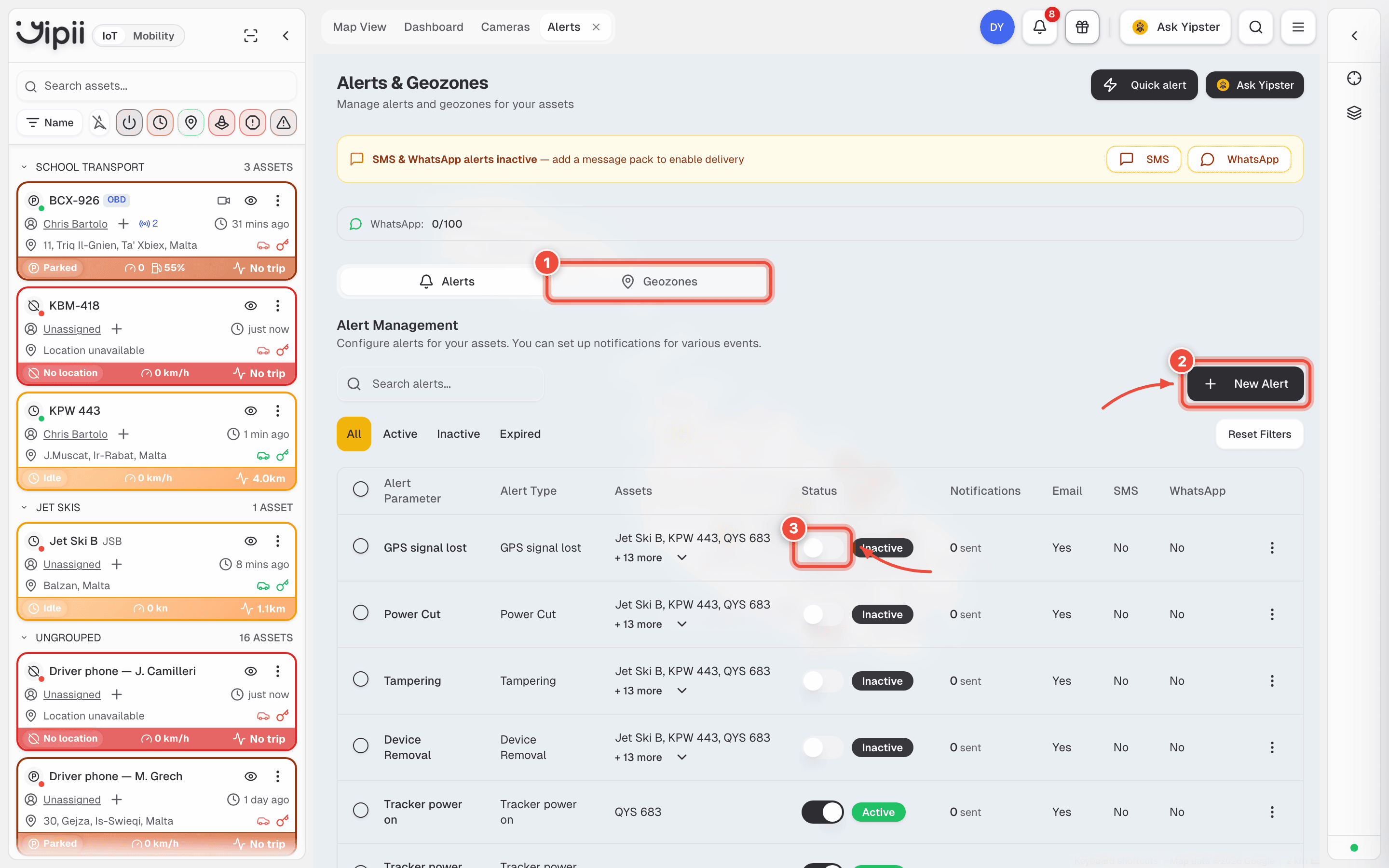
- Geozones — geofences live behind this tab, on the same screen. Draw them here before building an alert that references one.
- New Alert — creates an alert. This is the button you want; Quick alert at the top right is a shortcut that pre-fills from an asset.
- Status toggle — switches an alert on or off without deleting it. Use this to silence something noisy while you retune the threshold, rather than removing it and losing the recipients you set up.
The columns to the right of Status tell you the rest at a glance: how many notifications an alert has sent, and which channels it is using.
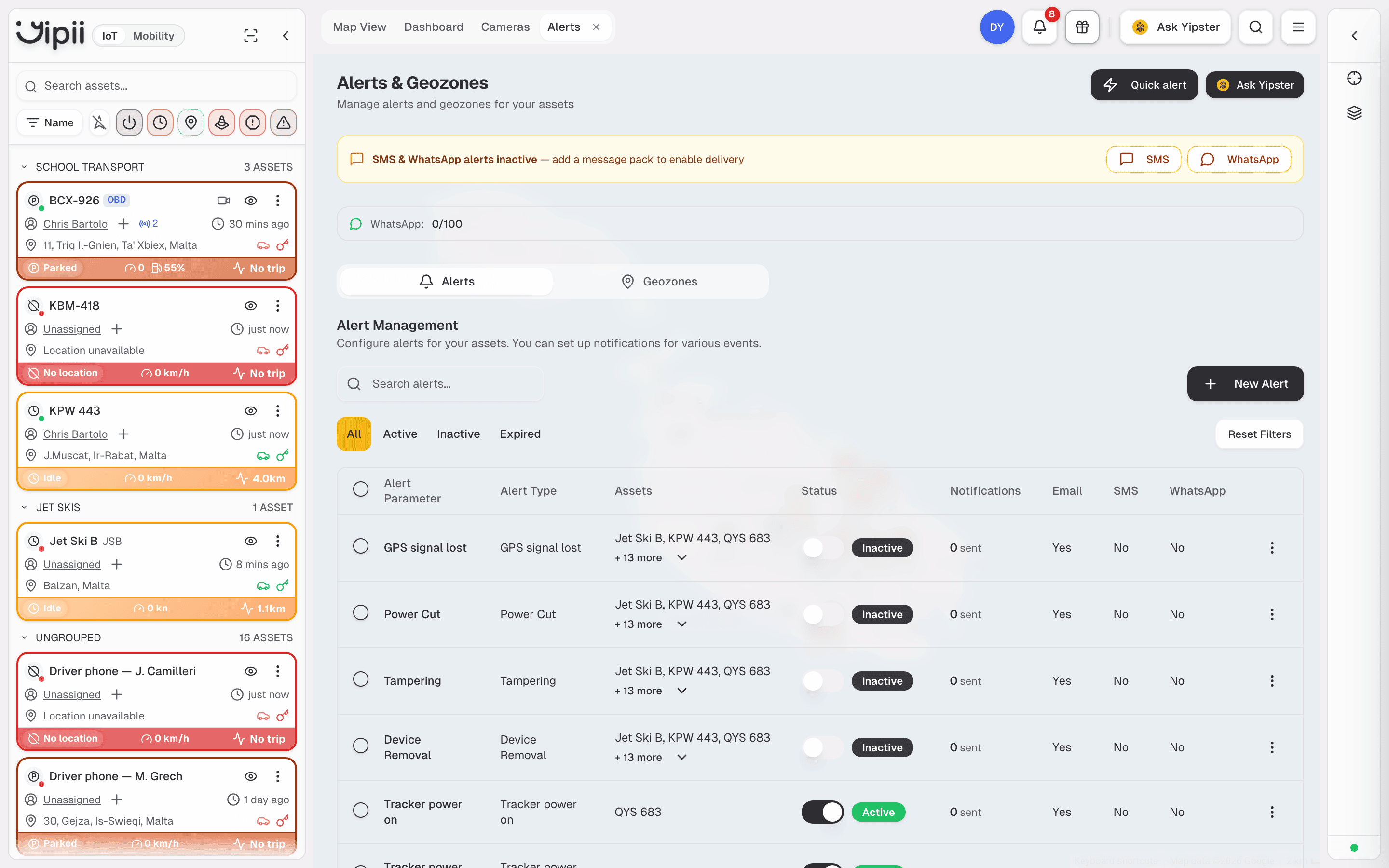
Alerts are evaluated on incoming tracker data. An asset that hasn't reported since yesterday won't trigger anything today. If an alert you expected didn't fire, check the asset is reporting before anything else.
What you can alert on
The Alert Type list is long enough that it is searchable rather than scrollable. It opens on a Recommended strip, then groups everything else by category:
| Category | What it watches | Examples |
|---|---|---|
| Safety | Things that hurt people | Overspeed · Accident Detection · SOS / Panic · Fall / Rollover |
| Security | Things done to the vehicle or the tracker | Power Cut · Tampering · Tow Detection · Signal Jamming · GPS Antenna Cut |
| Vehicle | The engine and the cabin | DTC Detected · Coolant Temp High · Engine Oil Temp High · Sensor Temp High/Low · Oil Leak |
| Geozones & Movement | Where it is and when it moved | Entered Geozone · Left Geozone · Near Geopoint · Untimely Movement · Unauthorised Movement |
| Driving Behaviour | How it is being driven | Harsh Braking · Harsh Acceleration · Harsh Cornering · Fatigue Driving · Idle Detection |
| Fuel | Level changes that aren't consumption | Fuel Topped Up · Fuel Siphoned |
| Device Health | The tracker itself | Tracker Offline · GPS Signal Lost · Low Battery · Slow Battery Drain · Tracker Health · Daily Health Check |
The picker's names are product names, not the raw condition names you'll see further down the same dialog: choosing Overspeed gives you a panel headed Parameters for Speed above. They are the same thing.
The three that earn their keep for most fleets: Unauthorised Movement outside working hours, Sensor Temp High for anything refrigerated, and Power Cut — a tracker losing power is either a fault or someone cutting it.
Creating one
Before you start — the geofence has to exist before an alert can reference it. Draw it on the Geozones tab first.
Open Alerts and click New Alert.
The form has five tabs (1). General is the condition; Assets is what it applies to; Notify is who hears about it. Targets attaches geofences, and is only used by geofence conditions. Schedule is quiet hours.
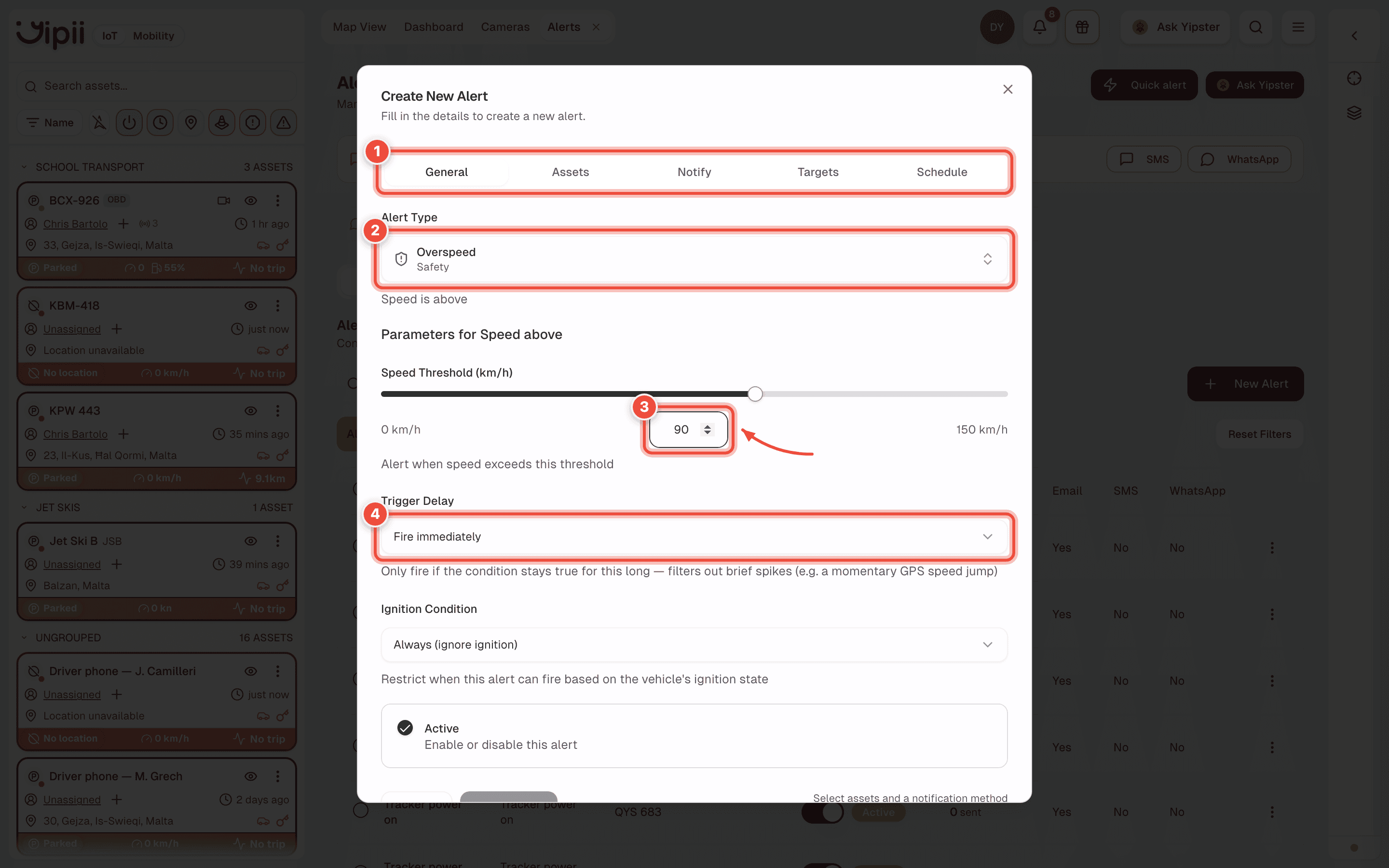
Choose the Alert Type (2). Type into the search box rather than scrolling — the list covers everything from driving behaviour to SIM expiry.
Set the threshold (3). What appears here depends on the condition: a speed, a temperature, a number of minutes. Thresholds are per alert, not per account.
Set Trigger Delay (4) if the condition can flicker. Fire immediately is the default and is wrong for anything derived from GPS — a single noisy fix reads as a 120 km/h burst. A delay makes the condition prove itself before the message goes out.
On Assets, pick an asset group rather than individual vehicles, so new vehicles are covered automatically when they join the group.
On Notify, choose the recipients and channels. Create Alert stays greyed out until this step is done — the hint beside it reads Select assets and a notification method.
Thresholds that survive contact with reality
The biggest cause of a useless alert set is thresholds copied off a spec sheet.
- Idle is measured as ignition on, no movement, for longer than the threshold. Below about 2 minutes you get an alert every time a driver waits at a junction.
- Temperature wants a sustained duration, not an instant trip. A door opening at a delivery always spikes the reading. An alert that fires on every spike gets muted within a week, and then it protects nothing.
- Speed should sit above the limit, not at it. At exactly the limit, GPS noise alone generates alerts on a perfectly legal journey.
Scheduling and quiet hours
A depot alerting every morning as the fleet legitimately leaves is noise. Restrict an alert to the hours and days when the condition actually means something — out-of-hours movement is the version worth waking someone for.
Channels
Each does a different job. Email carries detail and suits alerts that need review rather than action. SMS reaches someone away from a desk. WhatsApp adds maps and images. Push is free, instant, and shows even when the app is closed — start there before paying for SMS.
Recipients are chosen per alert, so whoever gets woken at 23:00 by a movement alert doesn't have to be the person reading the daily temperature summary.
Digests and unsubscribing
High-volume alerts can be batched into a digest — one summary email instead of forty messages. Anyone receiving alerts can unsubscribe from the footer of the email, including recipients outside your account.
Alerts don't have a workflow
Worth stating plainly: there is no acknowledge action and no acknowledged status. An alert fires and is delivered. It is a notification, not a ticket.
If something needs tracking through to resolution, that belongs in a work order in Yipii Mobility.
If it doesn't work
| Symptom | Cause | Fix |
|---|---|---|
| The alert never fired | The asset hasn't reported — alerts evaluate on incoming data | Check the asset on the map and its tracker |
| A geofence alert never fires | The geozone exists but the alert doesn't reference it, or no assets are attached | Open the alert and confirm both the geozone and the assets |
| Far too many alerts | Threshold too tight, especially idle and speed | Raise it, add quiet hours, or switch that alert to a digest |
| Alerts stopped covering new vehicles | The alert lists individual assets rather than a group | Point it at an asset group |
| Temperature alerts on every delivery | No sustained duration, so each door opening trips it | Add a sustained duration so brief spikes are ignored |
| A recipient stopped receiving them | They unsubscribed from an email footer | Ask them to resubscribe, or add another channel |
| Nothing arrives on any channel | Recipients are set per alert, not account-wide | Check the recipients on that specific alert |
| Create Alert is greyed out | No assets, or no notification method | Both are required. Work through the Assets and Notify tabs |
| The condition you want isn't in the list | You scrolled instead of searching | Type into the search box at the top of the picker — it matches the description as well as the name |
| A speed alert fires on a parked vehicle | A single bad GPS fix, taken at face value | Set Trigger Delay so the condition has to hold for a few seconds |
Related
- Geofences — the shapes geofence alerts key off.
- Push notifications — the free instant channel.
- Reports — for questions about a period rather than an event.
- Cold chain — temperature alerting set up in practice.
Was this page helpful?