

Choose how Yipii looks for you
Where the menu sits, what stays over the map, how vehicles are drawn, vehicle photos, and what to do when the app feels stuck.
Settings › Preferences changes how Yipii looks for you, not for anyone else on the account. Some choices follow you to every device you sign in on; the map's markers and layers stay on the device you set them on. Each change takes effect as you make it — there is no save button.
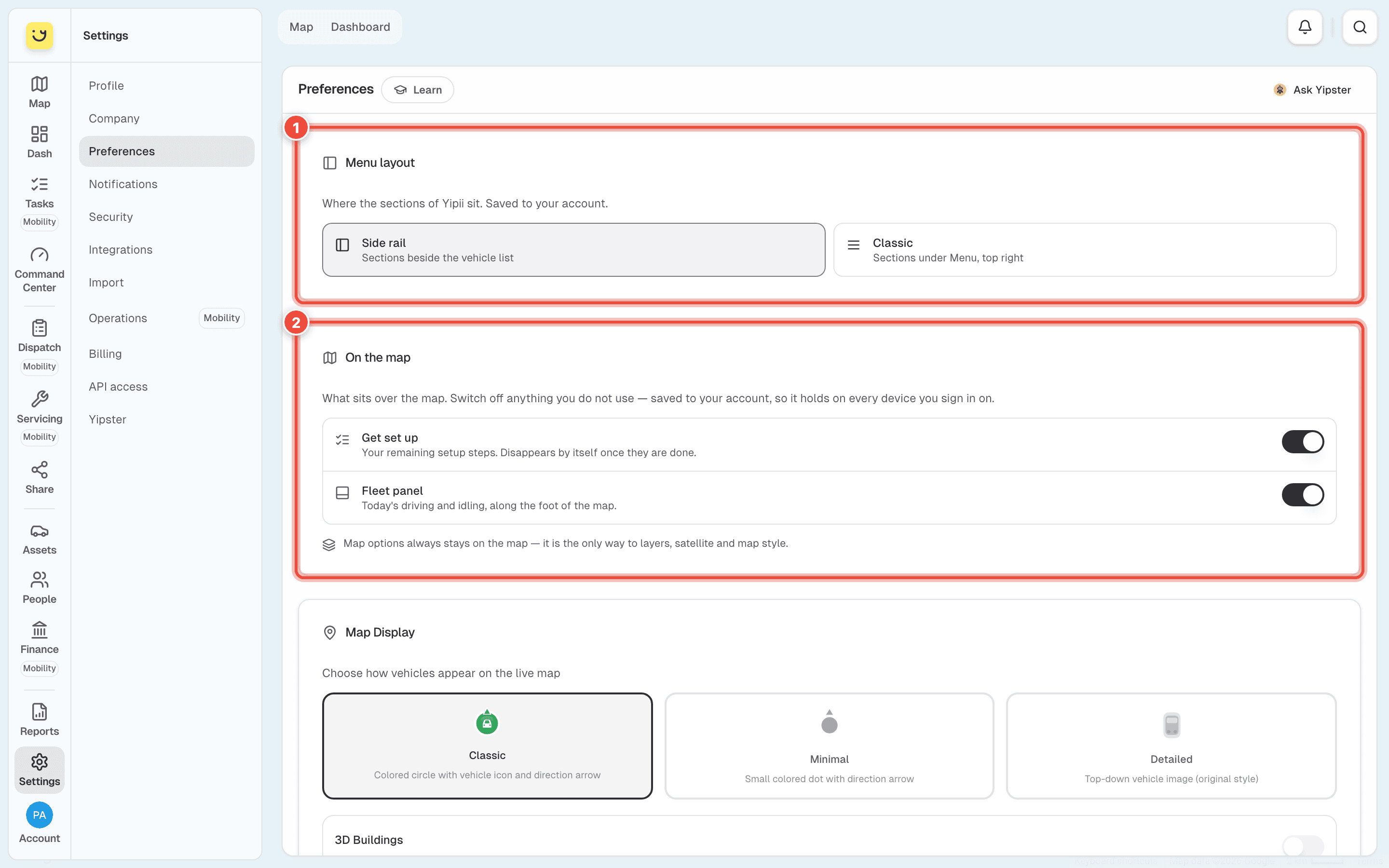
- Menu layout — Side rail puts the sections in a column beside the vehicle list; Classic puts them under Menu, top right. Saved to your account.
- On the map — what sits over the map. Switch off Get set up (your remaining setup steps, which disappear by themselves once done) or the Fleet panel (today's driving and idling along the foot of the map) if you don't use them. Saved to your account. Map options always stays on the map: it is the only way to layers, satellite and map style.
How vehicles are drawn
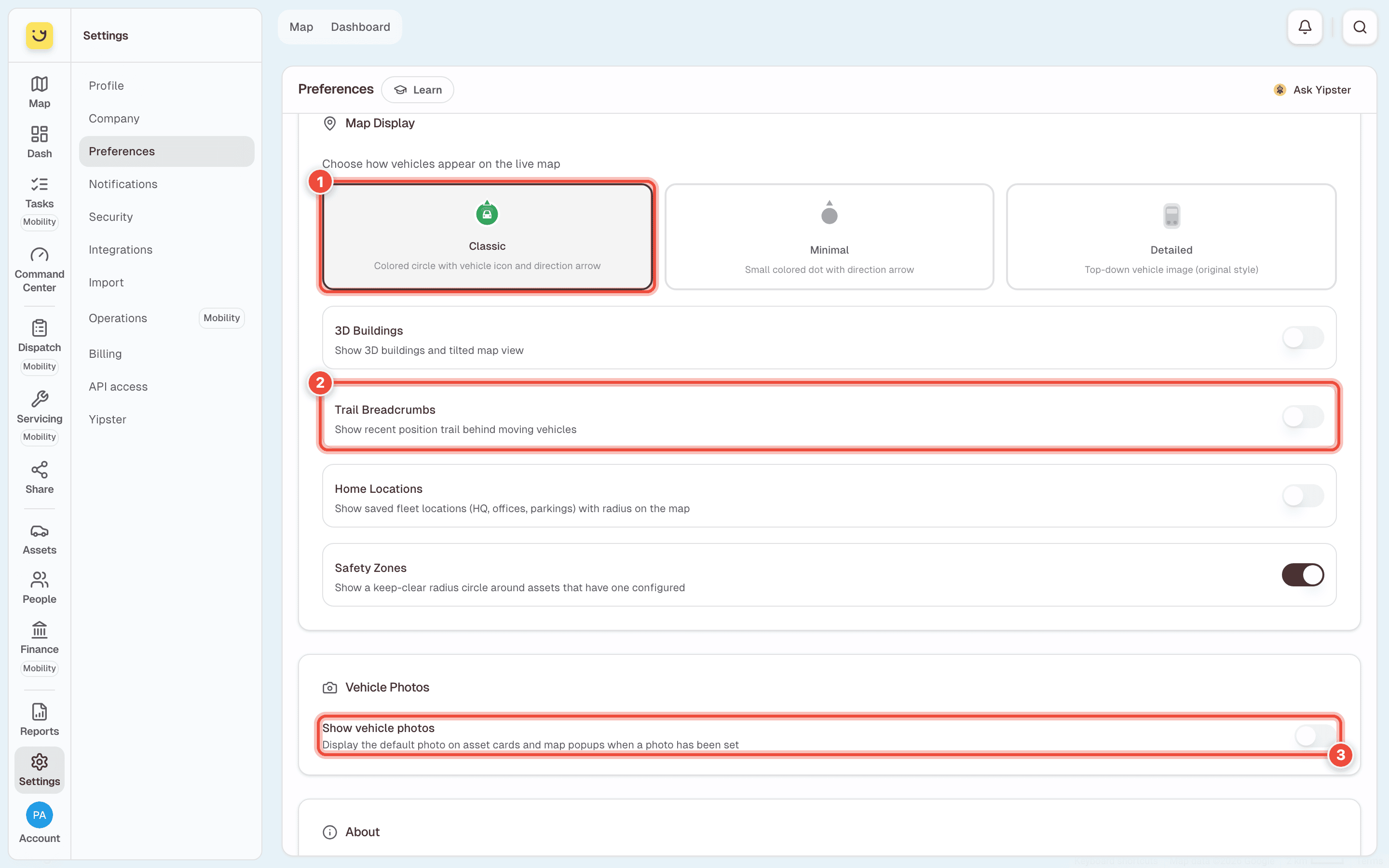
- Map Display — three marker styles. Classic is a coloured circle with the vehicle's icon and an arrow for its heading. Minimal is a small dot with an arrow — easier to read when a big fleet crowds one depot. Detailed is a picture of the vehicle from above.
- Trail Breadcrumbs — a short trail behind each moving vehicle. It is one of four map layers, each switched on or off: 3D Buildings (a tilted map with buildings — slower on a large fleet), Trail Breadcrumbs, Home Locations (your depots and offices from Company) and Safety Zones (the keep-clear circle around assets that have one).
- Show vehicle photos — puts each vehicle's photo on its card and on the map's pop-up. Saved to your account.
The marker style and the four layers are kept on this device only: set them again on your phone or on a colleague's computer.
When the app feels stuck
At the foot of the page, About shows the App Version. If screens look out of date or stop responding, click Force Update: it clears what this browser saved and reloads the newest version.
If it doesn't work
| Symptom | Cause | Fix |
|---|---|---|
| The markers changed back on another computer | Marker style and layers are kept per device | Set them on that device too |
| There is no Menu layout choice | The choice is offered only where the side rail is available | Nothing to set — your account uses one layout |
| Depots don't show on the map | Home Locations is off, or none are saved | Switch it on here, and add them under Settings › Company |
| No photos on the vehicle cards | Show vehicle photos is off, or the vehicle has no photo | Switch it on, then add a photo to the vehicle |
| A screen still shows yesterday's layout after an update | The browser kept an older copy | Click Force Update |
Related
- Set up your company — the home locations the map draws.
- Settings — the other Settings pages.
Was this page helpful?