

People
Team & seats and the People menu: everyone in your company, their role, who has the Yipii Driver app, and where drivers, documents, the roster and pay live.
People is everyone who works with you — office staff, mechanics, drivers — and the place you invite them, choose what they can do, and give drivers the Yipii Driver app.
Open People from the menu on the left. On a phone, tap the menu button at the bottom of the screen, then People. It opens on Team & seats.
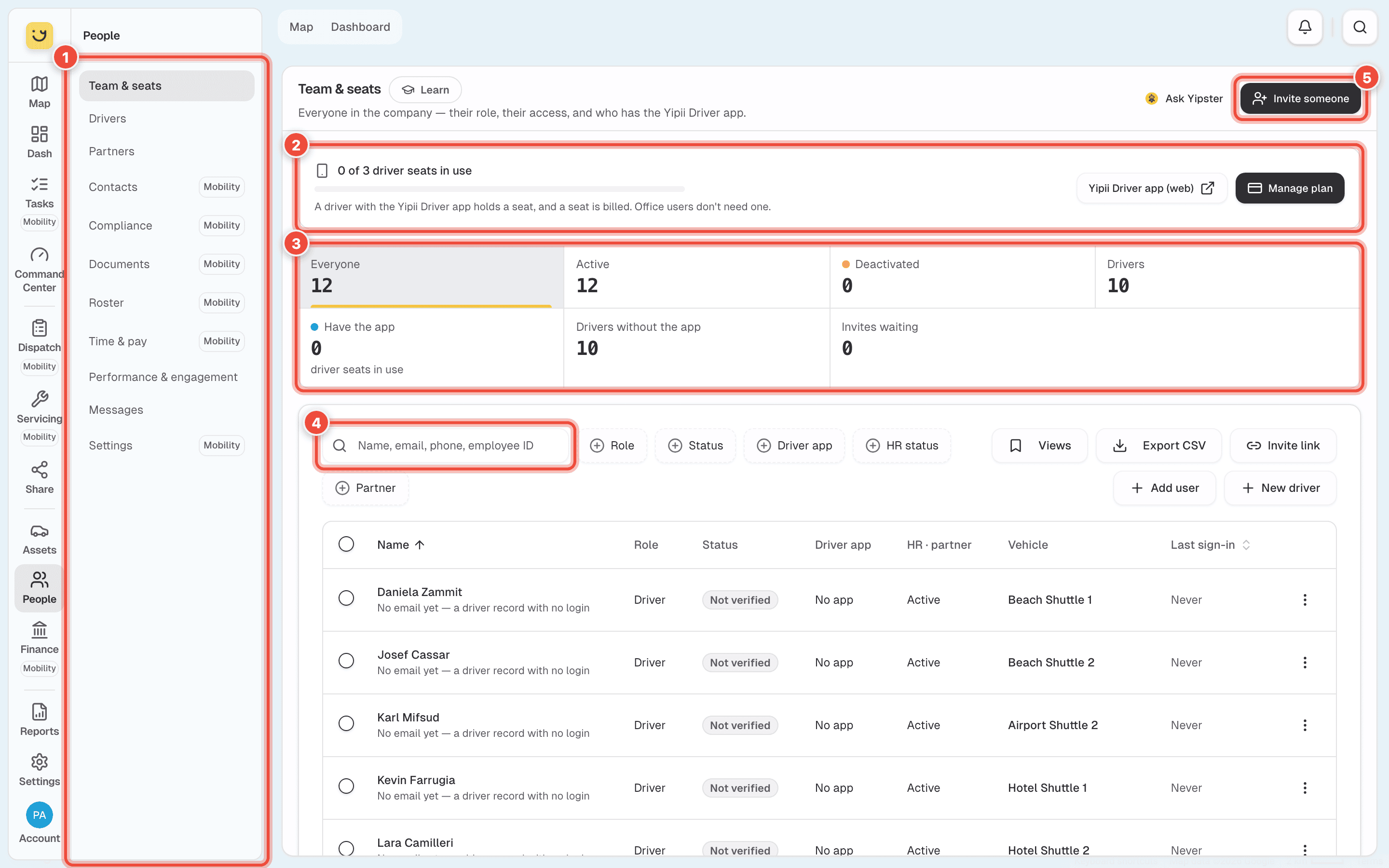
- The People menu — every page in this section, listed under What is in the People menu. On a phone it is the row of buttons along the top; swipe it sideways for the rest.
- Driver seats — how many drivers have the Yipii Driver app, out of how many your plan allows. Each driver with the app holds a seat, and a seat is billed. Office users don't need one. Manage plan adds seats; Yipii Driver app (web) opens the drivers' app in your browser, in a new tab.
- The tiles — Everyone, Active, Deactivated, Drivers, Have the app and Drivers without the app. Click a tile to show only those people; click Everyone to show them all again. Invites waiting jumps to the email invites nobody has accepted yet, listed under the table.
- Search and filters — the box finds a person by name, email, phone or employee ID. Role, Status, Driver app, HR status and Partner narrow the list further. Export CSV downloads what you see.
- Invite someone — sends an email invite. Beside the search, Invite link makes a link people can join from, Add user sets someone up directly, and New driver adds a driver who has no login. See Invite someone to your account.
Click a person's row to open their page: their role, the driver app, their HR record, papers, vehicle and tags. The ⋮ menu at the end of a row has the quick actions — Give the app, Take the app away, Make a driver, Send a password reset email and Deactivate…. Tick several rows to do the same to all of them at once.
What is in the People menu
What you see depends on your role and on what your account includes. Items marked Yipii Mobility open only on an account with Yipii Mobility; on any other account they show what they add and how to start a trial.
| Item | What it is for | Who sees it |
|---|---|---|
| Team & seats | The list above. | Everyone who may see the people on the account |
| Drivers | Your drivers, their vehicle and their app. See Add a driver and give them a vehicle. | Everyone who may see vehicles |
| Partners | Coach companies and freelance drivers you give work to. See Add a partner. | Admins and fleet managers |
| Contacts | Clients, suppliers, subcontractors and affiliates. See Add a contact. Yipii Mobility. | Admins, fleet managers and office staff |
| Compliance | Each person against the documents your account requires, and their licences. See Set required documents and check compliance. Yipii Mobility. | Admins, fleet managers and office staff |
| Documents | Every document — people's, vehicles' and general — with what is expiring and what waits for review. See Upload a driver's documents and licence. Yipii Mobility. | Admins, fleet managers and office staff |
| Roster | Who works when, week by week. See Plan the roster. Yipii Mobility. | Admins, fleet managers and office staff |
| Time & pay | Timesheets, reviewing hours, pay periods and pay profiles. See Review hours and run a pay period. Yipii Mobility. | Admins and fleet managers |
| Performance & engagement | Driving scores, trends and events. Needs the Driver Add-On. See Driver scoring. | Everyone who may see vehicles |
| Messages | Announcements to every driver, and direct messages. Needs the Driver Add-On. See Send drivers an announcement or a message. | Everyone who may see vehicles |
| Settings | Where drivers may clock in, and the documents every driver and vehicle must have. Yipii Mobility. | Admins and fleet managers |
Where to go next
- Invite someone to your account — an email invite, a link, or setting them up yourself.
- Change someone's role, or deactivate them — what they can do, and stopping access when they leave.
- Add a driver and give them a vehicle — the app, the seat and the van they drive.
- Plan the roster — who works which day, and leave.
Was this page helpful?