

Change your profile, password and PIN
Change your name, photo, phone and timezone, add another email to sign in with, change your password, and set a PIN for a device you use every day.
Everything on Profile and Security is yours alone: changing it changes nothing for anyone else on the account. This page changes the phone number on your profile, then sets a PIN so a tablet in the office signs you in with four digits.
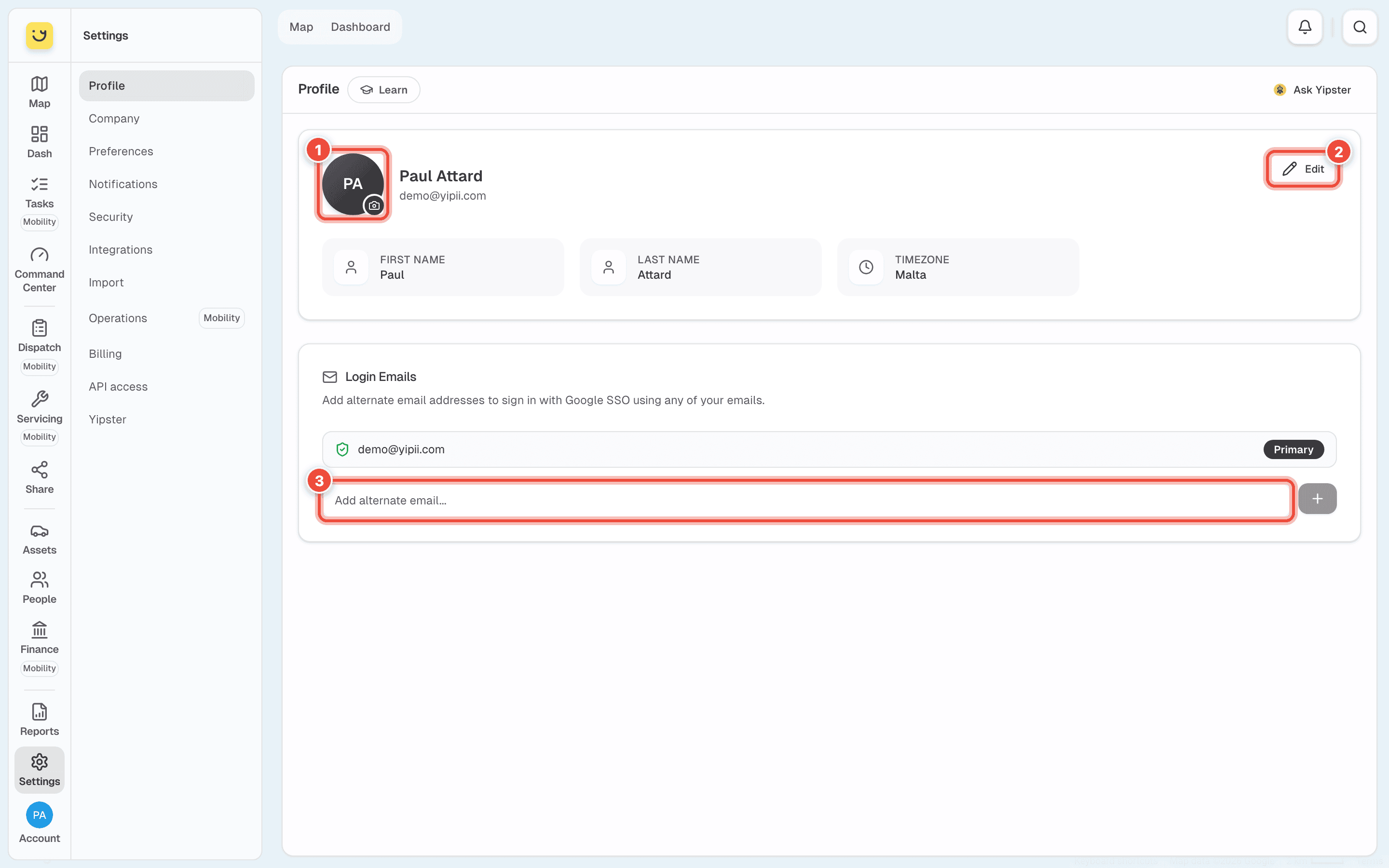
Profile shows your name, email and timezone. Click your photo (1) to upload a new one — a PNG, JPG or WebP image up to 2 MB; it is saved straight away. Edit (2) opens the rest.
Steps
Go to Settings › Profile and click Edit (2).
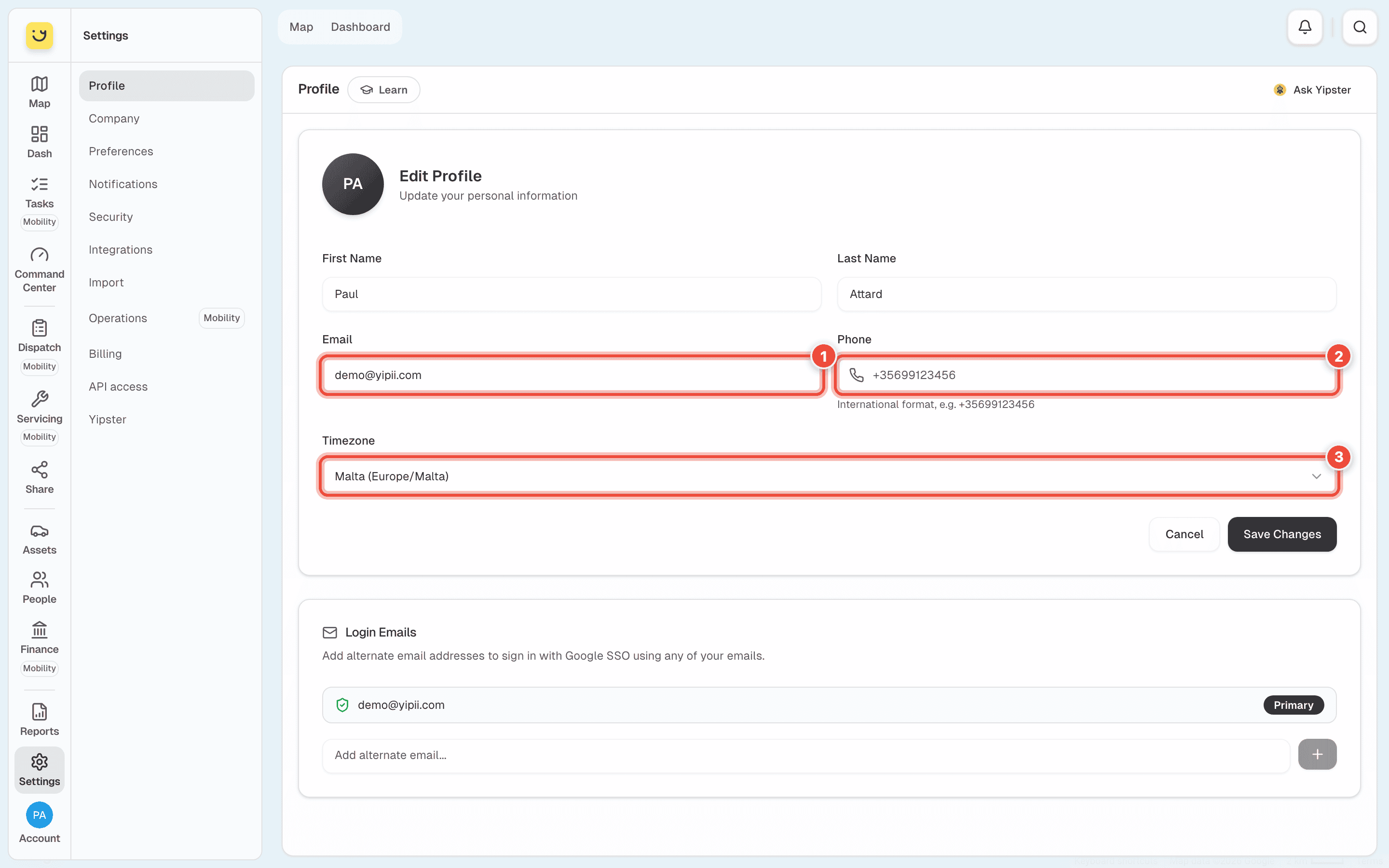
Change what you need. Email (1) is the address you sign in with; changing it sends a
message to the new address to confirm it. Type the Phone (2) with its country code —
+35699123456. Timezone (3) is your own: choose the one you work in.
Click Save Changes.
To sign in with another email as well — a second Google account, say — type it under Login Emails in Add alternate email… (3 on the first picture) and click +. It appears in the list beside your main address, marked Primary.
Go to Settings › Security.
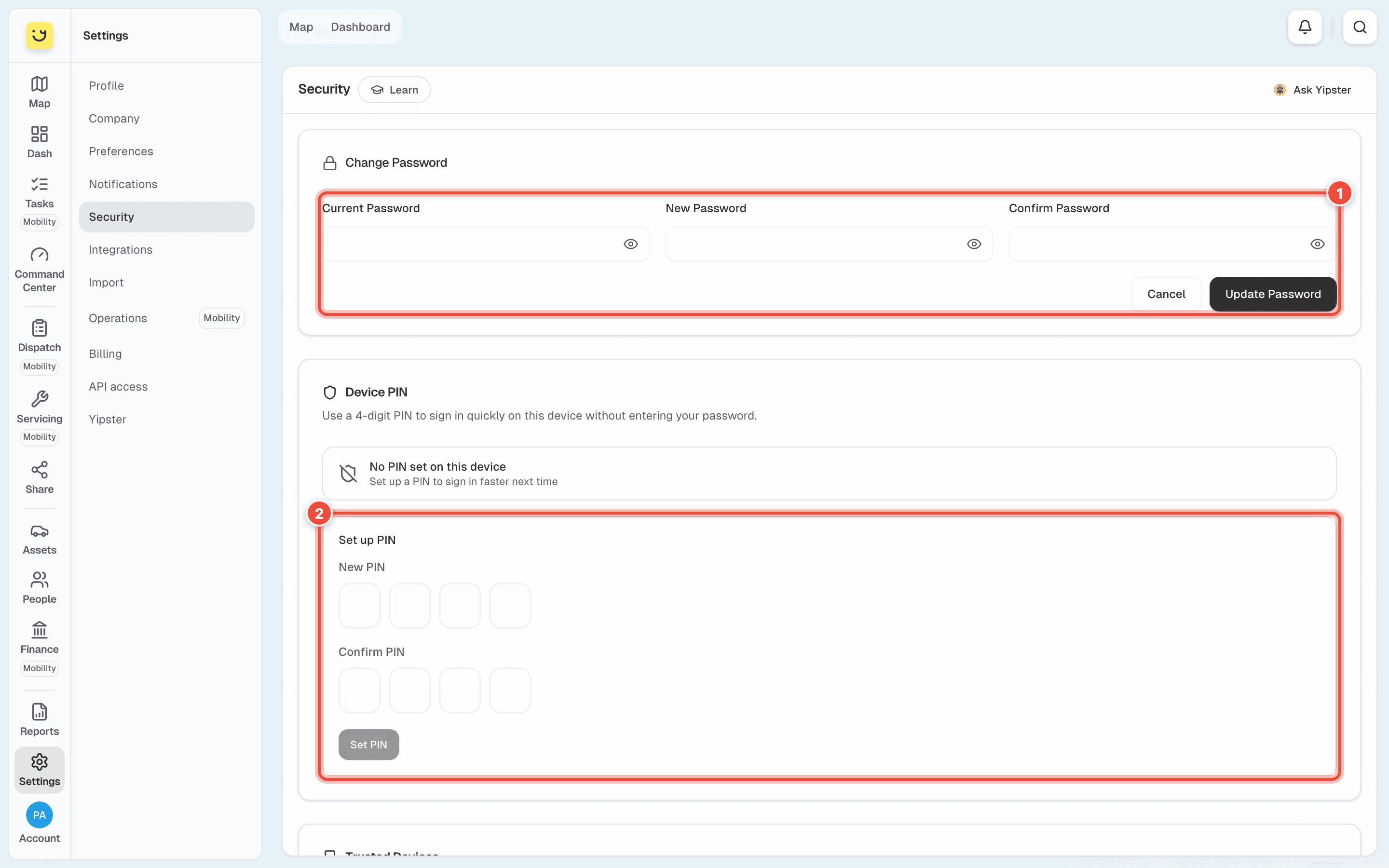
Under Device PIN, type four digits in New PIN and again in Confirm PIN (2), then click Set PIN.
Change your password
On Security, click Change beside Change Password. Type your Current Password, then the New Password twice (1), and click Update Password. A new password needs at least 8 characters, with a capital letter, a small letter and a number.
See where you are signed in
Further down Security, Trusted Devices lists every browser and phone that has signed in to your account, with when and from where. The one you are using says This device; a device seen for the first time says New. Click Revoke Access on any you don't recognise, or use Sign out all other devices — that also removes their PINs.
What happens next
Your new details show at once on your profile and in the menu. The PIN works on this device only: next time you sign in here, Yipii asks for the four digits instead of your password. On any other device you still use your password until you set a PIN there too.
If it doesn't work
| Symptom | Cause | Fix |
|---|---|---|
| Upload a PNG, JPG, or WebP image or Max 2MB | The photo is another kind of file, or too large | Save it as a PNG or JPG under 2 MB and try again |
| The new email doesn't work yet | It has to be confirmed first | Open the message Yipii sent to the new address |
| Must contain at least one uppercase letter (or number) | The new password is too simple | Use 8 or more characters with a capital, a small letter and a number |
| Passwords don't match | The two new passwords differ | Type them again |
| You are asked for your password, not your PIN | The PIN belongs to one device, and signing out of all devices removes it | Set the PIN again on that device |
| A device you don't know is in Trusted Devices | Someone signed in with your password | Revoke it, then change your password |
Related
- Sign in — where the PIN is asked for.
- Reset a forgotten password — when you can't sign in to change it here.
- Choose your notifications — including an email when a new device signs in.
Was this page helpful?