

Add a partner and invite their drivers
Add a coach company or a freelance driver you give work to, invite their drivers to the Yipii Driver app, and switch a partner off when you stop working with them.
A partner is a company or a freelance driver you give work to. Their drivers use the Yipii Driver app, see only the runs you give them, and show on your map and on your passengers' links while they drive.
Before you start — you need to be an account admin or a fleet manager. Each partner driver takes a driver seat on your account.
Steps
Go to People → Partners and click Add a partner.
Type the Name (1) — Mellieħa Coaches — and choose A company or A freelance driver (2).
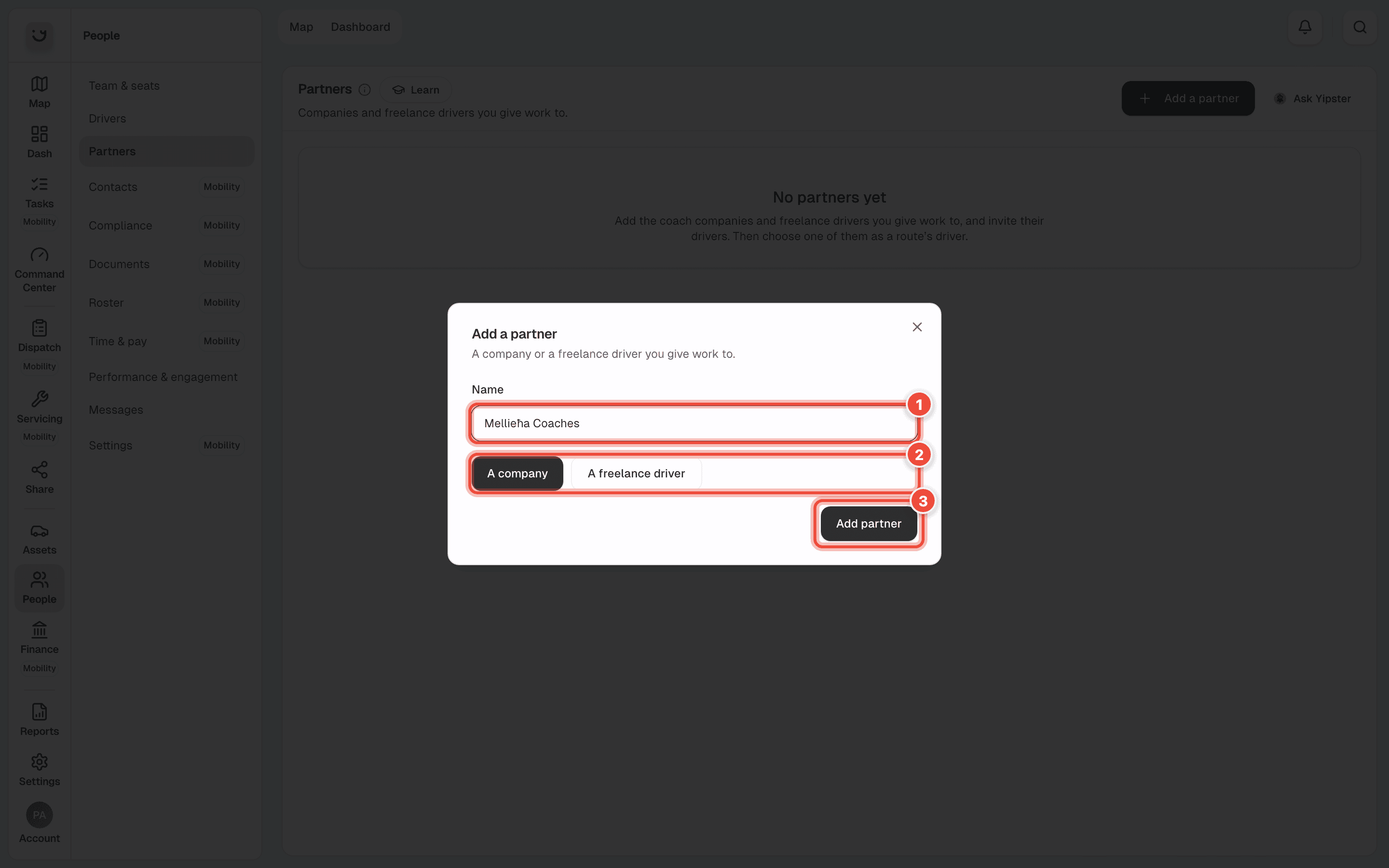
Click Add partner (3).
On the partner's card, click Invite a driver. Type Their email and click Send invite.
What happens next
The partner is listed on Partners with its drivers. Each driver gets an email to join the Yipii Driver app; once they accept, they take a driver seat on your account and you can give them runs. On their page in Team & seats, a partner's driver shows Drives for and the partner's name.
When you stop working with a partner, click Switch off on its card. Switch on brings it back. Remove deletes the partner, and only works once their open work has gone to somebody else.
If it doesn't work
| Symptom | Cause | Fix |
|---|---|---|
| Remove is greyed out | The partner still has open work | Give their open work to somebody else first, or Switch off the partner |
| The invited driver did not get the email | It went to spam, or the address has a typo | Invite them again with the right address |
| Partners is not in the People menu | Your role cannot add people | Ask an admin |
Related
- Add a contact — subcontractors you invoice or pay, as companies.
- Add a driver and give them a vehicle
Was this page helpful?