

Beacons and tags
Register an iButton or Bluetooth beacon, assign it to a person or a piece of equipment, and read what the tracker detects.
A tracker knows where a vehicle is. A tag tells it who is driving and what is on board.
Yipii supports two kinds of tag:
- iButton — a coin-sized metal contact tag. The driver touches it to a reader wired to the tracker. It is a deliberate action, which is exactly why some fleets prefer it.
- Bluetooth beacon — a small battery-powered transmitter. The tracker picks it up passively within about 10 m, with no action from anyone.
Both are registered the same way and both appear under Tag Management.
Where tags live
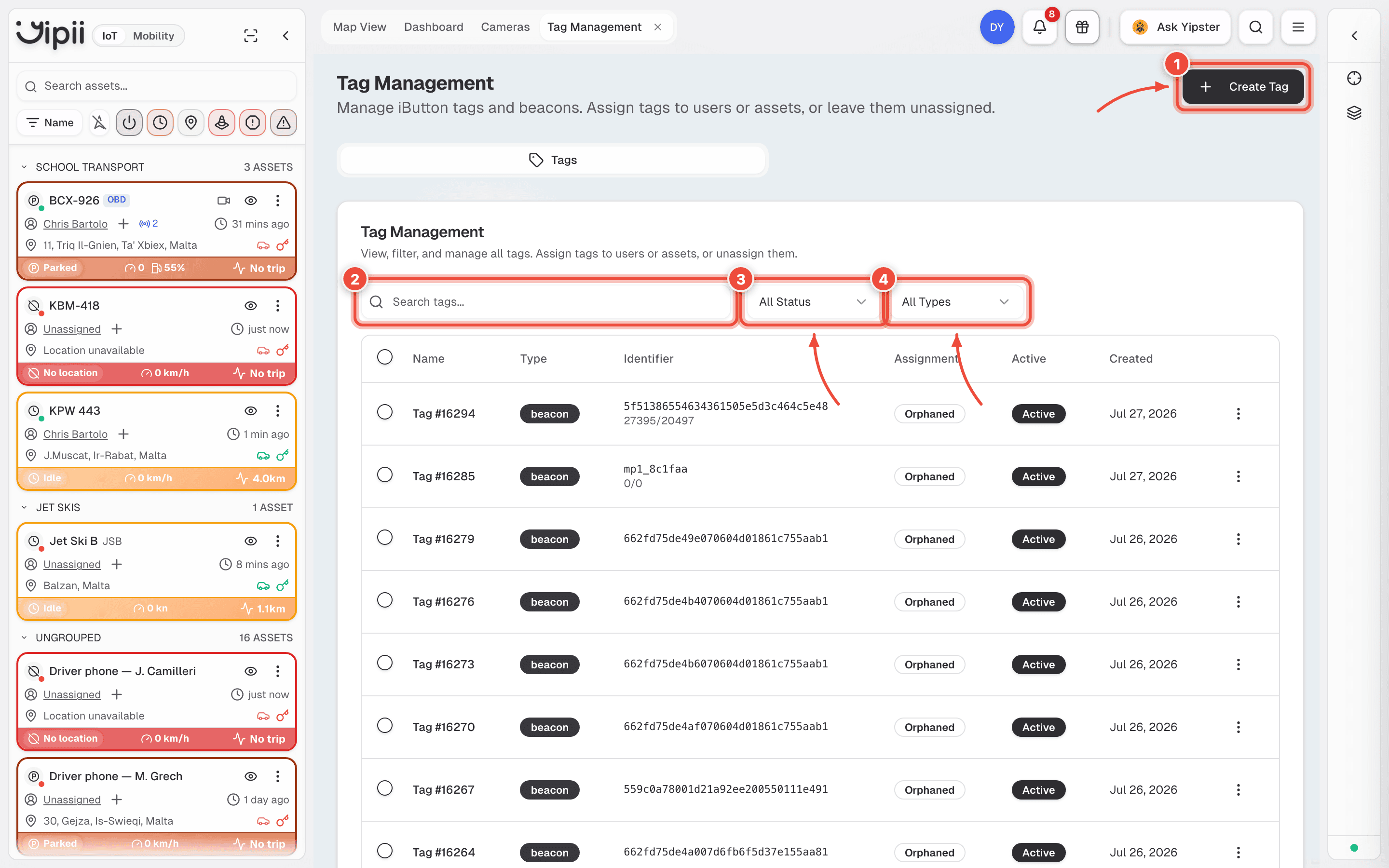
- Create Tag — starts the registration wizard.
- Search tags — matches on name and on the identifier, so you can paste a UUID from a packing list and find it.
- All Status — active or inactive.
- All Types —
iButtonorbeacon.
The list shows each tag's Identifier, its Assignment, and whether it is Active. A
tag reading Orphaned is registered but attached to nobody — normal for stock you have
claimed but not yet handed out.
Register a tag
Before you start — have the UUID from the beacon's label or its QR code, or the ID stamped on an iButton.
What happens next
An assigned tag starts identifying as soon as a tracker detects it. There is nothing to enable on the tag itself — but the tracker has to be scanning, which means BLE Beacons must be on under Diagnostics → Device Settings for that vehicle.
Assigning a tag
| Assign to | What it does | Use it for |
|---|---|---|
| User | The tag identifies that person whenever a tracker sees it | Driver identification, so trips and driver scores land on the right name |
| Asset | The tag becomes that asset's tracking device | Equipment with no tracker of its own — a generator, a toolbox, a trailer |
| Skip | Registered, attached to nothing | Stock you have claimed but not yet issued |
When you assign to an asset you can create the asset inline. That asset is a portable — an asset with no tracker, located by whichever vehicle can currently see its beacon. Portables appear under Assets → Tracked assets.
Reassigning or unassigning never destroys history. Detections stay on the tag, so a beacon moved from one van to another still has its full record.
Reading what a tracker detects
Select an asset on the map, then open the Beacons tab in the right-hand panel. This lists everything that asset's tracker can currently see — registered or not.
Beacons are grouped by how strong the signal is:
| Proximity | Signal | Read it as |
|---|---|---|
| Near | Stronger than −60 dBm | In or on the vehicle |
| Away | −60 to −80 dBm | Within range, but not adjacent |
| Lost | Weaker than −80 dBm | Drifting out of reliable range |
Do not treat these as distances. Signal strength is affected by metal, water and the human body, so a beacon in a driver's back pocket can read weaker than one on the far side of the cab.
What each detection shows
Every beacon card carries its UUID (with a copy button), the protocol it uses, when it was last seen, and which asset saw it. Depending on the hardware, it may also report:
| Reading | Units | Notes |
|---|---|---|
| Signal | dBm | Drives the Near/Away/Lost grouping above |
| Battery | Volts | Healthy above 2.8 V; below 2.0 V, replace it |
| Temperature | °C | Only from sensing beacons. A reading of exactly 0 means "not reported", not 0 °C |
| Humidity | % | Sensing beacons only |
| Movement | Detected / None | Smart Sensors |
| Magnet | Triggered / Normal | Smart Sensors — door and hatch monitoring |
| Angle | Degrees | Smart Sensors — pitch and roll |
The protocol badge shows what the tracker recognised: iBeacon, Eddystone, Eye Sensor, Smart Sensor or Tag. These are detected types, not things you choose — when you register a tag, the only choice is iButton or beacon.
Registering from a detection
An unregistered beacon shows in this list with a grey cross. Open its three-dot menu and choose Register to claim it into your account without typing a UUID at all. This is the fastest way to bring a bag of beacons into the system: put them in the vehicle, let the tracker find them, then name them one at a time.
The same menu offers Re-assign and Unassign for beacons you already own.
Temperature monitoring
Sensing beacons are how Yipii reads temperature inside a load space that has no wired probe.
Once one is detected and reporting, Temperature above and Temperature below
alerts can use it, and the temperature
report will have data to draw.
Give a temperature alert a sustained duration. A door opening at a delivery spikes the reading every single time, and an alert that fires on every spike gets muted within a week — at which point it is protecting nothing. See cold chain for a worked setup.
If it doesn't work
| Symptom | Cause | Fix |
|---|---|---|
| The Beacons tab isn't on the asset | BLE is off for that tracker, or the hardware has no BLE | Turn on BLE Beacons under Diagnostics → Device Settings. Cellocator devices cannot do BLE at all |
| A beacon never appears | BLE was only just enabled | The setting goes to the device over the air. Allow a few minutes, then re-check |
| Registration says the tag already exists | It is claimed by another account | The wizard offers to move it. If it is not yours to move, contact support |
| A driver isn't being identified | The tag is registered but assigned to nobody — it reads Orphaned | Open the tag and assign it to the user |
| Trips are attributed to the wrong person | Two beacons are in the cab and the stronger one wins | Take spare tags out of the vehicle, or assign the passenger's tag to a user so it is at least labelled |
Temperature shows — | The beacon reported exactly 0, which Yipii treats as "no reading" | Check the sensor's battery. A flat cell reports zeroes before it stops entirely |
| A beacon dropped to Lost but is still on board | Signal is blocked, not absent — metal shelving and liquid loads both do this | Move the beacon higher in the load space |
| Battery reads under 2.0 V | The cell is failing | Replace it. Expect 1–2 years from a beacon in daily use |
Related
- Trackers — the device that does the detecting, and where BLE is switched on.
- Assets — including portables, which are located by beacon rather than by GPS.
- Driver scoring — what accurate driver ID makes possible.
- Cold chain — temperature monitoring set up end to end.
Was this page helpful?