

Trackers
Register a tracker by IMEI or QR code, attach it to an asset, read the daily health check, and work out why one has stopped reporting.
A tracker is the box in the vehicle. Everything else in Yipii IoT — the map, alerts, reports, driver scores — is calculated from what it sends.
A tracker on its own shows nothing. It has to be attached to an asset, and the asset is what appears everywhere else. One tracker, one asset, at any one time.
Register a tracker
Before you start — have the IMEI (15 digits) or the FOTA ID (5–8 digits) from the label on the device. You need a role that can manage assets; reports only cannot.
Ten seconds, no sound. The written steps below are the same thing, and are the version to follow if you are actually doing it.
Open the Add Device wizard. On a computer, move the pointer over the left sidebar and click the scan icon in its header — the icon is hidden until you hover. On a phone, tap the grid button in the bottom bar and choose Add Device.
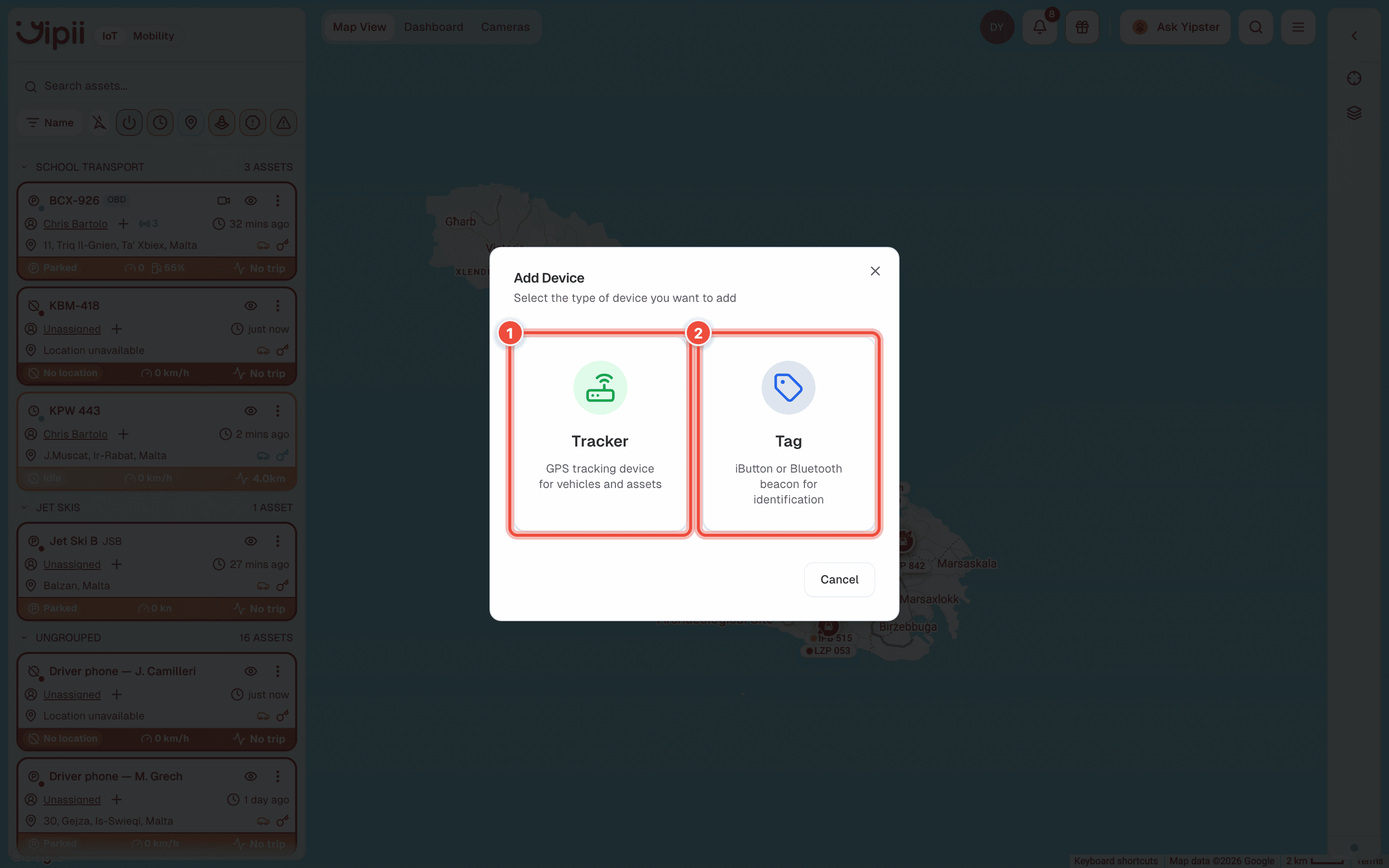
Choose Tracker (1). Tag (2) is for iButtons and Bluetooth beacons, not GPS hardware.
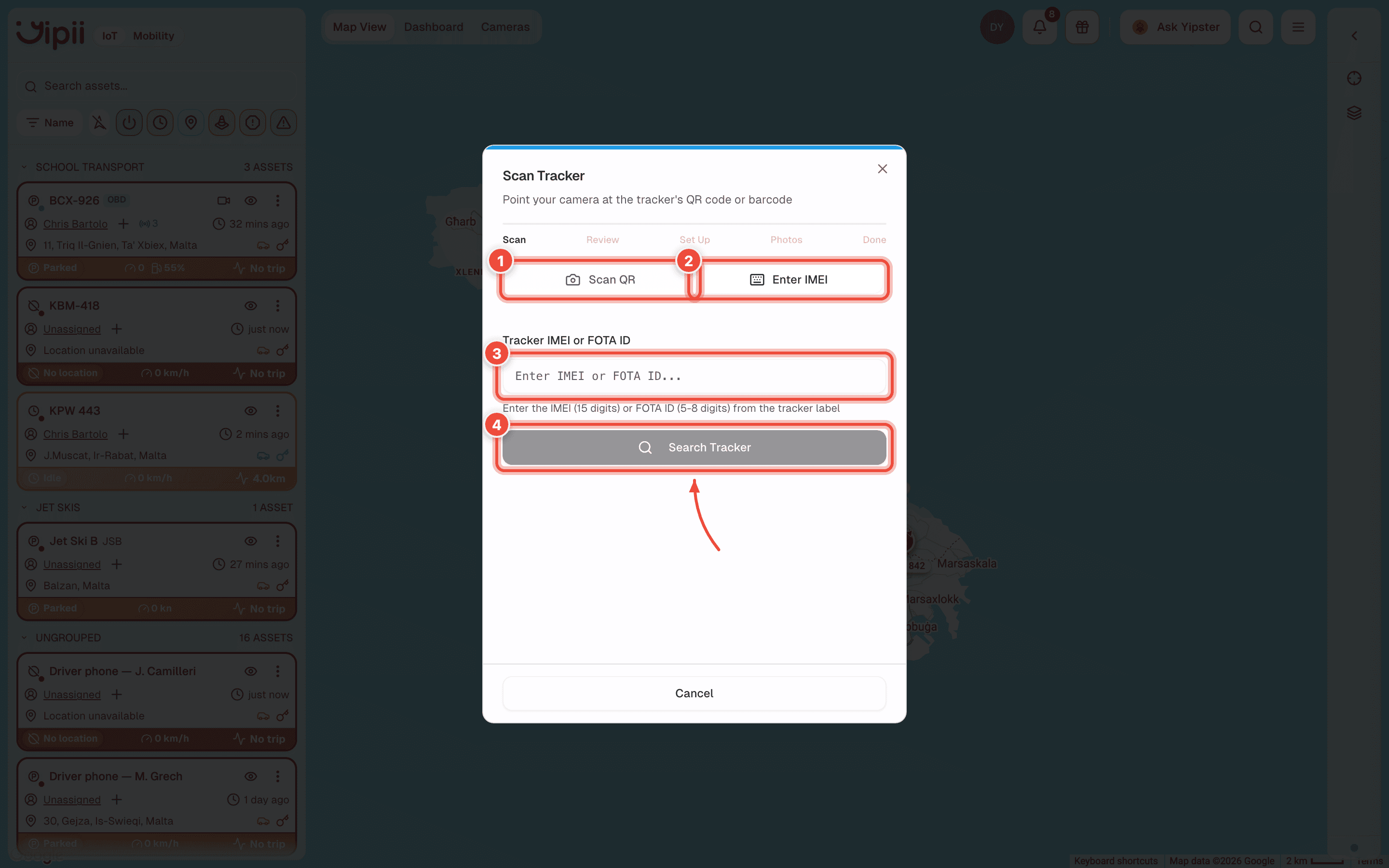
Identify the device. Scan QR (1) uses the camera and is the path to take on a phone, stood next to the hardware. Enter IMEI (2) is the one that always works: type the number into Tracker IMEI or FOTA ID (3) and click Search Tracker (4).
Both screenshots below show Enter IMEI, including the mobile one — a headless browser has no camera, so the QR panel cannot be photographed truthfully.
The QR code on a Teltonika label encodes the IMEI. Some labels carry the shorter FOTA ID instead — either works in the same field.
Read the lookup result. The wizard has five steps (1) and this is Review, the second.
The card (2) is everything Yipii already knows about this device, and Status is the line that decides what happens next — the five possible values are in What the lookup tells you below. Available means it is yours and attached to nothing.
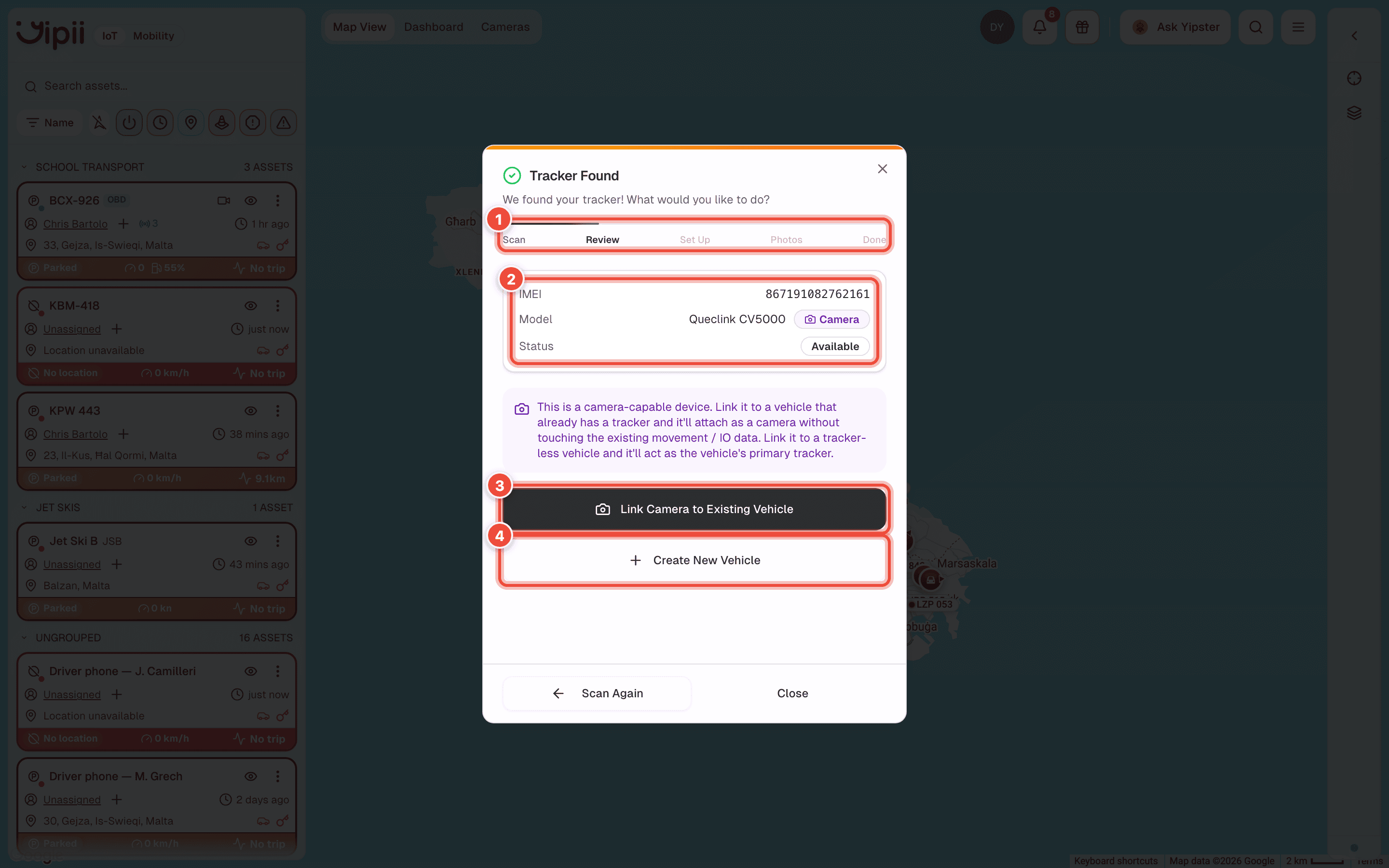
Then choose how to attach it: Link to Existing Vehicle (3) if the asset record already exists, or Create New Vehicle (4) to make one now. The device pictured is a Queclink CV5000 dashcam, so its buttons say Link Camera to Existing Vehicle; on a plain tracker the label is Link to Existing Vehicle.
On Set Up, fill in the vehicle. Name (1) is what appears on the map. Asset Type (2) is two dropdowns — the broad type and then the specific one — and it sets the map icon. Licence Plate (3) is optional and is reference only.
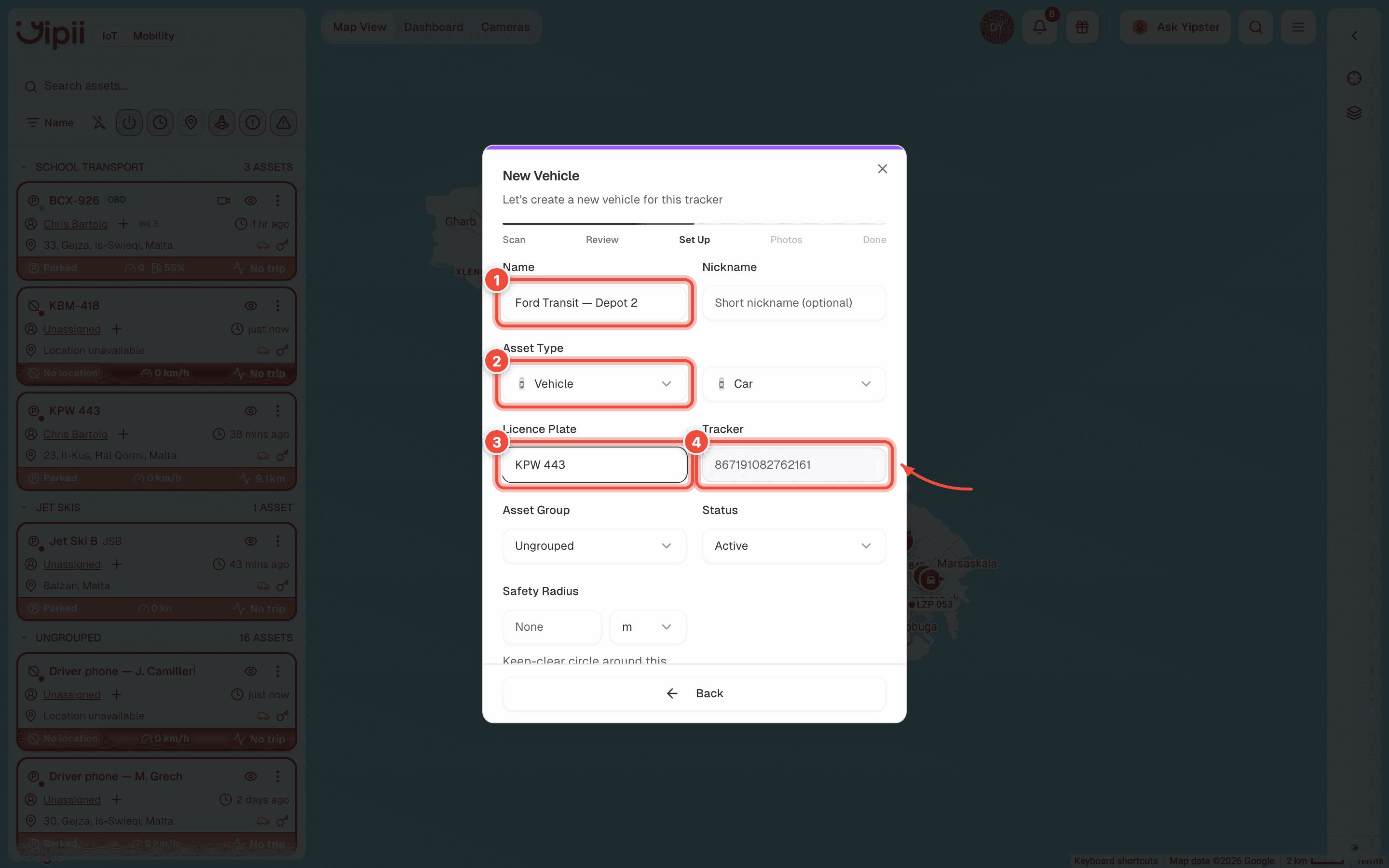
Tracker (4) is filled in for you and cannot be edited — it is the IMEI you just looked up. If that field shows the wrong number, go Back rather than saving.
This is the step that makes the tracker appear on the map. Scroll down inside the dialog for the submit button.
Photos is optional and worth doing on a field installation — vehicle, tracker, and how it was fitted. The QR snapshot from step 3 is kept automatically. Then Done.
What happens next
The asset appears in the left sidebar and on the map showing No location until the first position arrives. That takes seconds to a few minutes: a device fresh out of a box has no recent satellite almanac and needs longer to get a fix.
Once positions arrive, the asset picks up one of the normal statuses, alerts covering it start evaluating, and its trips begin appearing in reports.
What the lookup tells you
| Result | What it means | What you can do |
|---|---|---|
| Available | Known to Yipii, attached to nothing | Link to an existing asset, or create one |
| Already Linked | Attached to another of your assets | Move it. The old asset stops receiving data and keeps its history |
| On Another Account | Belongs to a different Yipii account | Transfer it to yours, then attach it |
| Not Found | Never connected to Yipii | Reserve it (below), or re-check the digits |
| Reserved | You already pre-registered it | Nothing. It attaches itself when it first connects |
Reserving a tracker before it is installed
Not Found normally means the device has never been powered on, which is the usual state when a box of trackers has just arrived. Reserve the IMEI and Yipii links it to your account — and to a specific asset, if you choose one — the moment the installer powers it up.
This is the difference between fitting 30 trackers and then spending an afternoon working out which is which, and fitting 30 trackers that are already named.
Supported hardware
| Protocol | Hardware | What you get |
|---|---|---|
| Teltonika | FMA120, FMB120, FMB003, FMC003, FMC130, FM11XY | The full set: remote commands over TCP and SMS, over-the-air firmware, BLE, device settings |
| Queclink | CV5000, CV200 | Dashcams. They feed the Cameras view as well as position data |
| Cellocator | Pointer devices | Position and ignition. Reset over TCP only — no SMS, no diagnostics, no configuration |
| Yipii Driver | A phone | The driver's phone reports as the tracker. No hardware to fit |
Two capabilities depend on the exact model, and both are worth checking before you buy:
- Engine data — fault codes, coolant temperature, RPM — comes from FMC003 and FMB003 only. On any other model the engine-health surfaces stay empty because nothing is reading the engine.
- Voltage-based ignition detection works on FMC003, FMB003 and FMC130. It matters when the tracker is not wired to the ignition switch: without it, a vehicle can sit in Parked while it is being driven.
Cellocator devices are discontinued. Yipii still receives their data, but the Diagnostics tab shows a legacy notice and most controls are absent. Plan on replacing them.
The Diagnostics tab
Select an asset, then open Diagnostics in the right-hand panel. Everything device-level lives here.
- Tracker Health — a red/amber/green verdict with the reasoning underneath: connectivity, power, GPS, whether the feed has frozen, and how fresh the last record is. It refreshes every 15 seconds while open.
- Care history — what Yipii has done to this tracker: firmware, calibration, commands.
- Device Identifiers — IMEI, SIM number, model, firmware version, protocol. Each has a copy button. This is what support will ask you for.
- Voltage Profile & Calibration — Teltonika only. Where ignition-by-voltage is tuned.
- Device Settings — OBD Mode, and toggles for BLE Beacons, Temperature, Fuel and Air-conditioner. BLE is pushed to the device over the air, so allow a few minutes for it to land.
- Command history — every command sent to this device and what came back.
Remote commands
The interface offers one command: Reset, next to Tracker Health. It reboots the device. Reach for it when a tracker is connected but the data has gone wrong — ignition stuck on, a position that has not moved while the vehicle has.
| Device state | Transport | How long |
|---|---|---|
| Online | TCP, over the live connection | Seconds |
| Offline (Teltonika) | SMS to the tracker's SIM | Minutes, and only once it has signal |
| Offline (Cellocator) | Not possible | Reset needs the device online |
Reading and writing individual device parameters is not a customer action. Those commands exist but are restricted to Yipii staff, so if a tracker needs reconfiguring, raise it with support rather than hunting for a settings screen.
Firmware
Teltonika devices update over the air, managed centrally by Yipii in groups. There is no button and nothing to schedule — a device collects its update the next time it connects.
The daily health check
Once a day Yipii scores every tracker and stores one result. The rules are fixed:
| Result | Rule |
|---|---|
Power Low | Supply voltage under 10 V |
Offline | Reported offline, or no update for 24 hours |
Issue Detected | The tracking server reports the device as unavailable |
Location Unavailable | Connected, but with no valid coordinates |
Low signal | Fewer than 5 GPS satellites, or the feed has frozen |
Not used | Last ignition between 1 week and 1 month ago |
No movement | Last ignition or last movement over a month ago |
OK | None of the above |
Power Low and Offline on a vehicle in daily use are the two to act on. Both are usually
wiring rather than the device.
No movement and Not used are not faults. On a trailer that moves twice a month they are the
correct answer, and treating them as alarms is how people end up ignoring the whole list.
To be told rather than to go looking, use the Tracker health, Daily health check, Tracker power off and GPS signal lost alert conditions.
Moving a tracker to another vehicle
Scan or enter the IMEI again through Add Device. The lookup returns Already Linked and offers to move it. That one flow handles unlinking, transferring between accounts if needed, and attaching to the new asset.
The old asset keeps every trip and report from the period the tracker was on it. It simply stops receiving new data.
If it doesn't work
| Symptom | Cause | Fix |
|---|---|---|
| The scan icon isn't in the sidebar | It only appears on hover, and never on mobile | Move the pointer over the sidebar. From a phone, do this on a computer instead |
| Search Tracker returns "Not Found" | The device has never connected, or the digits are wrong | Re-check against the label, then reserve the IMEI so it links itself on first power-up |
| The asset stays on No location | Power and signal are fine but there's no GPS fix | Move the vehicle into the open and wait a few minutes |
| Position updates but ignition is always off | Not wired to the ignition, and voltage detection isn't calibrated | Ask support to calibrate. Only FMC003, FMB003 and FMC130 can do it |
Health says Low signal on a healthy vehicle | Fewer than 5 satellites — usually an antenna under metal | Check where the device is mounted |
Health says Offline but the map looks current | Offline needs 24 hours of silence, so the map is the fresher signal | Re-check after the next daily run |
| Reset did nothing | The device was offline, so it went by SMS | Wait for it to regain signal, then check command history on the same tab |
| No engine data anywhere | The hardware can't read the engine | Only FMC003 and FMB003 are OBD-capable |
| A toggle in Device Settings flipped back | It's a Cellocator, which can't be configured remotely | Nothing to fix — the device does not support it |
| The Set Up step has no save button | The form is taller than the dialog | Scroll inside the dialog. Back is pinned to the footer; the submit button is not |
| The Tracker field on Set Up shows a different IMEI | You searched one device and the wizard is still on a previous lookup | Go Back to Scan and search again. Never save a Set Up step whose IMEI you don't recognise |
Related
- Beacons — iButtons and Bluetooth tags, added through the same dialog.
- Statuses — what moving, idle, parked and offline mean once data flows.
- Alerts — be told a tracker went quiet instead of discovering it.
- Assets — the record a tracker attaches to.
Was this page helpful?