

Say what a vehicle can do
List what your vehicles can do on Assets › Capabilities — seats, cargo space, a fitting such as a wheelchair ramp — then mark each vehicle so bookings and jobs go to one that can do the work.
Capabilities are what you can say about a vehicle: its seats, its cargo space, a fitting such as a wheelchair ramp. Bookings and jobs are matched against them, so the right vehicle is offered for each one.
There are two halves. You list a capability once on Assets → Capabilities, then mark each vehicle that has it.
Before you start — this needs Yipii Mobility with bookings and dispatch switched on, under Settings → Operations. Listing capabilities is for admins, fleet managers and office staff. Marking a vehicle is for admins and fleet managers.
Steps
List the capability
Go to Assets → Capabilities. Yipii's own capabilities are listed already — Seats, Wheelchair ramp, Tail lift and more. Click the Yours tile to see only the ones you added.
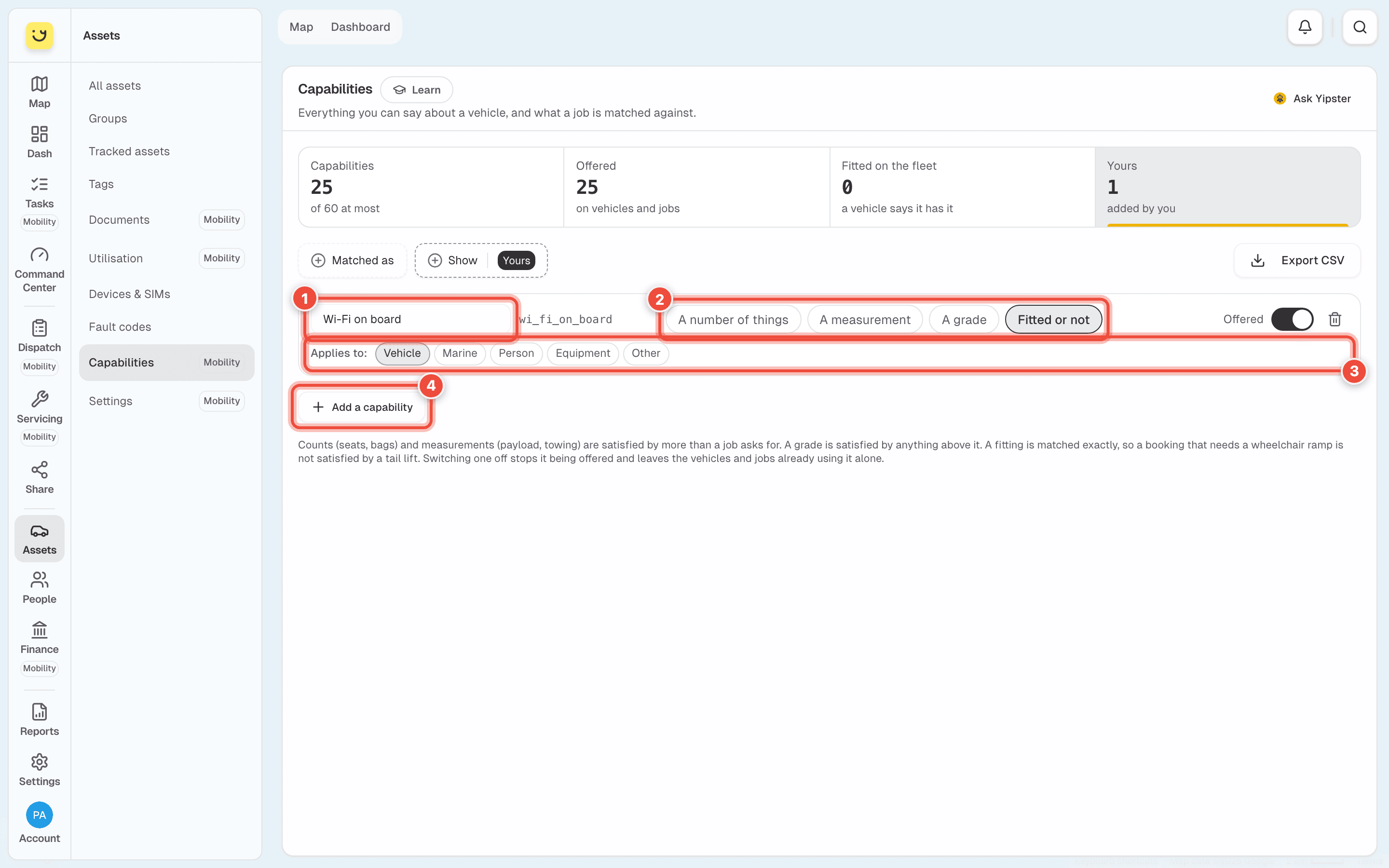
Click Add a capability (4). In the new row, type its name (1) — Wi-Fi on board — and press
Enter. A row is kept only once it has a name.
Choose how a job is matched against it (2):
- Fitted or not — matched exactly. A tail lift does not satisfy a job that needs a wheelchair ramp.
- A number of things — seats, bags. A job asking for 4 is satisfied by 6.
- A measurement — payload, towing, with a unit. A job asking for 900 kg is satisfied by 1,400 kg.
- A grade — a higher grade satisfies a lower one, and a vehicle has exactly one.
Under Applies to (3), every kind of asset is lit to start with, marked (every kind). Click the kinds it is not for to turn them off — for Wi-Fi on board, leave only Vehicle lit.
Each change saves as you make it. Saving… shows while it does.
Mark a vehicle that has it
Go to Assets → All assets, find the vehicle (search Hotel Shuttle 1) and click Open.
Click Manage vehicle, then What it can do.
Beside the capability, choose Fitted — in the picture, Wheelchair ramp (1), one of Yipii's own. Leave any box empty to use what the vehicle's type says.
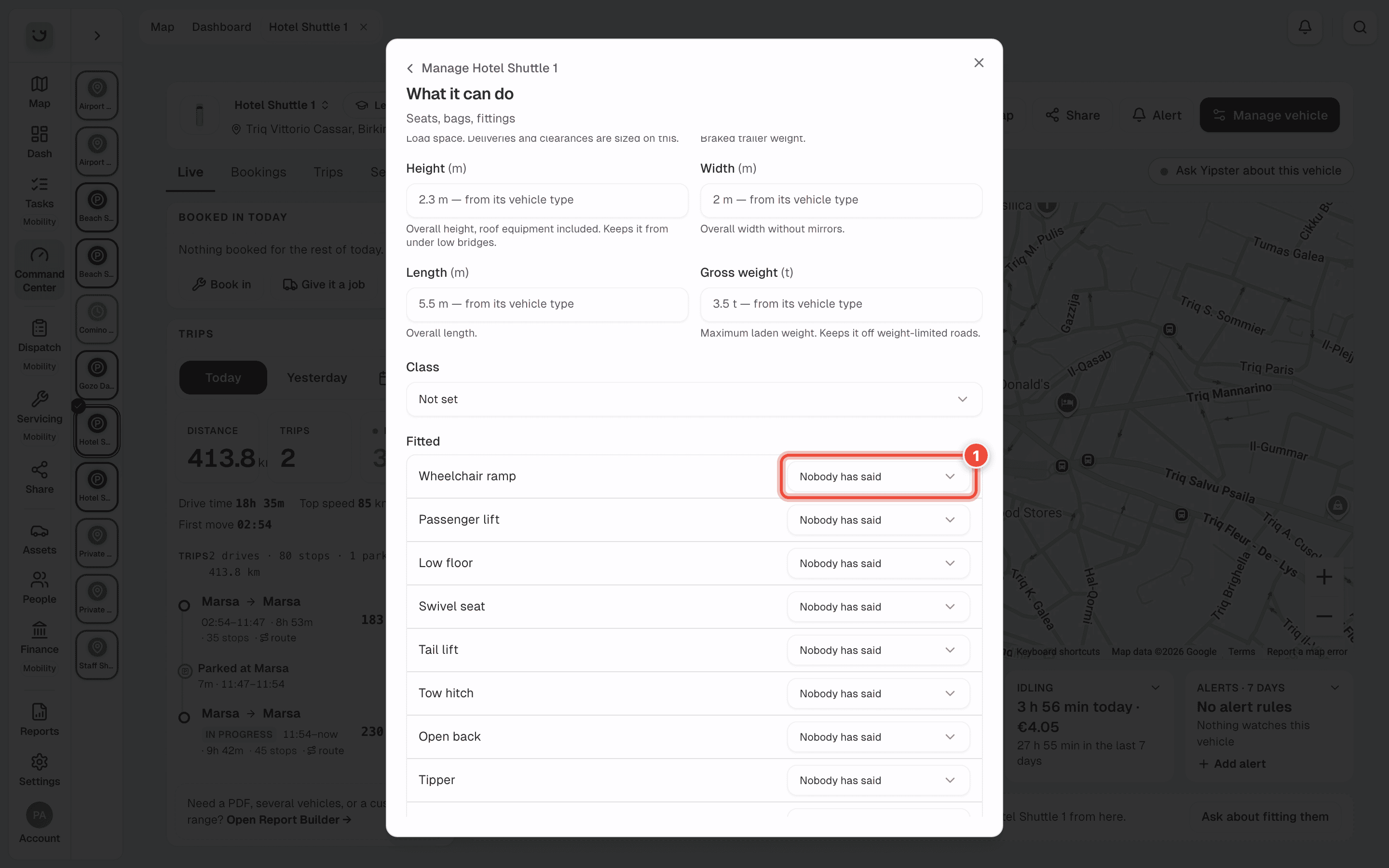
Click Save.
What happens next
Yipii says Saved what this vehicle can do. The vehicle's What it can do card lists each value and where it came from:
| It says | Meaning |
|---|---|
| Set on this vehicle | You set it here, for this vehicle only. |
| From its vehicle type | Nobody set it on the vehicle, so its type's value is used. |
| From the VIN | Read from the vehicle's VIN. |
To undo a value you set, choose As its type says in the same list. When the type says nothing either, that choice reads Nobody has said.
On Assets → Capabilities, the Fitted on the fleet tile counts the fittings at least one of your vehicles is marked as having. Once Hotel Shuttle 1 is marked, Wheelchair ramp is in that count.
If it doesn't work
| Symptom | Cause | Fix |
|---|---|---|
| Capabilities is not in the Assets menu, or the page says it is locked | It needs Yipii Mobility with bookings and dispatch on, and an office role | An admin switches it on under Settings → Operations |
| What it can do is not in Manage vehicle | It needs Yipii Mobility and a role that can change vehicles | Ask an admin or fleet manager |
| The vehicle says Nothing your account lists applies to this kind of vehicle. | Applies to leaves out this kind of asset | Open Assets → Capabilities and add the kind under Applies to |
| Add a capability is greyed out | A new row has no name yet (Name it to keep it.), or the list has reached 60 | Name the new row, or remove one you no longer use |
| One of Yipii's own capabilities has no remove button | Built-in capabilities can be switched off, not removed | Turn its Offered switch off |
Related
- Assets — where Capabilities sits in the Assets menu.
- Vehicle capabilities in Yipii Mobility — how bookings are matched against them.
Was this page helpful?