

Email a report on a schedule
Set a report to run by itself — every Monday at 08:00, say — and arrive by email: the report, when it runs, and who gets it.
A schedule runs the same report for you, on the day and at the time you choose, and emails it. This page sets up last week's trips for Hotel Shuttle 1, every Monday at 08:00, sent to the operations mailbox.
Before you start — you need to be an account admin, a fleet manager, office staff, or have the reports only role. A schedule covers one vehicle.
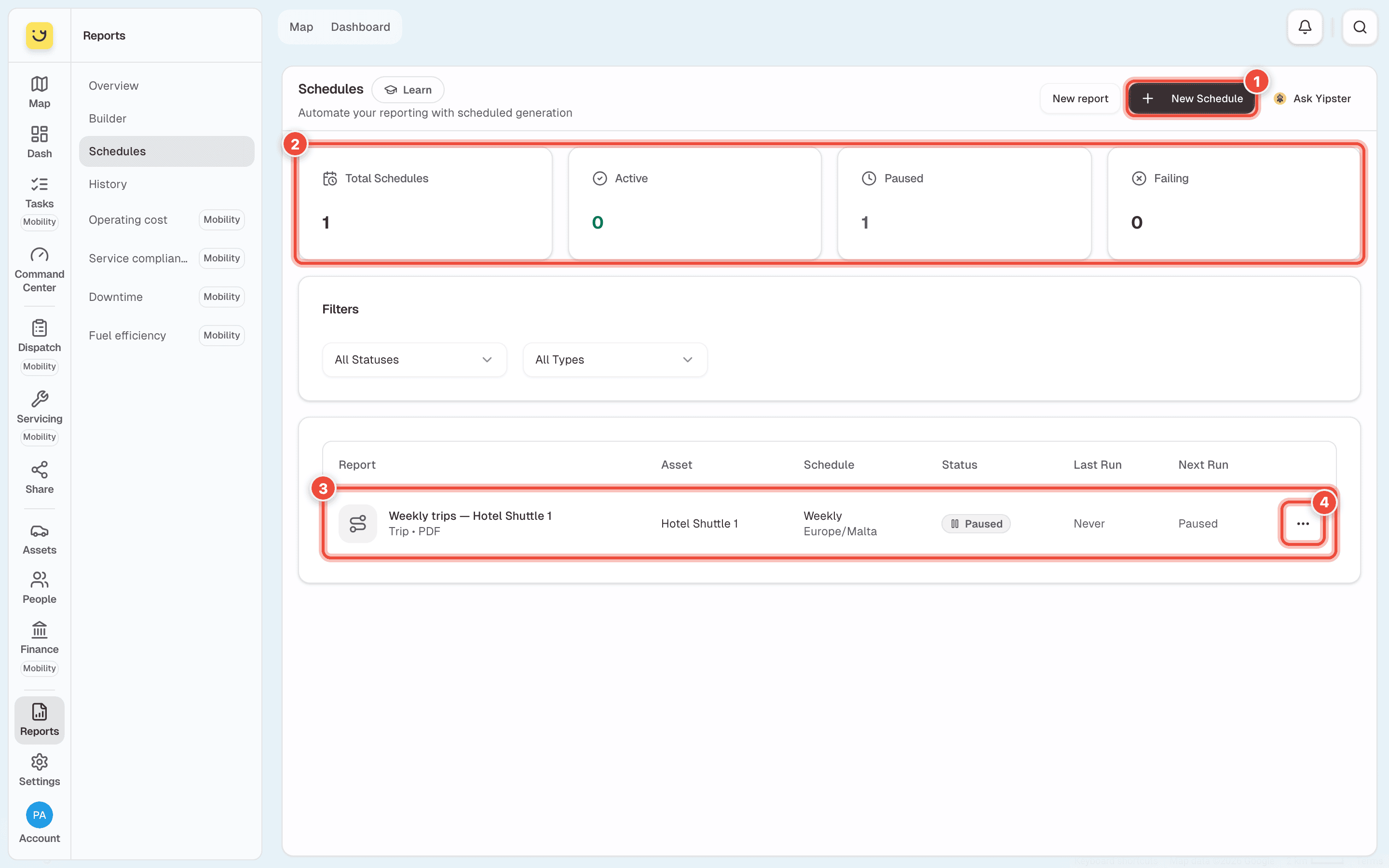
Schedules lists every schedule on the account (3), with when it runs, when it last ran and when it runs next. The counts (2) say how many are Active, Paused and Failing. A schedule's ⋯ menu (4) has Edit, View History, Pause (or Activate) and Delete.
Steps
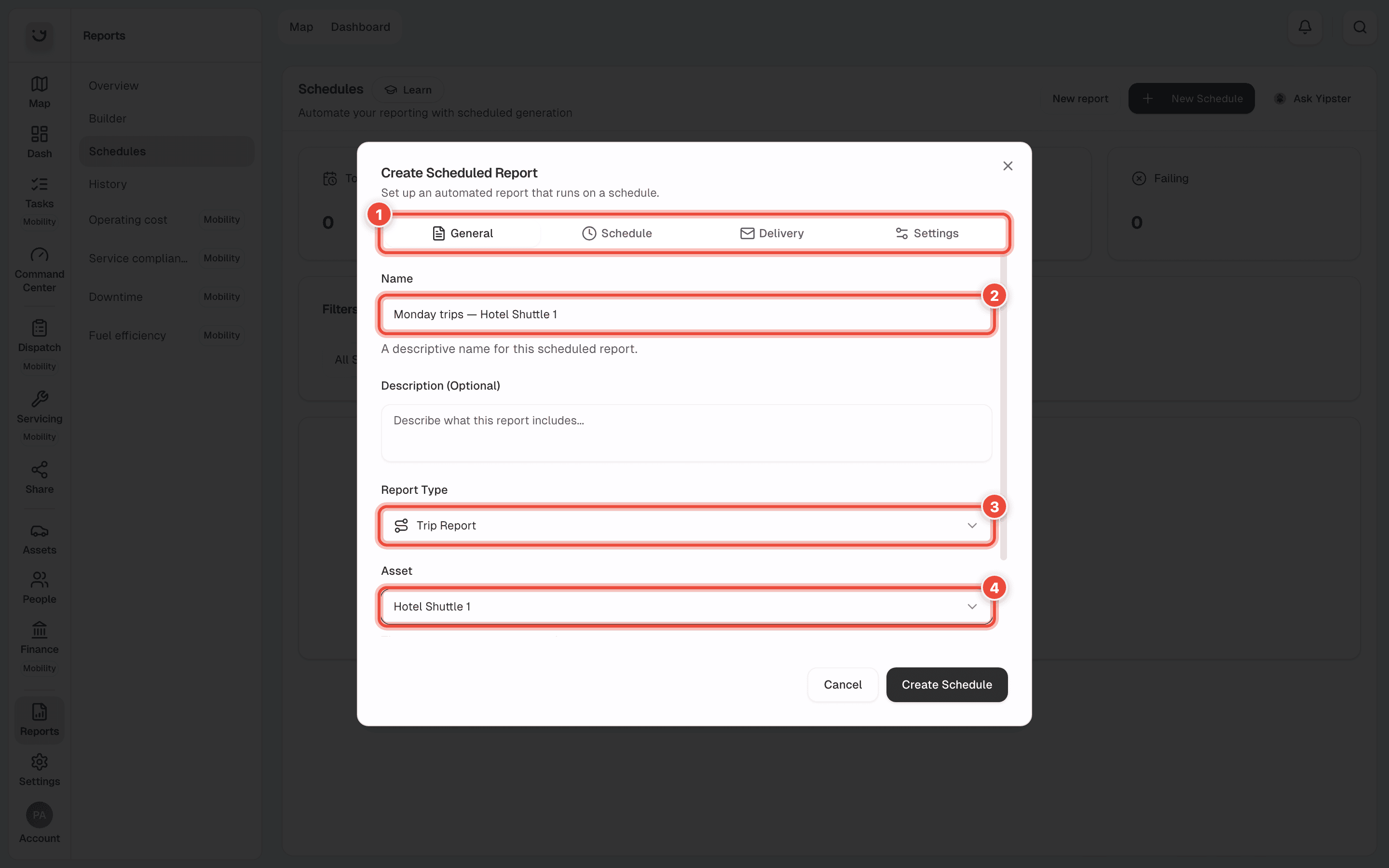
Go to Reports › Schedules and click New Schedule (1). The window that opens has four tabs (1): General, Schedule, Delivery and Settings.
You can also start from a report you already have: Schedule this on a finished report or on Daily Activity fills in the report and the vehicle for you.
On General, give it a Name (2) the recipients will recognise — Monday trips — Hotel Shuttle 1.
Description is optional.
Choose the Report Type (3) — Trip Report — and the Asset (4) — Hotel Shuttle 1. Further down, choose the Output Format: PDF Document, Excel Spreadsheet, JSON Data or HTML Report. Pick PDF for people, Excel for someone who will work with the numbers.
Open the Schedule tab. Set Frequency to Weekly, then the Time — 08:00 — and the
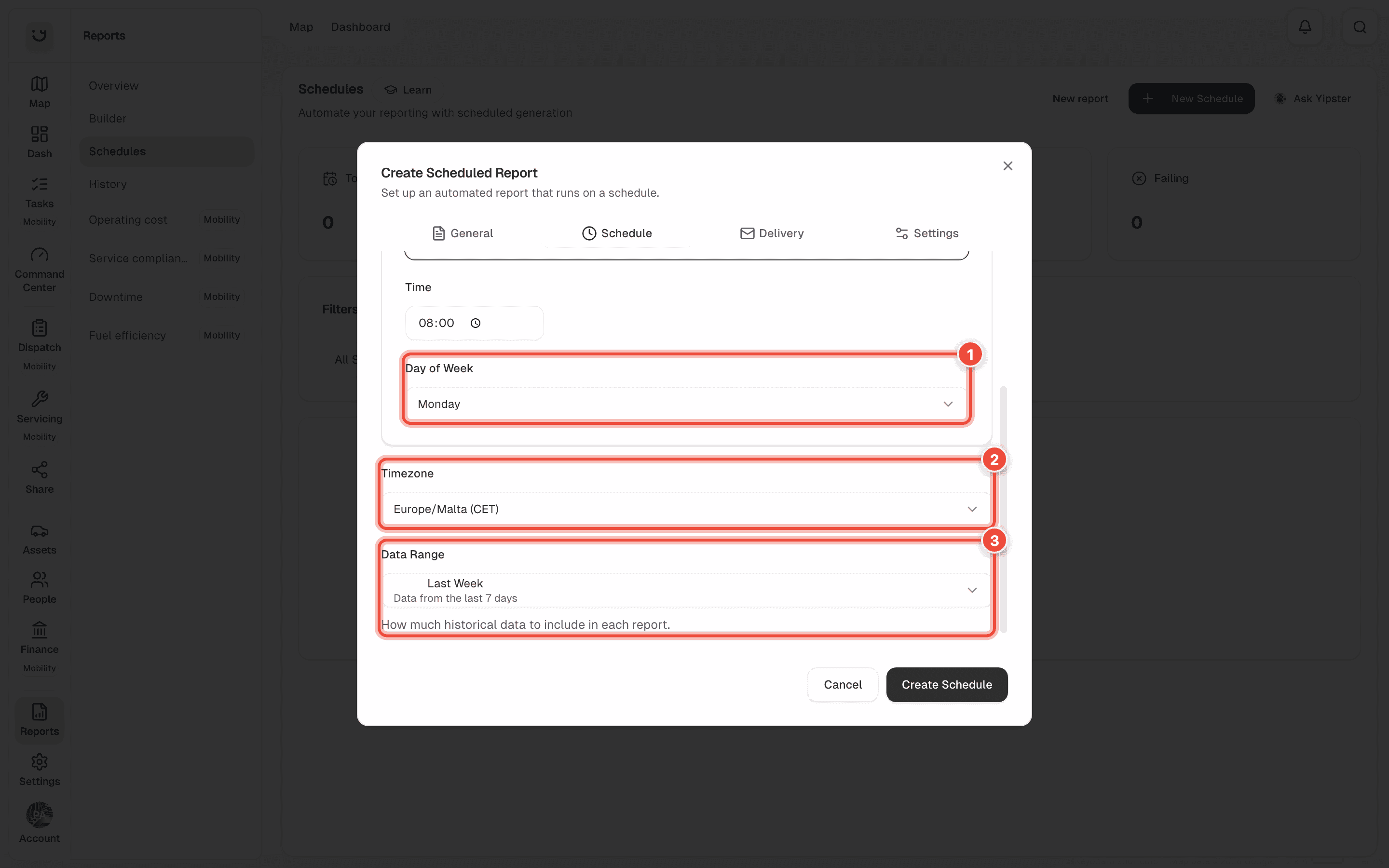
Day of Week (1) — Monday. The line at the top of the tab says it in words, such as
Every Monday at 08:00.
Frequency can also be Hourly, Daily or Monthly.
Check the Timezone (2). It starts on Europe/Malta (CET); the time you chose is in this zone.
Check the Data Range (3) — how far back each report looks. It follows the frequency: a weekly schedule covers Last Week, the 7 days before it runs. For another length, choose Custom Range and type the number of days, up to 365.
Open the Delivery tab. Enable Email Delivery (1) is already ticked, with you on the list.
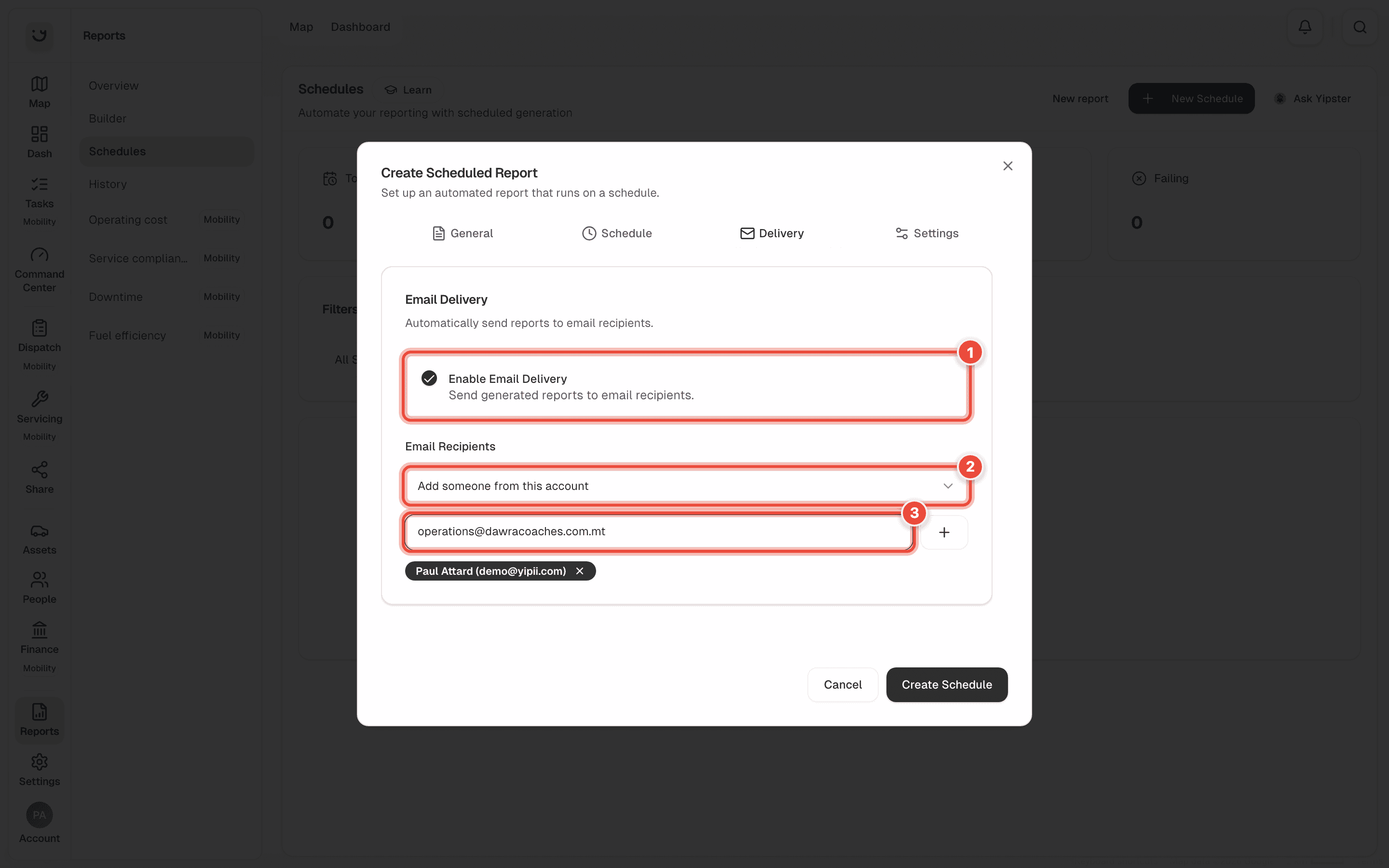
Add who else gets it. Choose people on your account from Add someone from this account (2). For anyone else — an accountant, a client — type the address under Or type any email address (3) and press Enter. An address you leave in the box is added when you click elsewhere or create the schedule. Add as many as you need; the × beside a name takes it off, including your own.
Optional: on Settings, untick Active to save the schedule without it running yet.
Click Create Schedule.
What happens next
The schedule appears in the list, marked New, with its Next Run. At that time Yipii runs the report and emails it to everyone on the list. Each run is also kept in History, and the schedule's ⋯ menu › View History lists its runs.
To stop it for a while, use Pause in the ⋯ menu. Delete removes the schedule for good.
If it doesn't work
| Symptom | Cause | Fix |
|---|---|---|
| Add at least one email recipient | Enable Email Delivery is ticked but nobody is on the list | Add someone or type an address, or untick Enable Email Delivery |
| The email arrives an hour early or late | The Timezone is not the one you meant | Edit the schedule and set Europe/Malta (CET) or your own zone |
| The report covers only one day | The Data Range is Last Day | Edit it and choose Last Week, or a Custom Range |
| Nobody received it | Email delivery is off, or the schedule is paused | Open ⋯ › Edit and check Delivery and Settings › Active |
| The schedule shows under Failing | A run could not be built — often the vehicle's tracker sent nothing | Open ⋯ › View History to see the error |
| Yipii won't create the schedule and points at an address | The typed address is not a valid email | Correct it — check for a missing @ or a space |
Related
- Run a report — the same report, once, now.
- Find a report you ran before — every scheduled run is listed there.
Was this page helpful?