

Add a driver and give them a vehicle
Add a driver with or without the Yipii Driver app, give them the app and a seat later, and set the vehicle they drive.
A driver can be on your account in two ways: with the Yipii Driver app, which they sign in to and which uses a driver seat, or as a record only — a name you can give a vehicle and a tag to, which costs nothing.
Before you start — you need to be an account admin or a fleet manager. Giving someone the app needs a free driver seat: People → Team & seats shows how many are in use.
Steps
A driver who will use the app
Go to People → Drivers and click Invite driver, top right.
Type their Full Name and Email Address, then click Send Invite.
They get an email with a link to set their password, then sign in to the Yipii Driver app.
A driver who will not use the app
Go to People → Team & seats and click New driver. On People → Drivers the same window is under More → Add a driver without the app.
Type their First Name (1) and Last Name. Email (2) is optional: leave it empty for a driver who never signs in. Phone, Employee ID and Hire Date are optional too.
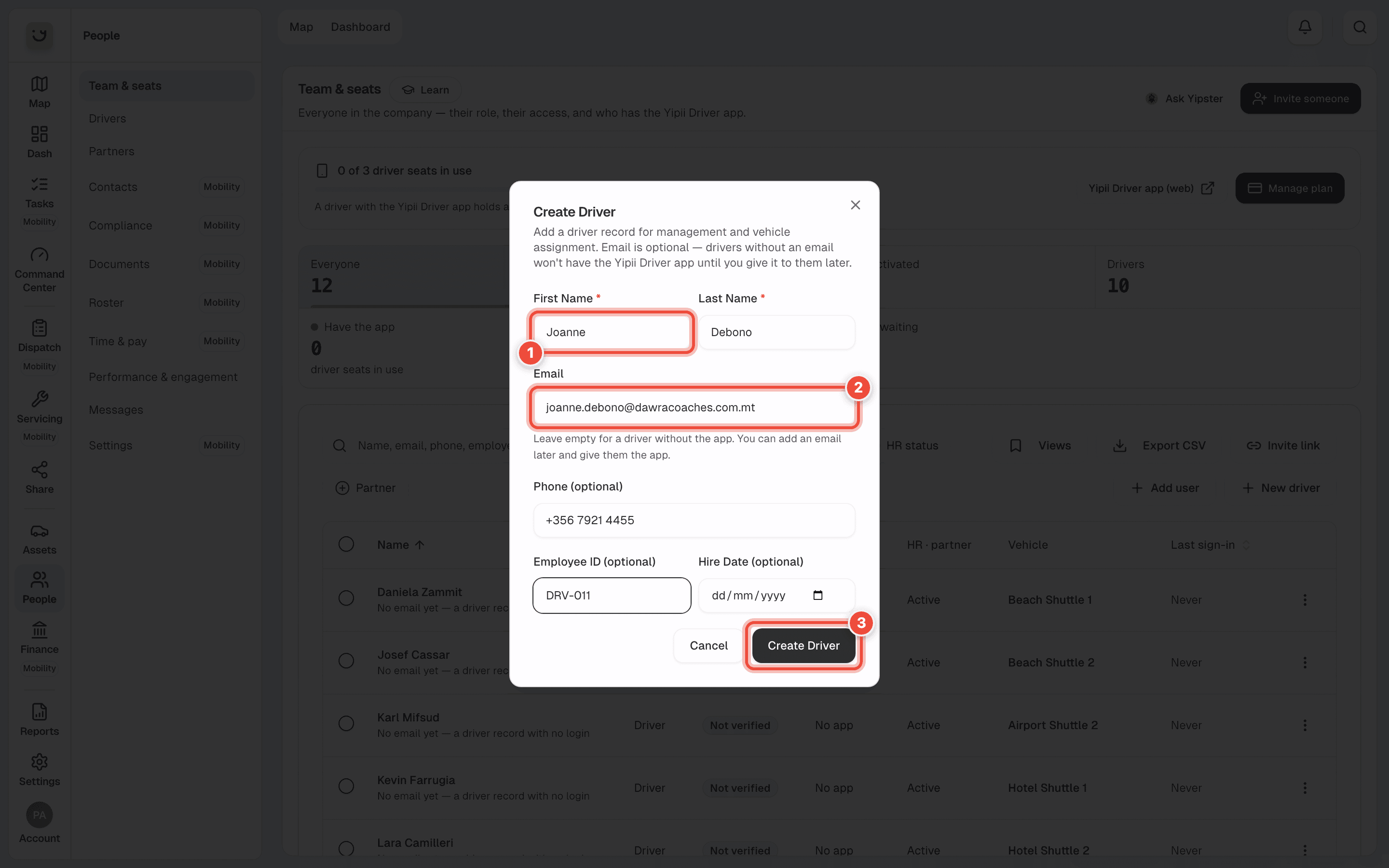
Click Create Driver (3).
Give the app later
On People → Team & seats, open the ⋮ menu on the driver's row and click Give the app. A driver with no email shows Give the app… (needs an email) instead: open their page, click Edit details, add an email, then give the app.
To free a seat, open the ⋮ menu on another driver's row and click Take the app away.
Give them a vehicle
Go to People → Drivers. Search for the driver by name — Kevin.
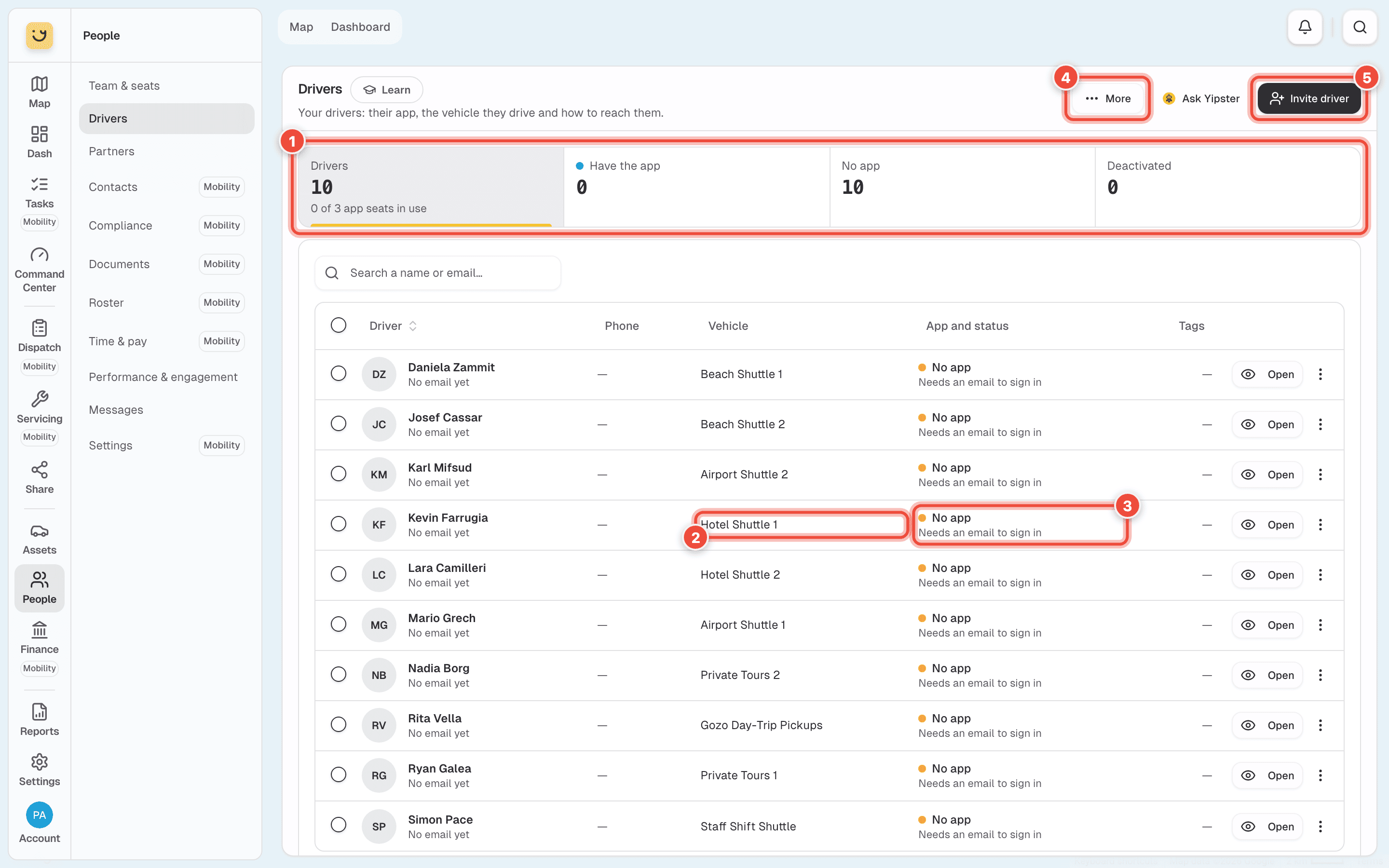
Click the Vehicle cell (2) on their row and choose the vehicle — Hotel Shuttle 1. The cell reads
No vehicle when they drive nothing.
The App and status cell (3) says whether they Have the app and use a seat, or are Record only · not billed. A driver with no email reads No app and Needs an email to sign in. More (4) holds Open the driver portal and your Driver plan. Invite driver (5) is the app invite above. The tab row (1) holds Rewards, Challenges and Timesheets for the Driver Add-On.
You can also set the vehicle from the driver's own page, under Vehicle, or from the vehicle — see Assign a driver to a vehicle.
What happens next
The driver is listed on Drivers and on Team & seats. With the app, the Have the app tile goes up by one and they take a seat. The vehicle shows their name in the Driver column on Assets → All assets and in its Command Center.
A vehicle you set holds until a tag decides otherwise: if the vehicle's tracker reads another driver's iButton or beacon on a trip, that driver replaces the one you set.
If it doesn't work
| Symptom | Cause | Fix |
|---|---|---|
| Every seat is in use above the tiles | All your driver seats are taken | Take the app from a driver who no longer needs it, or click Manage plan to add seats |
| Give the app… (needs an email) | The driver was added with no email | Add one with Edit details on their page, then give the app |
| The driver did not get the invite | It went to spam, or the address has a typo | Check Invites waiting on Team & seats and invite again |
| The vehicle went back to another driver | A tag read on a trip decides who is driving | Give the driver their own tag on their page, under Tags → Give a tag |
Related
Was this page helpful?