

Install the app on your phone
Add Yipii IoT to an iPhone or Android home screen — the exact taps for Safari and for Chrome, and why iPhone push notifications depend on installing it.
Yipii IoT installs to a phone's home screen from the browser. There is no App Store or Play Store download — you open the site once and add it, and after that it launches like any other app: its own icon, full screen, no address bar.
Before you start — you need the site open in the right browser. On an iPhone or iPad that means Safari, and only Safari; Chrome and Firefox on iOS cannot add to the home screen. On Android, Chrome. You do not need to be signed in to install, but you will need an account to use it.
On an iPhone or iPad
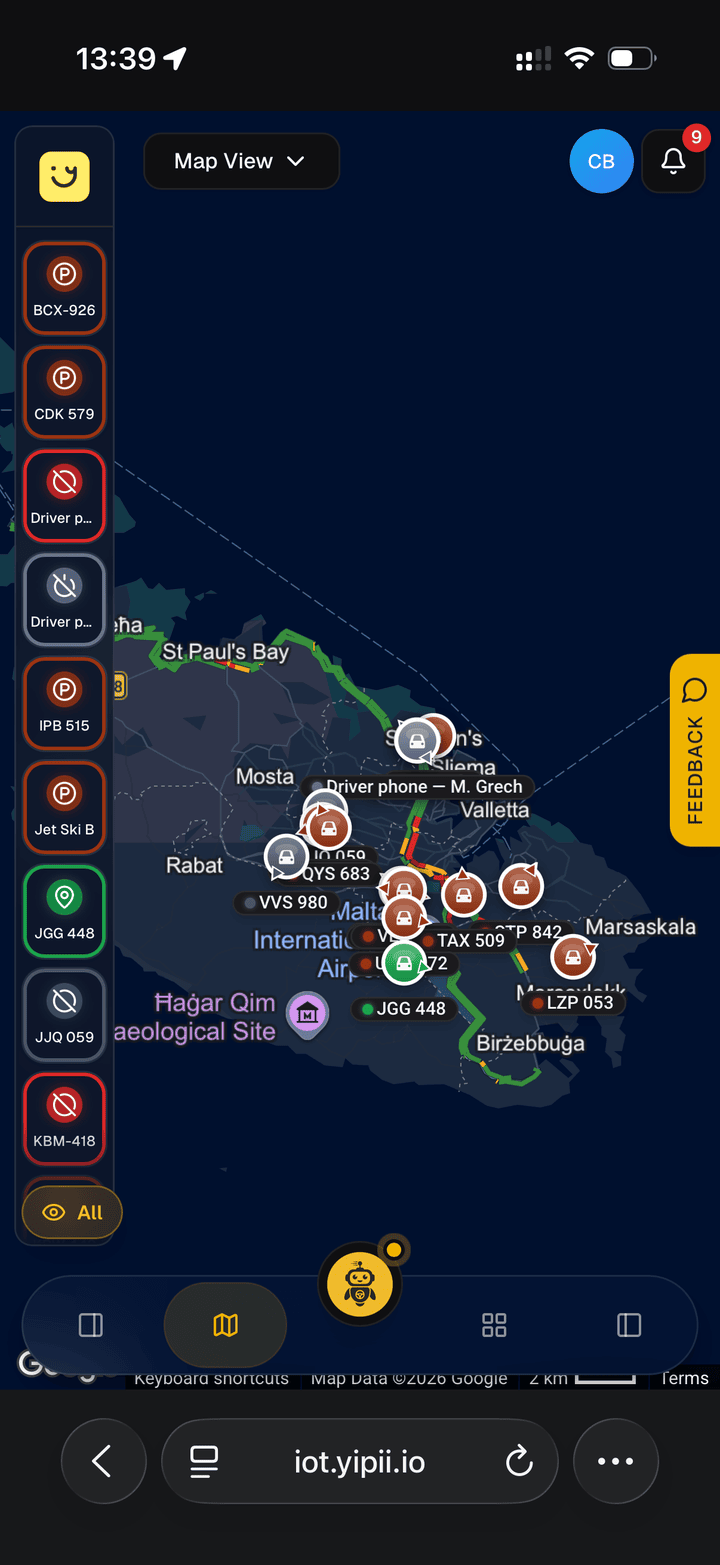
Step 1 of 4
Tap the ••• button
Bottom right of the address bar. On older iOS the Share button is in that bar directly — if you can see it, skip to step 3.
Step 1 of 4: Tap the ••• button
Open iot.yipii.io in Safari.
If you are reading this in Chrome or Firefox on your iPhone, copy the address and paste it into Safari first. The Add to Home Screen option does not exist in any other iOS browser — Apple does not expose it.
Tap the ••• button at the right of the address bar, then tap Share.
On older versions of iOS the Share button — a square with an arrow pointing up out of it — sits in the bottom bar directly, with no menu in front of it. Either route reaches the same sheet.
Scroll down the share sheet and tap Add to Home Screen.
It is below the row of apps and the round action buttons, in the list at the bottom. On a long sheet you will have to scroll — this is the step people give up on. If it is not there at all, tap Edit Actions at the end of the list and switch it on.
Leave Open as Web App switched on, name it — Yipii is the default — and tap Add.
That toggle is the difference between an app and a bookmark. Off, the icon opens Safari with an address bar and you get none of the benefits below.
On Android
Open iot.yipii.io in Chrome.
Tap the three-dot menu at the top right.
Tap Install app, or Add to Home screen on older versions of Chrome.
Chrome sometimes offers this as a banner at the bottom of the screen instead. Either route does the same thing.
Tap Install to confirm.
Yipii also offers to install itself. After you have signed in and done something useful — set up an alert, shared a tracking link — a card appears offering Install. On Android that opens Chrome's install dialog directly. On an iPhone it opens a short guide to the two taps above, because Safari gives no app a way to install itself. The card is not on the sign-in page, and it waits 10 days after you dismiss it.
What happens next
The Yipii icon appears on your home screen — in the app drawer as well, on Android. Launching it from there opens the app full screen with no address bar and no browser tabs.
Two things change once it is installed:
- Push notifications become reliable on iOS. Apple only delivers web push to a site that has been added to the home screen. On an iPhone, an uninstalled Yipii cannot receive push at all — this is the single biggest reason to install rather than bookmark.
- It stays signed in. The installed app keeps its own session, so you are not signing in every time you open it.
You are not installing a separate copy of anything. It is the same site, always the current version, with no app updates to apply.
If it doesn't work
| Symptom | Cause | Fix |
|---|---|---|
| Add to Home Screen is not in the Share menu on your iPhone | You are in Chrome or Firefox on iOS, not Safari. Only Safari has it | Copy the address, open Safari, and try again. If Yipii's own install card is showing, it has a Copy link button for exactly this |
| You scrolled the share sheet and still cannot see it | It is below the app icons and the round action buttons, in the list at the bottom, and on a long sheet it is well down | Keep scrolling, or tap Edit Actions at the end of the list and switch it on |
| Install app is missing from the Chrome menu on Android | It is usually already installed | Check your app drawer for Yipii before trying again |
| The icon opens a normal browser tab with an address bar | On iOS, Open as Web App was switched off in the Add dialog, or it was saved with Add to Bookmarks instead | Delete the icon and repeat the steps, leaving Open as Web App on |
| Push still does not arrive on your iPhone after installing | Permission is granted per install, and the installed app is a fresh surface | Open the installed app and allow notifications there. See push notifications |
| Yipii never offers to install itself | The card only appears after you sign in and do something with the app, is suppressed for 10 days after you dismiss it, and never shows more than twice in one session | Install it yourself with the steps above; the card is a convenience, not the only route |
Related
- Push notifications — the reason to install on an iPhone, and how to switch the alerts on once you have.
- Signing in — the sign-in options, and the PIN for a shared depot terminal.
- Alerts — what will be pushing to that home-screen icon.
Was this page helpful?