

Connect another system
Send WhatsApp and SMS from your own number, show Waze traffic on the map, see drones near your fleet, and bring in Bolt rides — each switched on for the whole account.
Settings › Integrations connects Yipii to other systems you use. Each one is set for the whole account, and can be switched off at any time. This page connects your own WhatsApp number, so alert messages come from your business rather than from Yipii.
Before you start — you need to be an account admin; anyone else sees the page but can't change it. Have the account details from the other system to hand — for WaAPI or UltraMsg, the key from your account with them.
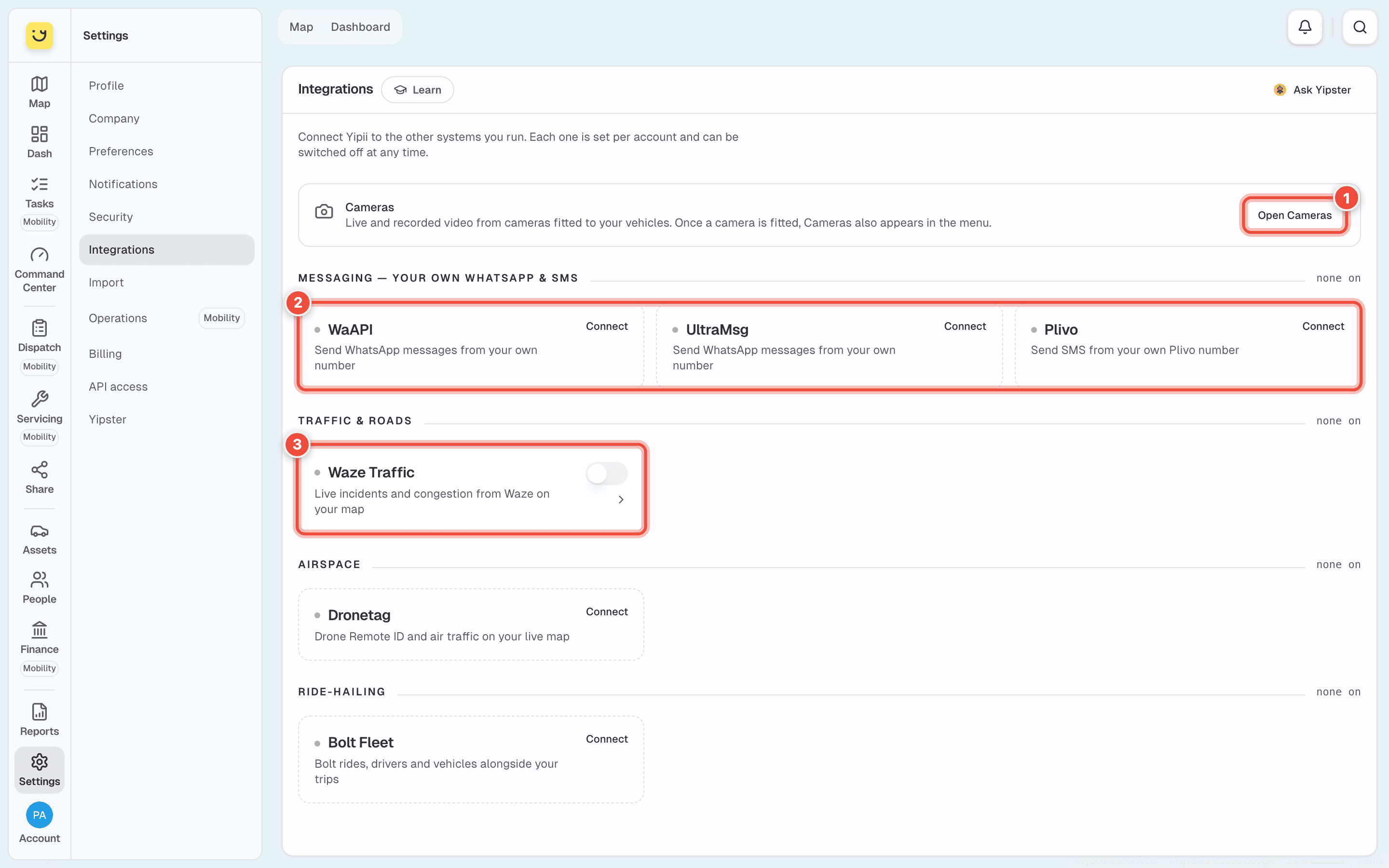
- Cameras — cameras are not set up here. Open Cameras goes to them; once a camera is fitted, Cameras also appears in the menu.
- Messaging — your own WhatsApp & SMS — WaAPI and UltraMsg send WhatsApp messages from your own number; Plivo sends SMS from your own Plivo number.
- Traffic & roads — Waze Traffic shows live incidents and jams on your map. It is on for this account; its switch is in the top-right corner of the card, and › opens what it draws.
Further down are Airspace — Dronetag, drones and air traffic on your live map — and Ride-hailing — Bolt Fleet, Bolt rides, drivers and vehicles beside your trips. The line beside each heading says how many are on, such as 1 of 1 on.
Steps
Go to Settings › Integrations and click Connect on WaAPI (2).
In the window that opens, fill in the details from your WaAPI account. Learn more opens their own guide.
Click Connect.
Open the card with › and click Test to check Yipii can reach your account.
What happens next
The dot on the card turns blue and the heading counts it as on. Alerts that send WhatsApp messages now send them from your number. The card's panel shows the connection: Connected as, Last checked, and Disconnect to remove it.
Opening the connect window again starts with empty boxes: the key you saved is kept, and is never shown again. Leave a box empty to keep what is there.
If it doesn't work
| Symptom | Cause | Fix |
|---|---|---|
| Connect is missing, or the switches can't be moved | You are not an account admin | Ask an admin to connect it |
| Connect stays greyed out in the window | A required box is empty | Fill in every box the other system needs |
| Test fails | The key is wrong, or has expired with the other system | Copy a new key from the other system and connect again |
| Waze incidents don't show on the map | Waze Traffic is switched off, or the layer is hidden on the map | Switch it on here, then check Map options on the map |
| There's no Cameras item in the menu | No camera is fitted to a vehicle yet | Use Open Cameras, or ask us about fitting one |
Related
- Choose who gets told — the alerts that send WhatsApp and SMS.
- Settings — the other Settings pages.
Was this page helpful?