

Settings
Where account-wide settings live: the Settings menu, what each page is for, and where the settings that belong to one part of Yipii went.
Settings holds what applies to you or to the whole account: your profile and password, the company's details and units, notifications, integrations, billing and API access. A setting that belongs to one part of Yipii lives in that part instead — the defaults for tracking links are under Share, the documents drivers must carry are under People — so you change it where you use it.
Open Settings from the menu on the left; it is near the bottom, above your initials. On a phone, tap the section name at the top of the screen and choose Settings. Settings opens on Profile.
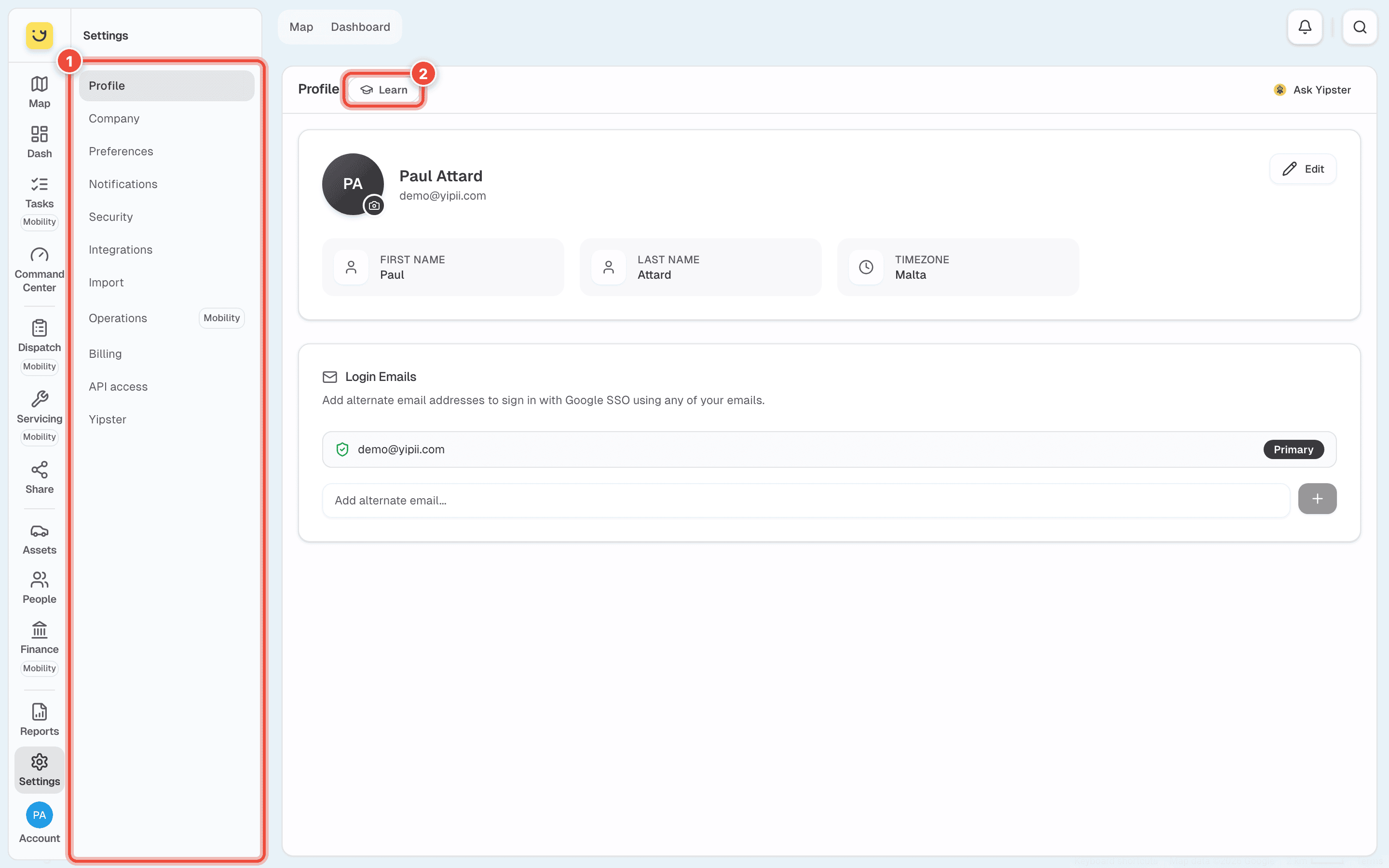
- The Settings menu — every page listed under What is in the menu. On a phone it is the row of buttons along the top; swipe it sideways for the rest. Operations carries a Mobility badge: it is about Yipii Mobility.
- Learn — a short note on what the page you are on is for. Every Settings page has one.
What is in the menu
| Page | What it is for | Who it affects |
|---|---|---|
| Profile | Your name, photo, phone, timezone and the emails you sign in with. See Change your profile, password and PIN. | You |
| Company | The company's details and logo, the colour and contact on tracking pages, currency, timezone and units, fuel prices and home locations. See Set up your company. | Everyone on the account |
| Preferences | Where the menu sits, what shows over the map, how vehicles are drawn. See Choose how Yipii looks for you. | You |
| Notifications | Which account emails and push messages you get. See Choose your notifications. | You |
| Security | Your password, the PIN for this device, and the devices signed in to your account. See Change your profile, password and PIN. | You |
| Integrations | Your own WhatsApp or SMS number, Waze traffic, drone traffic, Bolt. See Connect another system. | Everyone on the account |
| Import | Bring in places, vehicles, routes, passengers, customers or trips from a spreadsheet. See Import from a spreadsheet. | Everyone on the account |
| Operations | What the account runs in Yipii Mobility. See Operations below. | Everyone on the account |
| Billing | What the account pays for, and its invoices. See Billing. | Everyone on the account |
| API access | Your developer plan, its usage and your API keys. See API access. | Everyone on the account |
| Yipster | How many questions are left this month, and Yipster's plan. See Yipster settings. | Everyone on the account |
Billing shows to account admins and office staff only. Operations shows to the roles that run dispatch.
Settings that live somewhere else
These used to be in Settings. Each one moved to the part of Yipii it changes.
| Setting | Where it is now |
|---|---|
| Defaults for new tracking links | Share › Settings |
| Places | Alerts & Automations › Geozones — see Draw a geozone |
| Job types, booking places and zones | Dispatch › Settings |
| Vehicle capabilities | Assets › Capabilities |
| Utilisation targets | Assets › Settings |
| Required documents | People › Settings |
| Task routing | Servicing › Settings |
An old link or bookmark to one of these still works: it opens the new place.
Operations
Operations says what a Yipii Mobility account runs. Yipii sets it for your account; you see it here, and ask us when it should change.
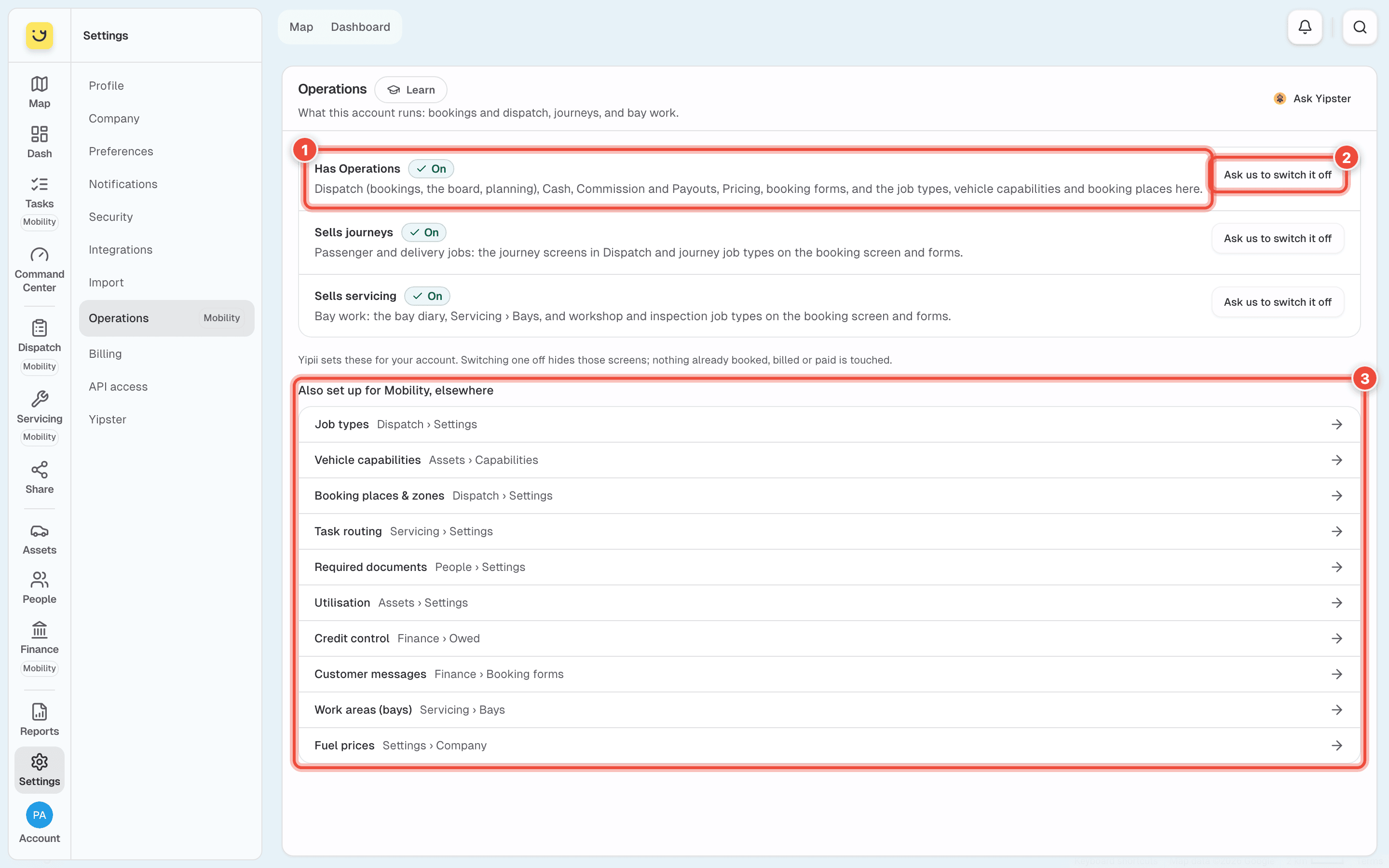
- Has Operations, Sells journeys and Sells servicing — each says On or Off and lists the screens it brings: Dispatch and the booking forms, the journey screens, the bay diary.
- Ask us to switch it off (or on) — opens a message to our team, already filled in. Switching one off hides those screens; nothing already booked, billed or paid changes.
- Also set up for Mobility, elsewhere — each Mobility setting, and the page it lives on. Click a row to go there.
Where to go next
- Set up your company — timezone and units first, before anyone builds a report.
- Choose your notifications — and turn on push on each device you use.
- Change your profile, password and PIN — a PIN makes a shared tablet quicker to sign in on.
- Billing — what the account is on, and its invoices.
Was this page helpful?