

Quick alerts and alerts for one vehicle
Get told when a vehicle arrives at or leaves a place in two taps, and see or add the alerts for one vehicle from its Command Center.
Two shortcuts for the commonest questions: "tell me when it gets there", and "what is this van being watched for?"
Before you start — you need to be an account admin or a fleet manager. The place must be one of your saved places, or you pick it on the map as you go.
Get told when a vehicle arrives or leaves
Click Quick alert. On Alerts it is beside New alert and covers every vehicle. On a vehicle's Command Center it is the Alert button at the top, and asks first whether you mean This vehicle or All vehicles.
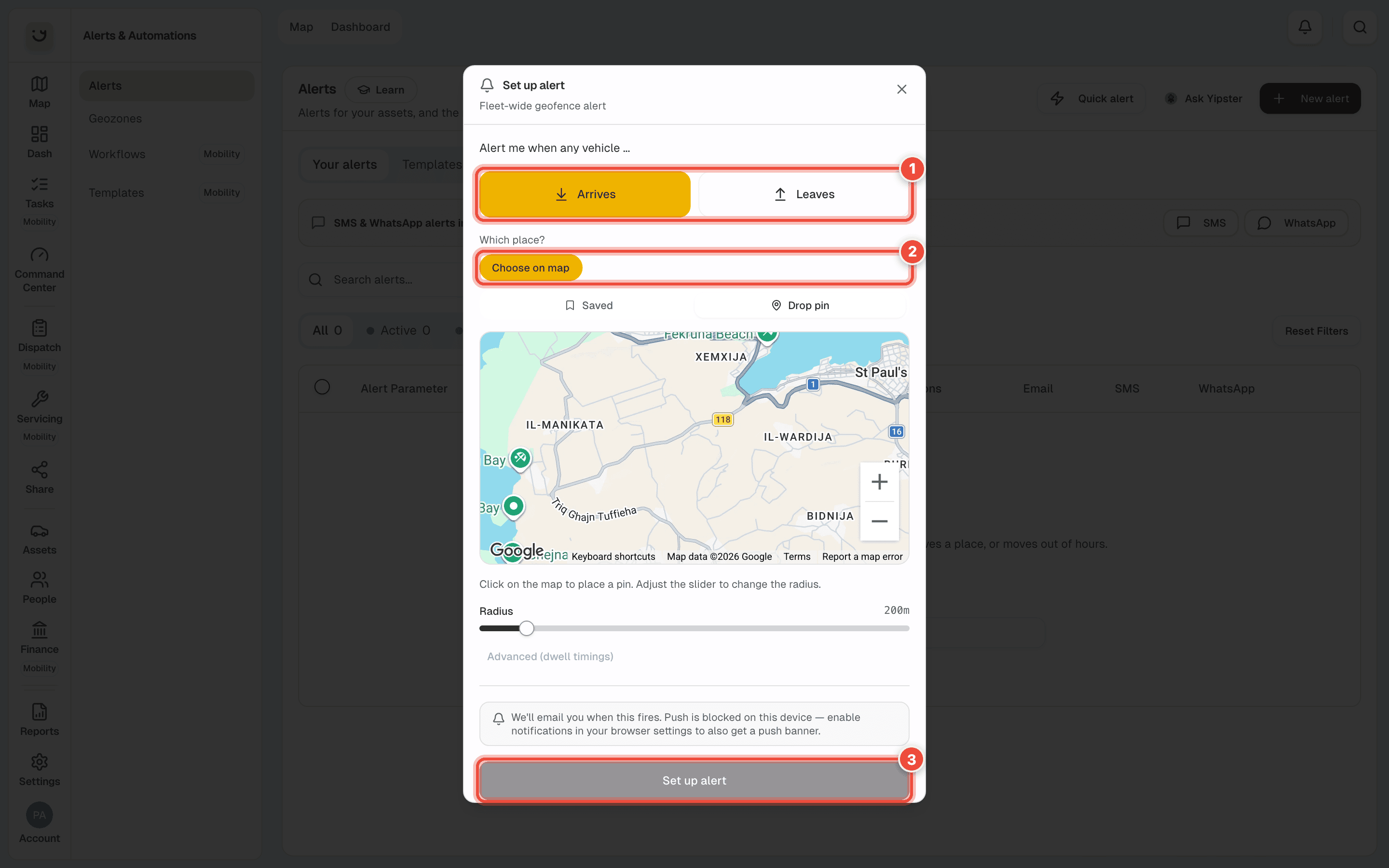
Choose Arrives or Leaves (1).
Under Which place? (2), tap one of your saved places, or Choose on map to drop a pin. From a vehicle's Command Center, Current location is offered first — "tell me when it leaves where it is now".
Click Set up alert (3).
Yipii emails you when it happens, and adds a push banner on every device where you allowed notifications; the grey box above the button says which applies on this one. An alert for This vehicle fires once and is then Used up. One for All vehicles keeps firing, for every vehicle, including ones you add later. Either appears in Your alerts, where you can change who it tells.
See the alerts on one vehicle
Open the vehicle's Command Center — from the map, or Open beside it in Assets.
Click Manage vehicle, top right — Manage on a phone — and choose Alerts for this vehicle.
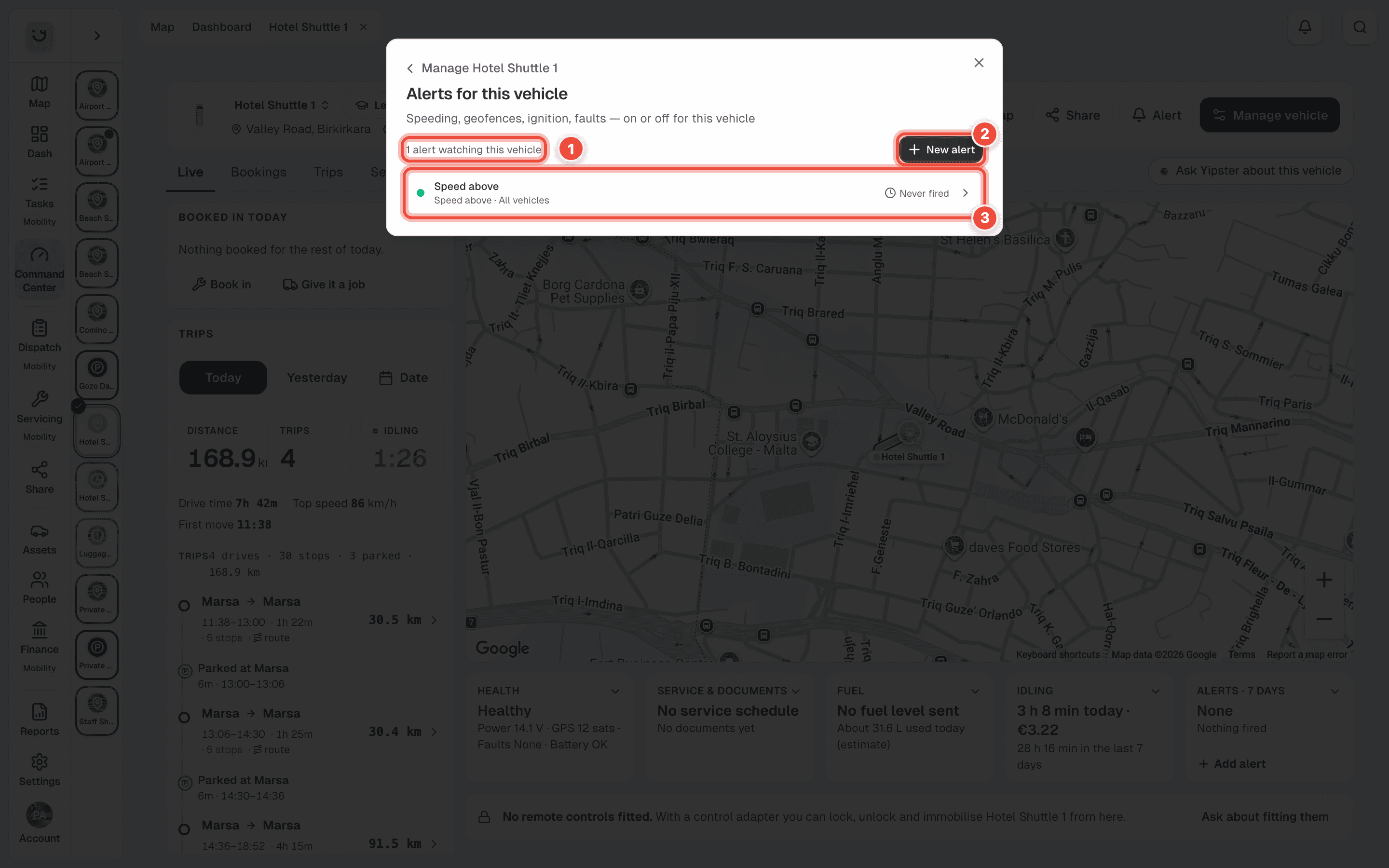
Read the list. The count (1) says how many alerts watch this vehicle — 1 alert watching this vehicle for Hotel Shuttle 1. Each row (3) says what kind of alert it is, whether it is on or paused, and when it last fired — Fired 16h ago, 4× total, or Never fired. An alert that covers more than this vehicle says so: the speeding alert in the picture reads Speed above · All vehicles. Click a row to open the alert and its history.
New alert (2) opens the full alert window. See Set up an alert.
The list includes every alert that watches the vehicle: the ones that name it, the ones for All vehicles, and the ones for a group it belongs to.
If it doesn't work
| Symptom | Cause | Fix |
|---|---|---|
| Set up alert stays grey | Arrives or Leaves, or the place, is not chosen — the line under the button says which | Choose both |
| The place you want is not offered | Only a few saved places are shown | Click Choose on map, or save the place first in Geozones |
| No push banner arrived | This browser blocks notifications | You still get the email. Allow notifications in the browser's settings |
| A group alert isn't in Alerts for this vehicle | The vehicle is not in that group | Add it to the group, or edit the alert's Assets |
| A one-vehicle quick alert fired once and stopped | It is a one-off by design | Choose Re-arm Alert from its ⋮ menu in Your alerts |
Related
Was this page helpful?