

Group your vehicles
Make a group such as Airport runs, put vehicles in it, and move a vehicle that is already in another group. Each vehicle is in one group at most.
A group is a named set of vehicles — Airport runs, Hotel shuttles. Each vehicle is in one group at most, and All assets shows and sorts by it.
Before you start — you need to be an account admin or a fleet manager.
Steps
Go to Assets → Groups and click Add Group.
Type a Name (1), 2 to 50 characters — Airport runs. Description (Optional) is for
whoever reads the list after you.
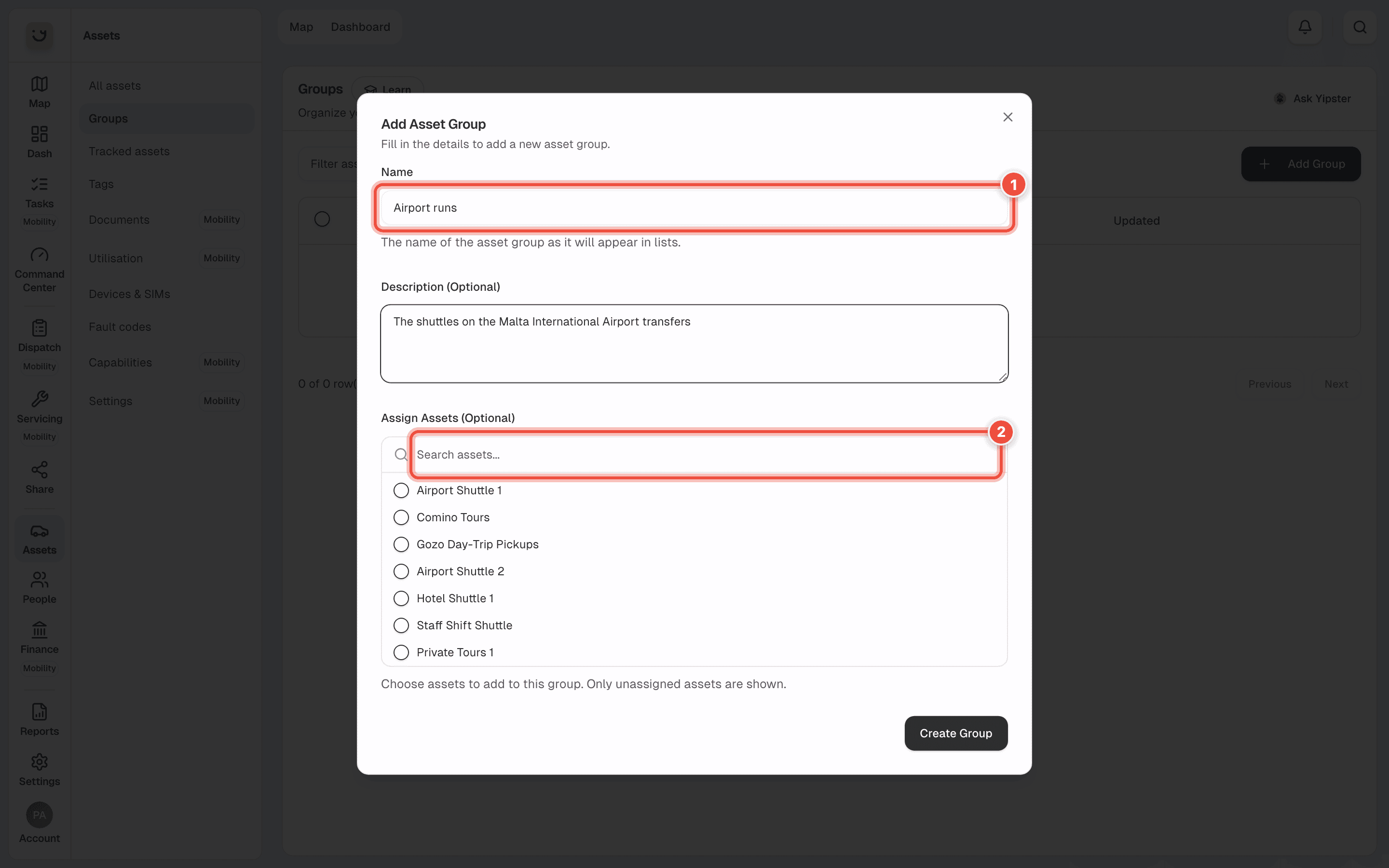
Under Assign Assets (Optional), search (2) and tick the vehicles to put in it — Airport Shuttle 1
and Airport Shuttle 2, for example. Only vehicles in no group are listed.
Click Create Group.
Move a vehicle that is already in a group
A vehicle in another group is not offered in Assign Assets. Move it from All assets instead:
- One vehicle — click its value in the Group column and pick the new group. See Rename a vehicle, or change its group, type or fleet status.
- Several — tick their rows, click Move to group in the bar that appears, and pick the group, or Ungrouped.
What happens next
Yipii says Asset group created successfully, and the group is listed under Groups with the number of vehicles in its Assets column. The vehicles show the group's name in the Group column on All assets.
To rename a group or change what is in it, open the ⋯ menu on its row and click Edit. Delete removes the group and leaves its vehicles ungrouped. The vehicles themselves are not deleted.
If it doesn't work
| Symptom | Cause | Fix |
|---|---|---|
| The vehicle I want is not in the Assign Assets list | It is already in another group | Move it from All assets, as above |
| The list says All assets are already assigned to groups. | Every vehicle is in a group already | Move the ones you want from All assets |
| Group name must be at least 2 characters. | The name is one character | Use a longer name |
| The Assets column shows — | Yipii is still counting the group's vehicles | Wait a moment. It shows the number once the count has loaded |
| The count is one out right after a bulk move | The count catches up a little after the move | Reload the page |
Related
- Assets — the list your groups appear in.
- Tracking links — one link can show every vehicle in a group.
Was this page helpful?