

Choose when an alert can fire
The days and hours an alert watches, a delay so brief spikes don't count, the ignition condition, and alerts that fire once and stop.
An alert that fires at the wrong time gets ignored. Four settings decide when yours counts: the schedule, a trigger delay, the ignition condition and a limit on how many times it fires.
Before you start — you need to be an account admin or a fleet manager. Open the alert's ⋮ menu in Your alerts and choose Edit Alert, or start one with New alert.
Set the days and hours
Open the Schedule tab.
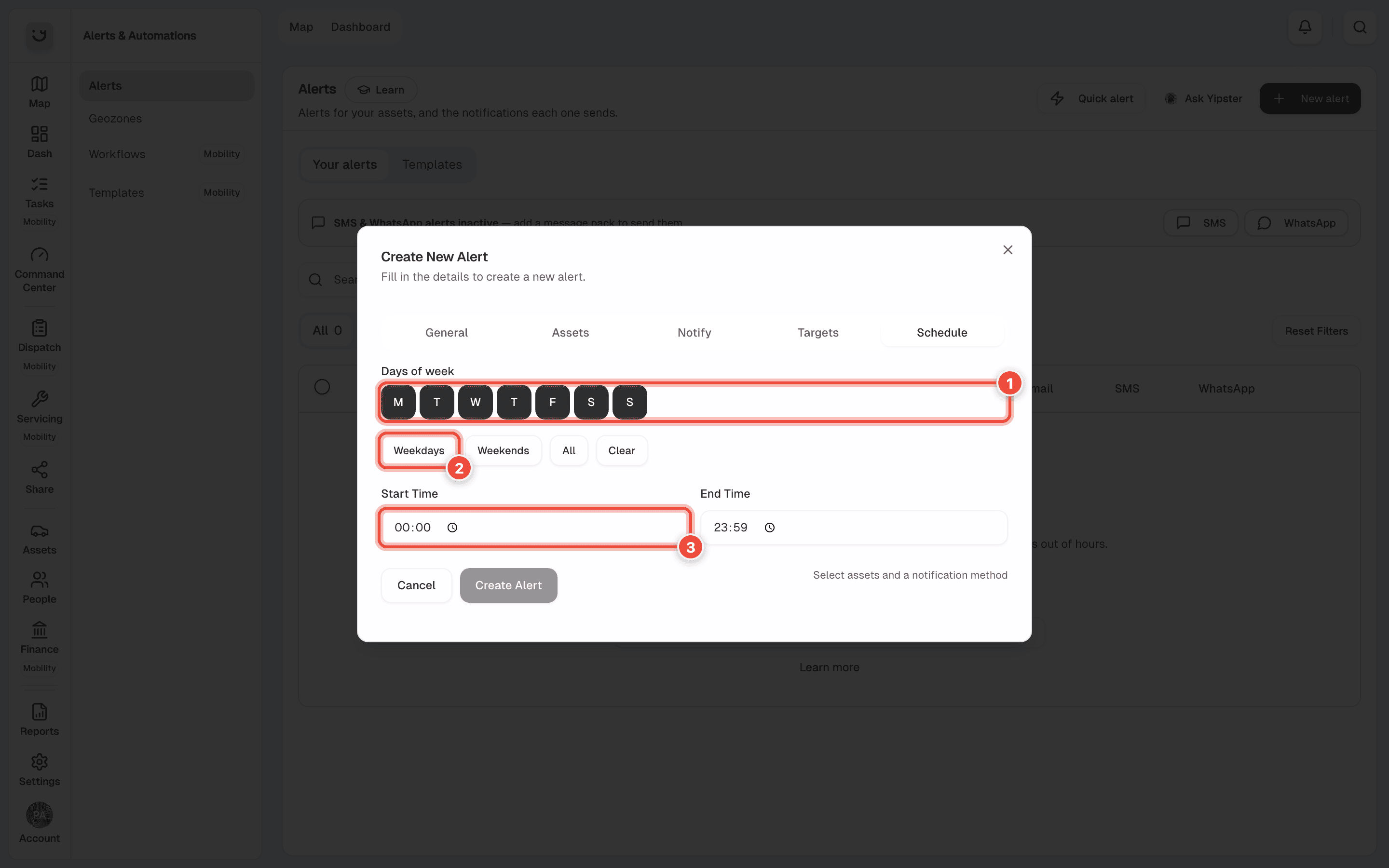
Click each day the alert should watch (1); a dark day is on. Weekdays (2), Weekends, All and Clear set several at once.
Set Start Time (3) and End Time. Outside these hours, on any day, the alert does not fire.
Click Create Alert or Update Alert.
A new alert starts on every day, 00:00 to 23:59 — it watches all the time until you narrow it.
For an alert that only matters in office hours, click Weekdays and set 09:00 to 17:00.
An alert added from Templates also starts on every day, all day.
An alert made before 17 October 2026 may still be on the old starting hours, Monday to Friday, 09:00 to 17:00, and stay silent at night and at weekends. Open it, check its Schedule tab, and click All and set 00:00 to 23:59 if it should watch all the time.
Ignore brief spikes
On the General tab, Trigger Delay makes the condition hold before the alert fires: Sustained for 30 seconds, 1 minute, 2 minutes, 5 minutes or 10 minutes. Fire immediately is the default.
Use a delay for anything a single reading can trip. One jumpy GPS reading can show 120 km/h on a quiet road, and opening a fridge door at a delivery always lifts the temperature.
Only with the engine on, or off
Ignition Condition on the General tab is Always (ignore ignition), Only while ignition is ON or Only while ignition is OFF. "Off" is the one for movement or towing when nobody should be driving.
Fire once, then stop
On the Targets tab, Max triggers limits how many times the alert fires. Leave it blank to
fire every time. Type 1 for a one-off — "tell me when the coach reaches the airport" — and the
alert stops by itself after that.
An alert that has used up its triggers shows Used up in Your alerts. To use it again, choose Re-arm Alert from its ⋮ menu, or edit it and clear Max triggers.
What happens next
The new settings apply from the next reading each vehicle sends. Nothing is sent for what happened outside the schedule while it was off.
If it doesn't work
| Symptom | Cause | Fix |
|---|---|---|
| Nothing at weekends or after 17:00 | The alert was made before 17 October 2026 and kept the old Monday to Friday, 09:00 to 17:00 | Click All and set 00:00 to 23:59 |
| The alert stopped and shows Used up | It reached Max triggers | Choose Re-arm Alert from its ⋮ menu |
| Still too many messages | No delay, so every brief spike counts | Set a Trigger Delay of 30 seconds or more |
| A movement alert fires while the van is being driven | Ignition Condition is Always | Choose Only while ignition is OFF |
Related
- Set up an alert
- Choose who gets told, and how
- Quick alerts and alerts for one vehicle — a one-off "arrives at" alert in two taps.
Was this page helpful?