

See what an alert sent
Every time an alert fired — which vehicle, where, and who was told — plus pausing, editing and deleting an alert.
Each alert keeps its own history: every time it fired, which vehicle, where it was, and the messages that went out. There is nothing to acknowledge or close — an alert is a message, not a job. If something needs following up, give it to someone as a task.
Before you start — you need to be an account admin or a fleet manager.
Steps
Go to Alerts › Your alerts. In the Notifications column, click the count of an alert — 12 sent. It opens the alert's window on Details.
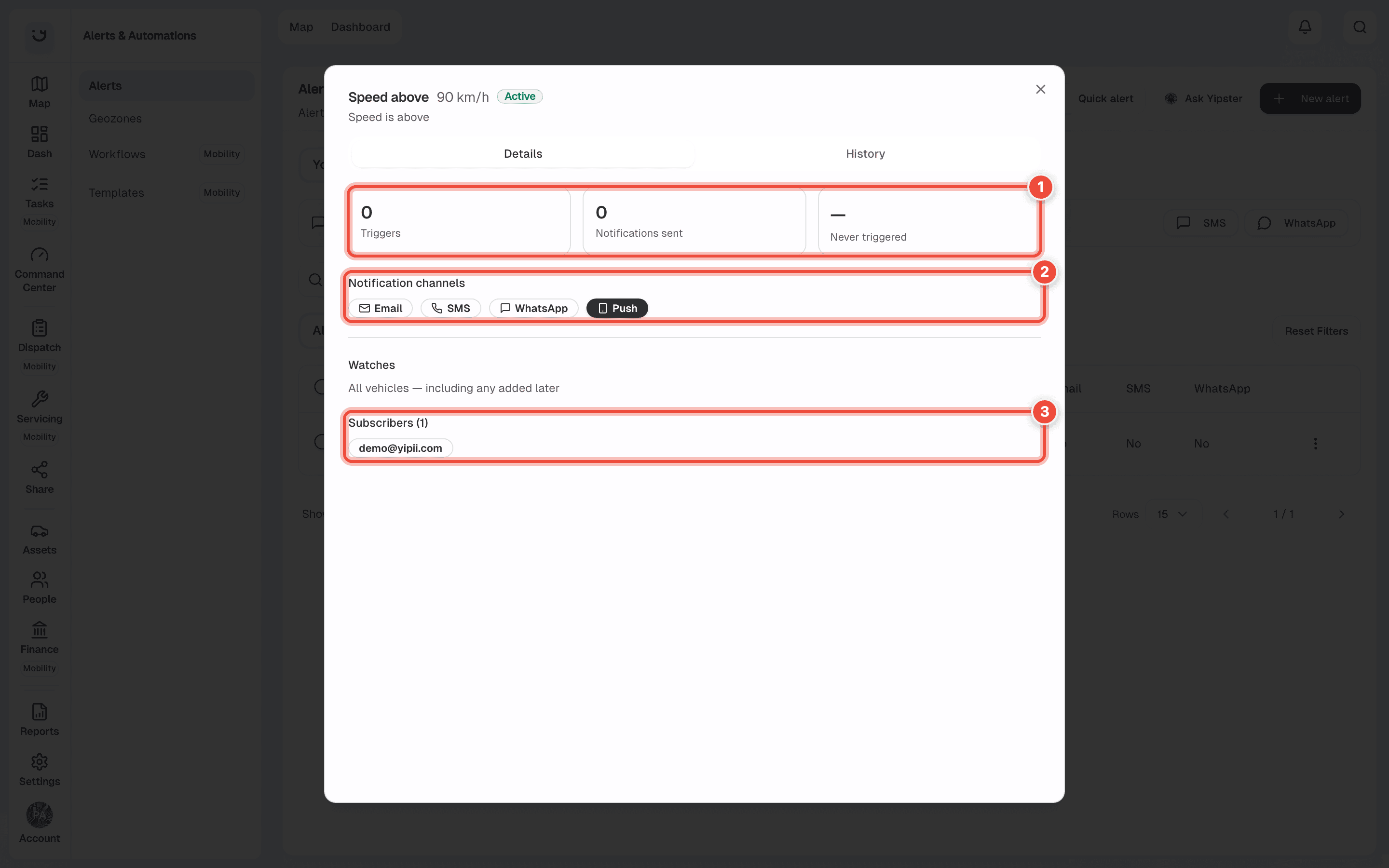
- The counts (1) — how many times it fired, how many messages went out, and how long since it last fired. 6 triggers, 12 notifications means each time it sent two: one email and one push. An alert that has not fired yet reads 0 and Never triggered, as in the picture.
- Notification channels (2) — the dark ones are on. Emails batch into the hourly digest means email is not a priority alert.
- Subscribers (3) — the people on your team it tells, then any external recipients. Watches above them says which vehicles: their names, Group: Vans, or for every vehicle All vehicles — including any added later. The threshold reads as you set it — 90 km/h.
Click History, beside Details.
Each line is one time the alert fired: the vehicle, what happened, the date and time, the road, and how it was sent — 2 messages to 1 recipient when one person got an email and a push. Sent means it went out.
On a phone, tap an alert's card, or choose View details from its ⋮ menu, to open the same window.
Pause, change or delete an alert
The ⋮ at the end of a row (1) opens a menu (2): View Details, Edit Alert, Activate or Deactivate, and Delete Alert. An alert that is Used up also has Re-arm Alert, which lets it fire again. On a phone the card's ⋮ menu has the same items.
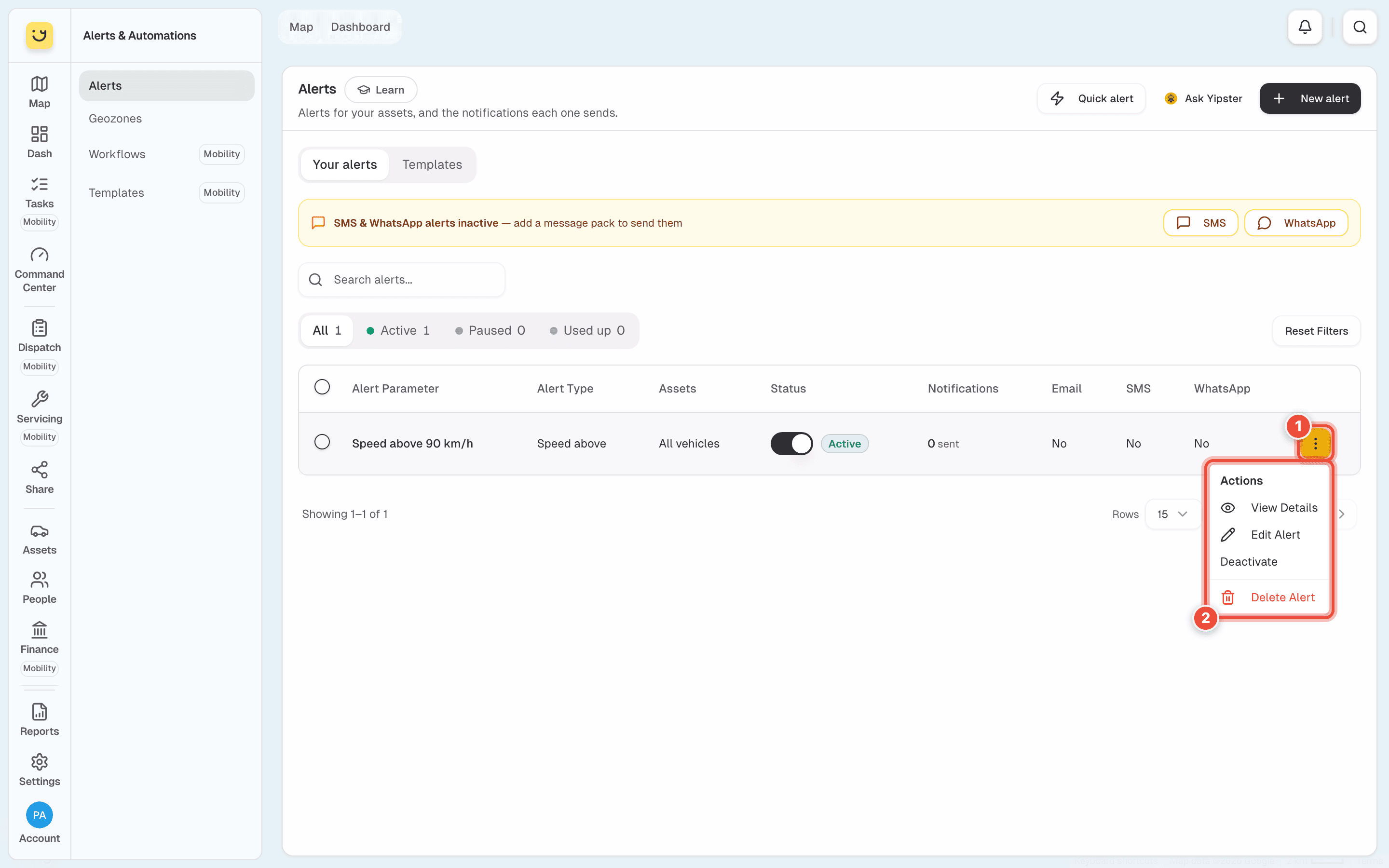
To quieten a noisy alert, Deactivate it rather than delete it: it keeps its vehicles, people and history, and shows as Paused. On a computer, the switch in the Status column does the same. To pause several, tick them and use Deactivate in the bar at the foot of the screen.
Delete Alert asks Delete this alert? first. Once you click Delete, the alert stops firing and leaves your list straight away.
In the Command Center
A vehicle's Command Center has an Alerts · 7 days card. It counts the alerts that fired on that vehicle in the last week, whoever they were sent to, and has Add alert. See Quick alerts and alerts for one vehicle.
If it doesn't work
| Symptom | Cause | Fix |
|---|---|---|
| History is empty | The alert has not fired yet — No notifications yet | Check the vehicles, threshold and schedule. See Choose when an alert can fire |
| It fired but nobody heard | No one is ticked under Recipients, or the channel is off | Open Edit Alert › Notify |
| Fired alerts don't show in the bell | The bell, top right, lists notices from the app — documents, servicing, drivers. Alerts arrive by the channels you ticked | Tick Push Notification for an instant banner |
| You deleted the wrong alert | It is no longer in your list | Set it up again |
Related
- Choose who gets told, and how
- Choose when an alert can fire
- Reports — for a period rather than one event.
Was this page helpful?