

Fit devices with install.yipii.io
The phone app installers and fleet admins use to fit trackers, cameras and beacons: who can sign in, how an installer gets a job code, testing the CAN readings, controls and immobiliser before leaving the vehicle, checking whether a tracker is reporting, and finding the right CAN adapter and mounting scheme.
install.yipii.io is the phone screen for the person standing at the vehicle. It scans a tracker, camera or beacon, shows whether the device is reporting, adds it to a vehicle, and answers "which CAN adapter does this car take?". Everything else — drivers, alerts, the map — stays in the dashboard.
Two kinds of people use it, and they sign in to different places:
| You are | You see after signing in | What you can reach |
|---|---|---|
| An installer working for Yipii or a partner | Start a job — you need a job code | Only the customer the code is for, until the job ends |
| A fleet admin or fleet manager fitting your own devices | Your account (or a choice of accounts, if you have several) | Your own account |
A driver or another role can sign in and read the compatibility list, but cannot check or add devices — the app says so instead of showing an empty screen.
Before an installer can start
An installer is never added to the customer's account. Two things are needed instead:
- The installer is approved. They apply once at install.yipii.io → Become an installer, confirm their email, and Yipii approves them. Until then they see Application under review.
- A job code for this customer. One code covers one customer, for a limited time
(seven days unless set otherwise), and can be capped at a number of devices. Ask Yipii support for one. The installer receives it as a code or as a
link (
install.yipii.io/j/…) that opens the job directly.
If the customer has no Yipii account yet, the installer does not need a code: on Start a job they tap New client? Set up their account, enter the company and its admin, and the job starts straight away. The admin is emailed a link to set their password.
Adding an installer to your account as a user does not give them the installer screens — an approved installer always signs in to Start a job. Send a job code instead. It ends by itself, and it never shows them your other customers or your drivers.
The home screen
Sign in at install.yipii.io. An installer enters the job code and taps Start job; a fleet admin with more than one account picks the account.
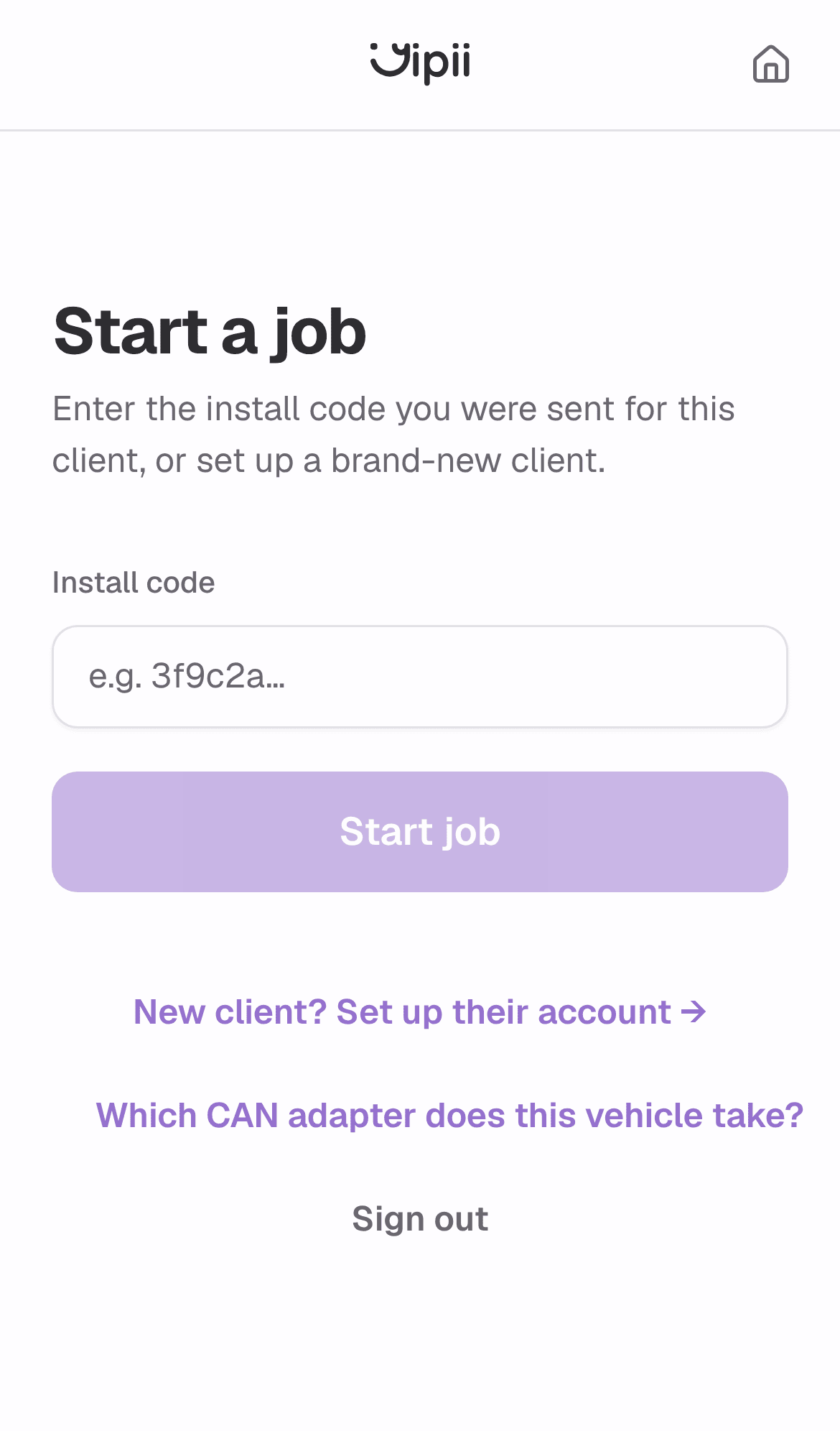
The home screen lists what you can do for this customer. On a job, the strip at the top shows the customer, how many devices this job has installed, and the home and end job buttons.
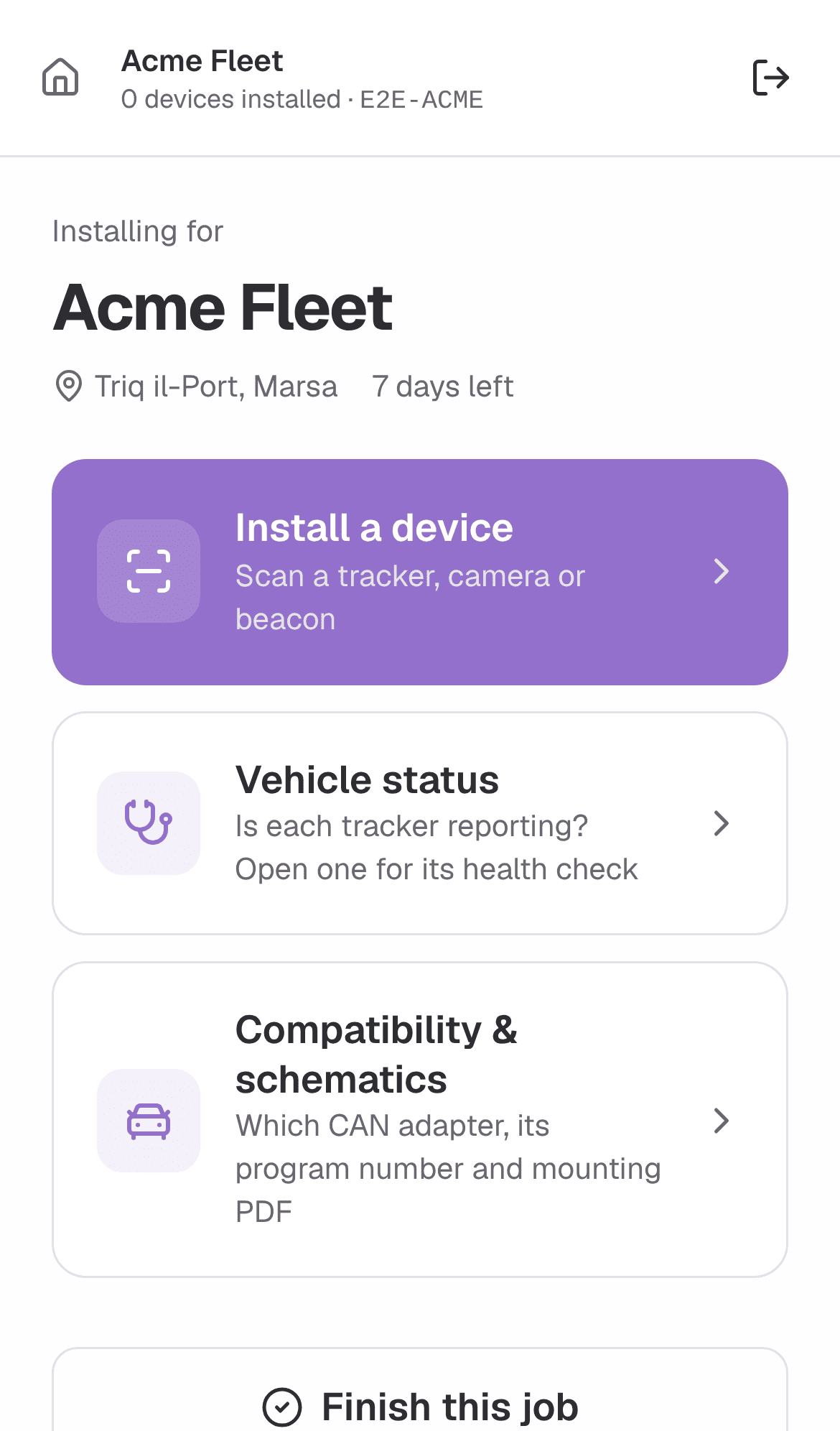
| Tile | Use it to |
|---|---|
| Install a device | Scan or type the IMEI of the tracker, camera or beacon you are holding, check it is reporting, and add it to a vehicle |
| Vehicle status | See every vehicle on the account and whether its tracker is reporting — for a callback, or to check last week's installs |
| Compatibility & schematics | Look up a make and model: which CAN adapter to fit, its program number, and the mounting PDF |
| Switch account | Only shown to a fleet admin with several accounts |
Install a device
Tap Install a device, choose GPS Tracker or Beacon / Sensor, and point the camera at the QR code on the label — or tap Enter IMEI and type the 15 digits.
Power the device. The banner at the top turns green, Good install, when the tracker is connected, on external power in the normal range, has a GPS fix and reports its ignition. Amber Almost there lists what is still missing; red Not working yet is something to fix before you leave. The screen refreshes every few seconds on its own.
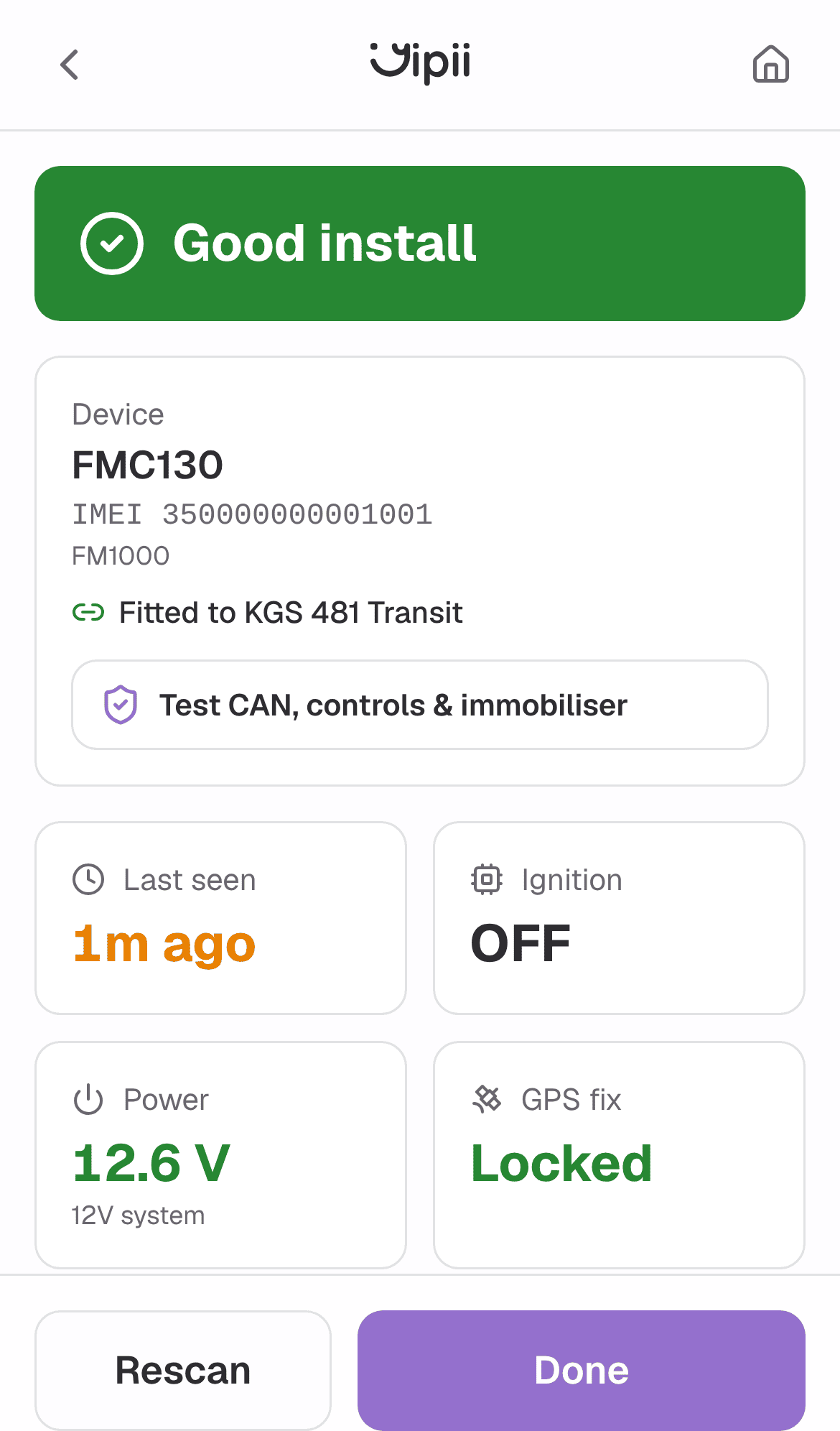
Tap Confirm & Attach (installer) or Add to my account (fleet admin), and name the vehicle — the plate is the name everybody will recognise. A tracker that has never connected is reserved instead and links itself the first time it reports.
For a camera, register it before you power it at the vehicle; the next screen shows its live picture so you can aim it.
An installer on a job is then asked which CAN adapter is fitted, and can send its program number. Choose No adapter if there is none.
Test the fitting — see below — then the install photos, which are optional: Skip if you have none.
Test the fitting
The test screen shows that the adapter, the vehicle's controls and the immobiliser actually work, before you leave the vehicle. It follows the adapter step on a new install, and any fitted device has a Test CAN, controls & immobiliser button on its page — so you can test a van you fitted last week, or one you have come back to fit a relay to.
The top line says what is fitted (CAN-CONTROL + IMMO · 16215) and whether the vehicle bus is talking. Everything below refreshes every three seconds.
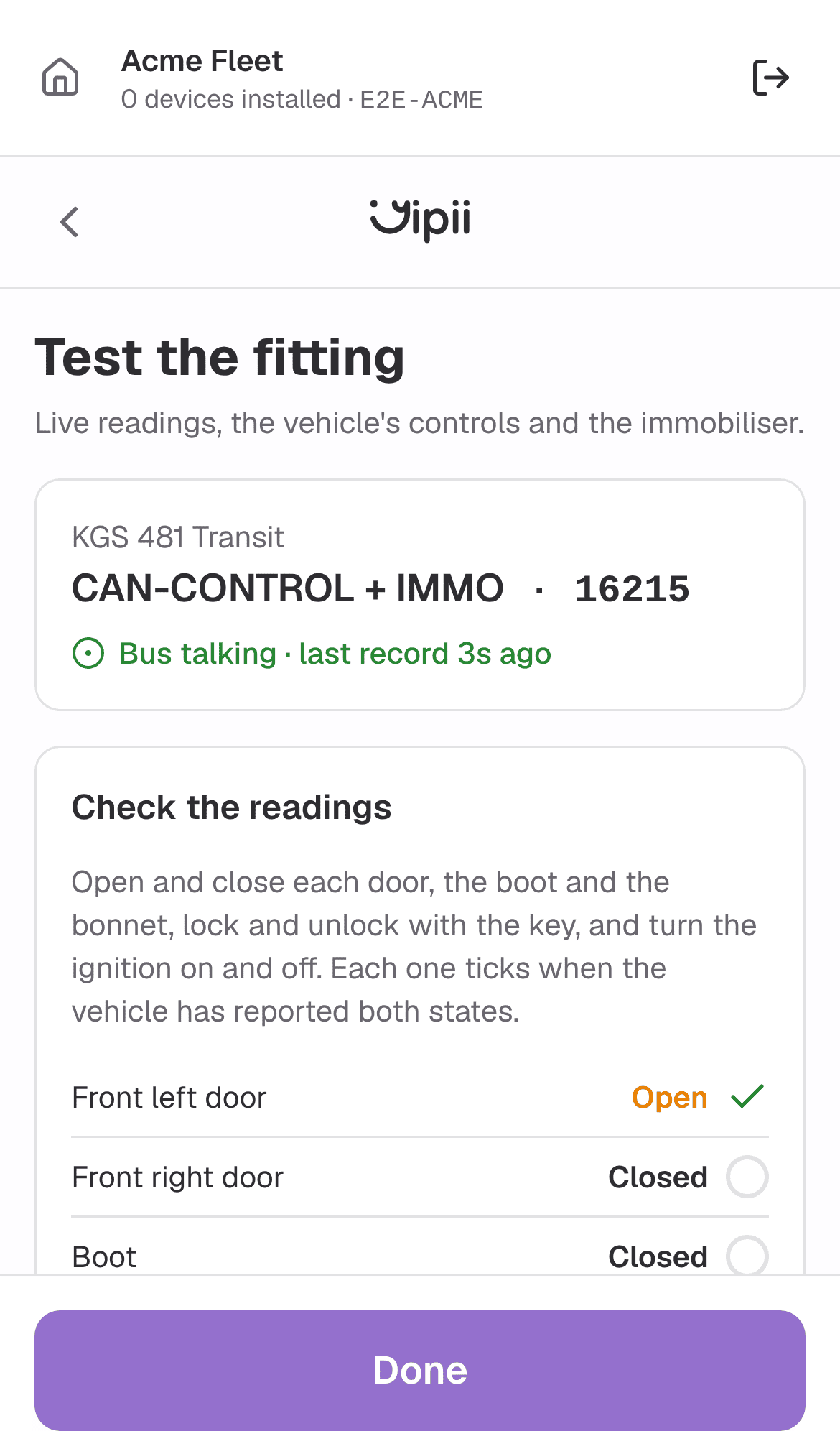
Check the readings. With the ignition on, open and close each door, the boot and the bonnet, lock and unlock with the key, and turn the ignition on and off. Each line ticks once the vehicle has reported it in both states. Fuel, odometer, RPM and battery read live. A line that never appears is one this vehicle does not send — not one that is broken. If nothing arrives at all, check the adapter's wiring and its program number.
Test the controls. Only the controls this vehicle supports are shown (Not on this vehicle: horn, indicators lists the rest). Press each once and watch the vehicle; under each button is what became of the command. Do not press twice to retry — the adapter treats each command as a toggle.
Test the immobiliser, with the vehicle parked, the ignition off and the customer's agreement: press Immobilise and confirm, try to start the engine — it must not start — then press Release and start it. Always release before you leave.
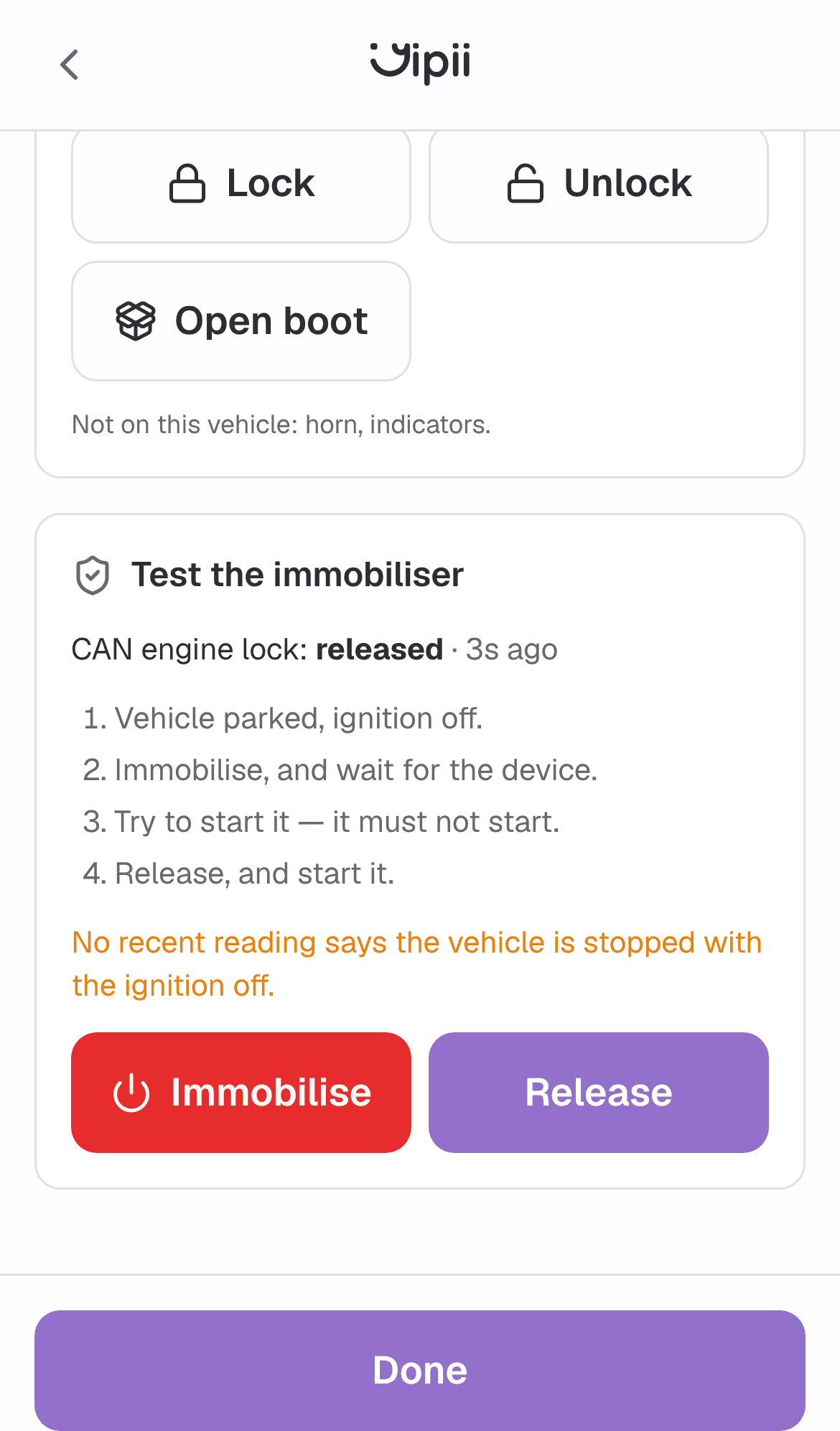
How the immobiliser test behaves depends on what is fitted:
| Fitted | What happens | Reads back |
|---|---|---|
| CAN-CONTROL + IMMO adapter | The engine is blocked over the vehicle bus. The server refuses while the ignition is on | immobilised / released, from the vehicle, seconds later |
| A relay on the fuel pump | The relay cuts the fuel pump once the vehicle is slow enough to stop safely. Sent by SMS, so the tracker needs a SIM number on record | immobilised, cutting off (still moving) or released, on the tracker's next record |
| A driver-list relay | Nobody commands it — it blocks until an authorised driver tag is read | Tap Read the relay output with no tag, then with one |
Fitted a relay? A vehicle with no immobiliser recorded asks which output drives it. Choose DOUT1 or DOUT2 and tap Record relay — this sends the cut-off configuration to the tracker, and then Immobilise and Release appear. A fleet admin testing their own vehicle sees the readings, controls and immobiliser too, but recording a relay is for the installer who fitted it.
Check whether a vehicle is reporting
Tap Vehicle status. Search by name, plate or IMEI. Each vehicle shows a dot for its worst device, and each device how long ago it last reported:
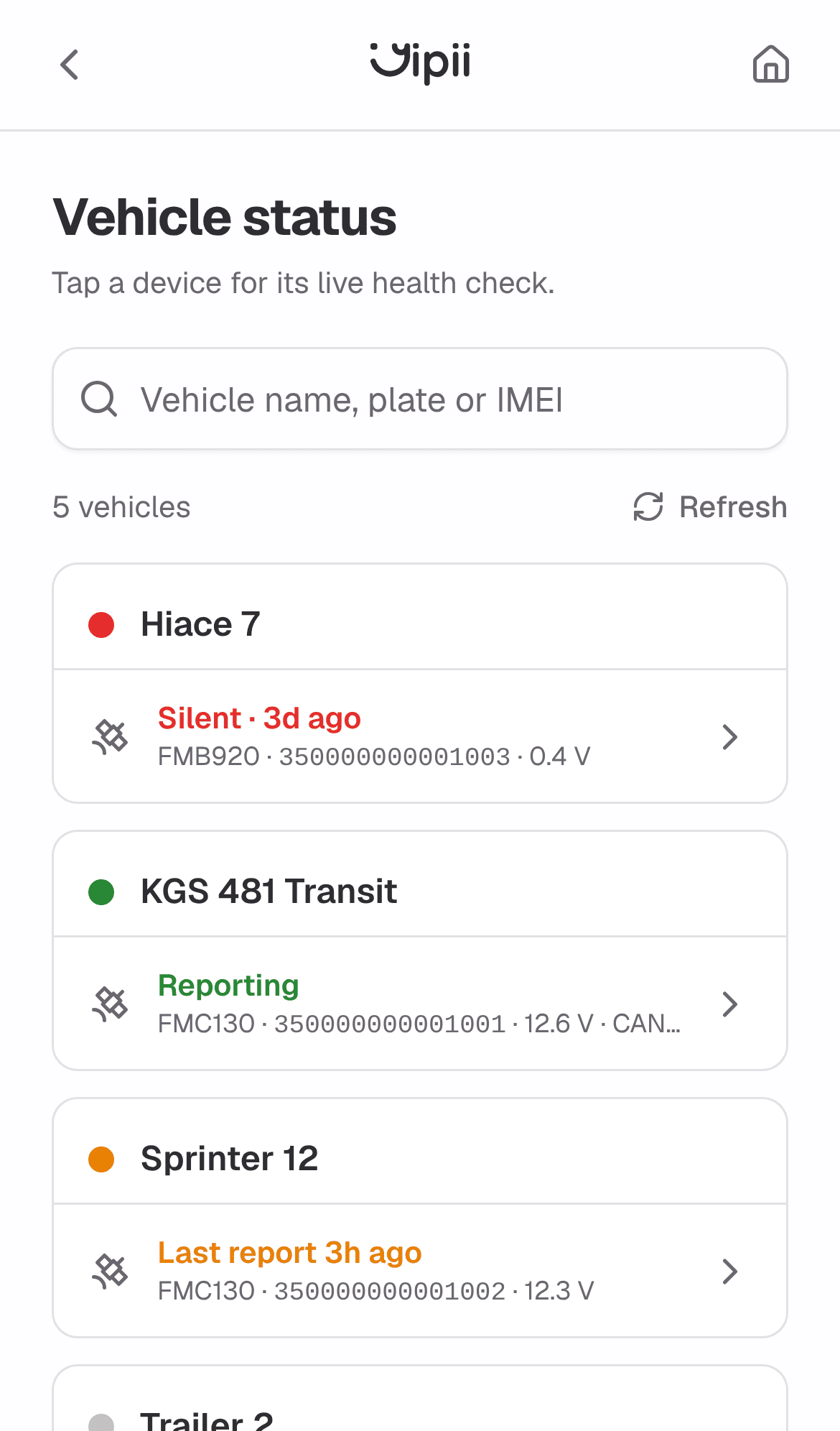
| Reads | Means | Do |
|---|---|---|
| Reporting (green) | A report in the last 15 minutes | Nothing |
| Last report 3h ago (amber) | Quiet for under a day — usually parked with the ignition off | Turn the ignition on and wait a minute if you need it live |
| Silent · 3d ago (red) | Nothing for over a day | Open it — the health check says why |
| Never reported | The tracker is on the vehicle but has never been heard from | Check power and the SIM |
| No tracker fitted | The vehicle has no device | Install one |
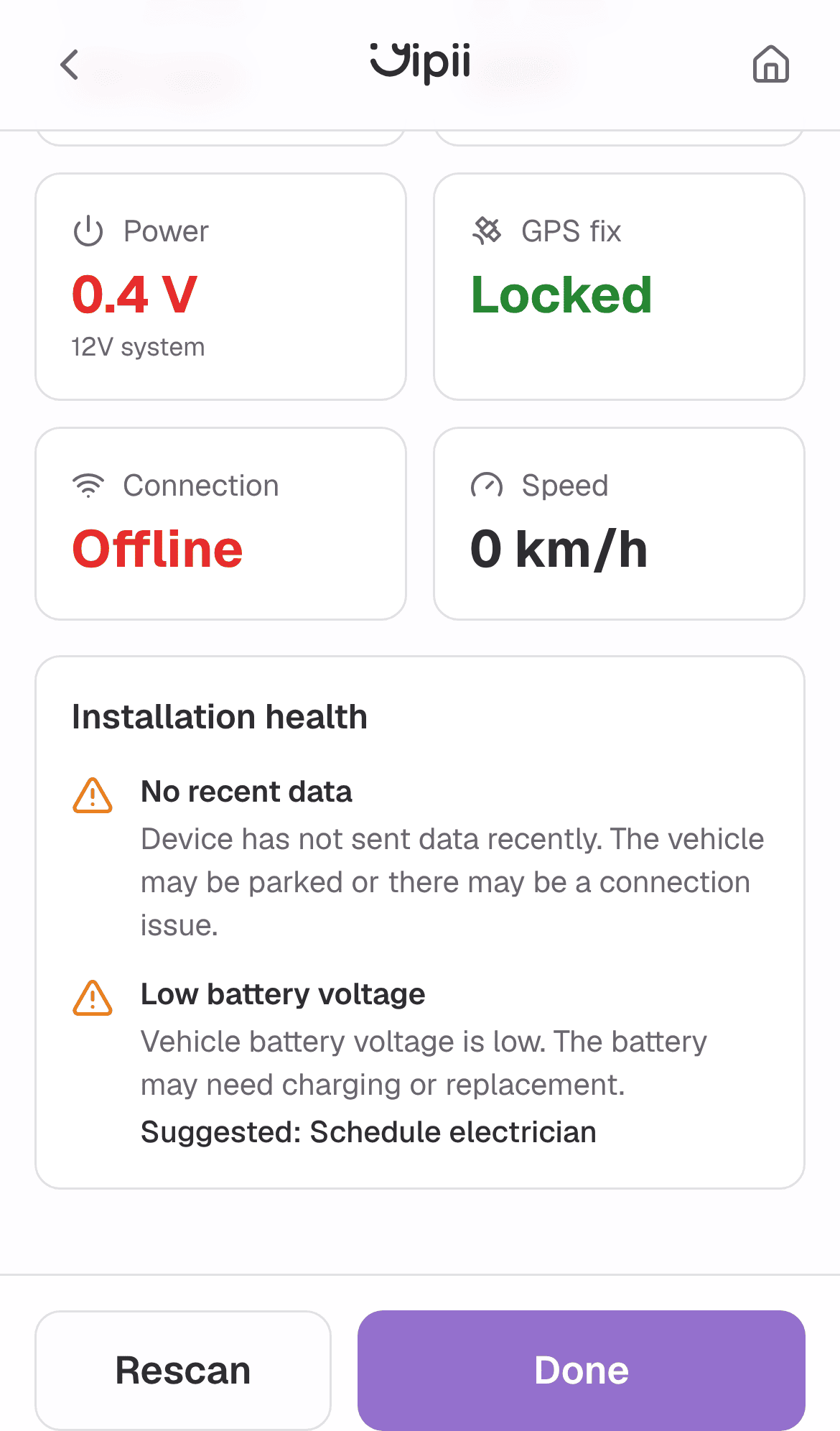
Tap a device to open its live page. Under the six readings, Installation health is Yipii's own check of that device in plain words — power, wiring, GPS, SIM, a cut cable — with what to try next. A device already fitted to a vehicle on this account says Fitted to … and offers Done rather than adding it again.
Compatibility & schematics
Compatibility & schematics answers which adapter a vehicle takes before you open the dash. Filter by make, model, year and the functions the customer wants (door locks, engine block, immobiliser); each vehicle shows CAN-CONTROL and CAN-CONTROL + IMMO side by side, the program number, and its mounting scheme. Every scheme you open stays on the phone, so it still opens in a basement with no signal — the home tile counts how many are saved.
Ending a job
Tap Finish this job on the job home, or the exit icon in the top strip. Finishing is final: the code stops working, and the customer needs to ask for a new one if you have to come back. A job also ends on its own when it runs out, or if Yipii withdraws it — the app then takes you back to Start a job with a message.
If it doesn't work
| What you see | Why | What to do |
|---|---|---|
| This install job code is not valid | The code has expired, been used up, finished, withdrawn, or was redeemed by another installer | Ask for a new code |
| Application under review after signing in | Your installer application has not been approved yet | Wait for the approval email |
| Can't check this device / Unauthorized action | Your role on this account cannot manage trackers (only admins and fleet managers can) | Ask an admin, or have an installer use a job code |
| This device is not available for this install job | The tracker belongs to another customer, or is fitted to a vehicle elsewhere | Moving a tracker between customers is done by Yipii support |
| Waiting for device… that never changes | The tracker has no power, no SIM data, or has not been registered with the server yet | Check the fuse and the SIM; a brand-new tracker can take a few minutes on first power-up |
| Tracker reporting, but no CAN data on the test | The adapter is not talking to the tracker, or has the wrong program number | Check the adapter's wiring and connector, and its program number on the adapter step |
| This vehicle does not support … / a control missing | The vehicle's entry in Teltonika's list does not include it | Nothing to fix — it is not available on this vehicle |
| Immobilise refused: requires the CAN-CONTROL + IMMO adapter | A plain CAN-CONTROL cannot block the engine | Fit the IMMO adapter, or a relay |
| A relay cannot be recorded: did not list that output | The tracker's last output reading has no such DOUT | Check which outputs the unit has, and wire the relay to one of them |
| Immobilise stays not reported yet | A relay acts only once the vehicle is slow enough, and is armed by SMS, which can take a minute; a CAN engine lock reports only if that element is enabled in the tracker's configuration | Wait a minute; if the engine still starts, ask Yipii support to check the tracker's configuration |
| The camera opens but nothing scans | The QR label is damaged or too close | Tap Enter IMEI and type the number from the label |
Was this page helpful?